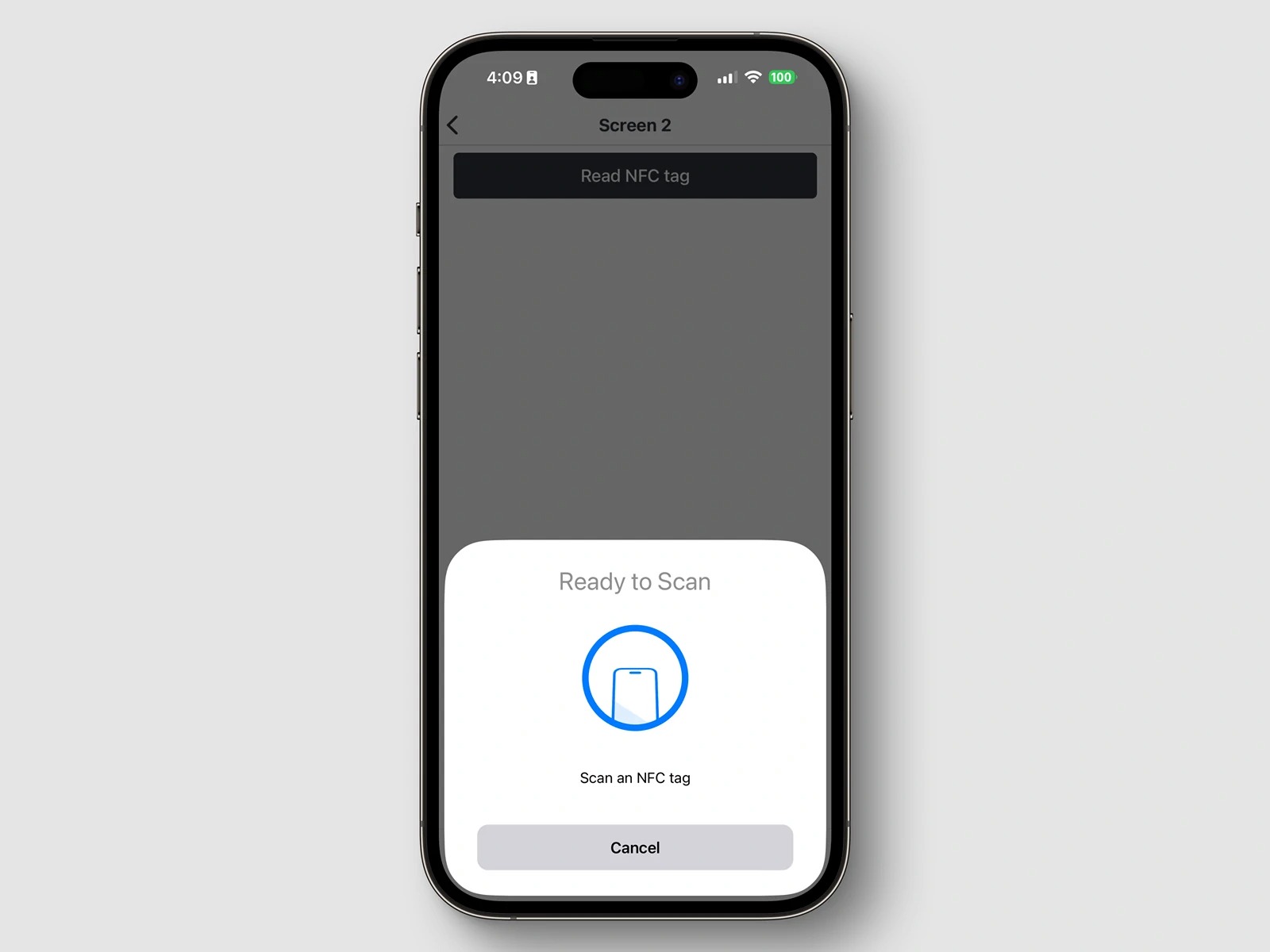
An NFC tag reader is any device, most often a modern smartphone, that uses radio waves to power and read data from a passive NFC tag. When you hold your phone near an NFC sticker or smart poster, the reader in your phone activates the tag wirelessly and pulls the information it stores, such as a website link, a contact card, or a command to automate a phone setting.
What is an NFC tag reader?
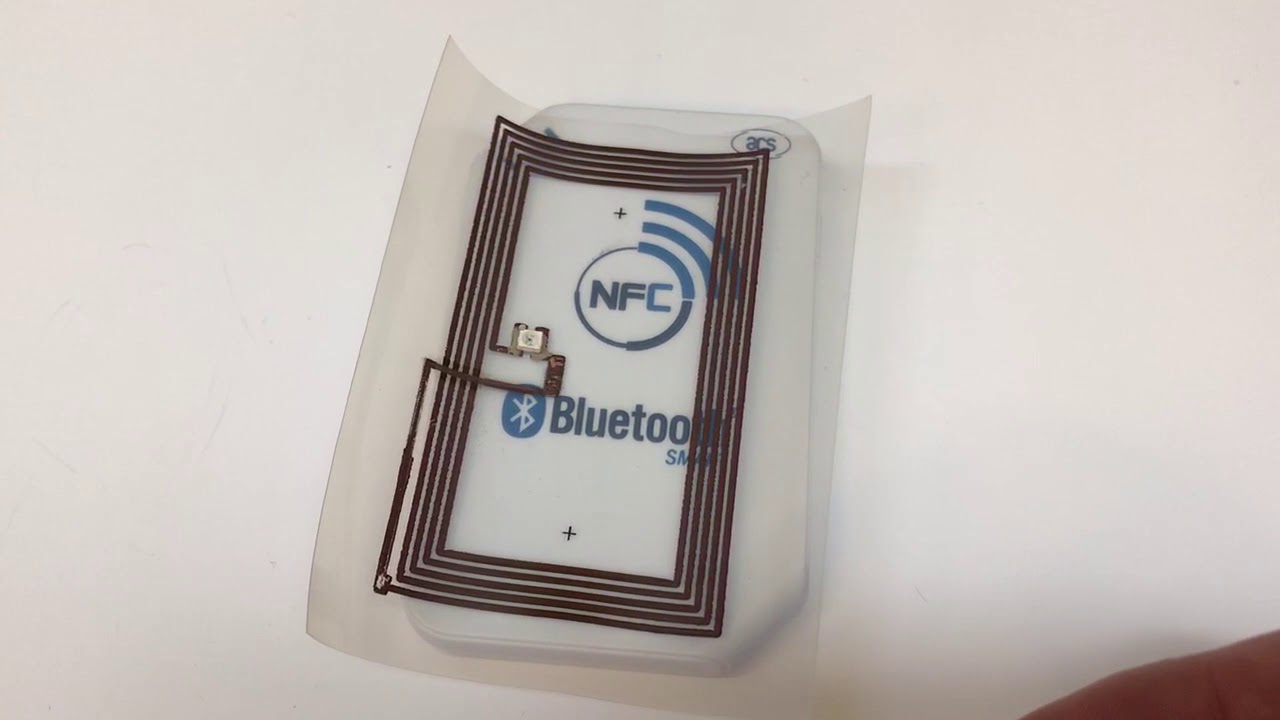
An NFC tag reader is a device or software component that communicates with passive NFC tags using radio frequency identification (RFID) technology. The reader emits a low-power radio signal that energizes the tag's microchip, allowing the tag to transmit its stored data back to the reader. Most modern smartphones (Android and iPhone) function as NFC tag readers, alongside dedicated NFC reader devices. The reader operates in reader/writer mode, meaning it can both read data from and write data to passive NFC tags and stickers. This is the core of how NFC tags and readers explained in practical use, your phone becomes the active component that powers and interprets the tag's information.
How to use your phone as an NFC tag reader
On Android
- Open the Settings app.
- Tap Connections.
- Tap NFC and contactless payments.
- Tap the switch to turn NFC on.
You can also enable NFC from the Quick settings panel. Swipe down from the top of the screen twice to access your quick settings, then swipe left to see more options and tap NFC to turn it on or off. To add NFC to your Quick settings permanently, swipe down, tap the three vertical dots for More options, select Edit buttons, then touch and hold the NFC icon and drag it into the Quick settings panel, then tap Done.
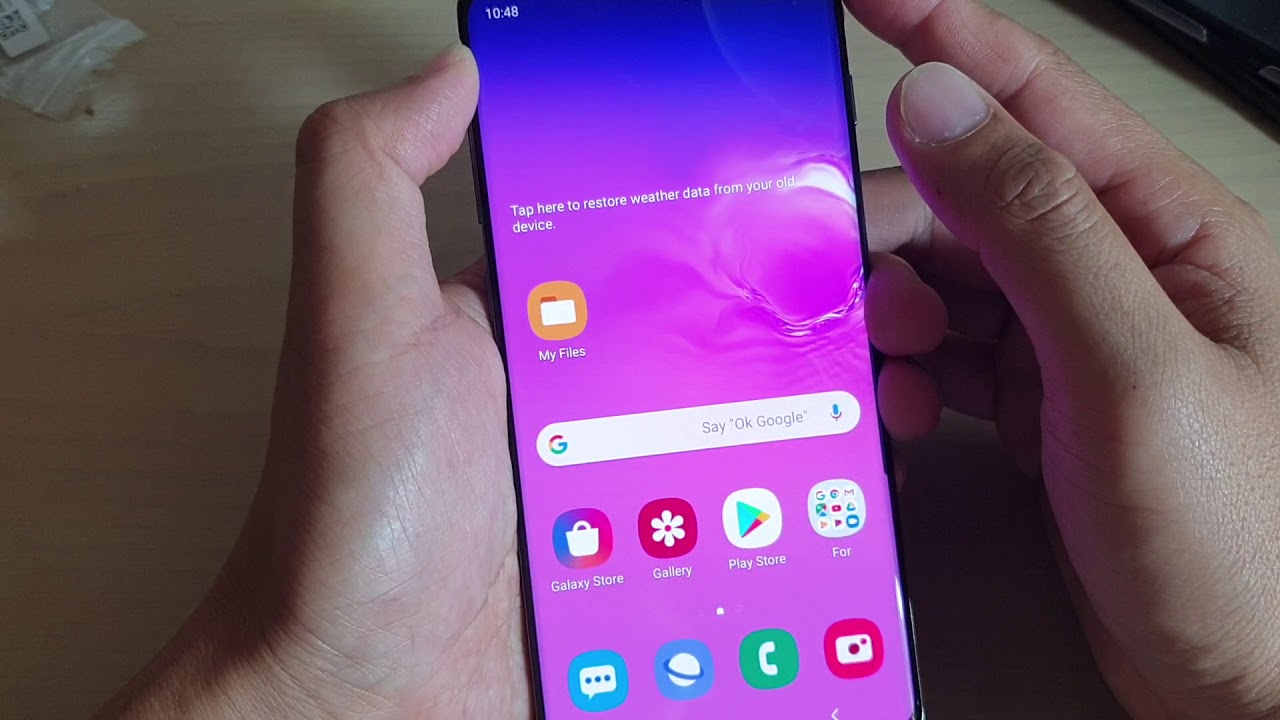
Samsung Z series, S series (S21, S20, S10, S9, S8, S7 models), and A series devices support NFC. Google Pay is compatible with most modern Android devices (phones, tablets, and Wear OS) running Android 9.0 or higher with NFC and HCE (Host-based Card Emulation) support.
On iPhone
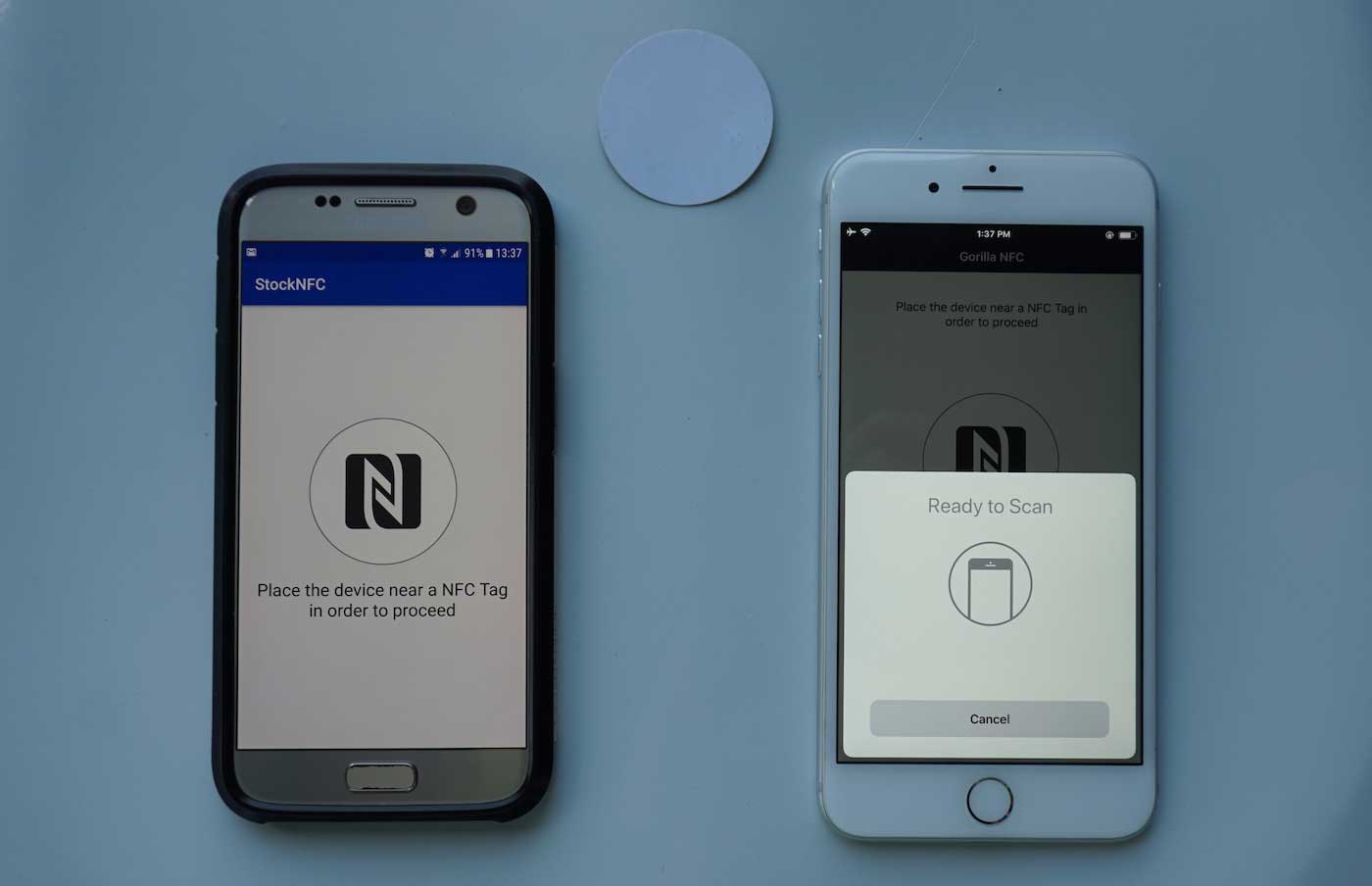
Newer iPhones (iPhone XS, XR, and later models) support Background Tag Reading, which automatically scans NFC tags when the screen is illuminated without needing to open an app or enable a specific setting. To scan a tag, an iOS device needs to be in close proximity to the tag, not necessarily touching it. Apple recommends using terms like scan and hold near instead of "tap" and "touch" when instructing users. For devices that do not support background tag reading, an app must provide an in-app method for scanning tags, this involves opening the app and holding the iPhone near the tag to trigger a scanning sheet.
To configure an app to detect NFC tags (developer steps): Turn on 'Near Field Communication Tag Reading' under the Capabilities tab for the project's target. This adds the NFC tag-reading feature to the App ID and the Near Field Communication Tag Reader Session Formats Entitlement to the entitlements file. Add the NFCReaderUsageDescription key as a string item to the Info.plist file, providing a description of why the app requires NFC reader access. If the app attempts to read a tag without this key and string, the app will exit. To start a reader session (developer steps): Create an NFCNDEFReaderSession object by calling the init(delegate:queue:invalidateAfterFirstRead:) initializer method. Pass the reader session delegate object, the dispatch queue for delegate method calls, and the invalidateAfterFirstRead flag to determine if the session reads a single tag or multiple tags. Set the alertMessage property to provide user instructions, such as 'Hold your iPhone near the [object name] to learn more about it.'
Common uses for NFC tag readers
Contactless payments
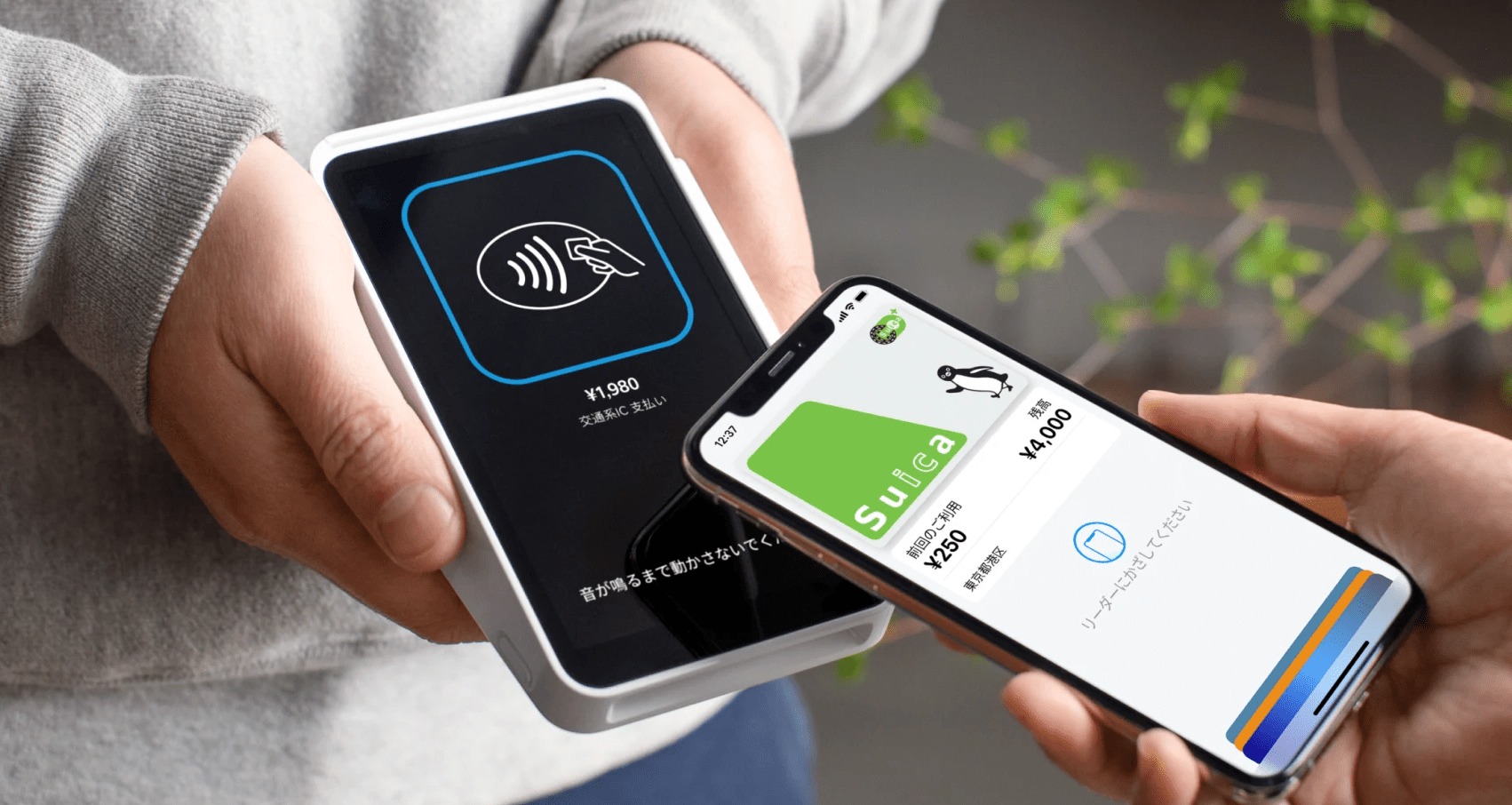
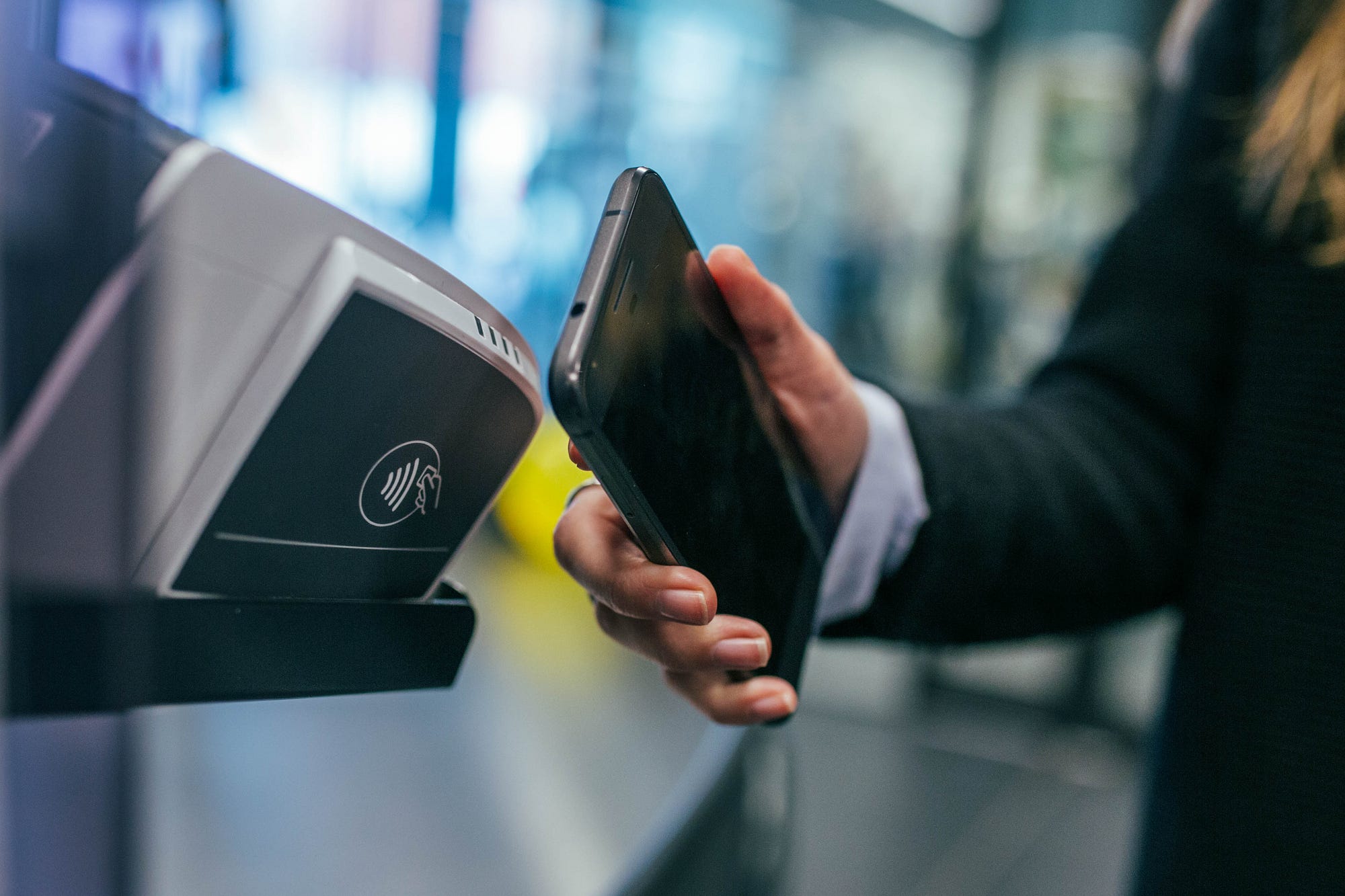
NFC tag readers power digital wallets like Google Pay and Apple Pay. To make a payment using NFC with Google Pay, ensure the NFC option is turned on your phone, unlock your phone, tap your phone on the payment terminal, and the Google Pay app will open automatically so you can confirm the amount to be paid. On iPhone, NFC transactions require user authentication via Face ID, Touch ID, or the device passcode. For in-store purchases, merchant terminals must support NFC payments and the ISO 14443 standard. NFC capability for Wallet Card Templates on Samsung devices requires prior coordination and approval from Samsung and is only available to approved partners.
Accessing information from smart posters
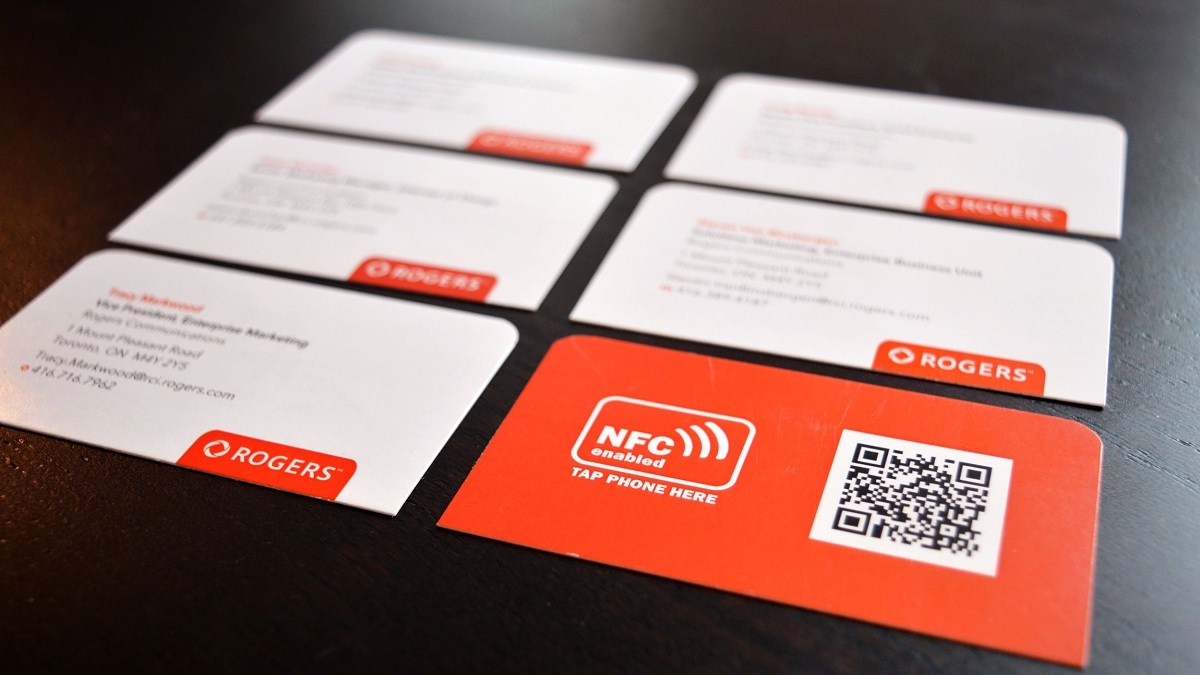
NFC tags embedded in posters, museum exhibits, or product packaging can store URLs, contact details, or promotional material. A quick scan with your phone loads the content without typing or searching.
Automating phone tasks with stickers
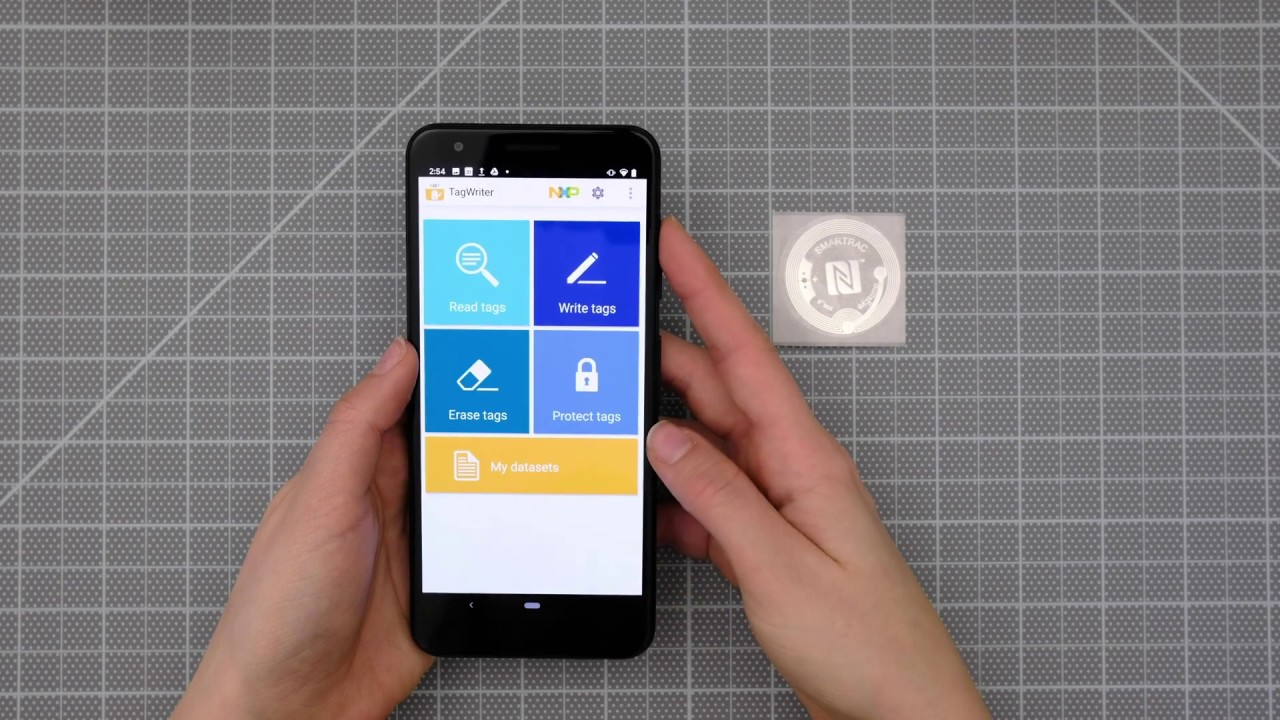
Programmable NFC stickers can trigger actions on your smartphone when scanned, such as toggling Wi-Fi, launching a specific app, setting an alarm, or adjusting the volume. You write the command to the sticker using an NFC writing app, then place the sticker where you want the automation to happen.
Quick device pairing
Many Bluetooth speakers, headphones, and smart home devices include an NFC tag that, when scanned, initiates the pairing process automatically without navigating Bluetooth menus.
Troubleshooting NFC scanning issues
NFC issues can stem from incorrect settings, hardware interference, or improper device positioning. Try these actionable fixes:
- Remove third-party covers and cases, especially magnetic or thick ones, as they can interfere with the NFC antenna. Avoid using LED covers when NFC is active.
- Check the NFC antenna position. Hold your device properly during NFC transactions, ensuring the NFC antenna is pointed in the correct direction. An on-screen guide for proper placement can be found in Settings > Connections > NFC and contactless payments.
- Toggle NFC off and on again. Navigate to Settings > Connections > NFC and contactless payments, then turn NFC off and back on.
- Verify the default payment app is correctly configured, ensure your device is running the latest software version, and confirm that your payment app supports NFC and is up to date.
Your phone's software must be Play Protect certified for Google Pay NFC. Google Pay may not function in stores with phones running developer versions of Android, rooted phones, custom ROMs, modified factory software, untested/unapproved devices by Google, or devices with an unlocked bootloader due to security risks. To resolve these issues (excluding Play Protect certification and rooted phones), you may need to reset your phone to factory settings. NFC payments will not work if you have not been successfully onboarded on Google Pay or if you do not have a UPI account successfully configured on Google Pay.
Frequently Asked Questions
Can any smartphone read NFC tags?
Not all smartphones have NFC capabilities. To check if your phone has NFC, open Settings, type "NFC" in the search bar, and tap to turn it on. If NFC cannot be found, your phone cannot read NFC tags or make contactless payments. Most modern Android devices and iPhones from the XS/XR generation onward include NFC hardware.
Are there standalone NFC readers?
Yes, standalone NFC tag readers exist as dedicated devices, often resembling handheld scanners or terminals. They are commonly used in commercial and industrial applications such as inventory management, access control systems, and event ticketing, offering advanced features beyond a smartphone's built-in NFC functionality.
Do I need an internet connection to scan an NFC tag?
No, the NFC reading itself does not require an internet connection. The reader powers the tag and retrieves its stored data locally. However, if the tag contains a URL or triggers an online action, you will need an internet connection to load that content or complete the action.
Can I write data to an NFC tag with my phone?
Yes, Android devices with NFC support reader/writer mode, allowing them to write data to writable NFC tags using compatible apps. On iPhone, Core NFC allows saving data to writable tags within apps that support this functionality. Not all tags are rewritable, so check the tag specifications before attempting to write.
Why won't my iPhone scan an NFC tag?
Background tag reading is not available when an NFC scanning sheet is visible, Wallet or Apple Pay are in use, cameras are active, the device is in Airplane Mode, or the device is locked after a restart. Ensure the screen is illuminated and the device is unlocked, then hold the top of the iPhone near the tag. If the tag still does not scan, try using an app that supports in-app tag reading.