Discord voice chat on mobile lets you talk with friends in real time through server voice channels or direct message calls, all from your iPhone or Android device.
What is Discord voice chat on mobile?
Discord is a chat app where you can open your Direct Message list, tap a friend, and start a voice call from the phone icon at the top right of the DM screen. Voice chat on mobile happens in two places: inside server voice channels, which are permanent rooms in a server, or through one-on-one and group DM calls.
How to join a Discord voice chat on mobile
Joining a voice chat differs slightly depending on whether you’re entering a server voice channel or starting a DM call.
Join a server voice channel
- Open the Discord app and tap the server you want to join from the server list on the left.
- Swipe right to open the channel list.
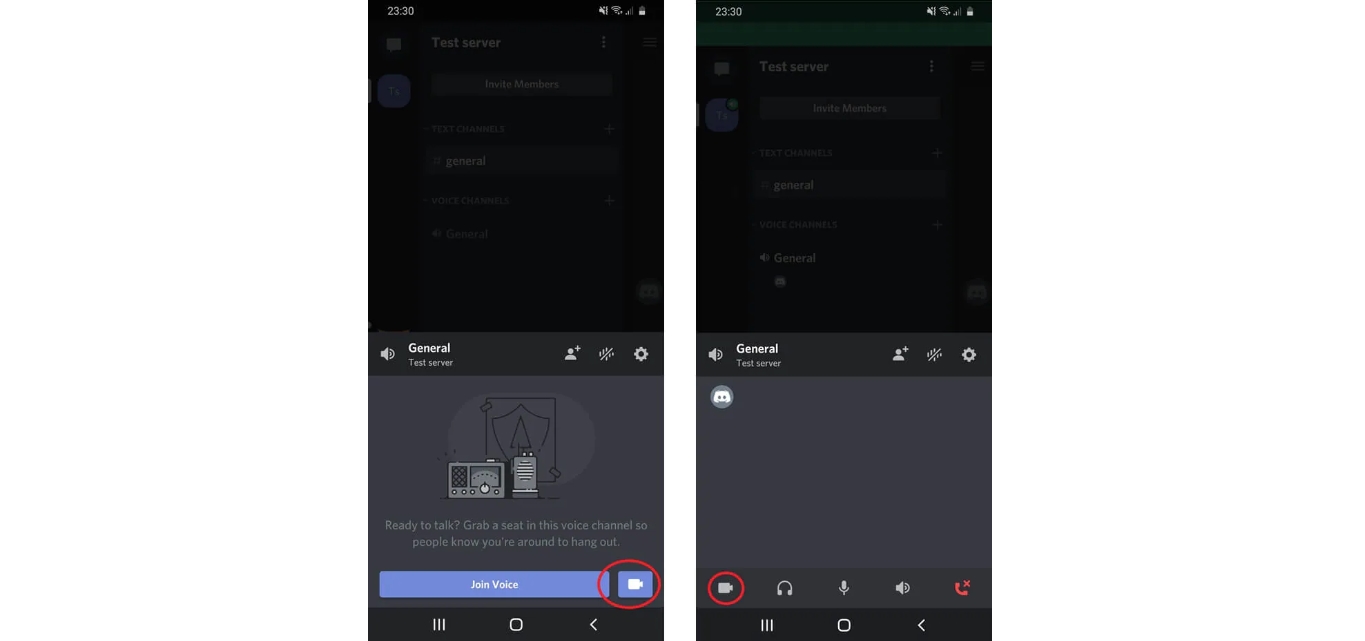
- Scroll through the channels until you see a voice channel (indicated by a speaker icon).
- Tap the voice channel name. You will be automatically connected to the voice chat. When you are in a voice channel, you remain in your previous text channel simultaneously, so you can type and speak at the same time.
Start a DM voice call
- Open your Direct Message list and tap the friend you want to call.
- Tap the phone icon at the top right of the DM screen.
- The voice call begins immediately. Your friend will receive a notification to join.
How to create a voice channel on mobile
You can add a new voice channel to any server where you have permission to create channels.
- Open your server and swipe right to see the channel list.
- Tap the plus (+) icon next to the channel category where you want the new voice channel.
- Tap “Voice” from the menu that appears.
- Enter a name for the channel.
- Tap “Create Channel.” The new voice channel will appear in your server’s channel list immediately.
How to leave a Discord voice chat on mobile
Leaving a voice chat works differently for server channels and DM calls.
Leave a server voice channel
Tap the disconnect button at the bottom of the voice channel bar. This bar appears when you are connected to a voice channel and shows your connection status.
End a DM voice call
On the Voice Call screen, tap the “End Call” icon in the bottom-right corner. The call ends for all participants.
Basic audio settings for mobile voice chat
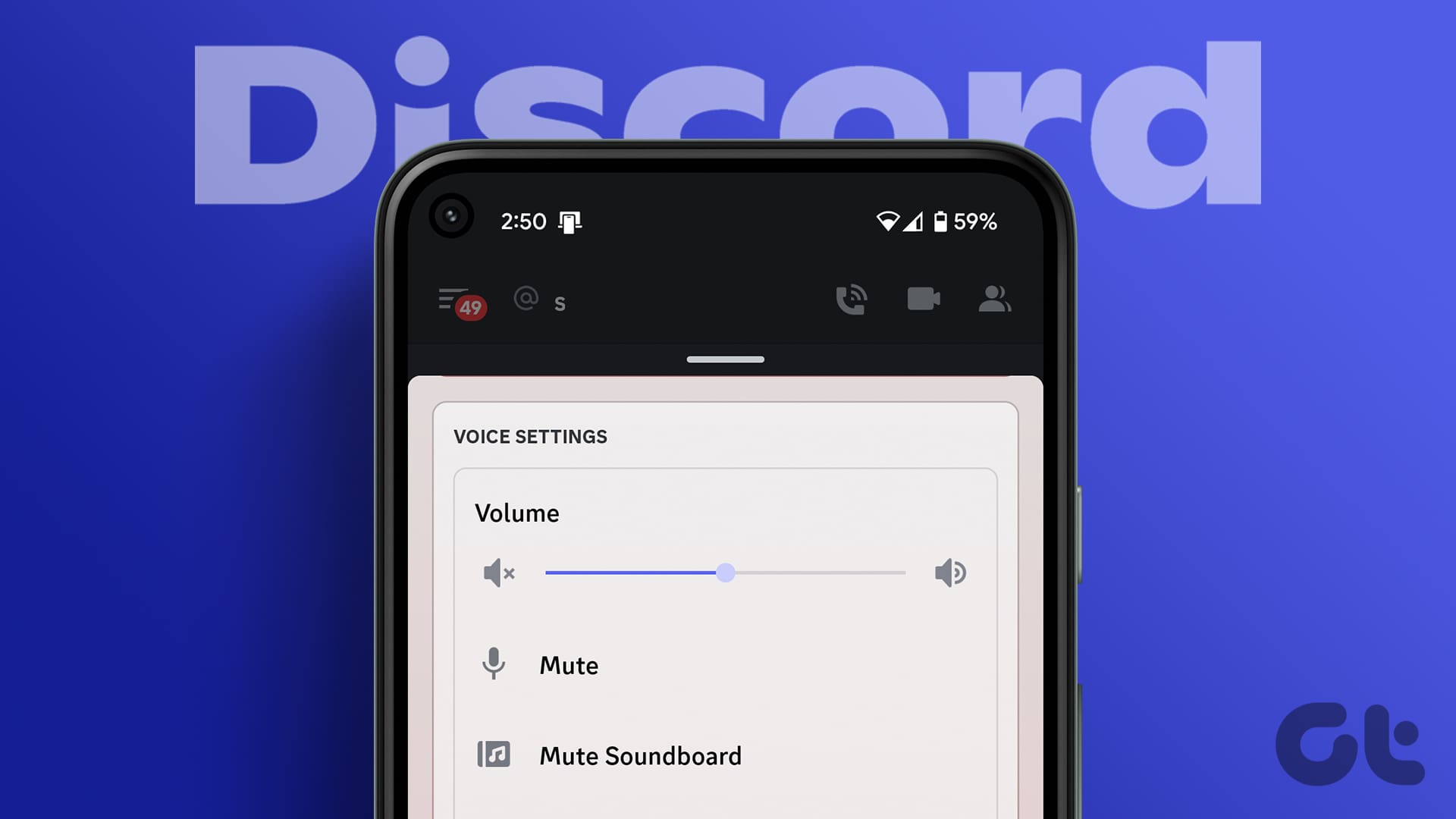
Adjust your audio settings to control how you speak and how others hear you.
- Tap your avatar in the bottom-right corner of the app.
- Tap the cogwheel in the top-right corner to open User Settings.
- Scroll down and tap “Voice” under App Settings.
In Voice settings, you can set your Input Mode. Choose “Voice Activity” to have Discord automatically detect when you speak, or “Push to Talk” to require a button press before your mic transmits. Adjust the input sensitivity slider so your mic picks up your voice but not background noise. Use the built-in meter to test your microphone, speak normally and watch the bar light up green when your voice is detected. If the automatic input sensitivity bar does not light up when speaking, switch to manual mode and position the slider in the middle. Discord can prioritize your router so its data packets are higher priority than other PC traffic (Quality of Service setting).
How to fix Discord mic problems on mobile
If others cannot hear you in voice chat, check these settings in order.
- Make sure Discord has permission to access your microphone in your phone’s system settings.
- Open User Settings from your avatar and cogwheel, then tap “Voice” under App Settings.
- Check that the correct input and output devices are selected in Voice Settings.
- Test your microphone using the built-in meter in Voice Settings. Speak into your mic and confirm the bar moves.
If the mic still does not work, restart the Discord app and try again. Logging out and back into Discord can serve as a quick temporary fix for microphone issues. For persistent issues, check your phone’s OS permissions for Discord, the official troubleshooting guide does not list specific phone models or OS versions for mic fixes. Running Discord as an administrator on PC can fix microphone transmission issues caused by insufficient UDP privileges.
Discord voice chat vs. other apps
Discord’s voice chat stands out for group calls during gaming and consistent connection quality. Skype prioritizes one-on-one chatting and has strong video call features, but it cannot reliably maintain a group call while you run an intensive game. Facebook Messenger handles group calls but often struggles with connection stability for multiple participants. Discord handles group calls smoothly because all participants are on the same server, and it offers granular permissions for Discord user and server management, letting you control who can join and speak in each voice channel.
Frequently Asked Questions
Can I use Discord voice chat while playing a game on mobile?
Yes. Discord voice chat runs in the background, so you can talk while playing most mobile games. The app may pause or lower game audio depending on your phone’s settings.
Why does my voice sound robotic on Discord mobile?
A robotic voice usually means your internet connection is unstable or too slow. Try switching from mobile data to Wi-Fi, or ask the server admin to change the voice server region to one closer to most users.
How do I change the voice server region on mobile?
On desktop, server admins can change the region in Server Settings, but this option is not confirmed for the mobile app.
Can I adjust individual user volume in a voice channel?
Yes. While in a voice channel, tap and hold a user’s name to see a volume slider. Drag it up or down to adjust how loudly you hear that person.
Does Discord voice chat work on a slow internet connection?
Discord adjusts audio quality based on your connection speed. With a very slow connection, you may experience delays, robotic voice, or dropped calls. A stable Wi-Fi or 4G/5G connection is recommended for clear voice chat.