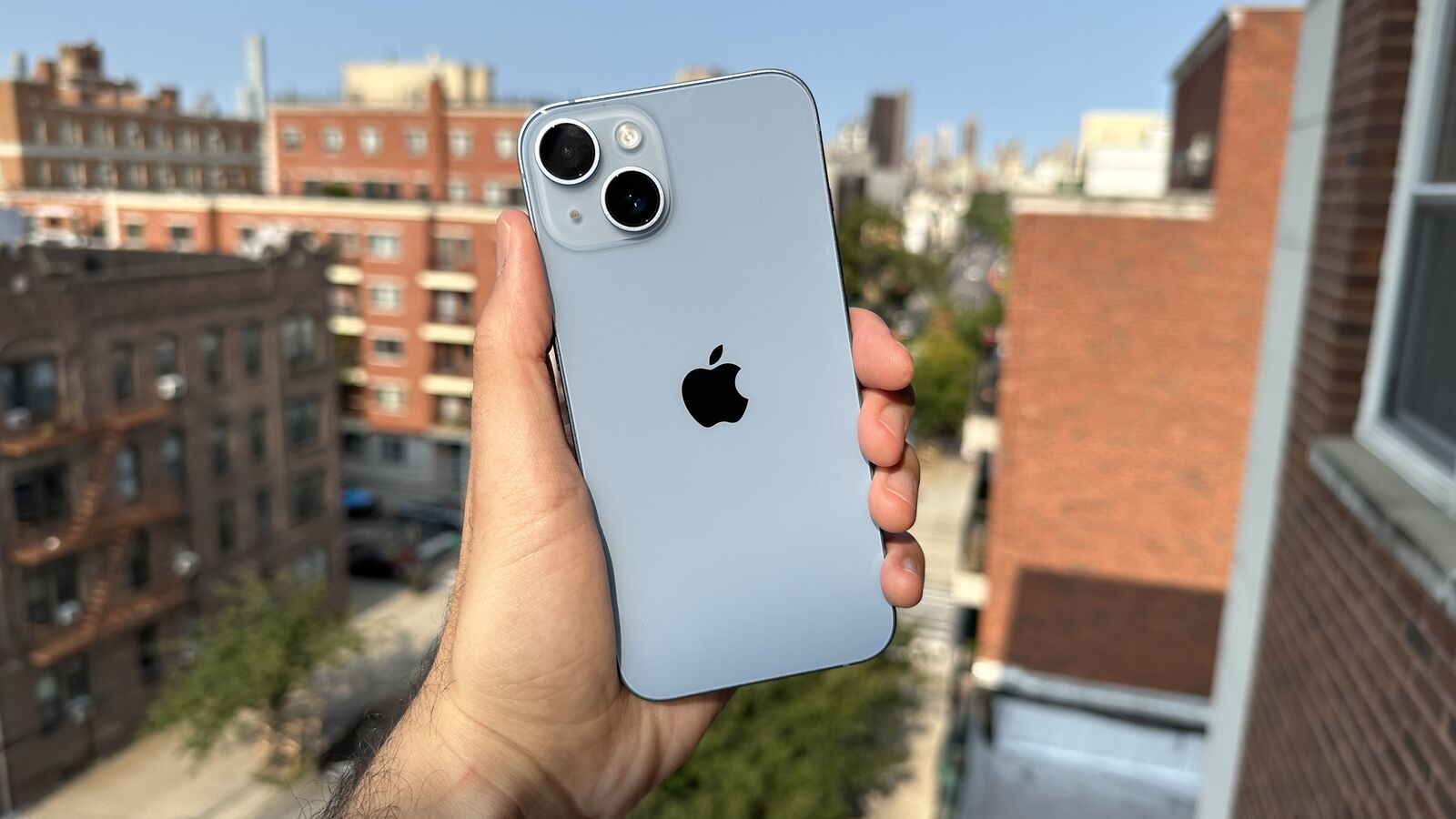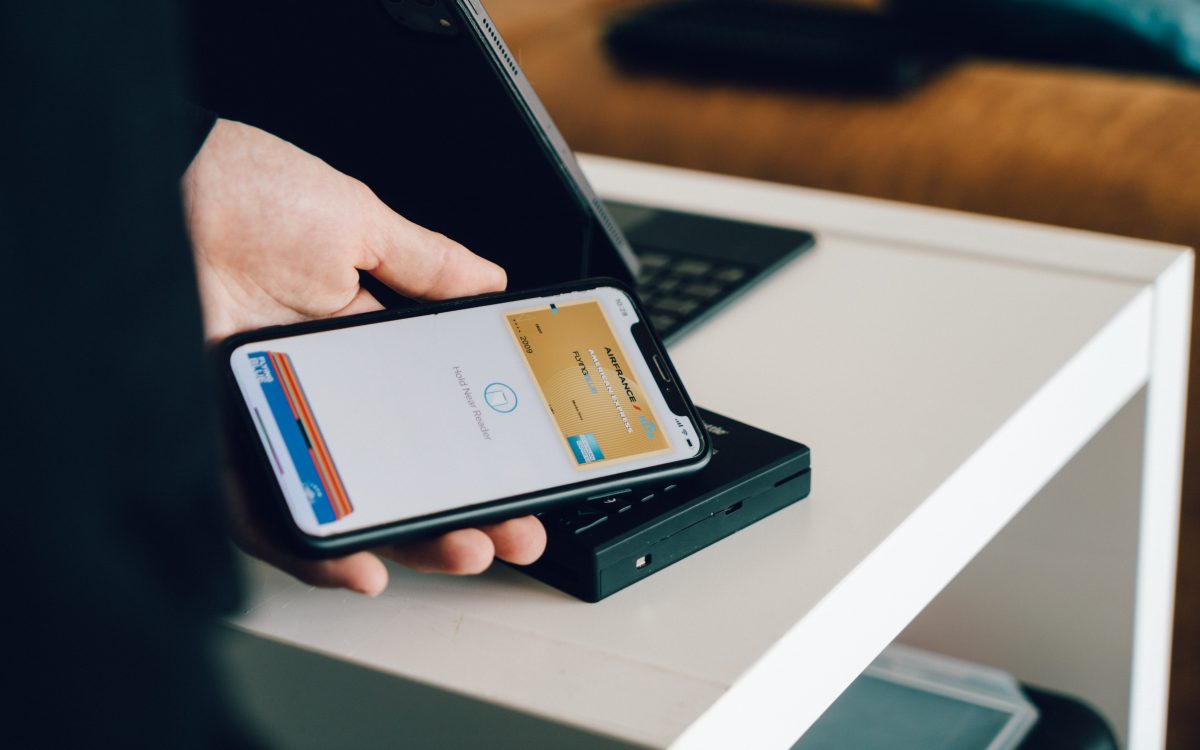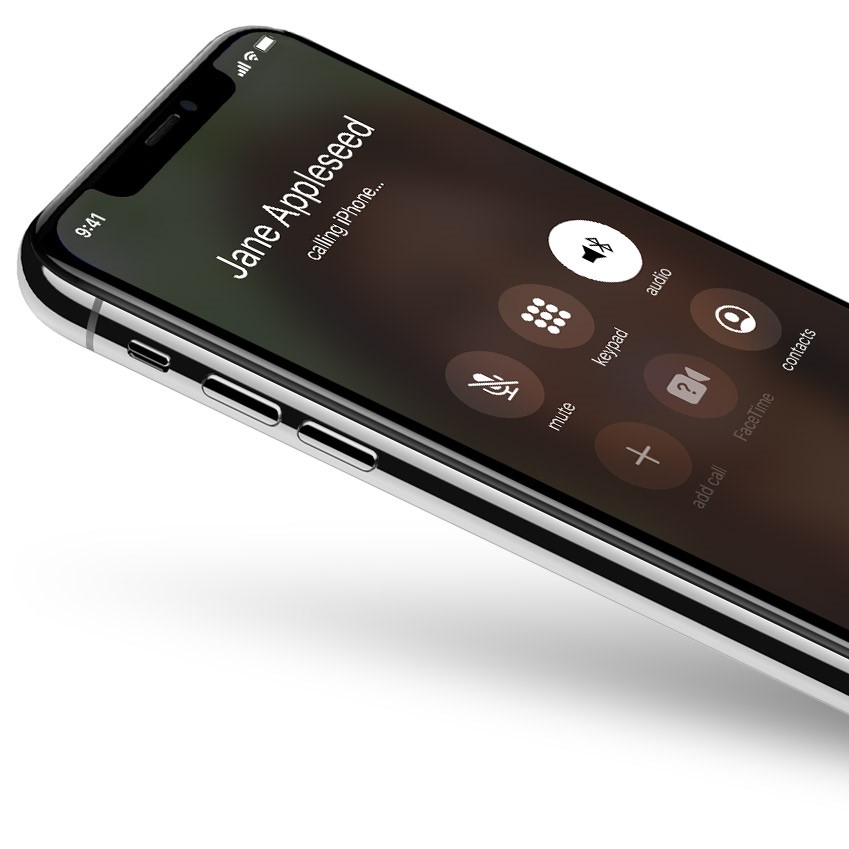
Wi-Fi calling on iPhone is a built-in feature that lets you make and receive phone calls and texts over a Wi-Fi network when your cellular signal is weak or unavailable. It works without needing a separate app, using your regular phone number and the native Phone and Messages apps.
What is Wi-Fi calling on iPhone?
Wi-Fi calling on iPhone is a built-in feature that routes your calls and messages through a Wi-Fi network instead of the cellular network. It activates automatically when cellular coverage is poor, allowing you to stay connected in basements, rural areas, or buildings with thick walls. Because it uses your existing phone number, there is no need to forward a cell phone or install third-party software. One Wi-Fi call uses approximately 1MB per minute; a Wi-Fi video call uses 6MB to 8MB per minute. Wi-Fi calling on iPhone was first introduced in early July 2014 alongside the release of iOS 8 beta 3.
How to enable Wi-Fi calling on your iPhone
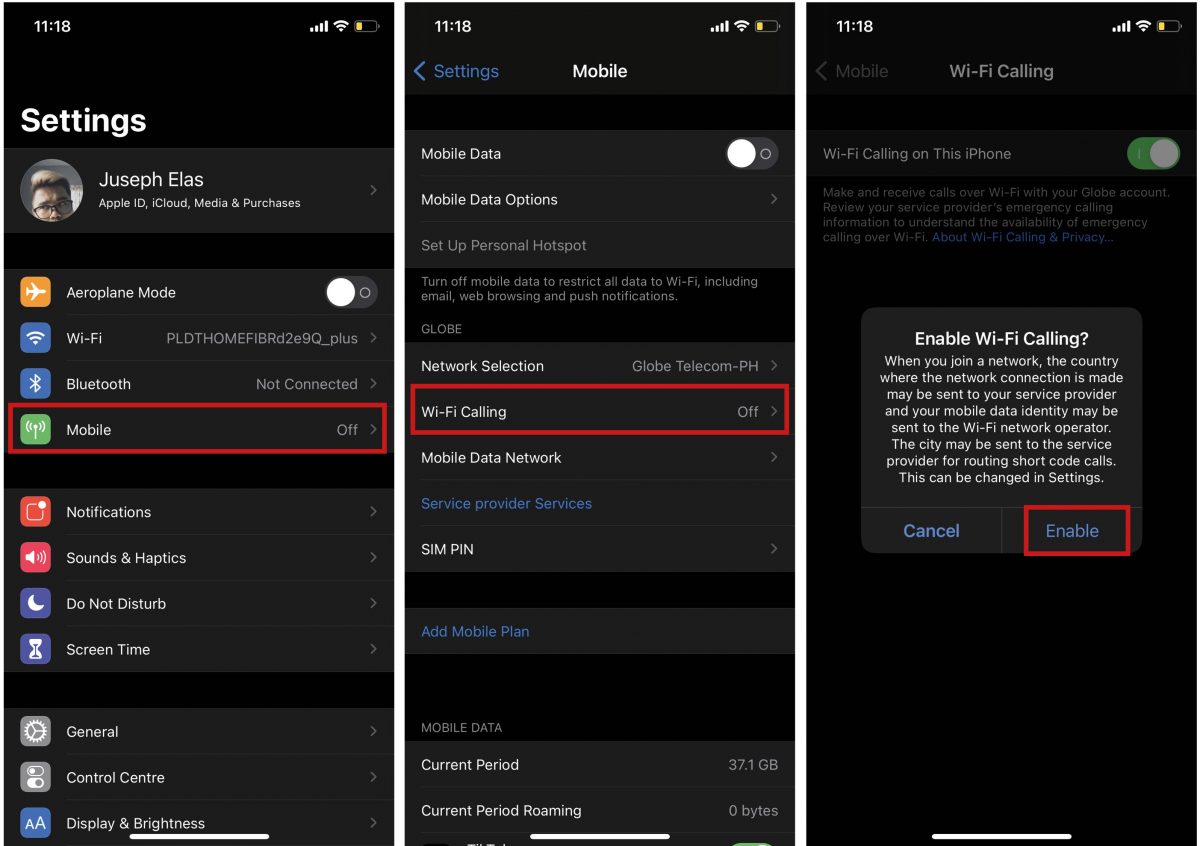
- Open Settings.
- Tap Cellular (or Phone on some iOS versions).
- Tap Wi-Fi Calling.
- Turn on Wi-Fi Calling on This iPhone.
- When prompted, enter or confirm your address for emergency services (E911 address).
Once enabled, you will see “Wi-Fi” or “Wi-Fi Call” in the status bar next to your carrier name, indicating that calls will use Wi-Fi when needed.

How to use Wi-Fi calling on other Apple devices
You can extend Wi-Fi calling to your iPad, Mac, and Apple Watch as long as all devices use the same Apple ID and your carrier supports the feature. To do this:
- Go to Settings > Cellular (or Phone) > Wi-Fi Calling on your iPhone.
- Turn on Add Wi-Fi Calling For Other Devices (if available).
- Return to the previous screen and tap Calls on Other Devices.
- Turn on Allow Calls on Other Devices.
- Under Allow Calls On, toggle on each device you want to use.
For iPad or iPod touch, open Settings > FaceTime and turn on Calls from iPhone. On a Mac, open the FaceTime app, go to FaceTime > Preferences, and turn on Calls from iPhone. Wi-Fi calling on Apple Watch is enabled automatically when Allow Calls on Other Devices is on.
How to remove a device from Wi-Fi calling
To stop a device from using Wi-Fi calling:
- On your iPhone, go to Settings > Phone > Calls on Other Devices.
- Turn off Wi-Fi Calling for the specific device you want to remove.
To remove an Apple Watch, open the Watch app on your iPhone, tap My Watch > Phone, then turn off Wi-Fi Calling.
What to do if Wi-Fi calling on iPhone won't work
If Wi-Fi calling isn’t connecting, follow this troubleshooting checklist:
- Verify that Wi-Fi is turned on and you are connected to a network.
- Confirm that Wi-Fi Calling on This iPhone is enabled in Settings.
- Removing and reinserting the SIM card can resolve the issue if the Wi-Fi Calling option is not showing despite carrier support.
- Turn Wi-Fi Calling off, then on again.
- Restart your iPhone.
- Try connecting to a different Wi-Fi network to isolate the issue.
- Reset network settings: Settings > General > Transfer or Reset iPhone > Reset > Reset Network Settings. (This erases saved Wi-Fi passwords and VPN settings.)
- Contact your carrier if the problem persists.
Important notes about emergency calls and limitations
Emergency calls are routed through cellular service when available. If cellular is not available, they may use Wi-Fi calling, and your registered E911 address will be used for location. Wi-Fi calling cannot be used with TTY devices or to initiate calls to certain N11 services (e.g., 211, 311, 511, 811). When traveling internationally, Wi-Fi calling may help you avoid roaming charges for calls to U.S. numbers, but availability and charges depend on your carrier and location. For example, some carriers offer specific support for unlocked phones that work with T-Mobile WiFi calling, so check your carrier’s international calling and plans before traveling.
Frequently Asked Questions
Does Wi-Fi calling use my cellular data?
No. Wi-Fi calling uses your Wi-Fi network’s internet connection, not your cellular data plan. However, if you leave Wi-Fi range during a call, the call may switch to your cellular network and use your plan’s minutes.
Will Wi-Fi calling work on any Wi-Fi network?
Wi-Fi calling works on most Wi-Fi networks, including public, home, and office networks, as long as the network allows the necessary ports and has a stable connection. Some public or corporate networks may block the feature.
Can I use Wi-Fi calling when my iPhone is in Airplane Mode?
Yes. Turn on Airplane Mode, then manually turn on Wi-Fi. Once connected to a Wi-Fi network, Wi-Fi calling will activate, allowing you to make and receive calls and texts without cellular service.
Why don’t I see the Wi-Fi Calling option in Settings?
The option will not appear if your carrier does not support Wi-Fi calling for iPhone, or if your iPhone model is not compatible. Contact your carrier to confirm support.
Does Wi-Fi calling drain the battery faster?
Wi-Fi calling can actually extend battery life compared to cellular calls in areas with weak signal, because your iPhone doesn’t need to boost its cellular radio to maintain a connection.
Are Wi-Fi calls secure?
Wi-Fi calls are encrypted by mobile carriers even if the Wi-Fi network itself is not password protected.