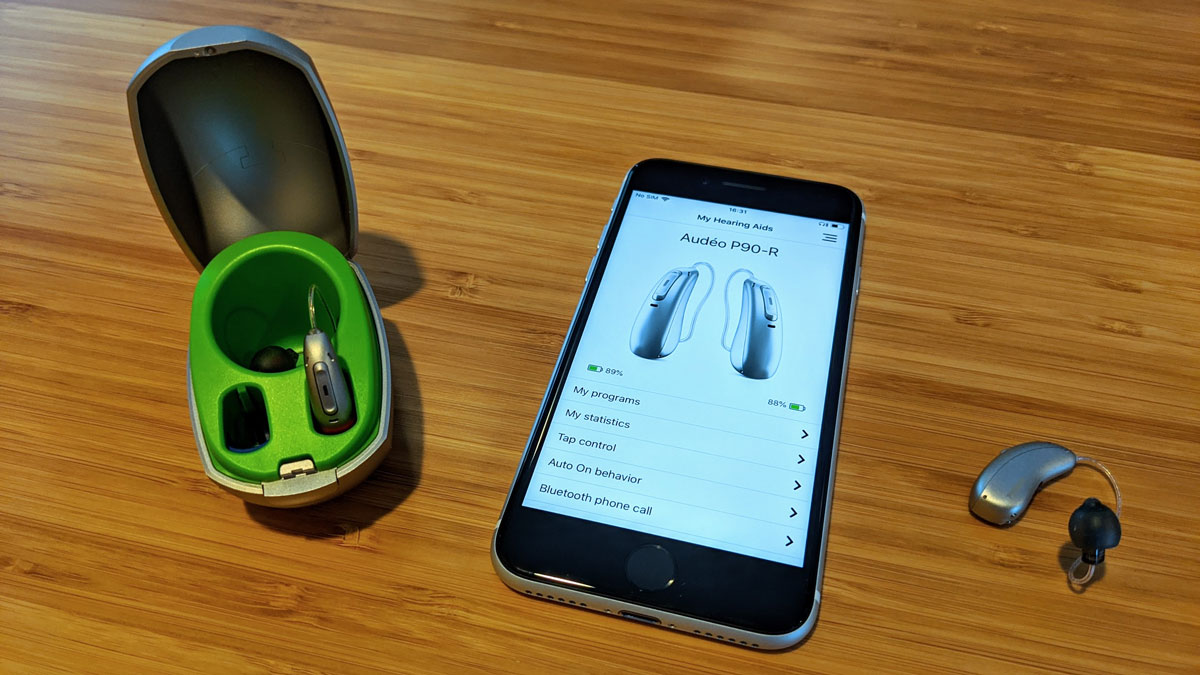
To connect Phonak hearing aids to iPhone, turn on Bluetooth in Settings, restart the hearing aids into pairing mode, then tap the hearing aid name when it appears in the Bluetooth devices list and wait for the confirmation beep. This direct connection enables hands-free phone calls and audio streaming without requiring any app.
How to connect Phonak hearing aids to iPhone
- Enable Bluetooth on your iPhone. Open Settings, tap Bluetooth, and turn the Bluetooth slider On.
- Put your Phonak hearing aids in pairing mode. For rechargeable hearing aids, place them in the charger for at least 10 seconds, then remove them. If needed, restart them by pressing the lower part of the button until the hearing aid blinks red, then press the button again until it blinks green. Make sure the charger is connected to power, or has enough battery if you use Charger Go. For replaceable-battery hearing aids, open the battery doors for 5 seconds, then close them again. The hearing aids stay in pairing mode for 3 minutes.
- Connect Phonak hearing aids to iPhone. After a few seconds, the hearing aid name appears in the Bluetooth devices list on the iPhone. Tap the hearing aid name. A beep from the hearing aid confirms successful pairing.
Compatibility requirements
For the myPhonak app, iPhone support requires iOS 16 or newer on iPhones with Bluetooth Low Energy (LE). For Bluetooth calling and audio streaming, any phone with Bluetooth 2.1 and newer should work, and the device must support HFP and A2DP. Phonak hearing aids use Bluetooth Classic Audio for calls and streaming and Bluetooth Low Energy for the myPhonak app. For myPhonak on Android, Phonak says the phone must be a Google Mobile Services certified Android device with Bluetooth 4.2 and Android 10.0 or newer on the current U.S. product page; a separate user guide still states Android 8.0 and newer. For initial setup on Android, enable Location Services on the smartphone.
Pairing with the myPhonak app
- Install the myPhonak app from the App Store and open it.
- Go to Settings > Bluetooth on the iPhone before pairing.
- On the app’s Home section, tap Pair hearing aids.
- Follow the on-screen instructions for your hearing-aid type, then tap Continue when the aids are in pairing mode.
- If only one or none appears, tap I don’t see my devices at the bottom of the screen.
- When detected, tap the green Pair button.
- Confirm the Bluetooth pairing request for each hearing aid by tapping Pair on the phone.
Troubleshooting tips
- Ensure the charger is connected to power or has enough battery for Charger Go.
- For rechargeable aids on Android, press and hold the lower part of the hearing aid button for 4 seconds until the light turns red, then press and hold it again for 2 seconds until the light flashes green.
- Check the 3-minute pairing window, hearing aids exit pairing mode after this time.
- Forget and re-pair the aids in Bluetooth settings on the iPhone.
Frequently Asked Questions
Can I connect my Phonak hearing aids to my iPhone?
Yes, you can connect Phonak hearing aids to an iPhone via Bluetooth. This allows hands-free calling, audio streaming, and control through the myPhonak app.
Why don’t my hearing aids appear in the Bluetooth list?
Your hearing aids may not appear because they are not in pairing mode, the 3-minute pairing window has expired, or Bluetooth is turned off on your iPhone. Restart the pairing process from step 2.
Do I need the myPhonak app to connect my hearing aids to my iPhone?
No. You can connect directly through Settings > Bluetooth for phone calls and audio streaming. The myPhonak app is optional and provides additional control and customization features.
Can I connect my Phonak hearing aids to multiple iPhones?
Phonak hearing aids can pair with multiple devices, but they connect to one device at a time. To switch iPhones, you must disconnect from the current device and pair with the new one following the same steps.
What should I do if only one hearing aid connects?
If only one hearing aid appears during pairing, tap “I don’t see my devices” in the myPhonak app or restart both hearing aids and try again. Each hearing aid must be individually paired.
For the wider topic, see connecting Bluetooth to phones.
Related reading: How To Connect Bose Earbuds To IPhone and How To Connect A JBL Speaker To An IPhone?.