Travel eSIM data is easiest to manage by resetting your phone’s cellular-data counters when you arrive, then checking which apps use the most data against your provider account or plan details. On iPhone and Pixel, the key controls are in the cellular or SIM settings; Apple's cellular-data guidance and Google's Pixel eSIM guidance also show where to choose the active data SIM and where to limit roaming or background usage.
Reset your counters when you arrive
On iPhone, Apple documents a cellular-data usage screen under Settings > Cellular, where you can see how much cellular data you’ve used. Apple’s page does not document a reset button or a specific way to restart the counter on that screen, so the documented action is to review usage there and manage cellular options from the same menu.
On Pixel phones, Google documents Settings > Network & internet > SIMs for SIM management and data selection, but the page does not document a device counter reset for travel eSIM use. If the travel SIM is the active data SIM, use the Pixel SIM menu to confirm that the correct SIM is selected for data before you start monitoring usage.
For Samsung phones, the relevant menu path and counter-reset steps are not documented in the pages retrieved here, so they should not be stated as universal instructions.
Use the phone’s data-usage screen to find heavy apps
Apple documents that on iPhone you can go to Settings > Cellular to see how much cellular data you’ve used and to turn cellular data on or off for individual apps and services. The same page also says you can tap Cellular Data Options and then choose Data Mode to select Low Data Mode.
- Turn Cellular Data on or off from Settings > Cellular.
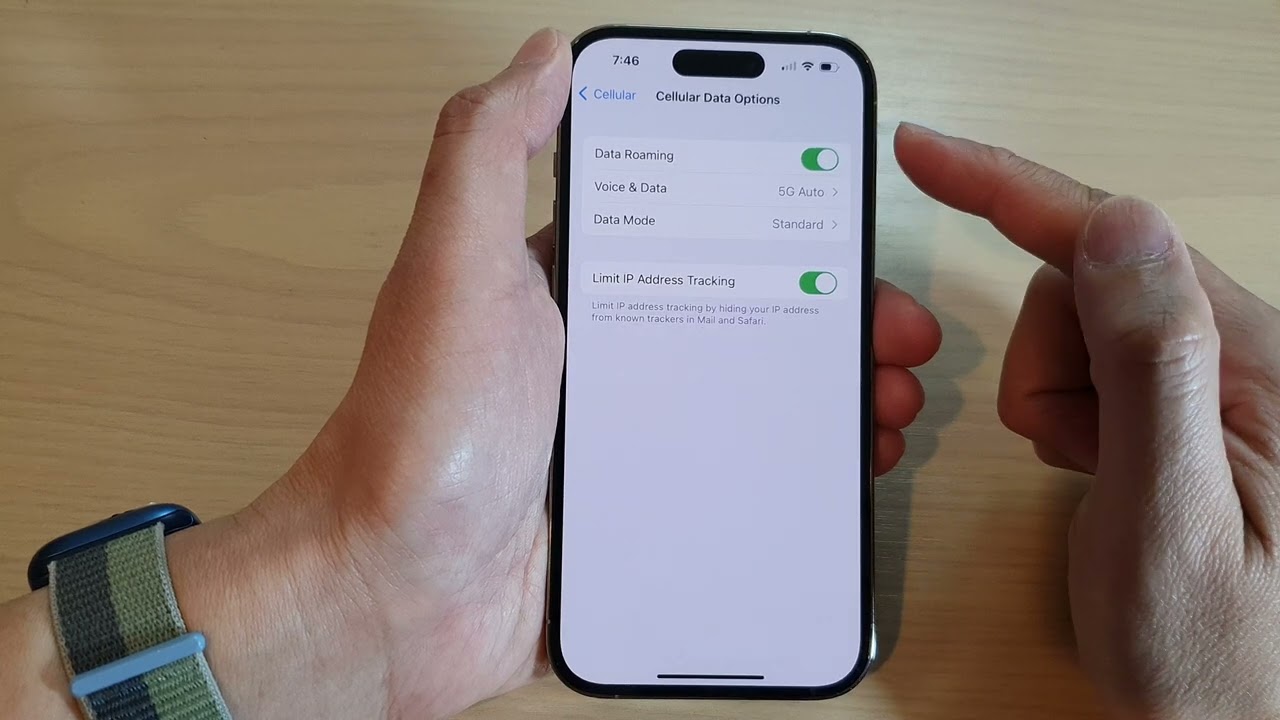
- Turn Data Roaming off in Settings > Cellular > Cellular Data Options to avoid roaming charges when traveling outside your carrier’s network.
- Scroll the app list in Settings > Cellular to turn cellular access on or off for specific apps and services.
Google’s Pixel eSIM guidance says to open Settings > Network & internet > SIMs, where you can choose the SIM used for Data and turn Mobile data on or off. The page also says you can use Automatic data switching, but only one SIM can be the default for data.
For Samsung, the relevant app-by-app cellular-data screen is not documented in the retrieved pages, so exact menu names should not be assumed.
Compare the phone’s estimate with the provider account
Many travel eSIM providers also show account-side usage, and that is the number to compare with the phone’s own estimate. For example, Vodafone Travel says on its USA prepaid eSIM page that you can check data usage in your device’s settings, while its Europe travel eSIM page lists data plans such as 1GB, 5GB, 10GB, 20GB, and 50GB.
That means the phone counter is useful for spotting heavy apps, but the provider account or plan balance is the final check for how much data remains on the travel eSIM. If the provider shows a different amount from the device, follow the provider account for the plan balance and use the device screen to identify what used the data.
If the provider does not document a usage dashboard or remaining-data view, that detail is not documented and should not be assumed.
iPhone settings that matter during travel
Apple’s cellular-data guidance documents the main controls for travel on iPhone under Settings > Cellular and Settings > Cellular > Cellular Data Options. The documented options include turning cellular data on or off, turning data roaming on or off, and choosing Low Data Mode.
- Settings > Cellular: turn Cellular Data on or off.
- Settings > Cellular > Cellular Data Options: turn Data Roaming on or off.
- Settings > Cellular > Cellular Data Options > Data Mode: choose Low Data Mode.
- Settings > Cellular: turn cellular data on or off for apps and services listed on the page.
Apple also documents that Data Roaming permits internet access over a cellular data network when you are in a region not covered by your carrier’s network. That is the setting to check if the travel eSIM is intended to prevent roaming on your home line.
Pixel settings that matter during travel
Google’s Pixel eSIM guidance documents the SIM controls under Settings > Network & internet > SIMs. From there, you can set which SIM is used for Data, and you can turn Mobile data on or off.
- Settings > Network & internet > SIMs: choose the SIM for Data.
- Settings > Network & internet > SIMs: turn Mobile data on or off.
- Settings > Network & internet > SIMs: turn Automatic data switching on if you want the phone to switch data use when needed.
The same Google page says only one SIM can be the default for data. It also says you can choose which SIM the phone uses for calls and texts, which helps keep the travel eSIM dedicated to data while leaving voice and messaging on another line if needed.
Carrier locks, supported models, and travel-data choices
Pixel eSIM support depends on the phone and mobile carrier, and Google says to check with your carrier before setup. Google also states that Pixel 4 and later work with eSIM, while Pixel 3a phones bought with Verizon service or in Japan do not work with eSIM.
Google further says you may use 2 eSIM profiles at once on a Pixel 7 or later phone if the carrier allows that feature. That matters for travelers who want one eSIM for data and another line active at the same time.
On iPhone, the retrieved Apple page does not list supported models for travel eSIM monitoring, and it does not document carrier-lock handling on the usage screen. For Samsung, those device-specific limits are not documented in the retrieved pages here.
For a travel SIM purchase, use the exact plan allowance the provider publishes and compare it with the phone’s data-usage screen after arrival. If the phone and provider disagree, rely on the provider account for the remaining plan balance and the phone for identifying the apps that consumed the data.
For a provider-specific next step, review travel eSIM data plans.
More eSIM resources: Browse our eSIM guides and troubleshooting resources for compatibility, setup, travel-data and account-safety advice.
Related reading: Complete eSIM Guide: Compatibility, Setup, Travel and Troubleshooting.