Before you start: phone Bluetooth pairing basics
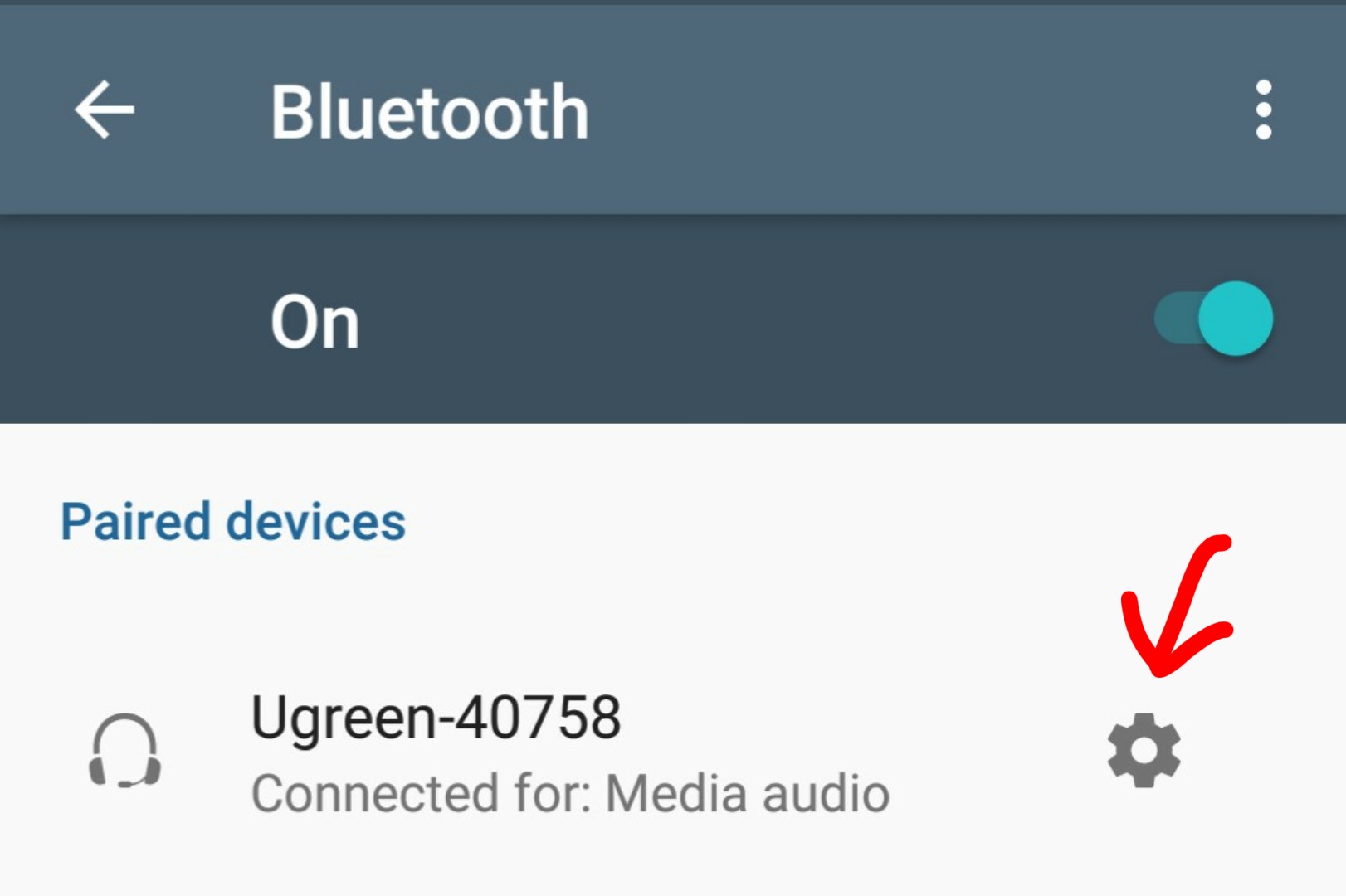
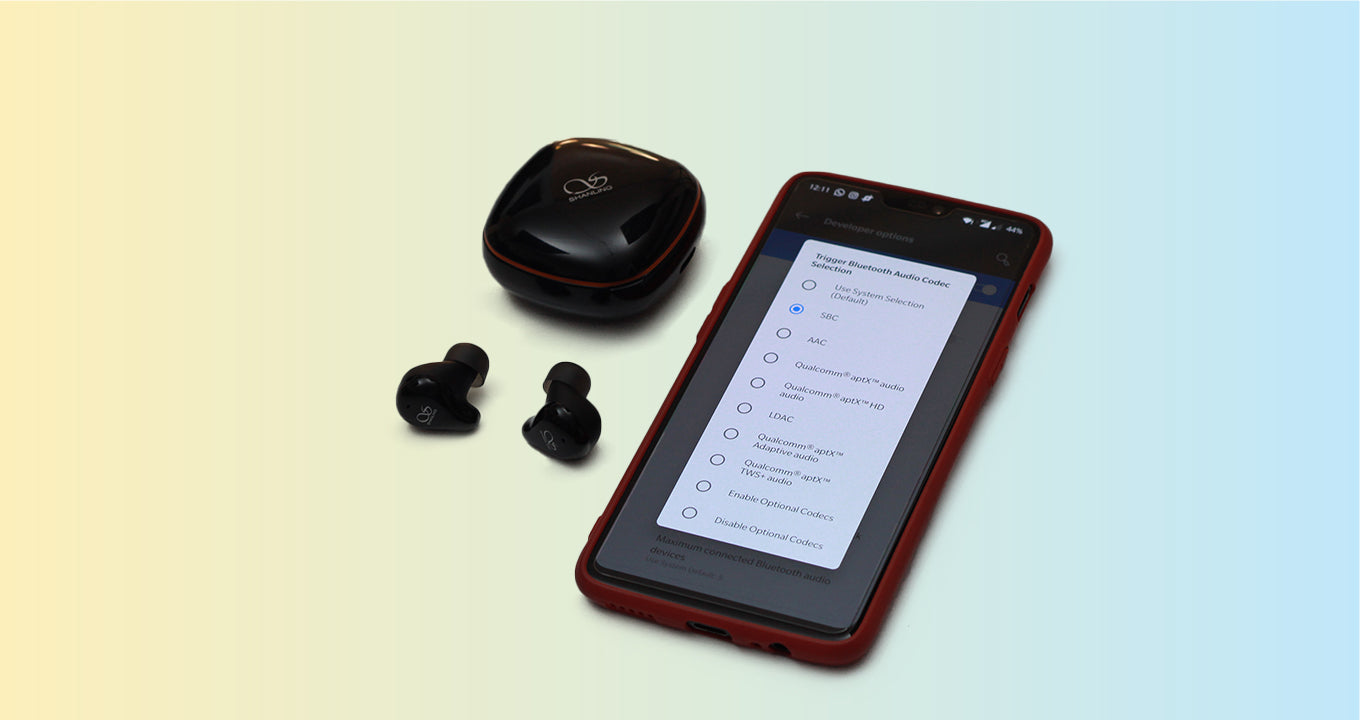
Successful Bluetooth phone pairing depends first on understanding the role your device will play, because that shapes every setting you see later. If it will act as a straightforward audio source for a speaker or headphones, your main concern is sound quality, while serving as a full hands-free and data partner for a car or computer makes system-level access for calls and contacts matter more. On Android, you can directly influence audio behaviour by visiting Settings > Connected devices > Bluetooth, tapping the gear icon next to a linked unit, and toggling HD Audio to enable or disable higher-quality codecs if your device offers that option. For deeper control, you must first access Developer options by going to Settings > About phone and tapping Build number seven times, then look for the Bluetooth audio codec menu to manually select from the profiles your manufacturer has enabled, if your device includes that setting. The situation is different if you need to change Bluetooth codec iPhone behaviour, because Apple devices do not offer a user-facing codec selector in Settings and the system automatically negotiates AAC or SBC with your accessory. The documented way to alter this is through a headphone maker’s own iOS app, if it provides those controls.
Pairing phones with cars and trucks
Pairing your phone with a vehicle turns it into a full infotainment partner, giving the car access to your contacts and call history for true hands-free control. The process varies by manufacturer but always starts with enabling Bluetooth on your phone, then putting your vehicle's infotainment system into pairing mode. For instance, if you need to connect phone to car Bluetooth Nissan Altima in a vehicle with navigation, press the Phone button, select Connect New Device, choose MY-CAR on the phone, confirm the PIN on both screens, accept pairing on the device, and tap OK in the vehicle. Owners looking to pair phone to Chevy Equinox should know the system requires the phone to be paired and then connected to the vehicle before it can be used. In a Uconnect-equipped vehicle, such as when you connect phone to Jeep Wrangler 2017, press the voice button and say “Set-up,” then “Phone Pairing,” then “Pair” to start the search. The steps shift slightly for Apple users. When you connect iPhone to mini Cooper Bluetooth, the phone’s discovery mode is managed from the iOS Bluetooth panel. Similarly, if you need to connect iPhone to Subaru Bluetooth, the car’s head unit handles the search and bonding request once Bluetooth is enabled on the phone.
Connecting motorcycle helmets and comms
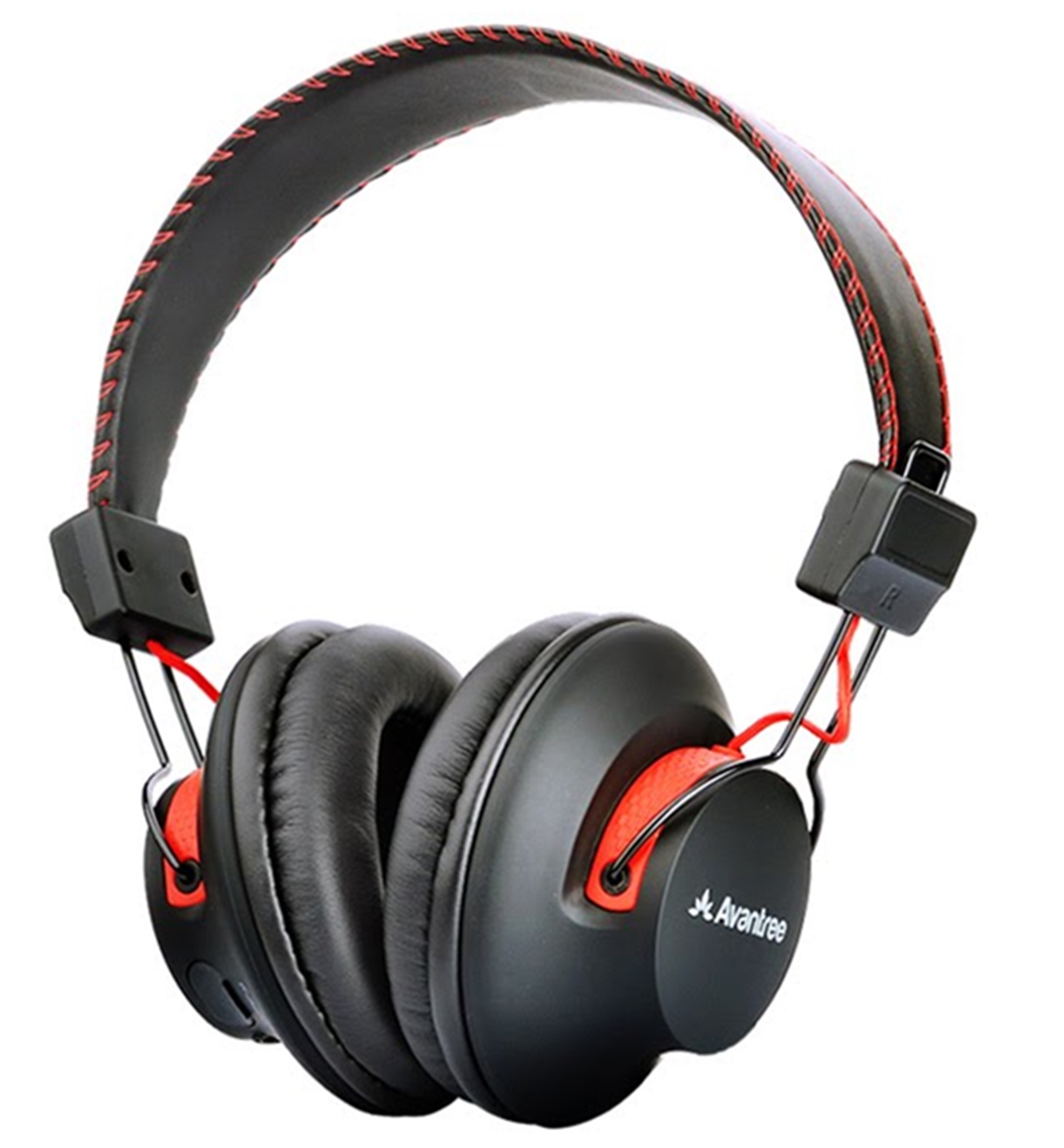
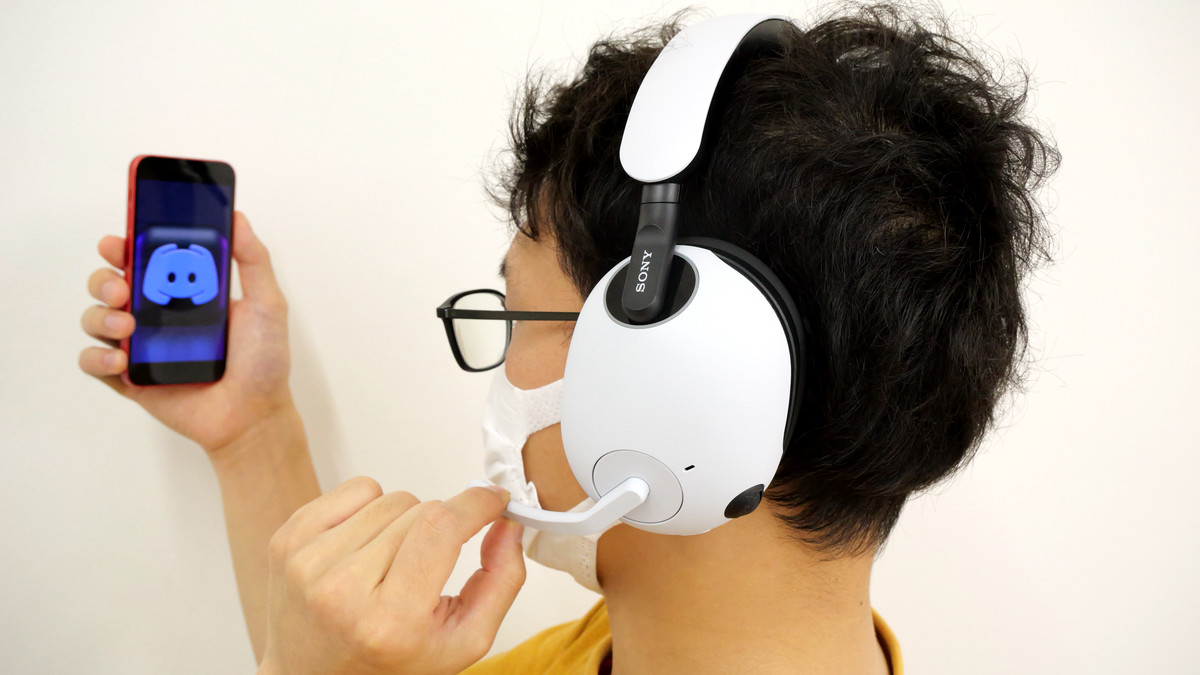
Motorcycle communication systems treat your phone as a straightforward audio source, so the linking process is designed to establish a simple stereo or mono connection rather than a full data handshake. When you connect Sena Bluetooth helmet to phone, you put the unit into Phone pairing mode and pick its name from your phone's Bluetooth list, entering the passcode if prompted. The exact button sequence depends on your model and whether the unit is powered off or in standby, and the process times out if you do not complete it. To pair Cardo to phone, put the headset into pairing mode, then select it from your phone’s device list and confirm the coupling request. Before any of that works, you may first need to install Bluetooth speakers on a motorcycle, mounting the drivers inside the helmet and routing the cabling so it stays clear of the chin strap and visor mechanism. To connect Bilt Bluetooth helmet to phone, you follow a similar pairing sequence. The same principle applies when you connect my Aftershokz to my phone, connect a Google speaker to a phone, connect Bluetooth to Android phone, or connect Avantree Bluetooth headphones to phone.
Setting up smart speakers and displays
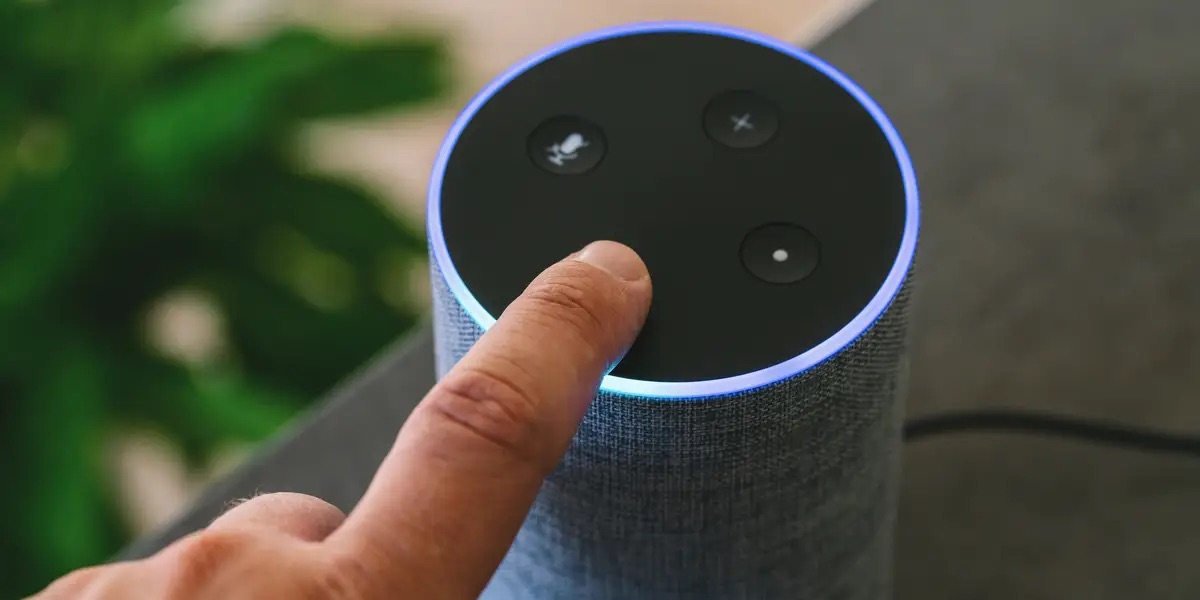
Linking your phone to a voice-assistant speaker turns it into a straightforward Bluetooth audio source, giving you a simple way to stream music or podcasts without using Wi-Fi. Before you can connect a phone to an Alexa speaker, the unit itself needs to be in discovery mode. You can trigger this hands-free by saying “Alexa, pair Bluetooth,” or open the Alexa app, tap Devices, select your Echo, and navigate to its Bluetooth Connections under the configuration gear to choose Pair a New Device.
Once the Echo is discoverable, the process moves to your handset. On an iPhone, you head to Settings > Bluetooth and look for the Echo’s name in the device list. The routine is nearly identical when you connect my phone to echo dot on Android. There you open Settings, go into Bluetooth (or Connections > Bluetooth), and select the smart unit from the list of available devices. The Echo may appear with a generated suffix like “-1A2B” in the hardware roster, and once the handshake completes, Alexa announces the link and your phone treats the smart peripheral like any other external audio sink.
Pairing portable Bluetooth speakers
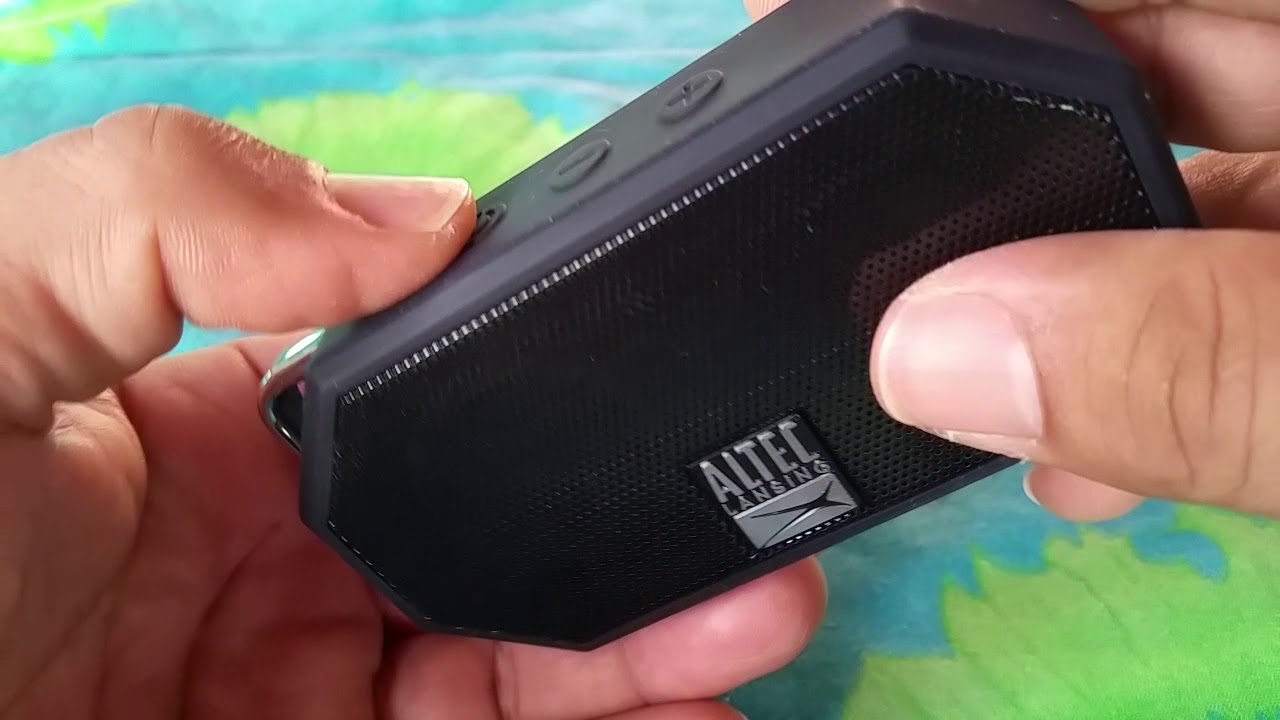
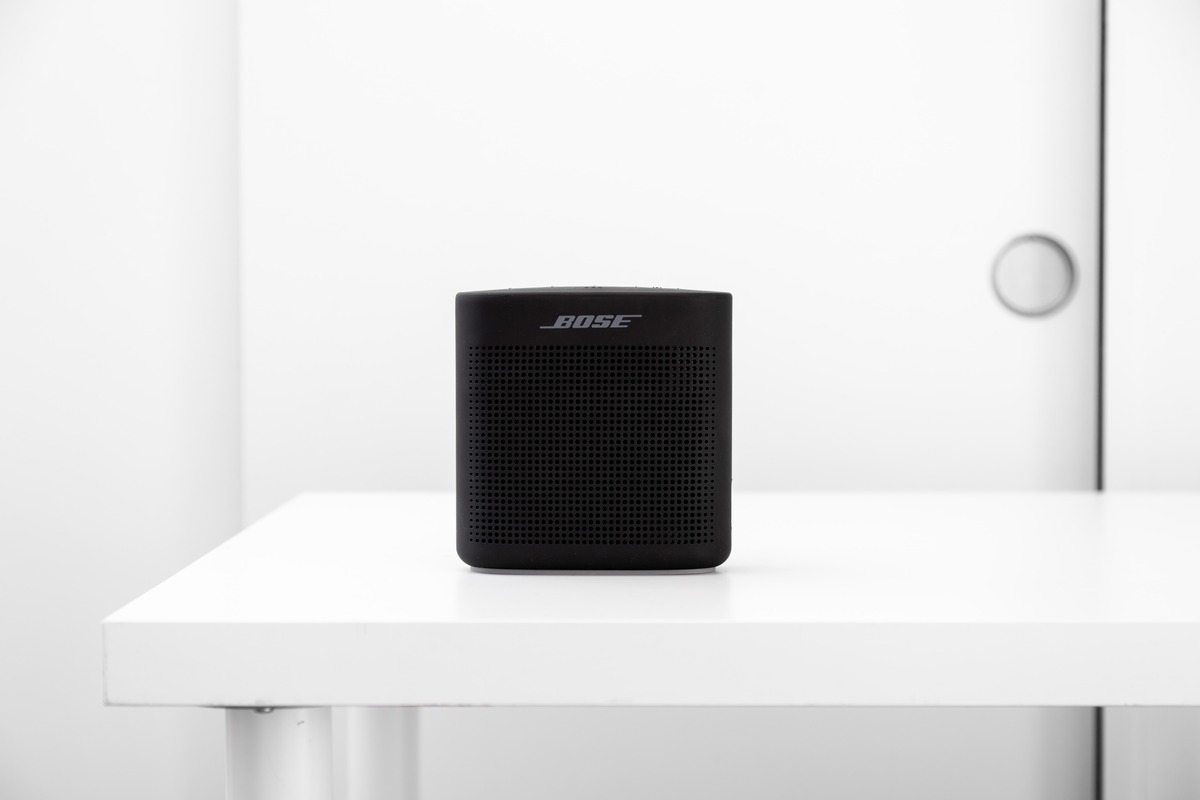
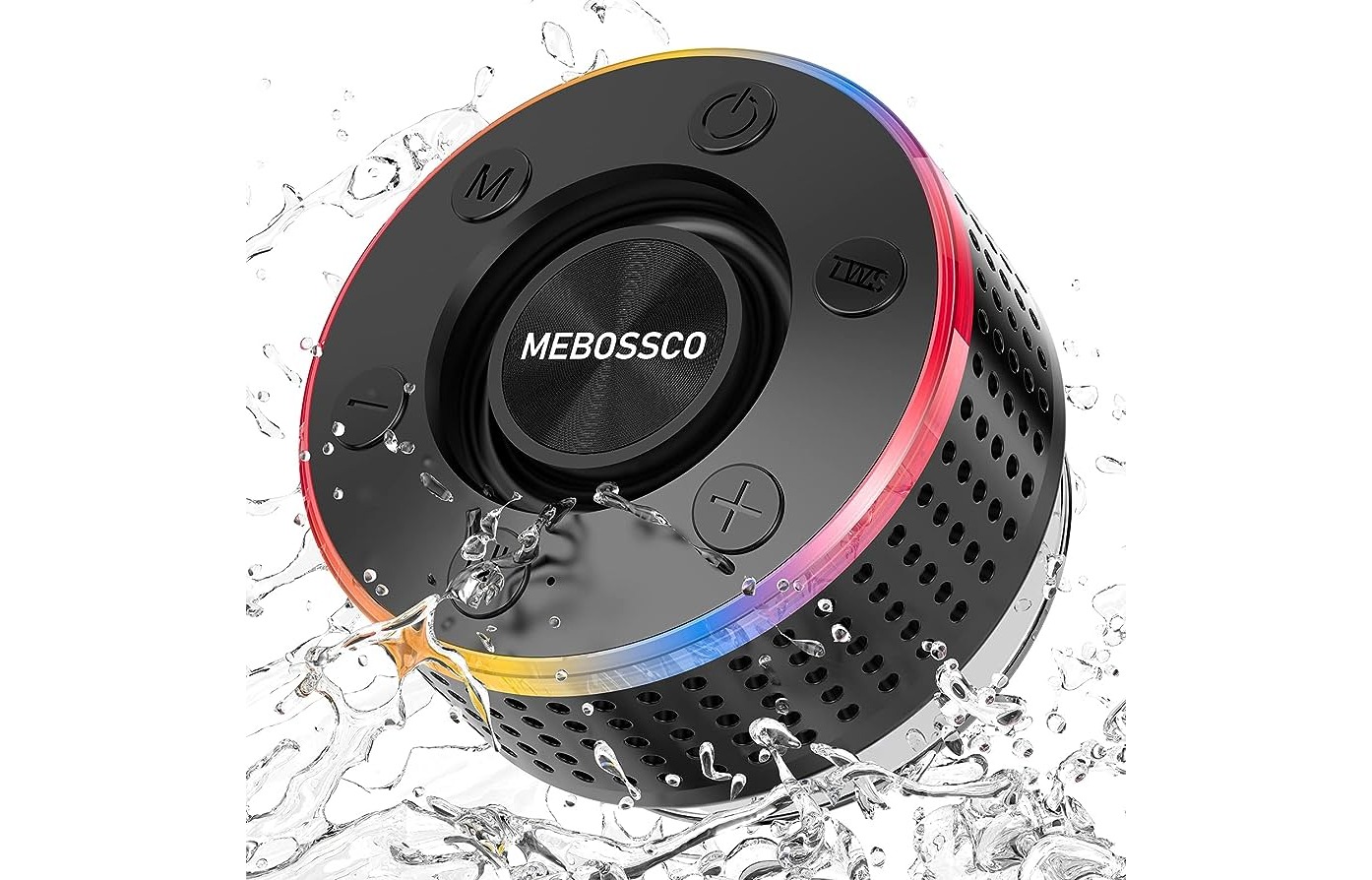
When your phone acts purely as an audio source, the linking routine follows the same basic shape across most portable units. You put the hardware into discovery mode by holding its Bluetooth button until a light flashes or a tone sounds, then you open your handset’s Bluetooth panel and pick the product’s name from the list of available devices. The exact button and indicator pattern differs by brand, so the right approach depends on which model is in front of you. If you need to connect a phone to an Altec Lansing speaker, the process starts with the unit's own controls. The same principle applies when you connect my phone to a Bose speaker or connect an Anker speaker to an iPhone. This core logic extends across earbuds, rugged outdoor companions, hearing aids, and helmet communicators, whether you need to connect waterproof boom speaker to iPhone, connect Bose earbuds to iPhone, connect Phonak hearing aids to iPhone, connect Sedici helmet Bluetooth to iPhone, or connect Avantree Bluetooth headphones to iPhone. Once linked, the audio gear reconnects automatically whenever it is powered on and in range, so you only need to work through the sequence once.
Linking hearing aids and home audio
Specialized audio gear often expects your phone to behave as a straightforward sound source, but the setup path differs sharply from the headset routines covered earlier. When you want to connect my phone to my soundbar, you are asking the handset to stream music or podcast audio to a larger output system; put the soundbar into Bluetooth discovery mode using its own remote or onboard button, then pick its name from your phone’s Bluetooth list. Hearing aids follow a different rulebook entirely. On an iPhone, the process moves through the Accessibility area, where you tap the option to pair an MFi hearing device after confirming the aid is compatible and in linking mode. DECT-style cordless phone bases operate outside this ecosystem. If you are trying to connect Vtech phone to base, the manufacturer’s guidance points instead to reseating the handset in its cradle and checking power connections rather than a phone-based linking routine.
Using your phone as a speaker or with a PC
When your phone switches roles from audio source to the unit that receives sound or data, the connection rules change. If you want to use an iPhone as a speaker for a PC, the path is not a standard Bluetooth handshake. For wired data tasks, the setup is more straightforward. To connect ZTE phone to PC, plug the handset in with a USB cable and watch for the mode menu that appears automatically, where you choose File transfer or Media device (MTP) so the computer sees your folders. Some models instead require you to open Settings, tap Phone settings, then Connect to PC and pick the same choice from a list that also includes Charge only. The routine shifts again when you need to connect iPhone to iTunes, because the link relies on a physical USB cable and the desktop app rather than a wireless handshake. After you plug the handset into the computer and open iTunes, the small device icon appears in the upper-left corner, and tapping it reveals the sync preferences where you select specific music, photos, or other content before clicking Apply to start the transfer.
Frequently Asked Questions
How do I change the Bluetooth codec on my Android phone?
Open Settings > Developer options > Bluetooth audio codec and select from the available profiles. If you do not see Developer options, go to Settings > About phone and tap Build number seven times to unlock the menu first.
What is the PIN for pairing a Sena headset to my phone?
Enter 0000 when prompted during the pairing process. Some phones do not ask for a PIN at all, and the headset times out after three minutes if pairing is not completed.
How do I put my Echo Dot into Bluetooth pairing mode?
Say "Alexa, pair Bluetooth" to make the speaker discoverable hands-free. You can also open the Alexa app, tap Devices, select your Echo, go to Settings > Bluetooth Connections, and choose Pair a New Device.