
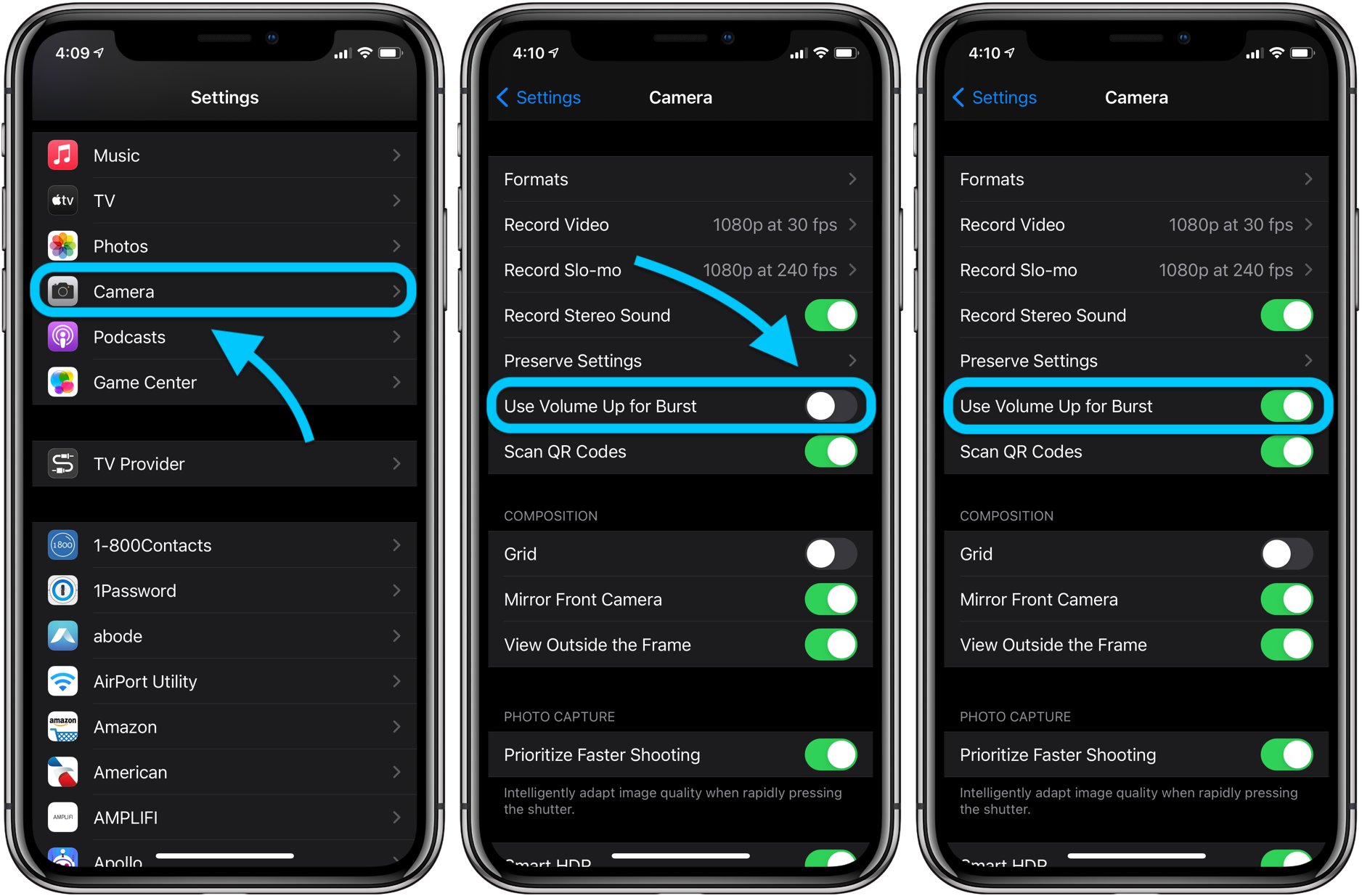
Are you tired of missing the perfect moment while taking photos on your iPhone? The burst photo feature available on iPhones can help you capture those split-second moments with ease. Burst photos allow you to take a series of images in rapid succession, ensuring that you don’t miss any important details in fast-moving scenes or candid shots. Whether you’re trying to capture that elusive smile or freeze a moment in action, burst photos provide you with a range of options to choose from. In this article, we will guide you through the steps on how to do burst photos on your iPhone, enabling you to unleash your photography skills and never miss a precious moment again.
Inside This Article
- How To Do Burst Photos On iPhone
- Activate Burst Mode
- Capture Burst Photos
- Select the Best Shot
- Manage Burst Photos
- Conclusion
- FAQs
How To Do Burst Photos On iPhone
Have you ever wanted to capture fast-action moments like sports events, cute pet antics, or children at play? With Apple’s iPhone, you can easily take burst photos to ensure you never miss a great shot. Burst mode allows your iPhone to capture a series of photos in quick succession, giving you a higher chance of getting the perfect image. In this article, we will guide you through the steps to enable burst mode, take burst photos, and manage them on your iPhone.
Enabling Burst Mode
Before you can start capturing burst photos, you need to enable the burst mode feature on your iPhone. Follow these simple steps:
- Open your iPhone’s Camera app.
- Ensure you’re in the Photo mode by tapping the icon at the bottom of the screen if necessary.
- Aim your iPhone at the subject you want to capture.
- Press and hold down the shutter button (the large circular button) or the volume up button to activate burst mode.
- You will see a counter at the bottom of the screen, indicating the number of photos being taken in burst mode.
Capturing Burst Photos
Once burst mode is activated, your iPhone will start taking a rapid succession of photos. Here are a few tips to get the best burst photos:
- Hold your iPhone steady to minimize blurriness.
- Try to anticipate the action and start the burst at the right moment.
- Experiment with different angles and compositions to capture unique shots.
Viewing and Selecting the Best Shot
After capturing burst photos, you’ll want to view and select the best shot. Follow these steps:
- Open the Photos app on your iPhone.
- Navigate to the album or folder where your burst photos are located.
- Tap on the burst photo you want to view.
- Swipe left or right to scroll through the entire burst sequence.
- Tap on “Select…” to choose the photos you want to keep.
- Tap “Done” to save your selected photos.
Managing Burst Photos
If you’re worried about your burst photos taking up too much space on your iPhone, don’t fret! Here’s how you can manage them:
- Delete unwanted burst photos: In the burst sequence view, select the photos you want to delete, then tap the trash bin icon.
- Keep the best shot: In the burst sequence view, tap on “Select…”, choose the photo you want to keep, and tap “Done”.
- Save space with Optimized Storage: You can enable Optimized Storage in the Settings app under “Photos” to automatically save space by storing lower-resolution versions of your burst photos in iCloud.
Now that you know how to enable burst mode, capture burst photos, and manage them on your iPhone, you can unleash your creativity and never miss a moment again. Whether it’s capturing the perfect action shot or creating a stunning sequence of images, burst mode on iPhone is a powerful tool that will take your mobile photography to the next level.
Activate Burst Mode
One of the standout features of the iPhone camera is the Burst Mode. Burst Mode allows you to capture a series of photos in rapid succession, ensuring that you never miss a moment. Whether you’re trying to capture a moving subject, a group photo, or a fast-paced event, Burst Mode is the perfect tool to capture every detail.
Activating Burst Mode on your iPhone is quick and easy. Follow these simple steps to get started:
- Open the Camera app on your iPhone.
- Select the desired photo mode (e.g., Photo or Portrait).
- Tap and hold the shutter button. You’ll notice that the shutter button changes its appearance, indicating that Burst Mode is now active.
Once the Burst Mode is activated, your iPhone will start capturing a series of photos in rapid succession. Depending on the iPhone model and settings, Burst Mode can capture up to 10 frames per second, ensuring that you have plenty of shots to choose from.
It’s worth noting that Burst Mode is particularly useful in situations where the subject is in motion or when you want to capture a precise moment. The feature is incredibly handy for shooting sports events, action shots, or even capturing a child’s playful antics.
Moreover, Burst Mode is designed to help you capture sharp and clear images, even if you or your subject is moving. The iPhone’s intelligent image stabilization technology and burst analysis algorithms work together to select the best shots and ensure optimal clarity and detail.
Whether you’re a photography enthusiast or simply want to capture every special moment, Burst Mode on your iPhone is an invaluable tool. With just a simple tap and hold, you can ensure that you never miss the perfect shot.
Capture Burst Photos
Do you ever find yourself in a situation where capturing just one photo isn’t enough? Perhaps you’re trying to photograph a fast-moving subject or want to capture a series of candid shots. If that’s the case, then burst mode on your iPhone is the perfect solution. Burst mode allows you to take a rapid sequence of photos, ensuring that you never miss a moment.
To capture burst photos on your iPhone, follow these simple steps:
- Open the Camera app: Find the Camera app on your iPhone’s home screen and tap to open it. You can also swipe left on the lock screen to access the camera quickly.
- Enable Burst Mode: Once you’re in the Camera app, look for the shutter button at the bottom center of the screen. Press and hold this button to activate burst mode. You’ll notice that the shutter button now displays a counter indicating the number of photos taken.
- Take Burst Photos: With burst mode enabled, simply point your iPhone at the subject you wish to capture and hold down the shutter button. Your iPhone will continuously take photos in rapid succession for as long as you hold down the button.
It’s important to note that when capturing burst photos, your iPhone’s camera captures images at a high speed, ensuring that even fast-moving subjects are captured with clarity. Burst mode is especially useful for photographing sports events, action shots, or capturing candid moments where timing is crucial.
Once you’ve captured a burst of photos, you can choose the best shots to keep and delete the rest. Here’s how:
- View Burst Photos: After taking a burst of photos, go to your iPhone’s Photos app and open the burst photo you wish to review.
- Select the Best Shot: Scroll through the burst photos and select the shot you consider to be the best. Look for clarity, composition, and any other factors that make the photo stand out.
- Save or Delete Photos: Once you’ve chosen the best shot, tap “Select…” at the bottom of the screen. You can then choose to save just the selected photo or save it along with the rest of the burst photos. Alternatively, if none of the photos meet your expectations, you can choose to delete the entire burst.
Managing burst photos allows you to keep your photo library organized and ensures that you only save and share the best images. Burst mode on your iPhone is a powerful tool that enables you to capture those critical moments and never miss a perfect shot. So, the next time you find yourself in a situation where one photo just won’t cut it, remember to activate burst mode and unleash your iPhone’s rapid-fire photo-taking capabilities.
Select the Best Shot
When you capture burst photos on your iPhone, you will end up with a series of images to choose from. However, not all the shots will be equally good. Here are some tips on how to select the best shot from your burst photos.
1. Review the Burst Photos: To begin with, open the Photos app on your iPhone and navigate to the burst photo sequence you want to review. Select the burst photo and tap on “Select…” to view all the images captured in the burst.
2. Identify the Standout Images: Carefully analyze each photo in the sequence, looking for images that stand out in terms of clarity, composition, and subject expression. Look for images with sharp focus, balanced exposure, and well-framed subjects.
3. Zoom In for Details: If you have a hard time differentiating between similar shots, zoom in on certain areas of the photo to examine the details. This can help you identify subtle differences in sharpness or facial expressions.
4. Use the “Favorites” Feature: While reviewing the burst photos, tap the “Favorites” button (represented by a heart icon) below the photos that you consider the best. This will mark them as your favorites and make it easier to find them later.
5. Assess Facial Expressions: If your burst photos include people, pay attention to the subjects’ facial expressions. Choose the shot where everyone has their eyes open and is smiling naturally, if that is the desired outcome.
6. Delete Unwanted Photos: To declutter your photo library and save space, delete the duplicate or unwanted shots from the burst sequence. Select the photos you want to delete, tap the trash can icon, and confirm the deletion.
7. Edit the Best Shot: After selecting and keeping the best shot from the burst sequence, you can further enhance it using the editing tools available in the Photos app. Adjust brightness, contrast, and apply filters to make your photo truly stand out.
Remember, burst mode is designed to capture a series of photos in quick succession, giving you more options to choose the perfect shot. By carefully reviewing and selecting the best photo, you can ensure your memories are captured in the highest quality.
Manage Burst Photos
After capturing burst photos on your iPhone, you might find yourself with a collection of shots that you need to manage. The good news is that your iPhone provides various options to help you organize and handle your burst photos with ease.
Here are some tips to manage your burst photos effectively:
- Delete Unwanted Shots: Review the burst photos and select the ones you no longer need. To delete individual shots, open the Photos app, navigate to the burst photo album, select the photo you want to delete, and tap the trash bin icon. If you want to delete all the shots from the burst, choose “Select All” on the top-right corner and tap the trash bin icon.
- Keep the Best Shot: If you captured a burst to ensure you capture the perfect moment, you may want to choose the best shot from the burst series. Open the burst photo in the Photos app, tap “Select” and swipe through the frames. Once you find the best shot, tap “Done” and select “Keep Only Favorite” to save only that shot.
- Create a Burst Photo Album: To keep your burst photos organized, you can create a specific album dedicated to them. Open the Photos app, go to the Library tab, tap “Edit” at the top-right corner, and select “New Album.” Give your album a name, then go to the burst photo album, select the burst photos you want to add to the new album, and tap “Done.” The selected burst photos will now be part of the newly created album.
- Share Burst Photos: If you want to share your burst photos with others, you can do so easily. Open the burst photo in the Photos app, tap “Select” and choose the shots you want to share. Once you’ve selected the shots, tap the share icon at the bottom-left corner. From there, you can choose your preferred method to share the burst photos, such as messages, email, or social media platforms.
- Back Up Your Burst Photos: It’s always a good idea to back up your burst photos to ensure they are not lost in case of device damage or data loss. You can use iCloud or other cloud storage services to back up your photos automatically. Simply go to Settings > [Your Name] > iCloud > Photos and enable iCloud Photo Library or iCloud Backup. This way, your burst photos will be securely stored in the cloud and accessible from any device.
By managing your burst photos on your iPhone, you can keep your photo library organized, create collections of your favorite shots, and share your memorable moments with others hassle-free. Take advantage of these tips and make the most of your burst photography capabilities!
Conclusion
In conclusion, capturing burst photos on your iPhone can add a whole new level of creativity and spontaneous moments to your photography. With just a few simple steps, you can easily capture a series of shots in quick succession, allowing you to select the best one or create stunning sequences of action-packed photos.
By using the Burst Mode feature, you can ensure that you never miss a moment, whether it’s a sporting event, a family gathering, or a breathtaking landscape. This feature provides you with the flexibility to experiment and explore different angles, perspectives, and expressions, resulting in memorable and dynamic photographs.
Remember to practice and experiment with burst photography to truly unlock its potential. So grab your iPhone, enable Burst Mode, and start capturing those incredible moments that deserve to be frozen in time.
FAQs
1. How do I enable burst mode on my iPhone?
To enable burst mode on your iPhone, simply open the “Camera” app and find your desired subject. Now, press and hold the shutter button or volume up button to start taking burst photos. You will see a counter at the bottom of the screen indicating the number of photos captured. Release the button when you have finished capturing the burst.
2. Can I edit burst photos on my iPhone?
Yes, you can edit burst photos on your iPhone. Open the “Photos” app and find the burst photo you want to edit. Tap on it to open the burst photo set, then select the photo you want to keep as the main shot. Tap on “Done” and then choose “Keep Only 1 Favorite” to save the selected photo. Afterward, you can edit the photo as you would with any other photo on your iPhone.
3. How do I delete burst photos on iPhone?
To delete burst photos on your iPhone, open the “Photos” app and locate the burst photo set you want to delete. Tap on it to open the burst photo set, then tap on “Select” in the upper-right corner of the screen. Now, you can either tap on each photo you want to delete or tap on “Select All” to delete all the photos in the burst. Finally, tap on the trash can icon to delete the selected burst photos.
4. Can I use burst mode with the front-facing camera on my iPhone?
Yes, you can use burst mode with the front-facing camera on your iPhone. Open the “Camera” app and switch to the front-facing camera by tapping on the camera flip icon in the top right corner of the screen. Then, press and hold the shutter button or volume up button to start capturing burst photos using the front-facing camera.
5. How many burst photos can I take on my iPhone?
The number of burst photos you can take on your iPhone depends on various factors, including the model of your iPhone and the available storage space. Newer iPhone models typically allow you to capture a higher number of burst photos compared to older models. Additionally, the amount of available storage on your iPhone will determine how many burst photos you can capture before running out of space.
