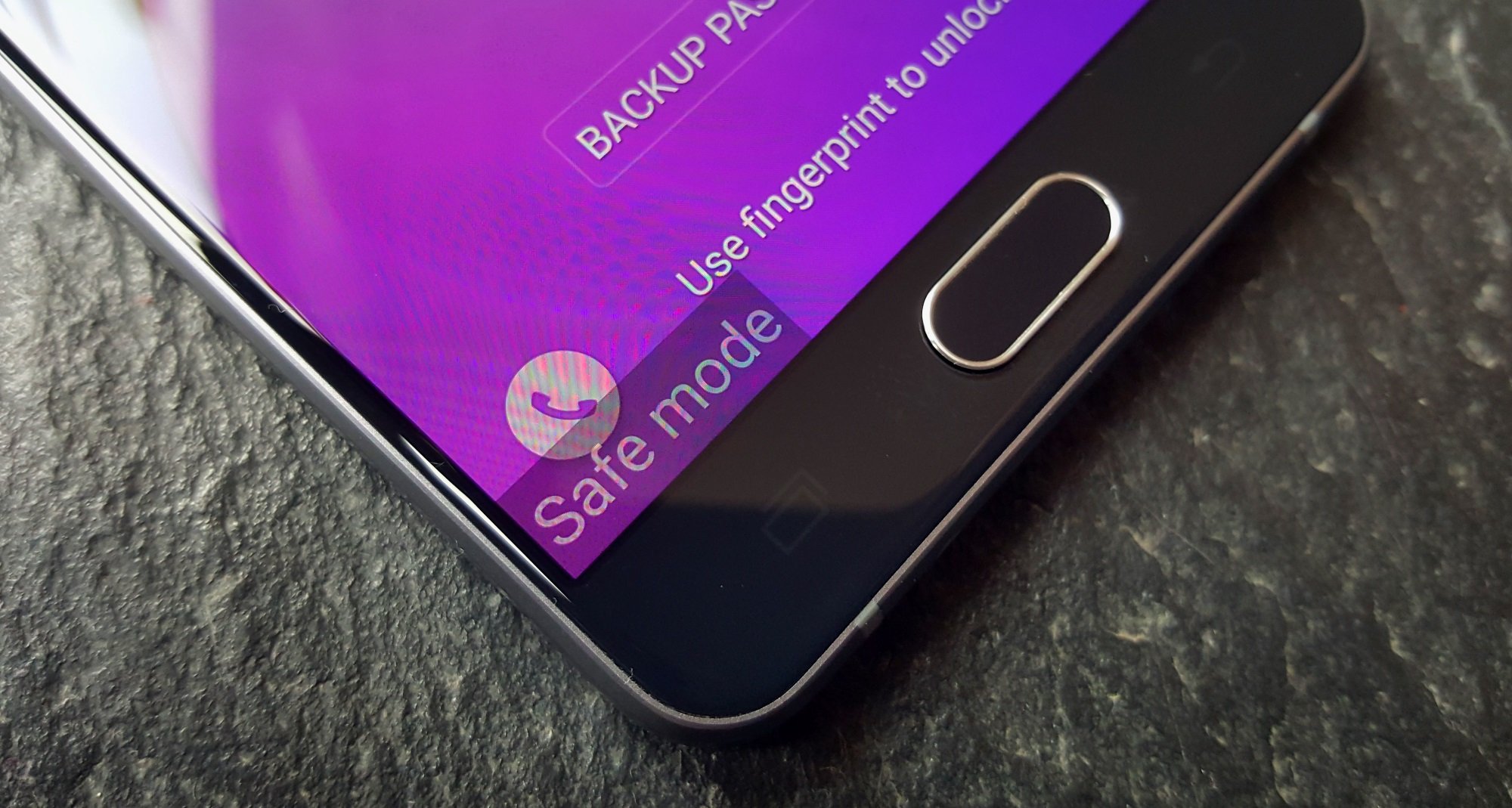
To take safe mode off your Samsung phone, simply restart the device. Samsung states that Safe Mode ends when the phone restarts normally, so this is the primary method to restore full functionality.
How to take Safe Mode off a Samsung phone
Samsung documents three methods to exit Safe Mode on Galaxy devices: a standard restart, a shortcut through the notification panel, and a forced restart using button combinations. The method that works for you depends on your specific Galaxy model and whether the screen is responsive.
Method 1: Restart your Samsung phone normally
The standard restart via the power menu is Samsung's primary documented exit method that works on all Galaxy devices. This is the simplest way to take safe mode off your Samsung phone.
- Press and hold the Power button until the power menu appears.
- Tap Restart.
- Wait for the phone to reboot. Once it is back up, Safe Mode should be off.
Method 2: Use the Safe mode is on notification
On some Galaxy models, a persistent notification offers a direct way to exit. This shortcut still triggers a restart.
- Swipe down from the top of the screen to open the notification panel.
- Tap the notification that says Safe mode is on.
- Tap Turn off. Your phone will restart and exit Safe Mode.
Method 3: Force restart when the screen is unresponsive
If your screen is frozen or unresponsive, Samsung documents a button-hold combination for some Galaxy devices. Samsung documents this for Galaxy phones and tablets in general, and the exact button combo depends on the device design and region page. This method bypasses the need for touch input.
- Press and hold Volume Down and Power together for at least 5 seconds.
- On newer Galaxy models with a different button layout, hold Volume Down and Side key together for 7 seconds.
- Samsung's support pages also list a forced restart method for some Galaxy devices: hold Volume Down and Power for at least 5 seconds, or on newer layouts hold Volume Down and Side key together, then choose Restart when shown.
How to check if your Samsung phone is in Safe Mode
How can I identify if my Samsung phone is in Safe Mode or not? Look for a 'Safe Mode' icon or text at the bottom of the screen. If you see either indicator, your phone is in Safe Mode and you need to use one of the exit methods above.
What to do if Safe Mode won't turn off
If a normal restart does not work, first check that no physical buttons are stuck, particularly the Volume Down button, which can trigger Safe Mode during startup. Try the forced restart method using Volume Down and Power or Volume Down and Side key. If you're experiencing frequent Safe Mode boot-ups, it may be a sign of a deeper issue that needs to be addressed. If your phone continues to boot into Safe Mode after multiple restart attempts, contact Samsung support for further assistance. Powering your phone on and off repeatedly in this situation will not resolve a hardware button issue.
Frequently Asked Questions
Will I lose any data by restarting to exit Safe Mode?
No, a standard restart or forced restart does not delete any of your apps, photos, or settings. It simply reboots the phone normally.
Why does my Samsung phone keep booting into Safe Mode?
Some common causes for entering Safe Mode include software issues, third-party apps, and volume button issues. This often happens if the Volume Down button is stuck or pressed during startup. It can also occur if a third-party app is causing a system error that triggers Safe Mode on each boot.
Can I use my apps while in Safe Mode?
No, Safe Mode disables all third-party apps. Only pre-installed system apps will be available until you exit Safe Mode.
Is there a difference between Safe Mode and Lockdown Mode?
Yes. Safe Mode is a Samsung Android troubleshooting mode that disables third-party apps. Lockdown Mode is an Apple security feature for iPhones and is not related to Samsung devices.
What should I do if an app is causing problems after I exit Safe Mode?
After exiting Safe Mode, if you suspect a specific app is causing issues, you can uninstall it through Settings > Apps.