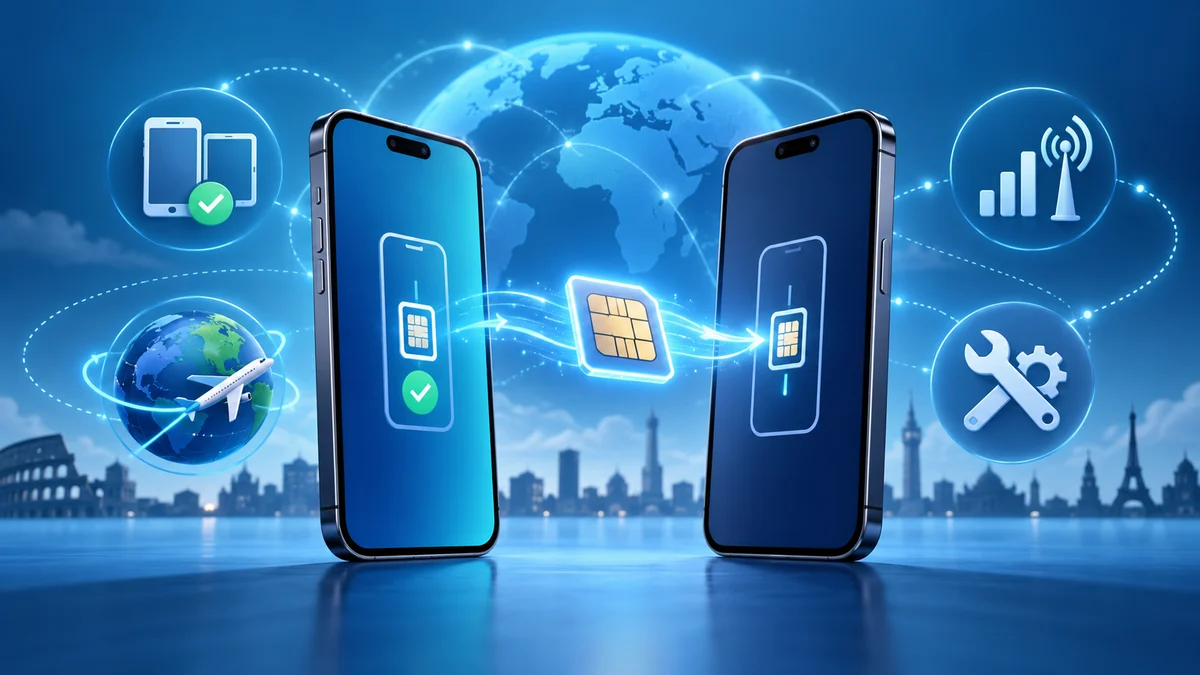
When you need to transfer an eSIM to a new phone, the exact steps depend on whether you are moving a carrier phone number to a replacement device or moving a single-use travel profile. iPhone, Pixel and Samsung all document different transfer flows, and carrier activation may still be required after the phone-to-phone handoff.
iPhone: Apple's eSIM transfer guidance
Apple says eSIM Quick Transfer works when both devices are signed in with the same Apple Account, the previous iPhone is unlocked with its passcode, both devices are nearby with Bluetooth turned on, and both devices run iOS 18.4 or later. On the new iPhone, open Settings > Cellular > Set Up Cellular or Add eSIM. If a list of numbers appears, choose a cellular plan to transfer from another iPhone; if no list appears, tap Transfer From Nearby iPhone.
Apple says to follow the instructions on the previous iPhone, then tap Transfer or enter the verification code shown on the new iPhone. After activation, the cellular plan on the new iPhone deactivates the previous SIM. If a banner appears that says Finish Setting Up Your Carrier's Cellular Plan, tap it to continue on the carrier webpage.
Pixel: Google's Pixel eSIM guidance
Google documents eSIM transfer on Pixel phones for Android 12 or later with the current version of Google Play Services. On the new Pixel, open Settings > Network & internet > SIMs > Add SIM > Transfer SIM from another device. For transfers from an iPhone to a Pixel, Google’s Pixel eSIM guidance also shows Transfer a SIM from another phone after Add SIM, then selecting iPhone.
For the Android-to-Android flow, Google says to choose the SIM to transfer and then tap Transfer and Activate. For iPhone-to-Pixel transfers, the documentation shows the old iPhone being turned on during the process. Google also notes that Pixel users can activate eSIM during device onboarding or later in settings.
Samsung: Galaxy eSIM transfer paths
Samsung documents eSIM transfer for Galaxy phones through Settings > Connections > SIM manager > Add eSIM. In the documented Galaxy-to-Galaxy or Galaxy-to-Android path, the new device shows Transfer SIM from Galaxy/Android phone. Samsung also documents an iPhone-to-Galaxy flow in which the new Galaxy shows Transfer SIM from iPhone.
Samsung’s published Galaxy steps for the iPhone-to-Galaxy path say the new device generates a QR code for connecting devices, the old device scans the QR code, and if scanning is not possible the user can tap Enter a passcode instead. The old device then selects a phone number from the list and taps Continue. Samsung’s pages do not present one universal transfer path for every carrier, region or model, and support text varies across regional support pages.
Carrier number transfer versus replacing a travel eSIM
Carrier number transfer is the process documented by Apple, Google and Samsung when the phone number or carrier plan moves to the new handset. In Apple’s flow, the plan on the new iPhone deactivates the old SIM when it activates, and Apple may redirect users to the carrier’s webpage for the final eSIM transfer step. Samsung also notes that some transfers can proceed without contacting the network carrier, but that language appears on its support pages for specific device-to-device flows, not as a universal rule.
A single-use travel profile is different from a carrier number transfer. The published Apple, Google and Samsung pages here document moving an existing cellular plan or eSIM between phones, but they do not document a reusable travel-profile transfer policy, a refill rule, or a guarantee that a travel eSIM can be moved between devices after activation. For travel-data choices, the only current fact documented in these pages is that the transfer steps are tied to the existing SIM or cellular plan on the old device.
What to check before you start
- iPhone transfers require both devices to be nearby, Bluetooth on, the same Apple Account, and iOS 18.4 or later.
- Pixel transfers require Android 12 or later and the current version of Google Play Services.
- Samsung transfer paths start in Settings > Connections > SIM manager > Add eSIM.
- Apple’s setup flow may end with a carrier webpage step after the device-to-device transfer.
- Google and Samsung both document on-screen transfer choices that depend on whether the source device is another Android phone or an iPhone.
Bottom line
For a standard carrier line, the fastest path is usually the built-in device transfer flow on the new phone, then any carrier confirmation the handset requests. For a travel eSIM, do not assume the same move-and-reactivate process applies unless the provider’s own documentation says so.
More eSIM resources: Browse our eSIM guides and troubleshooting resources for compatibility, setup, travel-data and account-safety advice.
Related reading: Complete eSIM Guide: Compatibility, Setup, Travel and Troubleshooting, Factory Resetting Phones, and T-Mobile: How To Switch Phones.