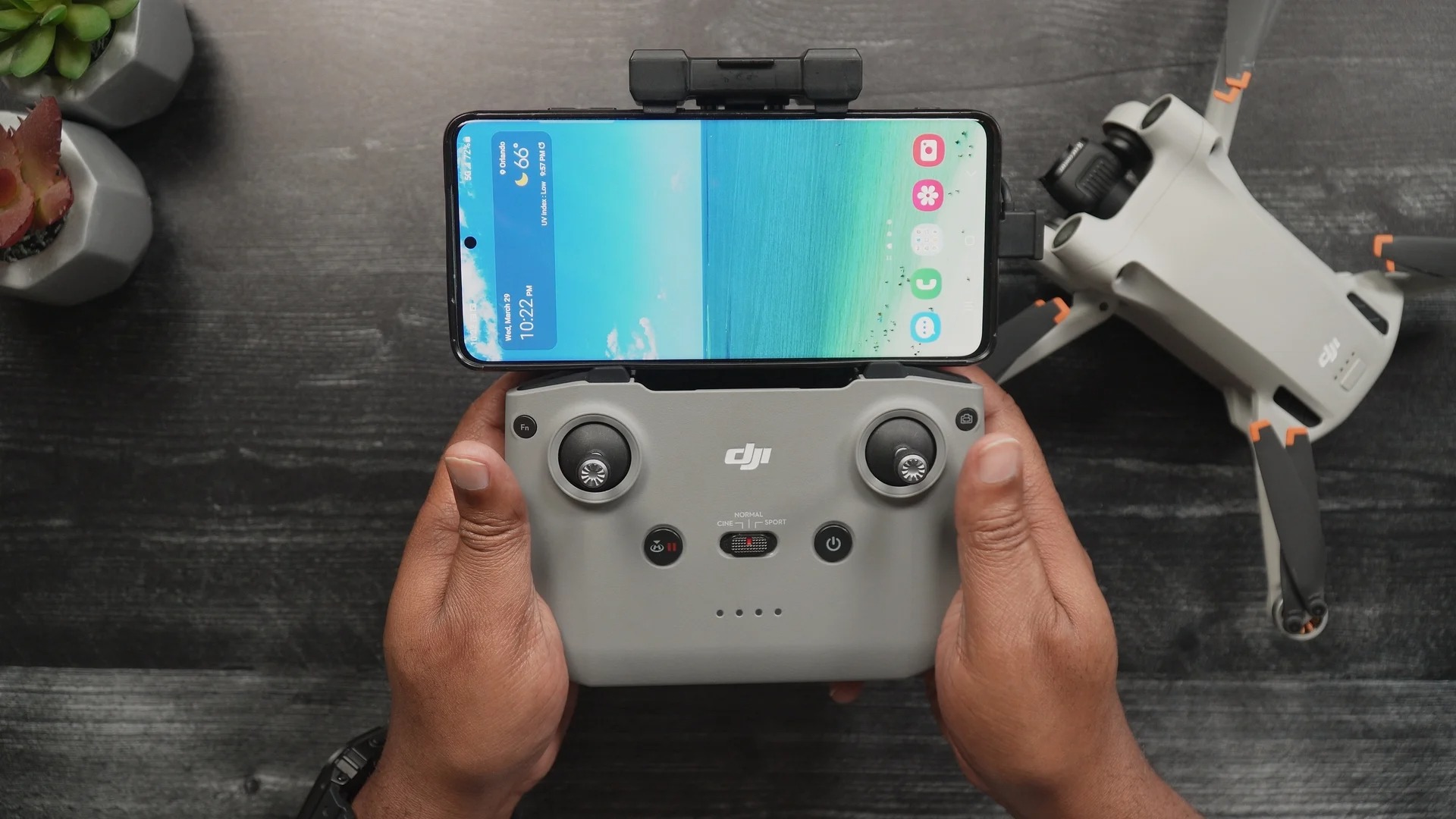
To connect drone to phone, you need to use the manufacturer's dedicated mobile app, and the method depends entirely on whether your drone connects directly via Wi-Fi or through a remote controller. Most advanced camera drones, such as those from DJI and Autel, require you to connect your phone to the remote controller with a cable, while smaller models like the Ryze Tello or Parrot Bebop 2 create their own Wi-Fi network for your phone to join.
The Two Main Ways to Connect a Drone to Your Phone
Understanding the fundamental difference between connection types sets clear expectations before you begin. Drones that connect directly to your phone via Wi-Fi broadcast their own network, and your phone joins that network to control the drone and view its camera feed. Drones that use a remote controller communicate with the controller over a dedicated radio link, and your phone connects to the controller, typically via a USB cable, to serve as the display and control interface. The controller-based method offers a more stable and longer-range connection, which is why most advanced camera drones use it. Some drones also offer a QR Code Connection method, where you scan a QR code on the drone's body with your phone's camera to establish a connection.
Before You Start: Essential Pre-Flight Checks
Before attempting any connection, verify these prerequisites to avoid common failures. Download the correct app for your drone model from the official manufacturer source, for example, DJI Fly for DJI drones, Autel Explorer or Autel Sky for Autel drones, and FreeFlight 6 or FreeFlight Pro for Parrot models. Ensure your phone meets minimum requirements: most drone apps need at least Android 10 or iOS 14 or newer, and a 64-bit operating system. A minimum of 4GB RAM is often recommended for optimal performance. Both your drone and phone should have sufficient battery charge, at least 50% is recommended, especially if a firmware update may be required. When connecting via USB, always use the official cable from the drone manufacturer or a high-quality, certified data-transfer cable; generic charging-only cables are a common cause of connection failures.
How to Connect a Drone with a Remote Controller (DJI, Autel, etc.)
This is the most common method for advanced camera drones. The verified step-by-step sequence is critical for a successful connection.
- Connect your phone to the remote controller using a USB cable. Use the cable provided with your drone or a certified data-transfer cable.
- Power on the remote controller first.
- Power on the drone.
- Launch the drone app on your phone, for example, DJI Fly for DJI drones, or Autel Explorer (for EVO/EVO II series) or Autel Sky (for EVO Nano/Lite series) for Autel drones.
The app should automatically detect the connected controller and drone, presenting the live camera feed and flight controls. For DJI drones specifically, Android users must download the DJI Fly APK from the DJI website rather than the Google Play Store. If you ever need to share your drone's camera view on a larger display, you can use a screen mirror Android feature from your phone to cast the feed to a TV or monitor.
How to Connect a Drone Directly via Wi-Fi (Tello, Parrot, etc.)
This method applies to drones that create their own Wi-Fi network, such as the Ryze Tello and some Parrot models like the Bebop 2 and ANAFI. The steps are straightforward.
- Power on the drone.
- Open your phone's Wi-Fi settings.
- Look for the drone's broadcasted network name, for example, "TELLO-XXXXXX" for a Tello drone, or "Parrot_Bebop2_XXXX" for a Bebop 2.
- Connect your phone to that network. If prompted, enter the password or authentication details. No internet password is required; the drone acts as its own access point.
- Open the drone's companion app, FreeFlight 6 for Parrot ANAFI, FreeFlight Pro for Parrot Bebop 2, or the Tello app for Ryze Tello.
For Parrot MiniDrone models, the process differs slightly: download the FreeFlight Mini app, activate your phone's Bluetooth, power on the drone, and launch the app. Once connected, the app will display the live camera feed and controls.
Troubleshooting: Why Won't My Drone Connect to My Phone?
If your drone fails to connect, work through these verified fixes in order.
Use a data-transfer cable, not a charge-only cable. This is the most common issue when connecting via a remote controller. Charge-only cables lack the data wires needed for communication. Inspect the cable and ports for any dust or debris, and ensure the cable is firmly plugged into both the phone and the controller.
Move away from electronic interference. Other Wi-Fi networks, Bluetooth devices, or dense urban environments can disrupt the drone-to-phone connection. Switch off other unnecessary Wi-Fi or Bluetooth devices and move to an open space away from such sources for better signal stability.
Restart all devices. Restart your phone, the remote controller, and the drone app. This often refreshes the connection and clears temporary glitches.
Check for firmware updates. Outdated firmware on either the drone or its remote controller can cause compatibility and connection issues. Ensure both are updated to the latest versions using the manufacturer's app or computer software.
Verify phone compatibility. For accurate real-time positional tracking, devices with integrated GPS/cellular are recommended, as Wi-Fi-only devices may struggle with this feature. Check that your phone meets the app's minimum OS and hardware requirements.
Clear app cache or reinstall. If the app crashes, clear the app cache and data in your phone's settings, or uninstall and reinstall the app to resolve persistent software conflicts.
Frequently Asked Questions
Can I connect any drone to my phone?
Not all drones support phone connectivity. Check your drone's specifications to confirm it offers app-based control or a live camera feed before attempting to connect.
Can I connect my drone to my phone without an internet connection?
Yes. The connection between your drone and phone is established through Wi-Fi Direct, Bluetooth, or a USB cable, none of which require an active internet connection. However, some features like loading maps or live streaming to social media may need internet access once the connection is established.
Why does my drone app say "No Signal" even though I'm connected?
This usually indicates that the drone itself is not communicating with the controller or phone. Verify the power-on sequence: controller first, then drone, then app. Also check that the drone's firmware is up to date and that you are within the recommended range with no obstructions.
What are the benefits of connecting my drone to my phone?
Connecting your drone to your phone enables photo and video management, a live camera view, and enhanced functionality such as GPS tracking and waypoint navigation.
Do I need a special phone to connect a drone?
A minimum of 4GB RAM is recommended for smooth app performance. For the best real-time positional tracking, a phone with integrated GPS/cellular is preferred over a Wi-Fi-only tablet.
Can I control my drone without connecting it to a phone?
Yes. Most drones come with a dedicated remote controller that has physical joysticks and buttons, allowing full manual control without a phone. The phone connection adds the live camera view, flight data, and advanced features like waypoint navigation and intelligent flight modes.
What if my drone's Wi-Fi network doesn't appear in my phone's settings?
First, ensure the drone is powered on and in pairing mode. If the network still doesn't appear, move away from areas with heavy Wi-Fi interference, restart the drone, and try again. Some drones require you to be within a few feet of the drone for the network to be visible.