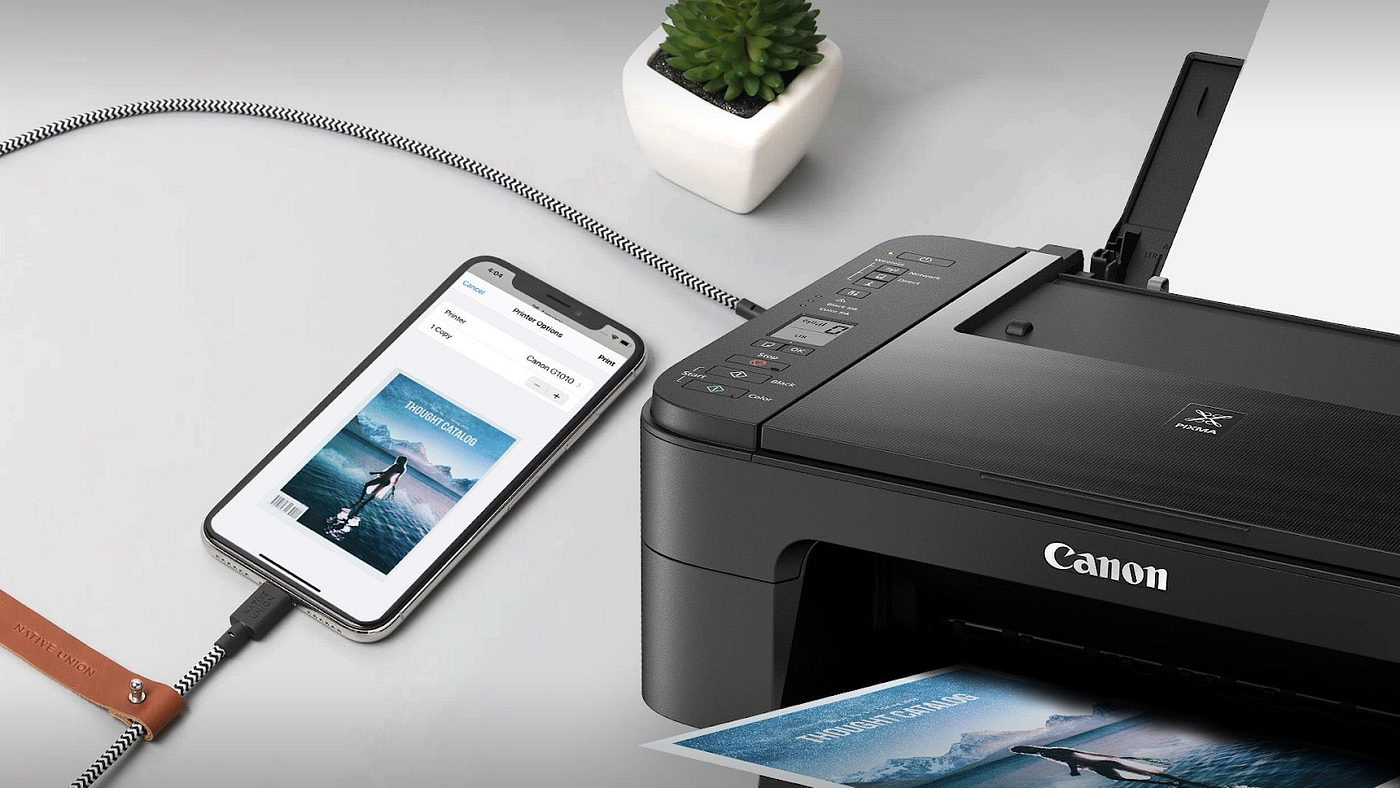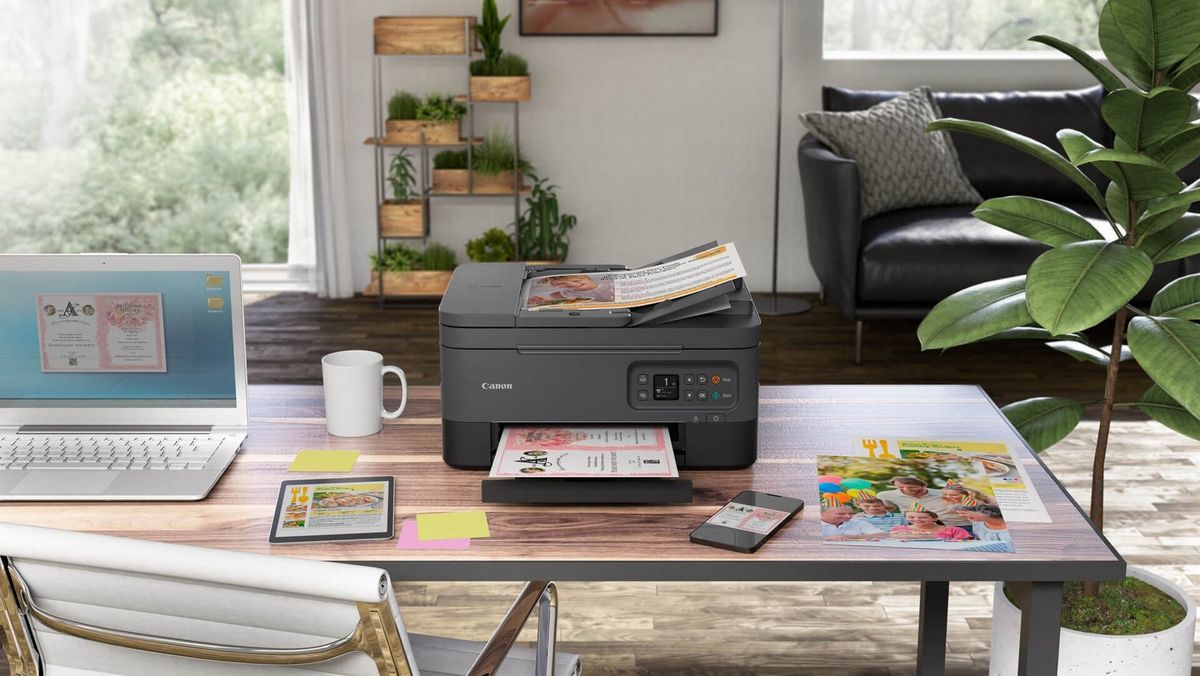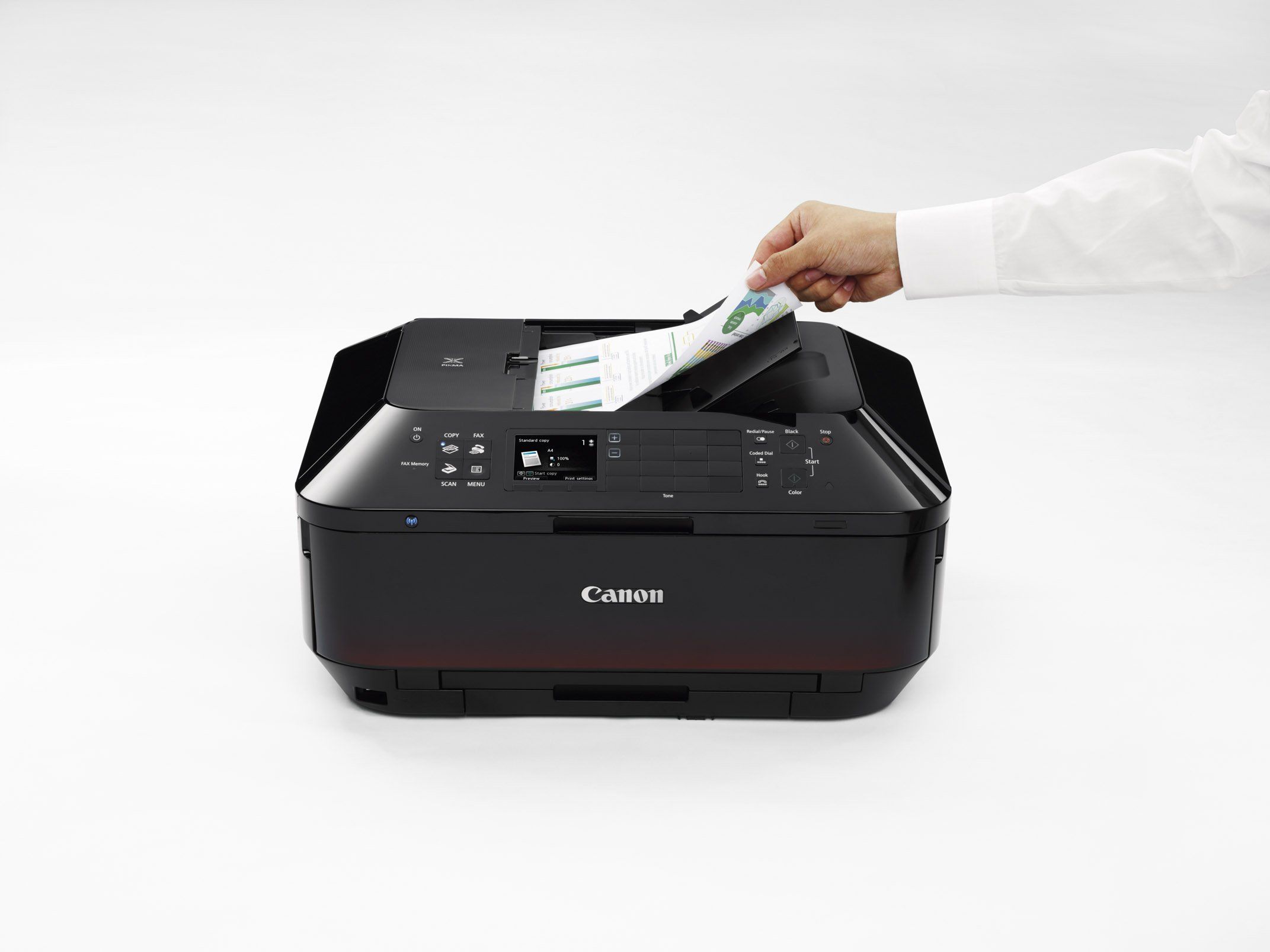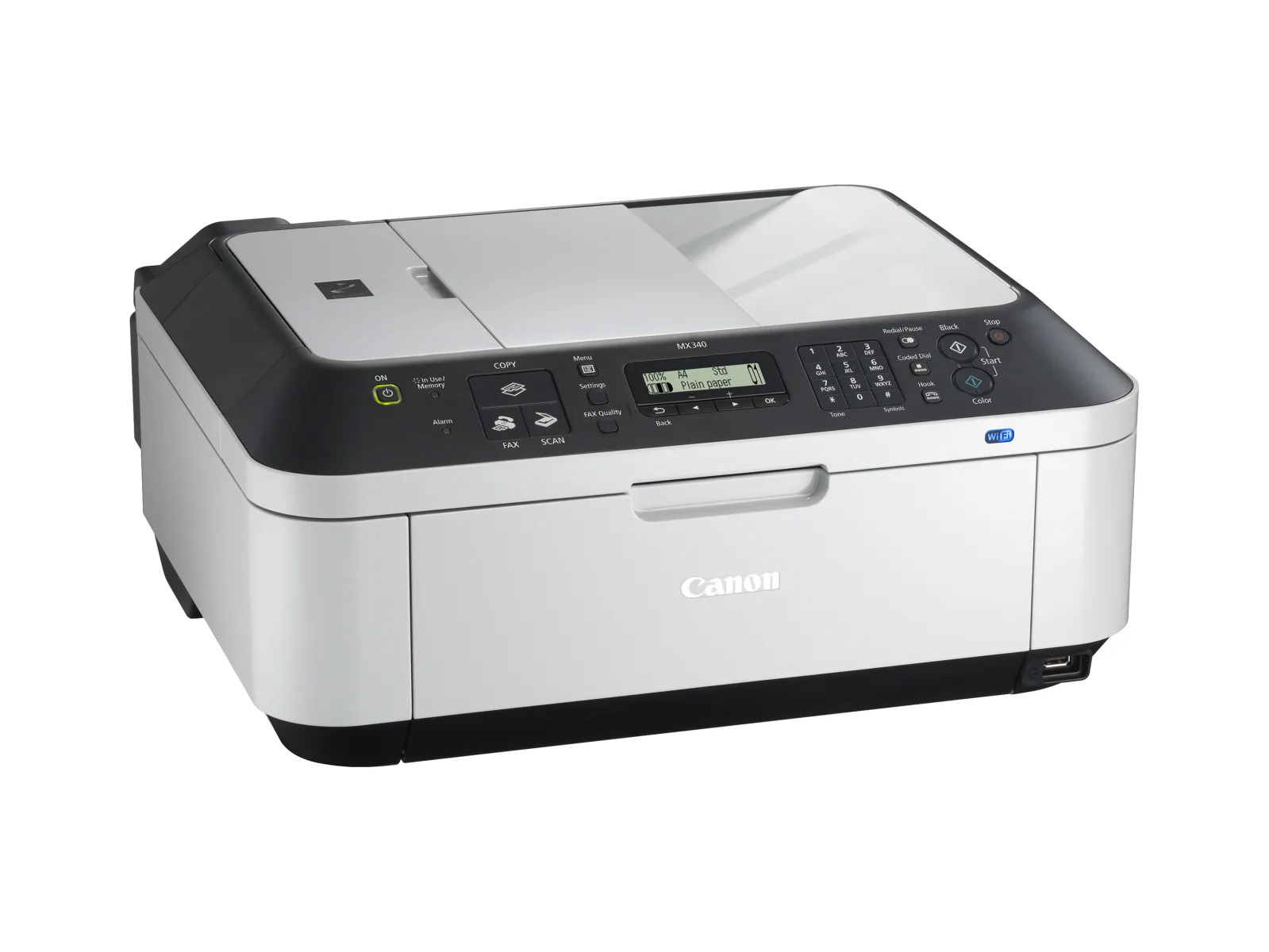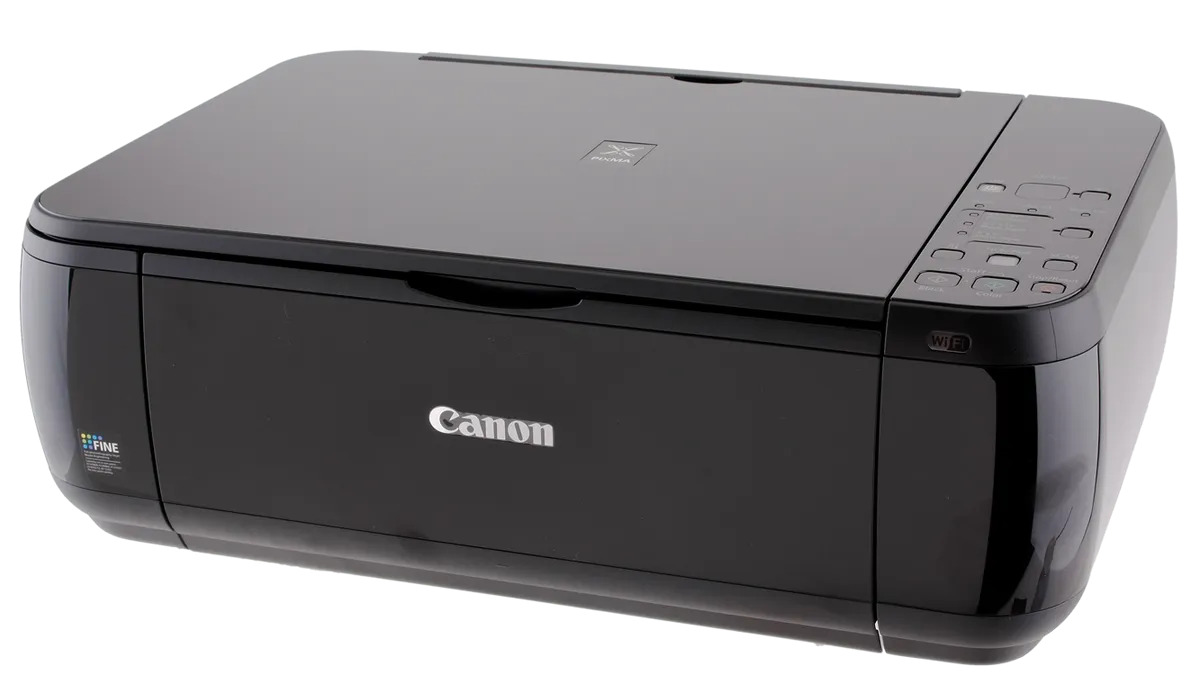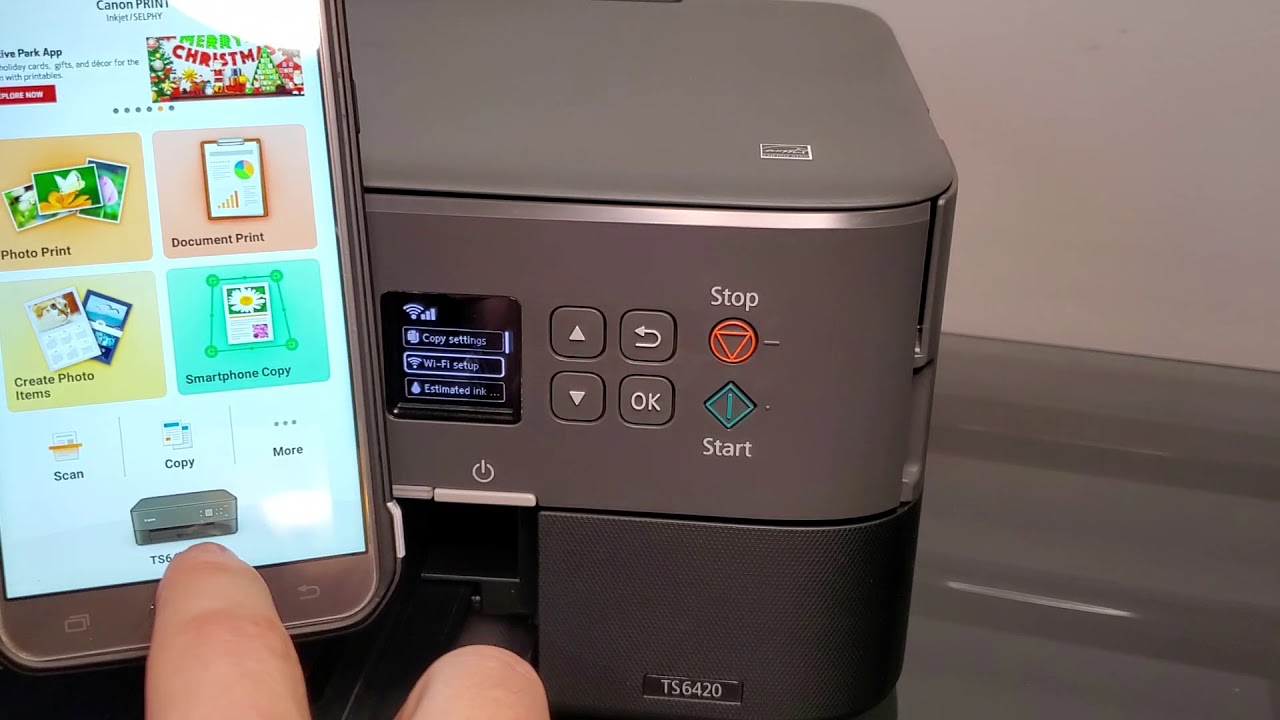
To connect a Canon printer to a phone, you need both devices on the same working Wi‑Fi network and the free Canon PRINT app. This wireless printer setup eliminates cables, letting you print photos and documents directly from your iPhone or Android device.
How to connect canon printer to phone: what you need
The single requirement for mobile printing is that your phone and Canon printer are connected to the same working Wi‑Fi network. You also need the free Canon PRINT app, which works with iPhone/iPad on iOS 16.0 or later and Android 7.0 or later. The app requires wireless 802.11 b/g/n/ac/ad capability.
Check your Canon printer is compatible
Canon PRINT supports printing capabilities for PIXMA, MAXIFY, and SELPHY devices. The app can also be used with most Wi‑Fi printers, including imageRUNNER ADVANCE DX, imageRUNNER, i‑SENSYS X, and i‑SENSYS models. For Apple devices, document printing uses Apple AirPrint and requires an AirPrint‑enabled printer on the same network as the iPhone or iPad. For older printers without built-in wireless, a wireless print server can be purchased to enable mobile printing. Update both the phone's operating system and the printer's firmware to the latest versions to improve compatibility.
Install the Canon PRINT app on your phone
On iPhone, download Canon PRINT from the App Store. On Android, download Canon PRINT from Google Play. The app is free.
Connect your phone to the printer over Wi‑Fi
Primary method: same home/router Wi‑Fi
Ensure your phone and Canon printer are on the same working Wi‑Fi network. This is the simplest way to establish a connection. On Android, the app supports connection through Wi‑Fi, a built‑in access point, or Wi‑Fi Direct. If the printer is not automatically detected in the app, you can manually add it by entering the printer's IP address. A proxy settings path is available for Wi‑Fi connection: Home screen > Menu > App Settings > Proxy Settings.
Alternative direct Wi‑Fi setup for iPhone
- Start wireless setup on your specific printer model.
- On your iPhone, go to Settings > Wi‑Fi.
- Select the network the printer is broadcasting, it may appear as Canon_ij_Setup or a printer‑specific name like Canon_ij_053xx_GX7000series. Enter a password if prompted.
- A message appears: For using services related to Canon product. Tap Agree or Do not agree.
- Tap Allow when prompted, then tap Search.
- When asked to join the printer’s Wi‑Fi connection, tap Join.
- In the network list, tap Direct Connection, then tap Join again after a few minutes.
- Tap Close and then Allow While Using App.
Note for Android
Canon U.S. states the app supports Android 7.0 or later and requires the phone to be on the same working network as the printer.
Print from your phone using Canon PRINT
- Open the Canon PRINT app.
- Choose Photo Print for photos.
- Select the document or image you want to print.
- Adjust settings such as paper size or print quality as needed.
- Tap the print button to send the job to your printer.
For Apple mobile devices, document printing requires AirPrint and an AirPrint‑enabled printer on the same network. For compatible Android devices, NFC printing is available by opening Canon PRINT and touching your device to the printer. The Canon PRINT app allows you to monitor print progress in real-time, including the number of pages being printed and ink levels.
Frequently Asked Questions
Can I connect to iPhone?
Yes, as long as your iPhone is running iOS 16.0 or later, you can use the free Canon PRINT app. Both devices must be on the same Wi‑Fi network, or you can use the direct wireless setup flow described above.
Can I connect to Android?
Yes, Android devices running 7.0 or later can use the Canon PRINT app. Connect over standard Wi‑Fi, a built‑in access point, or Wi‑Fi Direct with the phone and printer on the same working network.
How do I print photos?
Open the Canon PRINT app and choose Photo Print. Select the photo from your phone’s gallery, adjust any settings, and tap print. NFC printing is also available on compatible Android devices.
What if my printer doesn’t show up?
Make sure both the phone and printer are on the same working Wi‑Fi network and that the printer is powered on. If using an iPhone, verify the printer supports AirPrint for document printing. On Android, check that the Canon PRINT app is up to date and that your printer is among the supported families (PIXMA, MAXIFY, SELPHY, imageRUNNER ADVANCE DX, imageRUNNER, i‑SENSYS X, or i‑SENSYS). If a Canon printer lacks wireless connectivity, an alternative is to connect it to a computer via USB, enable printer sharing, and use a phone app that supports USB printing. If a Canon printer lacks wireless connectivity, another alternative is to use a mobile printing service that sends print jobs to compatible printers remotely.
Related reading: How To Connect Printer To Mobile and How To Set Up A Wireless Printer Without The Cd.