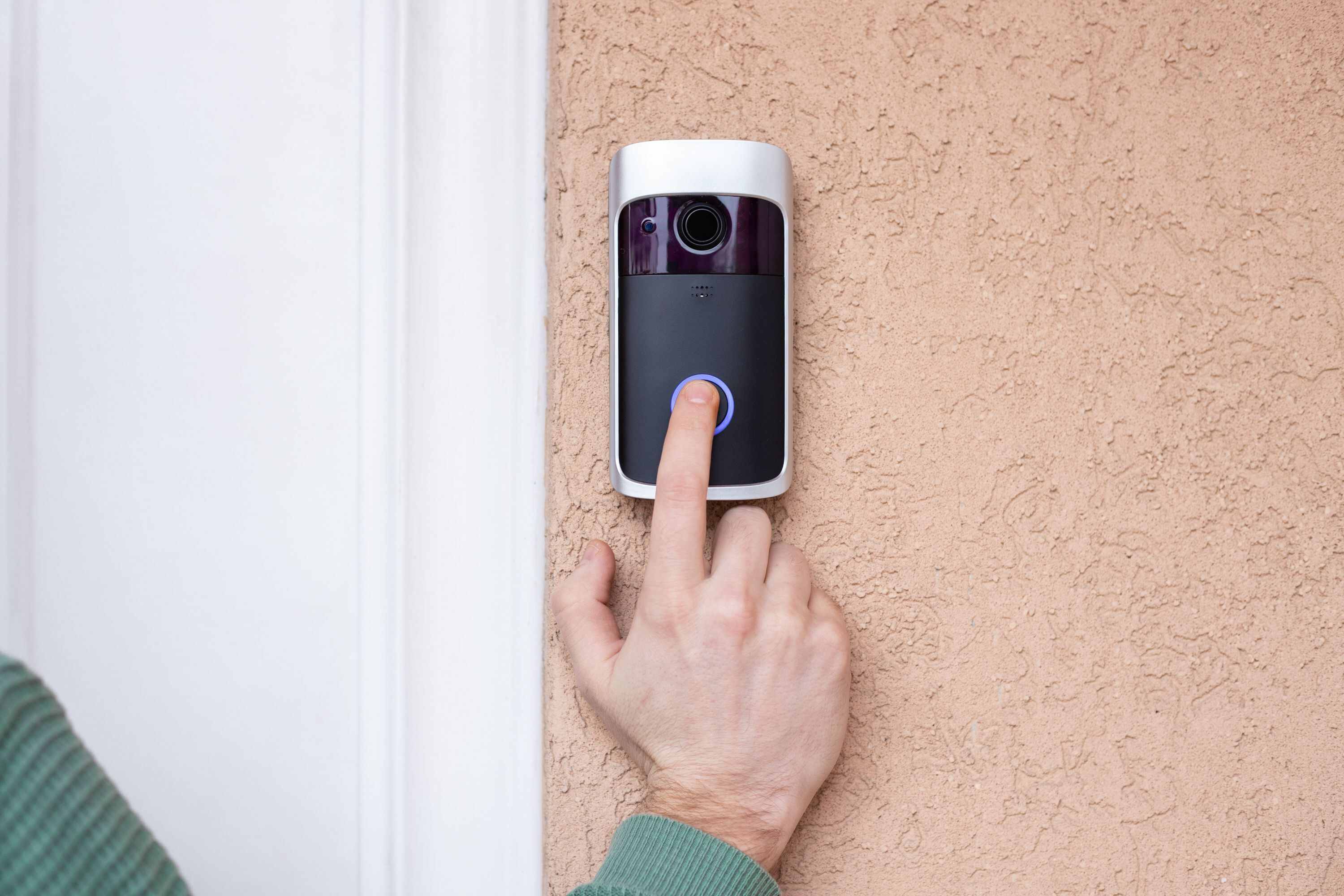
To fix a wireless doorbell, start by power-cycling the device: disconnect its micro USB or AC power, wait a moment, and reconnect it. This simple restart resolves most temporary faults and is the first step before attempting a factory reset or re-pairing.
Check the receiver to fix a wireless doorbell
Before any troubleshooting, verify the receiver is powered. The doorbell should be connected to a power source via its micro USB cable plugged into a USB port and AC charger. Look for white LEDs rotating clockwise on the receiver; this confirms the unit is operational. Check the receiver's volume setting is audible and chime/mode is selected correctly. If no LEDs are visible, the receiver may not be receiving power, and a power-cycle is the next logical step. Test receiver range by moving closer to the button and pressing it. Inspect doorbell button for visible damage, loose wires, cracks, or moisture. Clean the doorbell button to remove dirt or debris affecting performance. Check for firmware updates for the receiver via manufacturer's instructions or website. Inspect batteries for corrosion or leakage and clean battery contacts with rubbing alcohol. The doorbell button may have its own battery that needs replacing.
Power-cycle the doorbell
Power-cycling restarts the device and clears many temporary glitches. To do this, remove the micro USB power or unplug the AC power from the receiver. Wait a few seconds, then reconnect the power. After the receiver powers back on, check if the white rotating LEDs return and test the doorbell. If the issue persists, proceed to a factory reset.
Factory reset the doorbell
A factory reset restores the doorbell to its original settings, which can resolve persistent configuration problems. Locate the SYNC/RESET button on the doorbell. Press and hold this button for 3 seconds, or until you hear the voice prompt: “Please be patient as doorbell restores its factory settings.” This confirms the reset has begun. After the reset completes, the doorbell will need to be re-paired with your phone.
Re-pair the doorbell with your phone
After a factory reset, you must pair the doorbell with your smartphone. Follow these steps in order:
- Ensure your phone’s Location feature is ON. This is required for the doorbell’s hotspot to be detected during pairing.
- Make sure your Wi-Fi network is broadcasting on the 2.4 GHz band and uses WPA or WPA2 security. The doorbell does not support 5 GHz or other security types.
- Open your phone’s Wi-Fi menu and look for the doorbell’s hotspot. It should appear as a network name specific to the doorbell.
- Keep the doorbell close to your phone during the entire pairing process. If the devices are too far apart, the pairing may time out.
- Follow the on-screen prompts in your doorbell’s app to complete the connection.
What to do if pairing still fails
If pairing does not succeed, check three common causes. First, verify the distance between the doorbell and your phone: the devices must be kept close together, or the process can time out. Second, confirm that your phone’s Location service is turned ON, this is a documented requirement for the doorbell’s hotspot to appear. Random ringing can be caused by interference from other wireless devices like baby monitors or Wi-Fi routers. Changing frequency or channel on interfering devices may stop random ringing. For further help, consult the manufacturer’s troubleshooting page for your specific model.
For more on wireless audio connections, explore Wireless Audio and Connection Guides.
Frequently Asked Questions
Why does my doorbell’s hotspot not appear in the Wi-Fi list?
The doorbell’s hotspot may not appear if your phone’s Location feature is turned off. Enable Location in your phone’s settings, then check the Wi-Fi menu again. Also, ensure the doorbell is in pairing mode after a factory reset.
Can I use a 5 GHz Wi-Fi network with this doorbell?
No. The doorbell requires a 2.4 GHz Wi-Fi network with WPA or WPA2 security. 5 GHz networks are not supported and will prevent successful pairing.
How long does the factory reset take?
The reset process begins immediately after holding the SYNC/RESET button for 3 seconds. You will hear a voice prompt confirming the factory settings are being restored. The entire process typically completes within a minute, after which you can re-pair the doorbell.
What should I do if the doorbell still doesn’t ring after pairing?
If the doorbell is paired but does not ring, first power-cycle the receiver by disconnecting and reconnecting its power. Then test the doorbell button. If the issue persists, repeat the factory reset and re-pairing steps, ensuring the devices are kept close together.
How can I improve the doorbell's range in a large home?
Multiple receivers can be added to a wireless doorbell system for large homes. A signal booster or repeater can extend the doorbell's range. Relocating the receiver to a more central location can minimize obstructions and improve range.
Related reading: How To Restart Docking Station, How To Reset Verizon Wireless Home Phone, and Why Is My Fitbit Screen Not Working.