The built-in tools and settings that make phones, tablets, and other devices easier to use for everyone. This page is for anyone who needs to adjust how their device looks, sounds, or responds, whether due to a vision, hearing, or motor impairment, or simply a personal preference for a different way of interacting with technology.
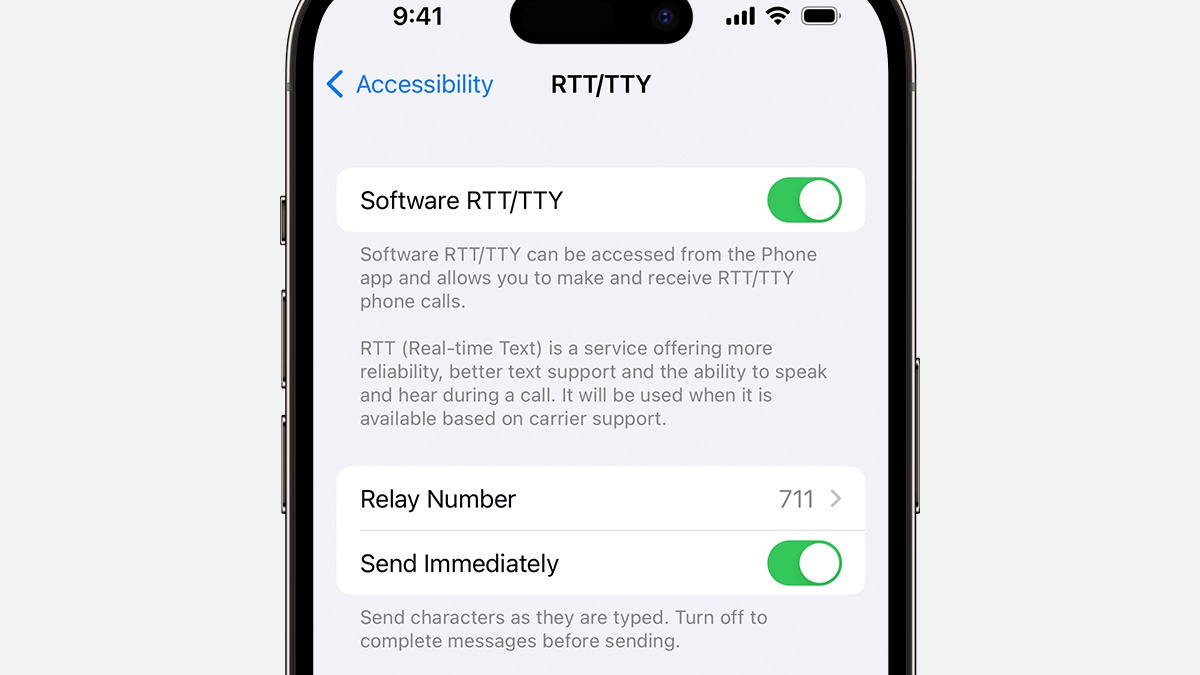
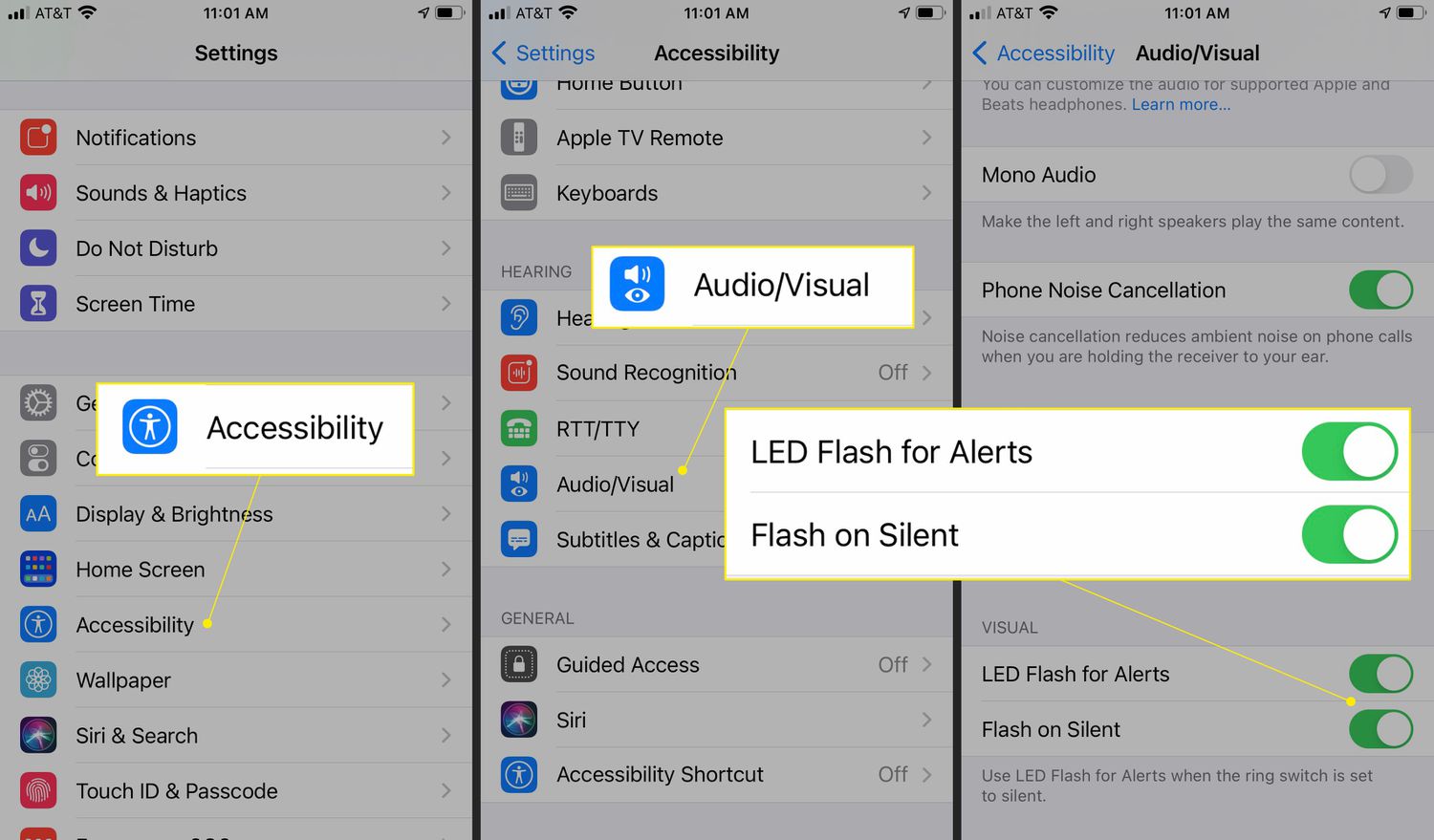
The articles here solve problems grouped around two main themes: adjusting the screen and controlling audio. For screen adjustments, you will find guides on how to turn off the magnifier on a Samsung phone, an Android device, a Fire Stick, an Xbox, and a Chromebook, as well as how to unzoom an iPhone and zoom out an Apple Watch. For audio and communication, the page explains what RTT is on your phone, how to turn off closed captioning on Android, and how to use the Live Listen feature on iOS 15. A third theme covers general accessibility setup, including how to add accessibility features to the iPhone and iPad Control Center and how to control your Android phone with facial expressions.
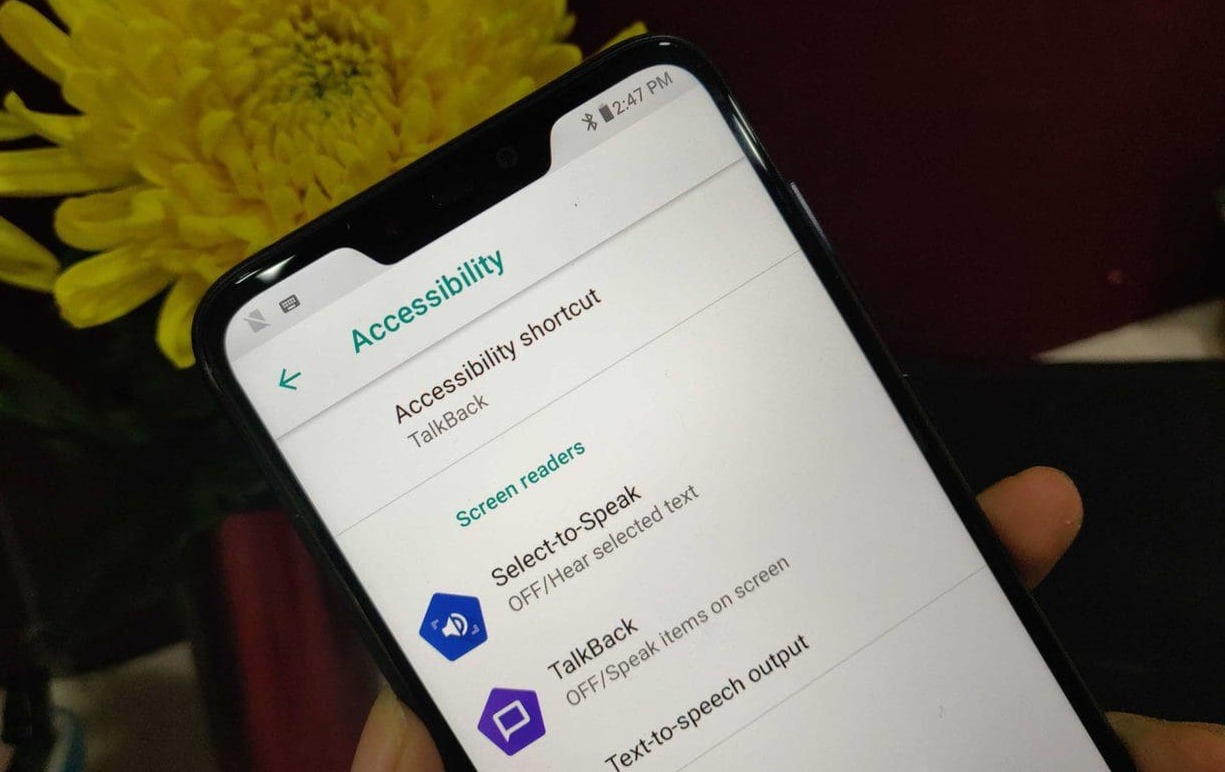
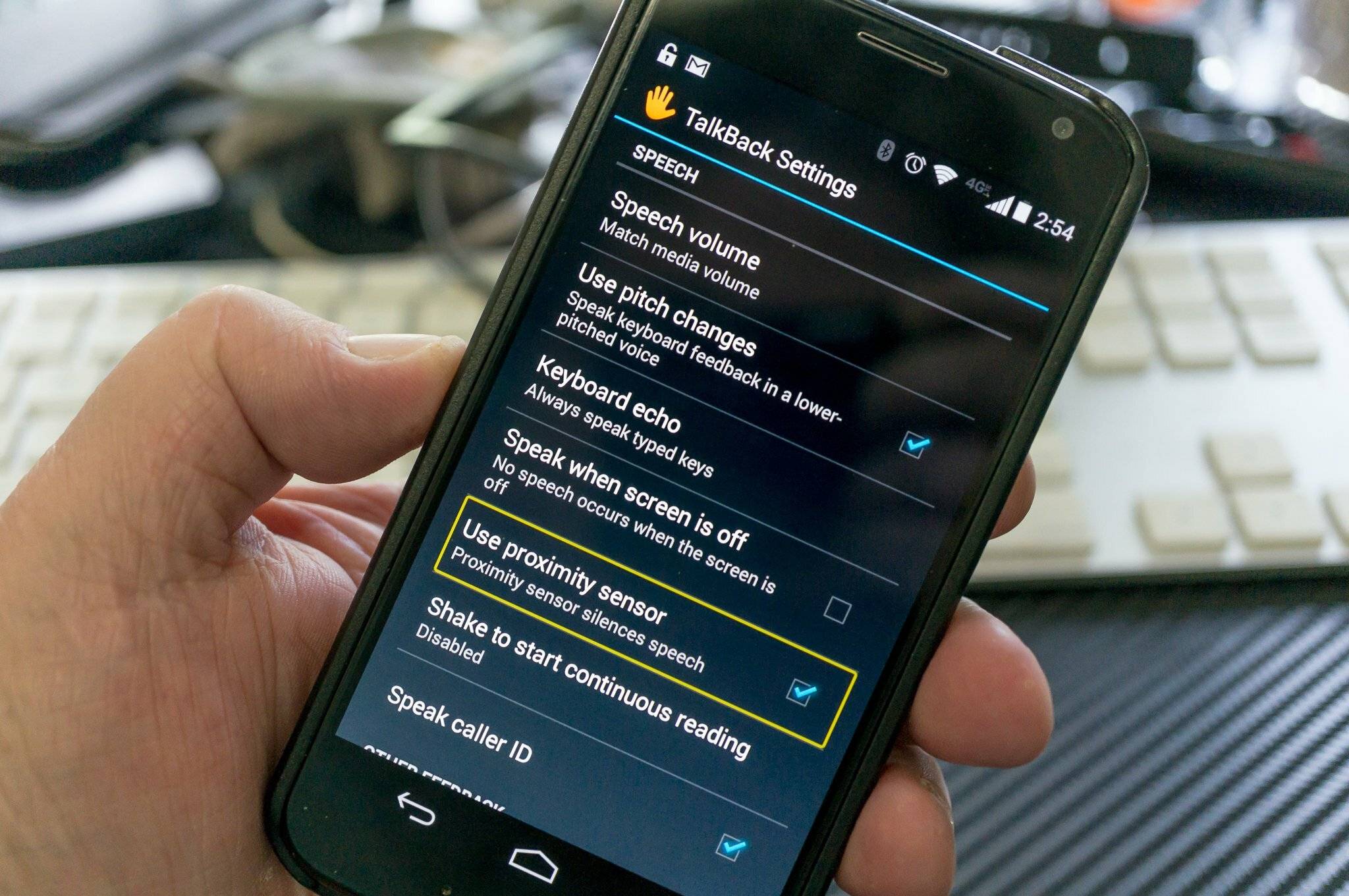
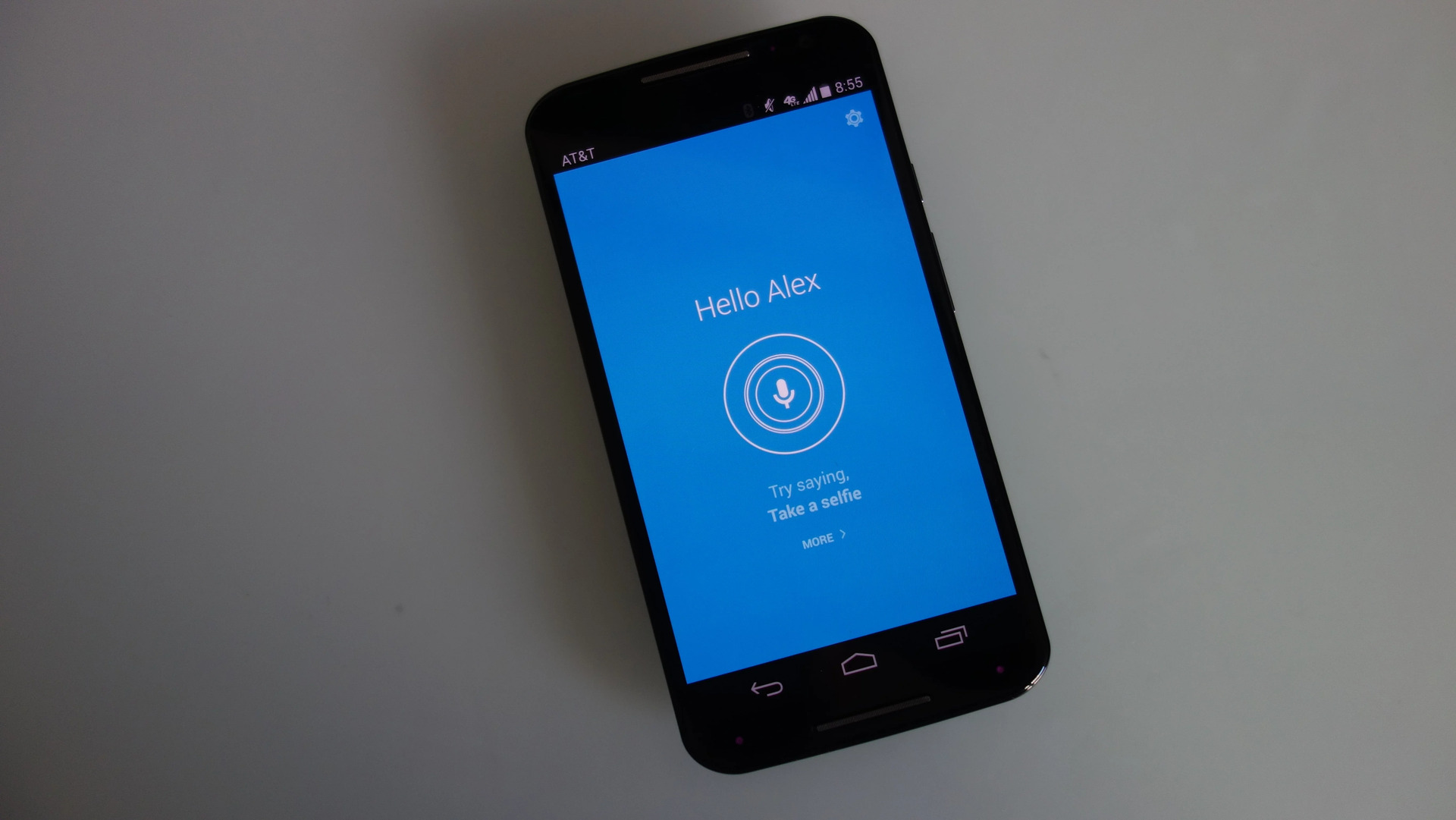
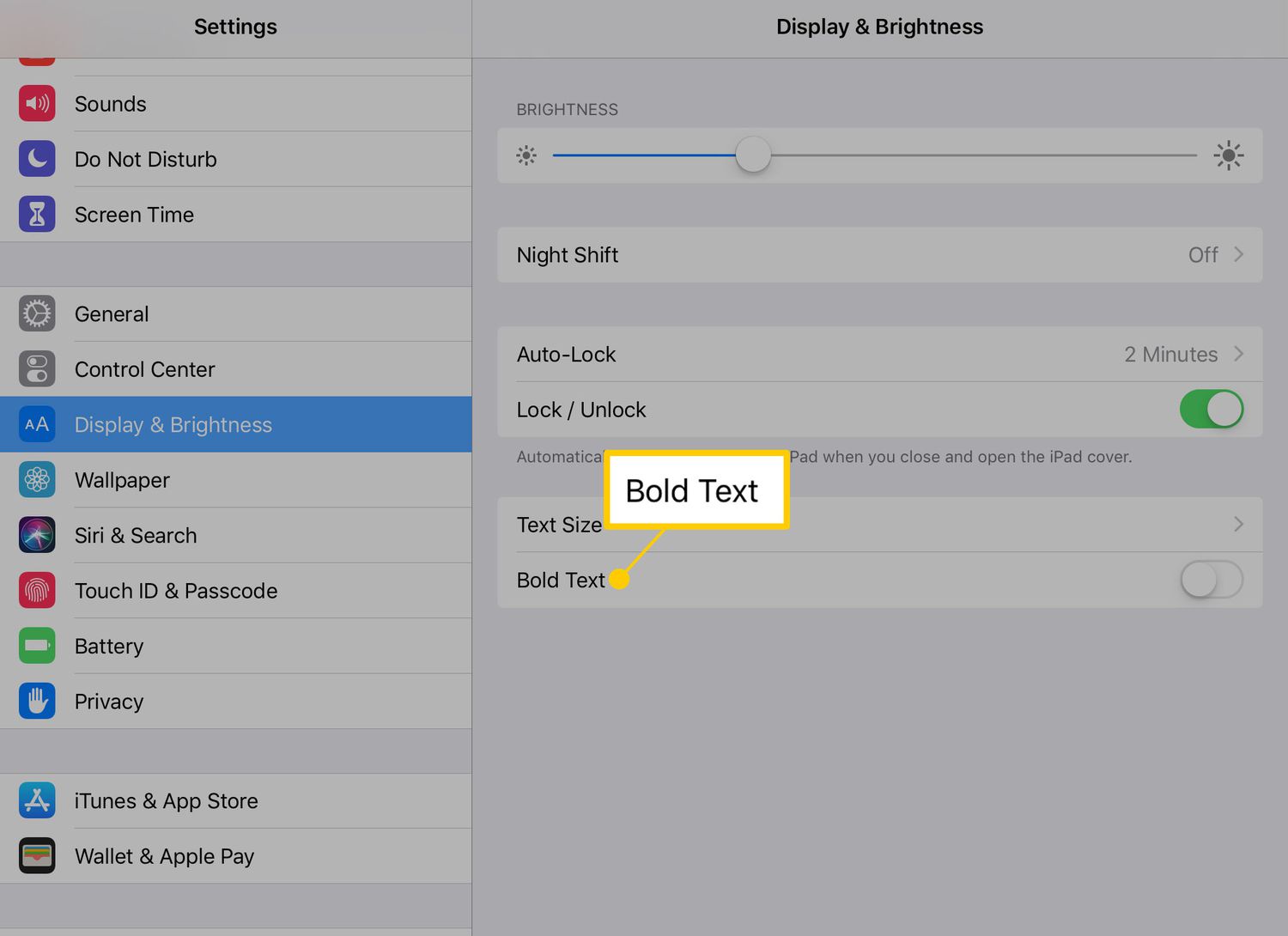
These articles help the reader perform specific actions, such as disabling TalkBack on an Android phone, turning off the voice on a Motorola phone, or making text larger and bolder. They also guide readers on practical choices, like finding the best cell phone for seniors with dementia or Alzheimer's, and teaching seniors how to use a smartphone. Whether you need to stop a screen from zooming in or learn about a free text-to-speech reader, these pieces provide direct, actionable steps.