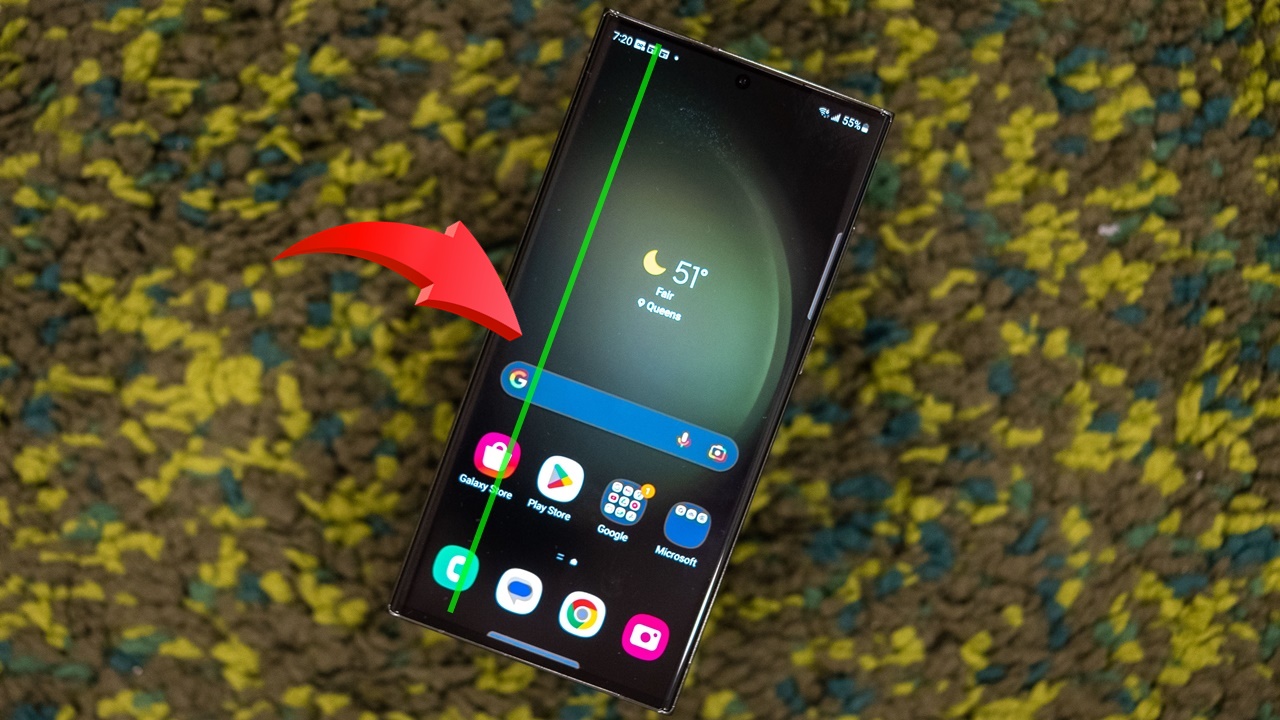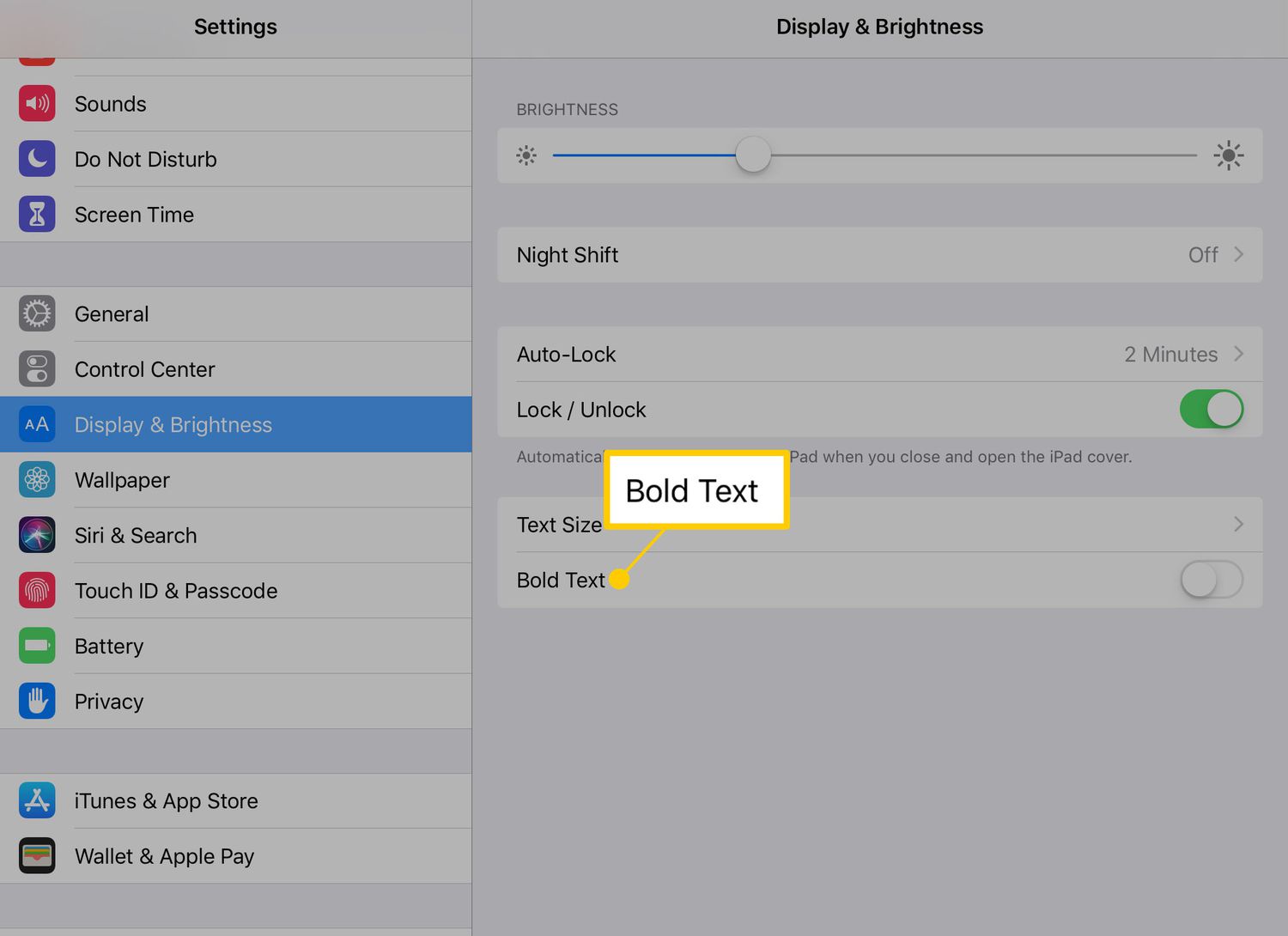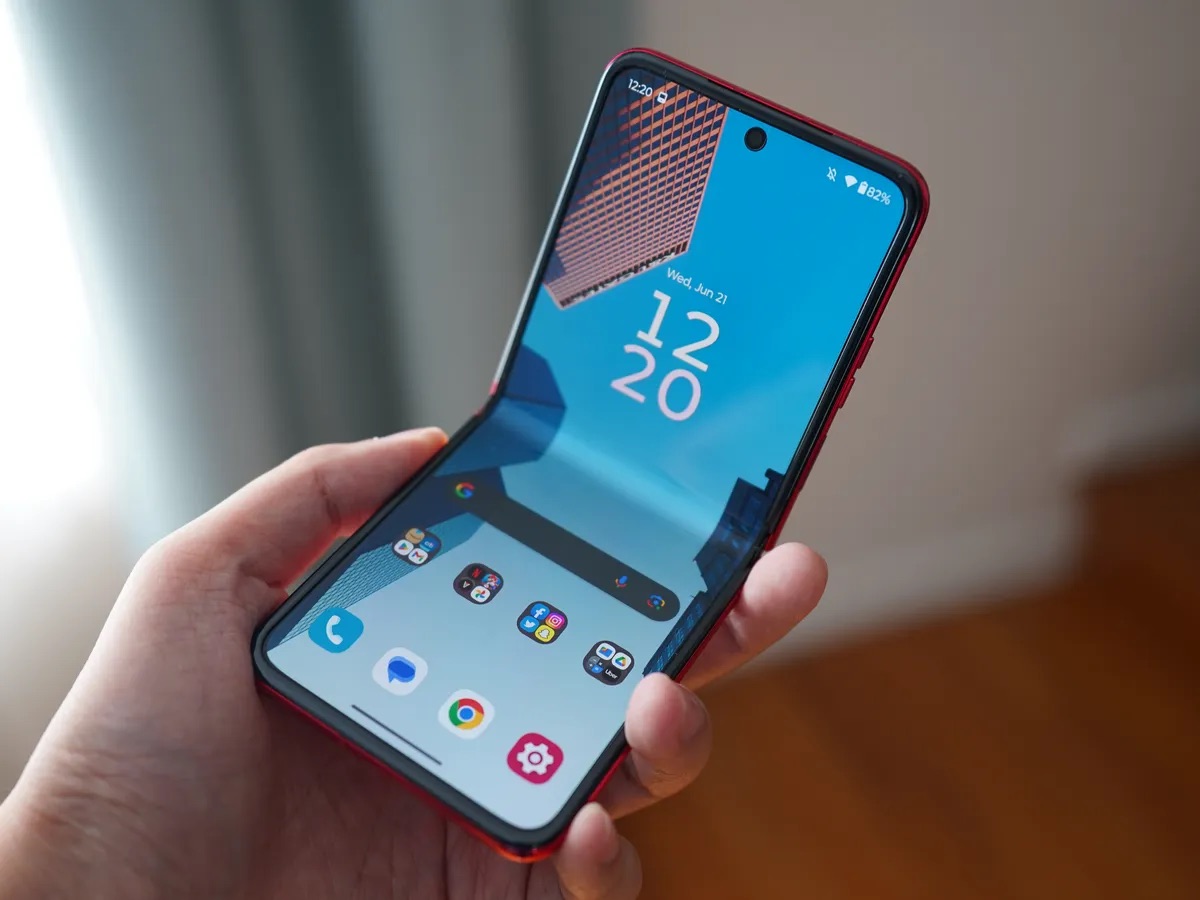
To zoom the screen on a Samsung phone, go to Settings > Display > Screen zoom and use the slider to make everything on your display larger or smaller. This is the primary way to adjust the overall screen size for easier reading and viewing, not just for the camera or a specific app.
How to zoom the screen on a Samsung phone
The most direct method to permanently change how large everything appears on your phone is through the Screen zoom setting. This adjustment affects text, icons, and images across the entire interface.
- Open the Settings app on your Samsung phone.
- Tap Display.
- Select Screen zoom.
- Drag the slider using the minus (-) or plus (+) control to your preferred zoom level. Moving the slider to the right makes everything larger.
On Samsung Z Fold phones, the path is slightly different. Instead of Screen zoom, you will find this option under Settings > Display > Screen layout and zoom. This distinction is model-dependent and applies specifically to foldable devices.
How to use magnification gestures as a quick alternative
For temporary, on-demand zooming on any screen, you can enable a triple-tap magnification gesture. This is useful when you need to quickly read small text or inspect a detail without permanently changing the display size.
- Go to Settings > Accessibility > Vision.
- Select Magnification and toggle the feature on.
- Once enabled, triple-tap the screen with one finger to zoom in. You can also use a three-finger gesture: pinch apart to zoom in, pinch together to zoom out. Drag two or more fingers to scroll around the magnified area.
- Triple-tap again to zoom back out.
This gesture works across any app or screen, providing a powerful alternative to the permanent Screen zoom setting.
How to use one-handed mode with screen zoom
One-handed mode shrinks the display area to make it easier to reach the top of the screen with one hand. This works alongside your chosen Screen zoom level.
- Open Settings > Advanced features > One-handed mode.
- Turn the feature on and choose your launch action: swipe down on the centre of the bottom edge of the screen or double tap the Home button.
- Once activated, the screen reduces to a smaller window. You can:
- Move it to the other side using the white side arrow.
- Adjust its vertical position with the white horizontal bar.
- Resize it by holding and dragging the top corner.
- To exit, tap the empty space outside the window.
This feature is ideal when you want to keep a larger Screen zoom setting but still need to reach the top of the display with one thumb.
One-handed mode vs. One Hand Operation +
One Hand Operation + is a separate app that must be downloaded from the Galaxy Store. It is not required for basic screen zoom or the standard one-handed mode described above. After downloading, it must be added to the Quick Panel by tapping the pencil icon, then selecting Edit below Full. This app provides additional gesture-based controls but is distinct from the built-in one-handed mode.
Frequently Asked Questions
Does screen zoom affect all apps?
Yes, the Screen zoom setting in Settings > Display adjusts the size of text, icons, and interface elements system-wide, affecting most apps. However, some third-party apps may have their own independent text size settings.
How do I reset the zoom level to default?
To reset, go back to Settings > Display > Screen zoom and drag the slider to the middle position. On Z Fold phones, use Settings > Display > Screen layout and zoom to find the same control.
What if the screen zoom slider is missing?
Ensure your software is up to date, as the menu path can depend on your specific model and One UI version. If the zoom feature is not working, check for software updates as they may include bug fixes or improvements.
Does the zoom feature work on all Samsung phone models?
The Screen zoom setting is available on most Samsung Galaxy phones, but the exact menu path may vary. Check your device's user manual or specifications to confirm availability for your specific model.
Can I zoom in on videos or other media on my Samsung phone?
Yes, you can use the pinch-to-zoom gesture directly on the screen during video playback to temporarily magnify the content. This is separate from the system-wide Screen zoom setting.
Can I use screen zoom to increase font size on iPhone 11?
To adjust display size on an iPhone, you would use a completely different set of settings in iOS. For Samsung devices, the Screen zoom setting is the correct method.
Will zooming the screen reduce image quality?
No, the Screen zoom setting simply scales the user interface elements. It does not degrade image or video quality like digital camera zoom does.
Related reading: How To Answer A Samsung Cell Phone, How To Get The Color Back On My Phone, and How To Make Phone Brighter.