If small text on your phone is causing eye strain, you can make text larger and bold in just a few taps.
How to make text larger and bold on your phone
Struggling to read tiny text on your screen is a common frustration that leads to squinting and fatigue. By adjusting your phone’s text size, enabling bold text, and finding the right brightness level, you can dramatically improve readability. The steps differ slightly between iPhone and Android, but both offer simple, built-in controls to make text larger and bold without any extra apps. High contrast mode, invert colors, and magnifier tool are additional accessibility options that can further improve text visibility.
Make text larger and bold on iPhone
Apple provides a dedicated accessibility menu for all text and display adjustments.
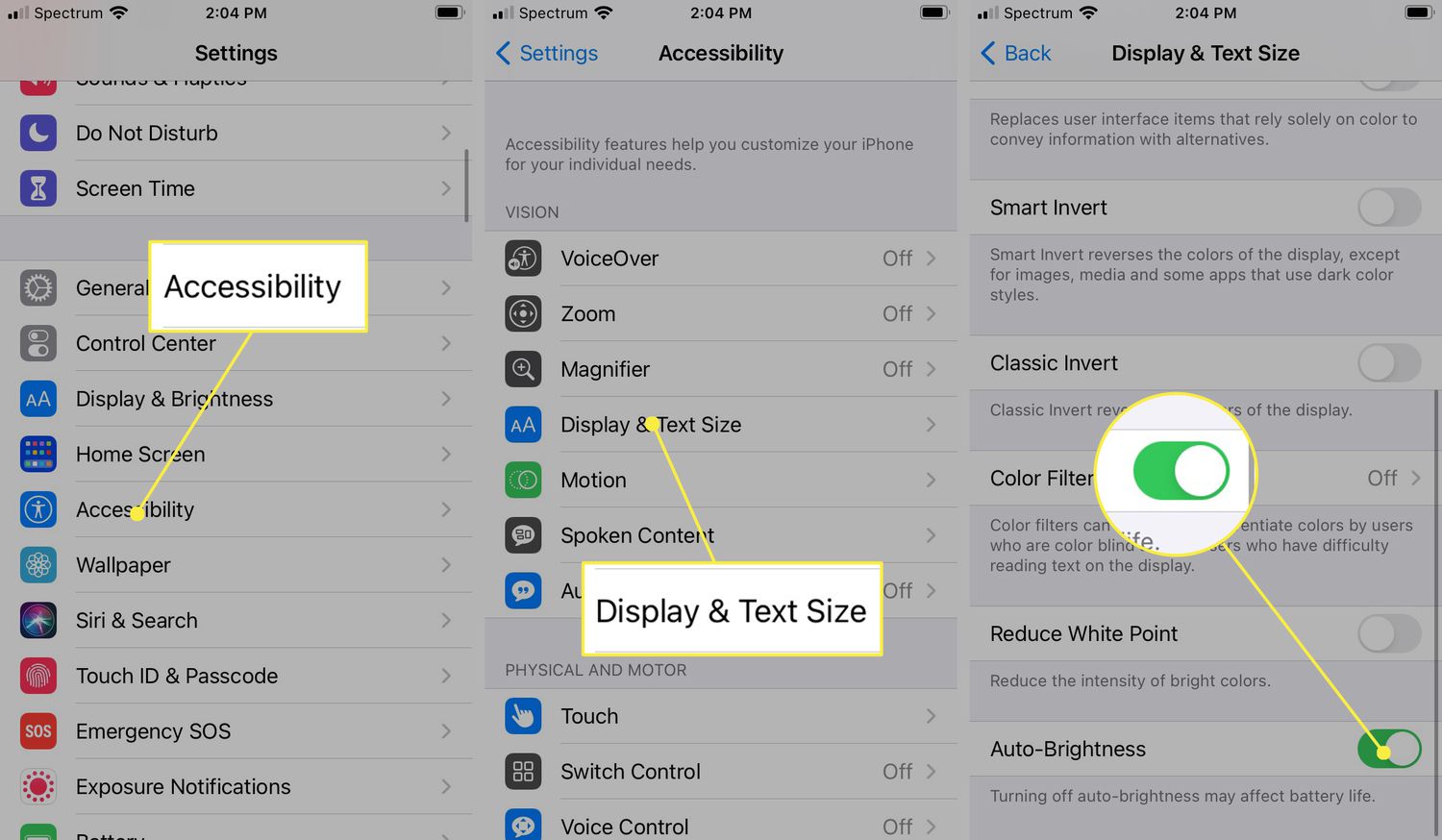
- Open Settings and tap Accessibility.
- Tap Display & Text Size.
- To increase font size on iPhone 11 or any other model, tap Larger Text and drag the slider to your preferred size. If you need even bigger text, turn on Larger Accessibility Sizes for additional options.
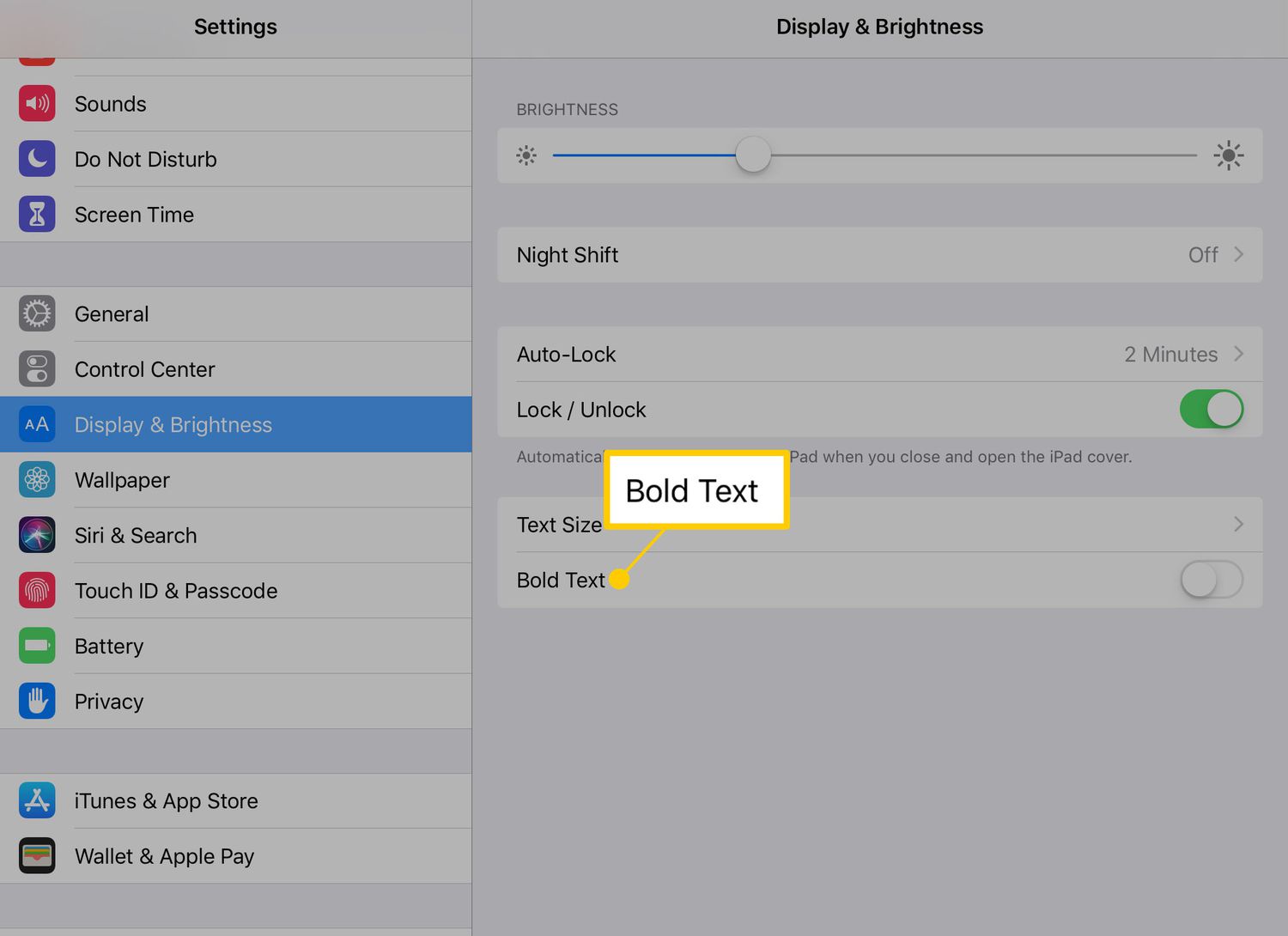
- Return to the Display & Text Size screen and toggle Bold Text on. The change takes effect after a brief restart of your device.
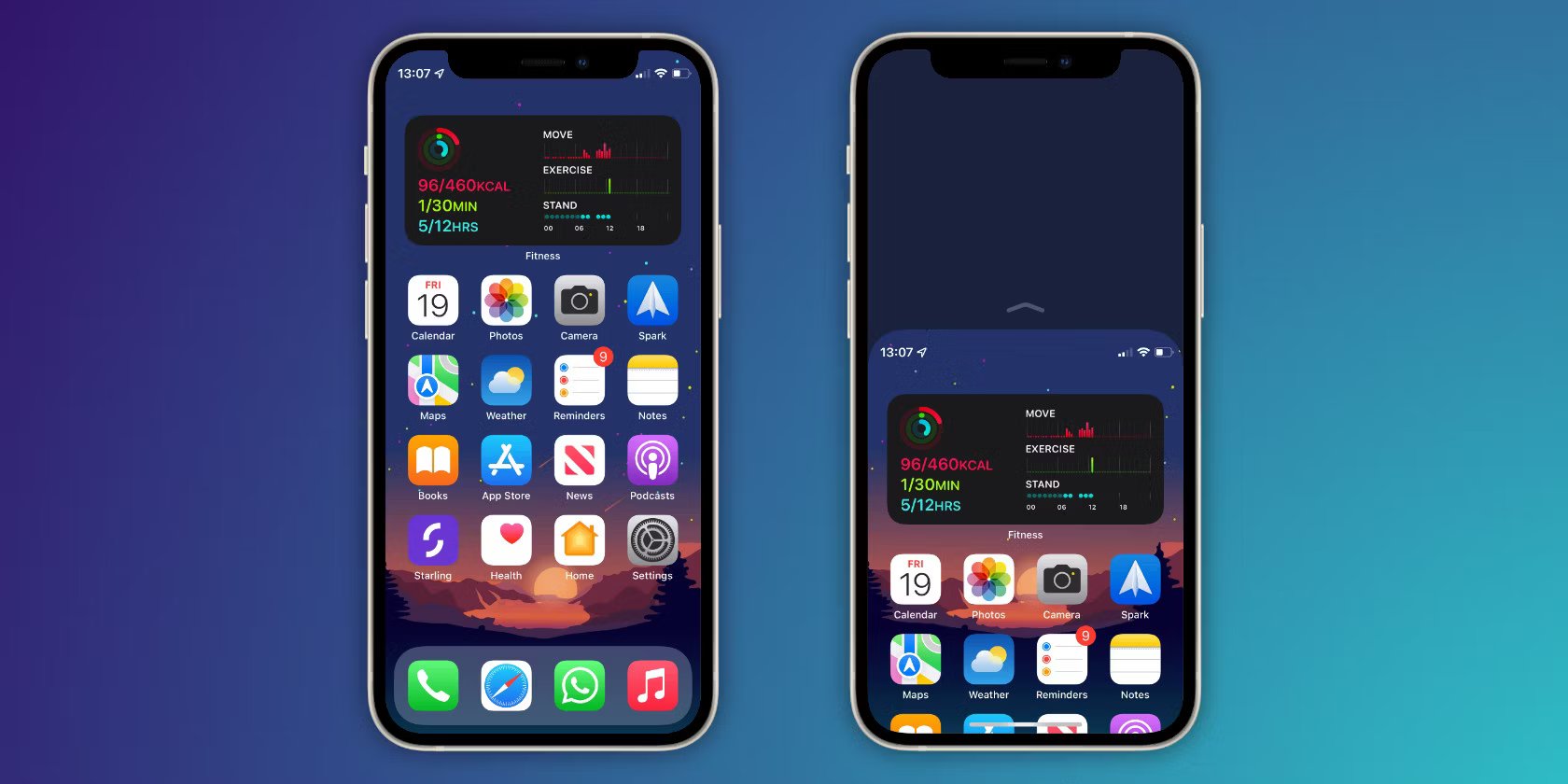
- For quick access later, add the Text Size control to your Control Center: go to Settings > Control Center, then tap the green plus icon next to Text Size. Now you can adjust text size on the fly from Control Center.
Make text larger and bold on Android
Google’s accessibility settings give you the same core controls, with a convenient shortcut for frequent adjustments.
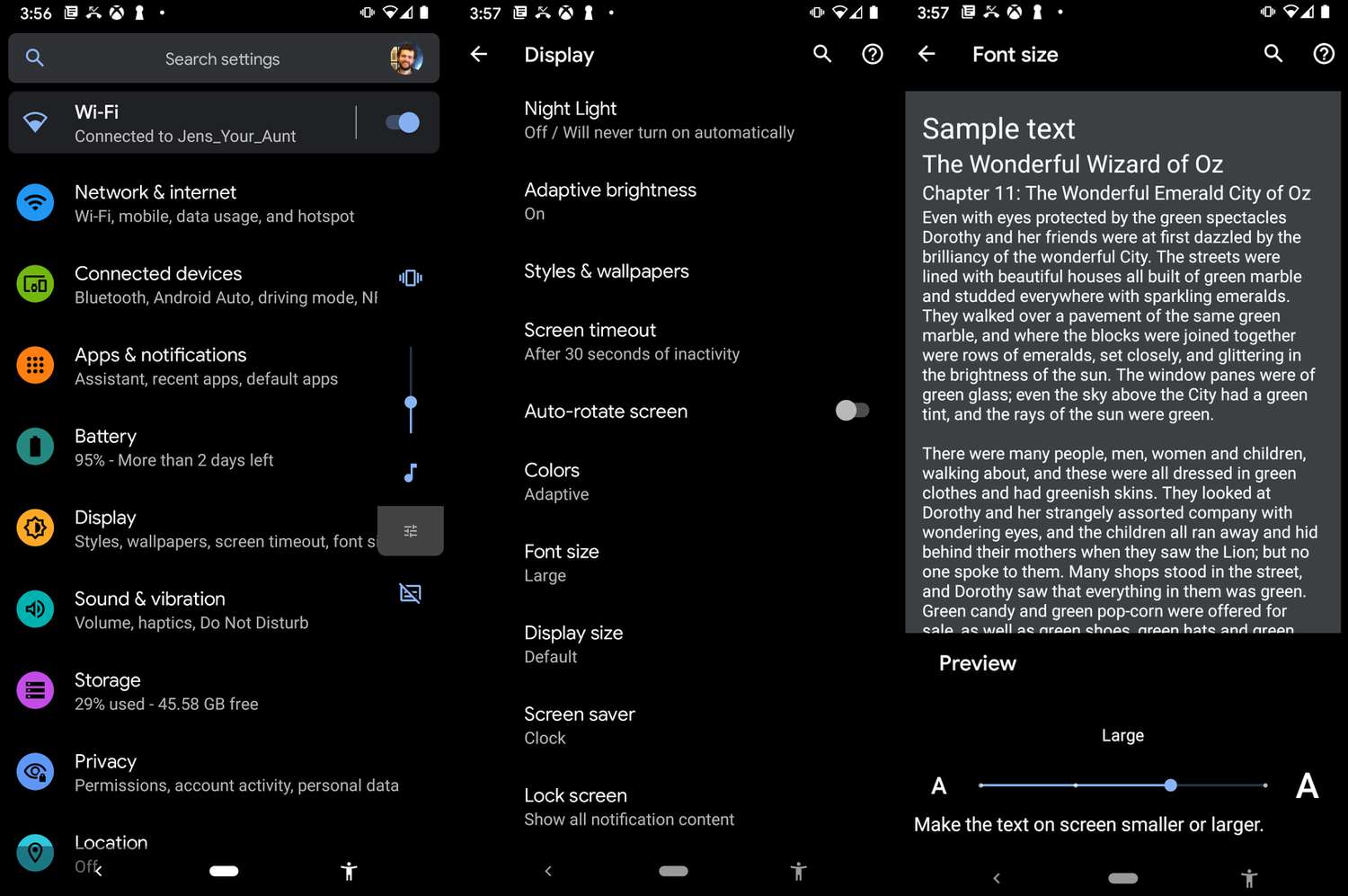
- Open Settings and tap Accessibility.
- Tap Display size and text.
- Tap Font size and move the slider to make text larger. In the same section, toggle Bold text on or off.
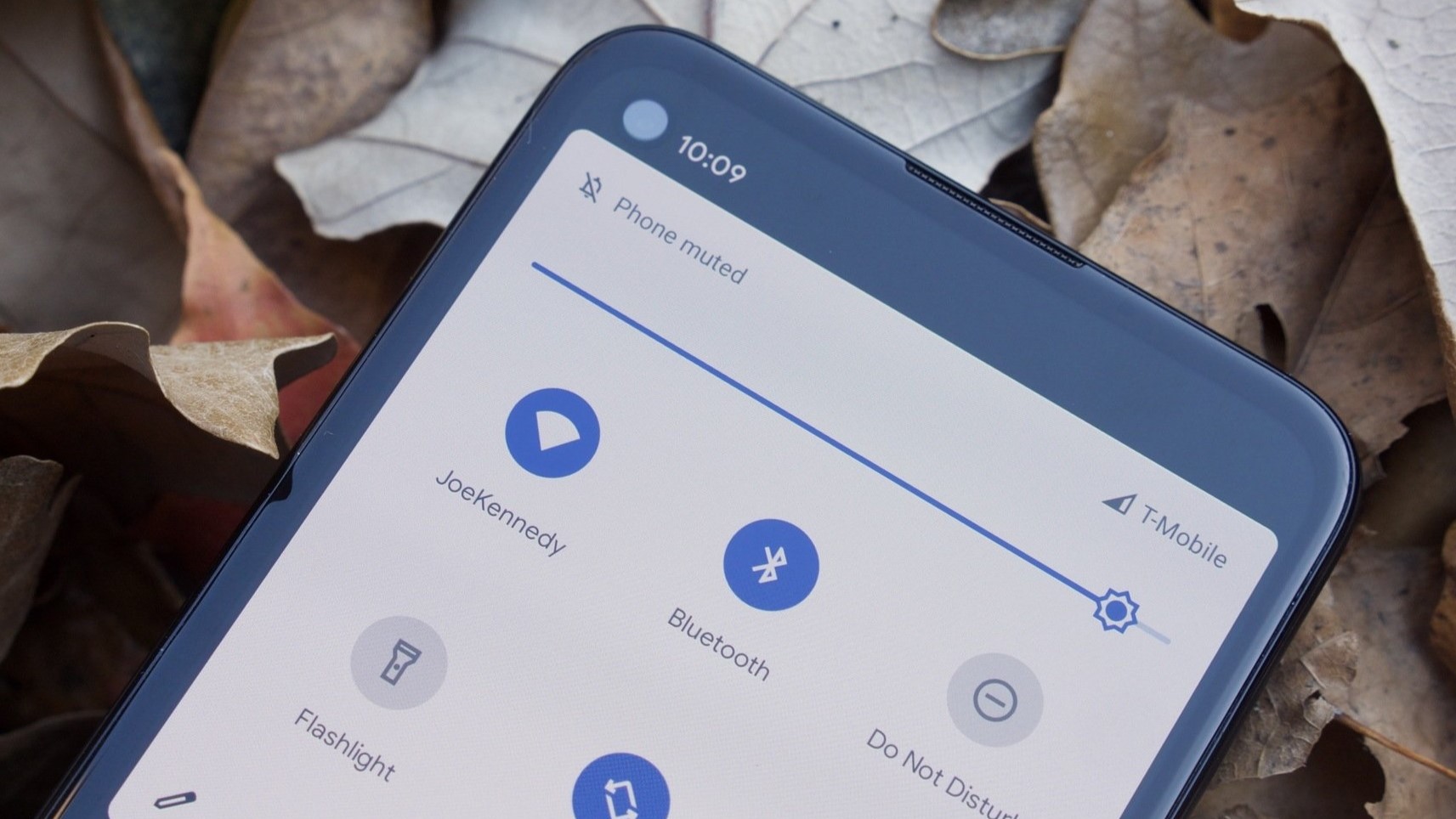
- For a faster method, use the Quick Settings shortcut. Swipe down twice from the top of your screen, look for the Font Size tile (you may need to edit your Quick Settings to add it), and tap it to reveal Increase, Decrease, and a percentage slider.
Samsung Galaxy users
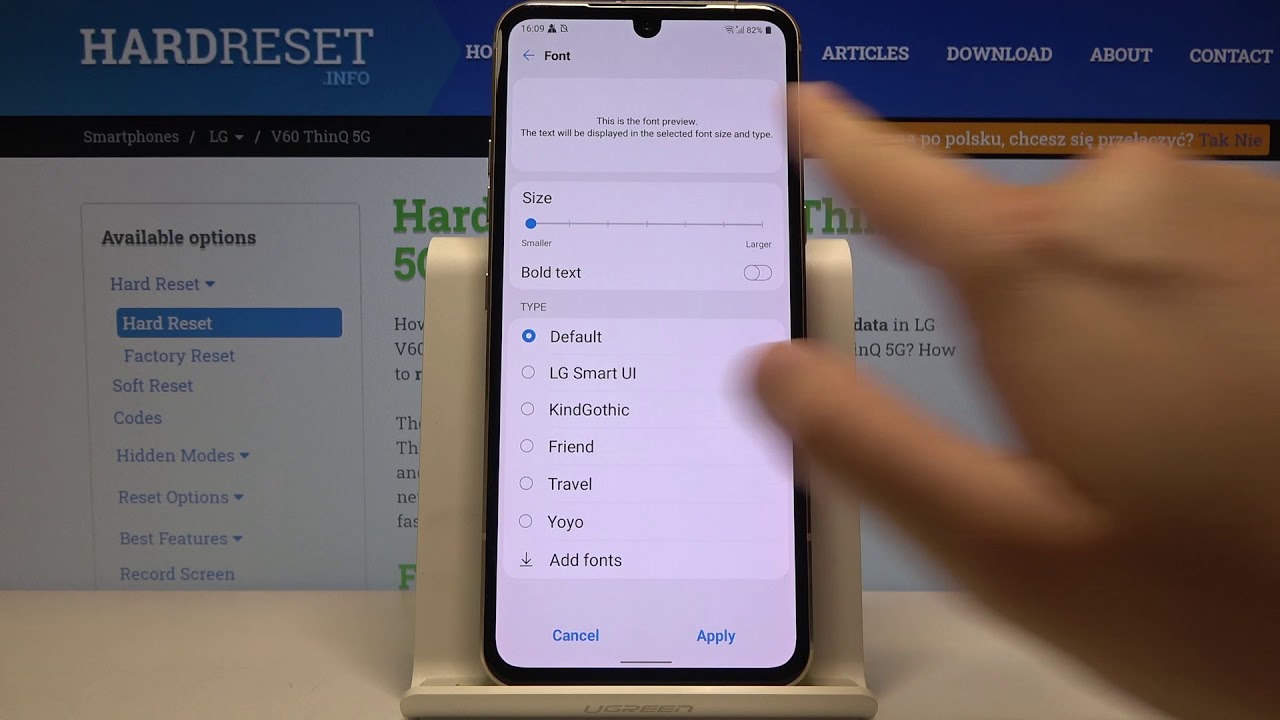
On Galaxy devices, the path is slightly different. Go to Settings > Accessibility > Visibility enhancement features > Font size and style. Here you can choose a font style, adjust the font size, and enable bold text.
Adjust display brightness for better readability
Finding the right brightness balance is just as important as text size. A screen that is too dim makes text hard to read, while excessive brightness causes eye strain. On iPhone, display and text settings including auto-brightness are found under Settings > Accessibility > Display & Text Size. On most Android phones, brightness is adjusted from the Quick Settings panel (swipe down twice and use the brightness slider) or in Settings > Display. Enable auto-brightness to let your phone adapt to changing light conditions automatically, reducing the need for manual adjustments throughout the day.
Frequently Asked Questions
Why should I make my text larger and bold on my mobile phone?
Larger and bold text reduces eye strain and makes reading easier, especially for users with visual impairments such as presbyopia or low vision.
Does making text larger and bold affect phone performance?
No. Adjusting text size and boldness only changes how text is rendered on screen; it does not impact processing speed, battery life, or app performance.
Does a brighter screen drain the battery faster?
Yes, higher brightness consumes more power. Most modern phones include an auto-brightness feature that balances visibility with battery efficiency by adjusting to ambient light.
Can I adjust the display brightness on my mobile phone manually?
Yes, you can manually adjust brightness from the Quick Settings panel or Settings app. Set it to a comfortable level that avoids both squinting and glare.
Can I make text larger in individual apps without changing the system setting?
Many apps, such as messaging and reading apps, have their own text size controls inside their settings or display options. These changes apply only to that app and do not affect the rest of your phone.
Will bold text work with all fonts on my phone?
Bold text applies to the system font and most pre-installed fonts.
Why does my iPhone restart when I turn on bold text?
That is normal. Enabling Bold Text requires the system to reload the user interface with the new font weight, which triggers a brief restart to apply the change across all apps and menus.
Related reading: Adjusting Brightness and Display Color and How To Get The Color Back On My Phone.