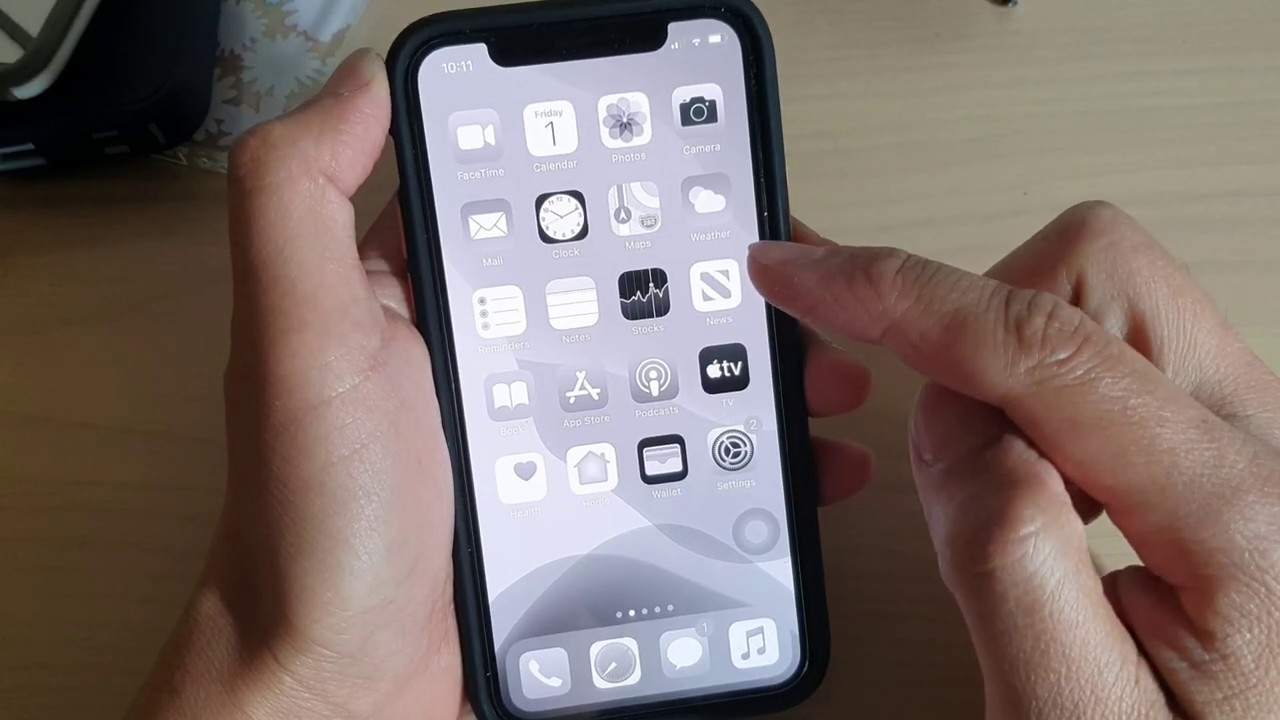
To change background from black to white on iPhone 11, you need to change the wallpaper itself, as there is no separate global background color setting. Open Settings > Wallpaper > Add New Wallpaper, then choose a solid white color from the Color category or a bright photo, and tap Set as Wallpaper Pair to apply it to both the Lock Screen and Home Screen.
How to change background from black to white on iPhone 11
The only documented way to achieve a white background on an iPhone 11 is by changing the wallpaper. Follow these exact steps from Apple's own support documentation:
- Ensure Adequate Battery Level before starting.
- Backup Your Data before changing settings.
- Update iOS to the latest version for compatibility.
- Clear Storage Space if running low.
- Open Settings.
- Tap Wallpaper.
- Tap Add New Wallpaper.
- Tap Color for a solid-color wallpaper, or Photos to choose an image.
- Tap Add.
- Tap Set as Wallpaper Pair to apply it to both screens, or Customize Home Screen to change only the Home Screen wallpaper.
Choosing a solid white wallpaper with the Color option
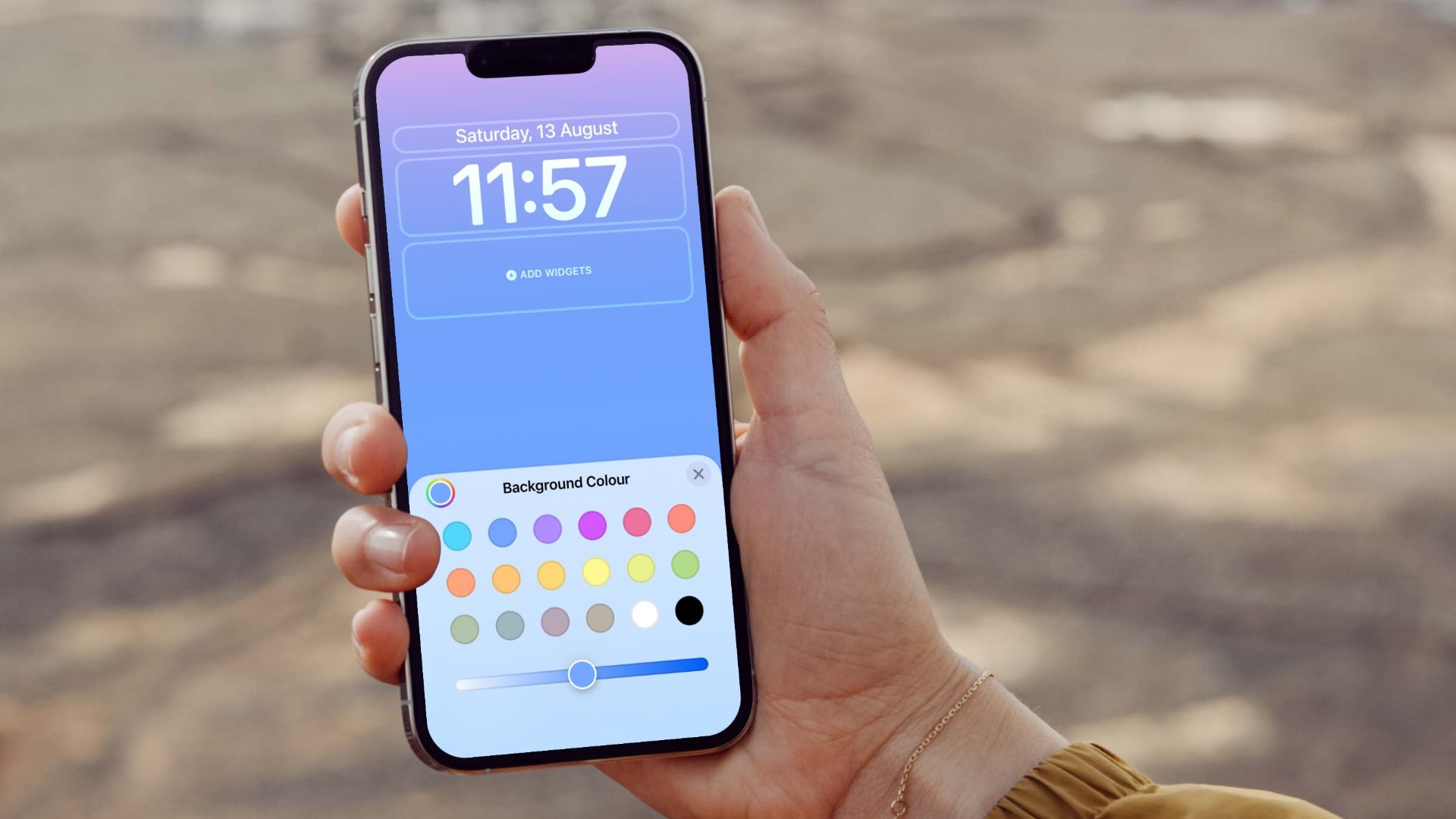
Apple's built-in wallpaper picker includes Color as a wallpaper category, which lets you select a plain white background without needing any image. After tapping Color in the wallpaper picker, you can swipe through available shades and choose a solid white. This is the simplest method for a clean, all-white background on both the Lock Screen and Home Screen.
Making a photo wallpaper look white or black and white
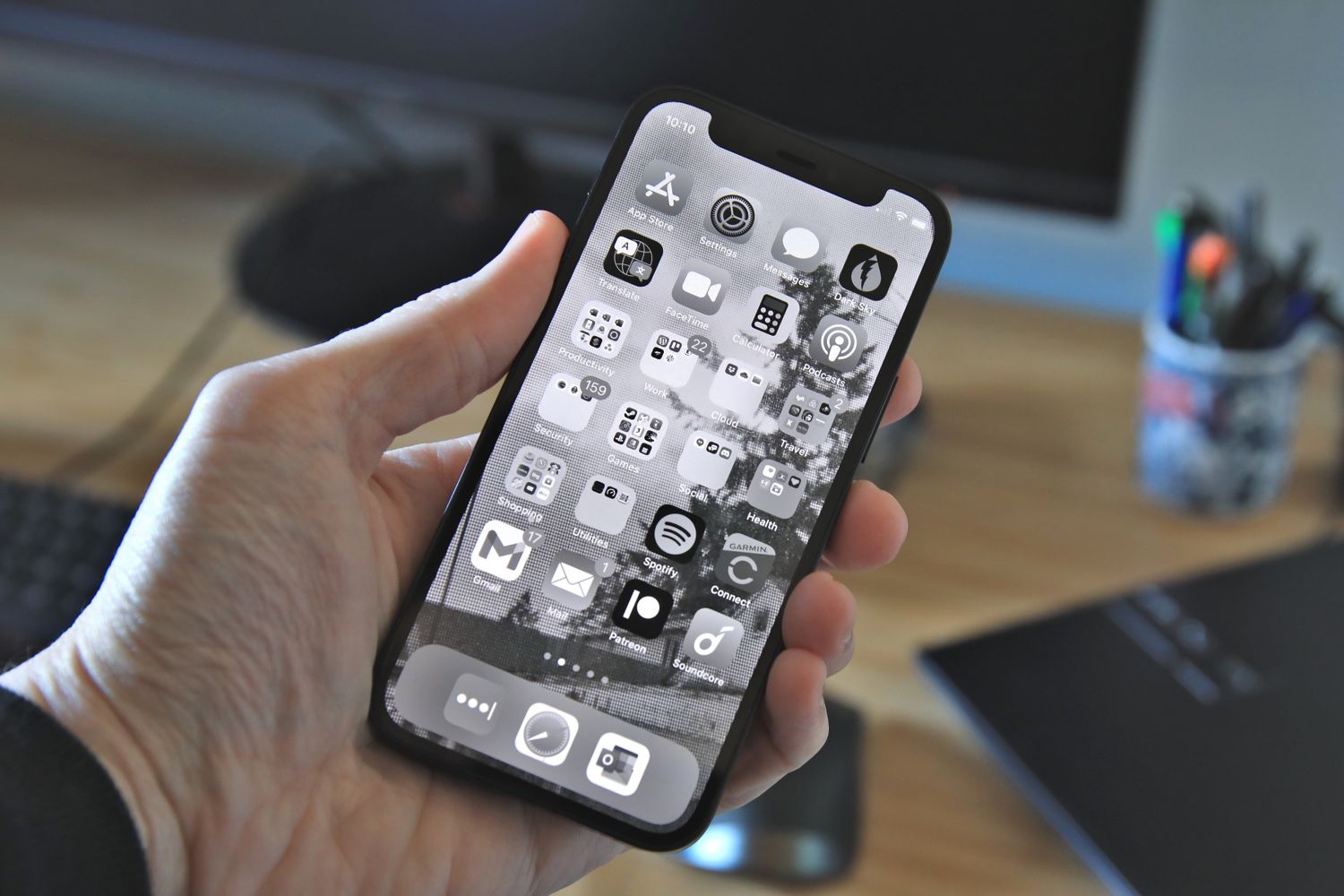
If you prefer to use a photo, select a bright, overexposed image from your library. For a more controlled look, Apple documents a black-and-white photo style path: in Settings > Wallpaper, tap Customize under the Lock Screen preview, then swipe left or right to try photo styles such as Black & White, and tap Done to save. This applies a monochrome filter to your chosen photo, effectively making it appear white or grayscale.
Why there isn't a single 'background color' setting
Apple only provides wallpaper changes for the Lock Screen and Home Screen, not a global background color toggle. There is no iPhone setting that converts all backgrounds from black to white system-wide. The wallpaper you set is the only background you can control, and it applies separately to each screen. This is by design, and no Apple support page describes a separate background color setting.
Tips for the best white background look
For the cleanest white background, choose a solid white from the Color category rather than a photo that may have uneven brightness. Adjust brightness and contrast levels to optimize visibility. Consider that bright white wallpapers can make app icons and text harder to see, so you may want to adjust your Home Screen icon appearance or use a slightly off-white shade. Consider impact on eye strain; white background may increase eye fatigue during prolonged usage. Customize other display settings like text size and contrast to complement the new white background. Dark Mode for apps is controlled separately in Settings > Display & Brightness, so you can keep apps in dark mode while having a white wallpaper. This is distinct from Changing Wallpapers and Themes on Phones, which on iPhone 11 is limited to the wallpaper itself.
Frequently Asked Questions
Can I revert to a black background after changing it to white?
Yes, simply follow the same wallpaper change steps and select a black or dark-colored wallpaper from the Color category or a dark photo.
Will a white background affect battery life on my iPhone 11?
On an iPhone 11 with an LCD display, background color has no significant impact on battery life because LCD screens use a constant backlight regardless of what is displayed.
Will changing the background color affect the overall performance of my iPhone 11?
No significant impact.
Do I need a third-party app to get a white background?
No, Apple's own wallpaper picker includes a Color category that provides solid white, and you can also use any photo.
Can I set different white backgrounds for the Lock Screen and Home Screen?
Yes, when you tap Customize Home Screen instead of Set as Wallpaper Pair, you can choose a different wallpaper for each screen, such as a solid white Lock Screen and a photo Home Screen.
Related reading: How To Change Theme On IPhone 13 and How To Change Black Background To White On IPhone 13.