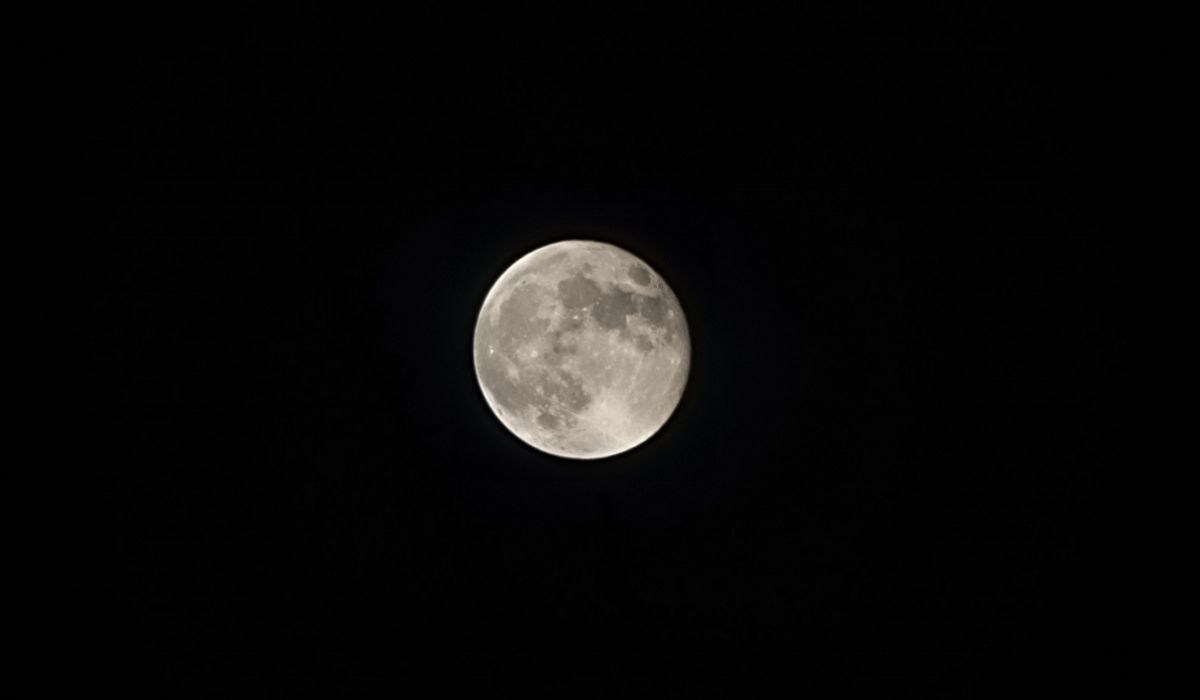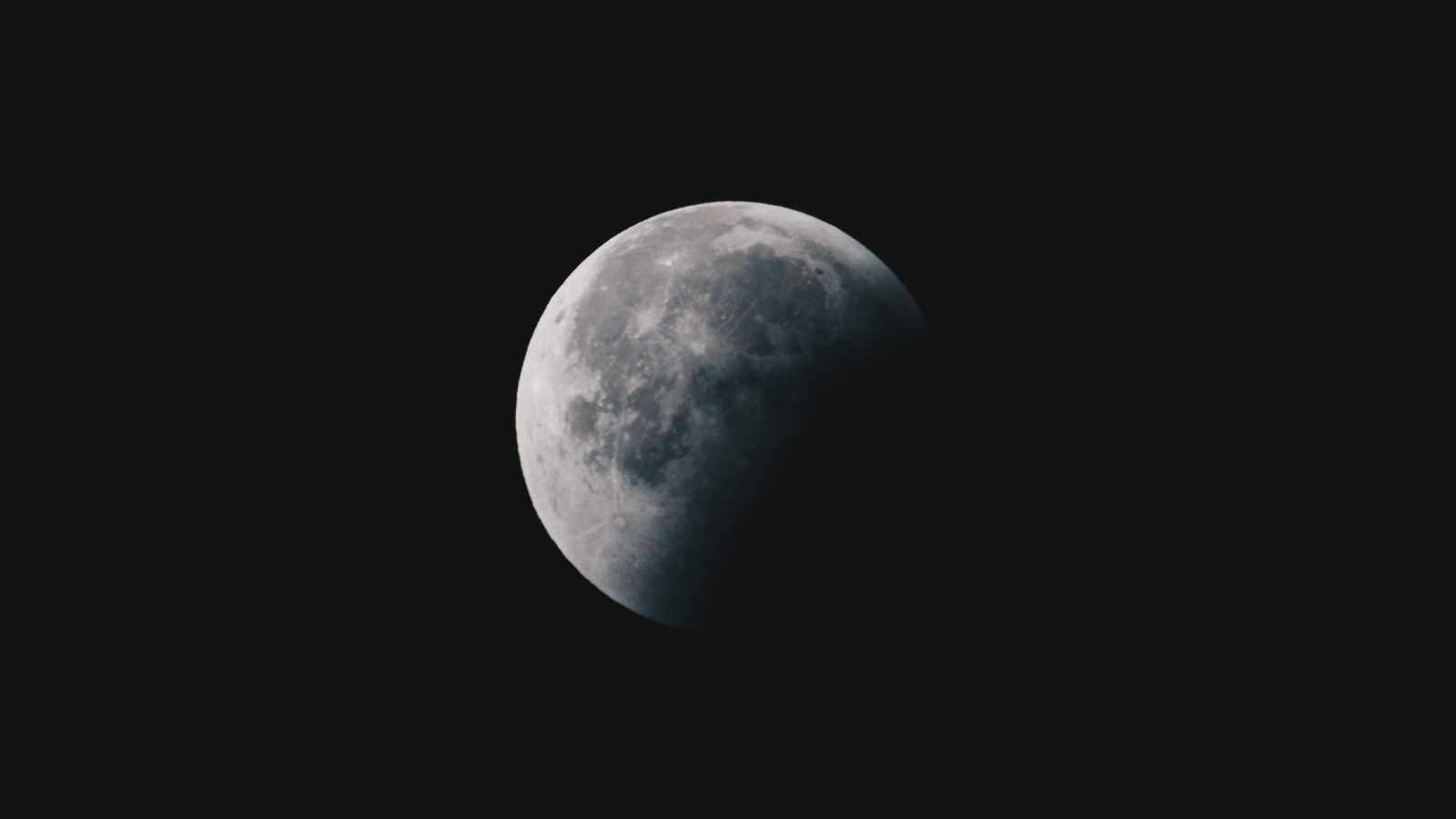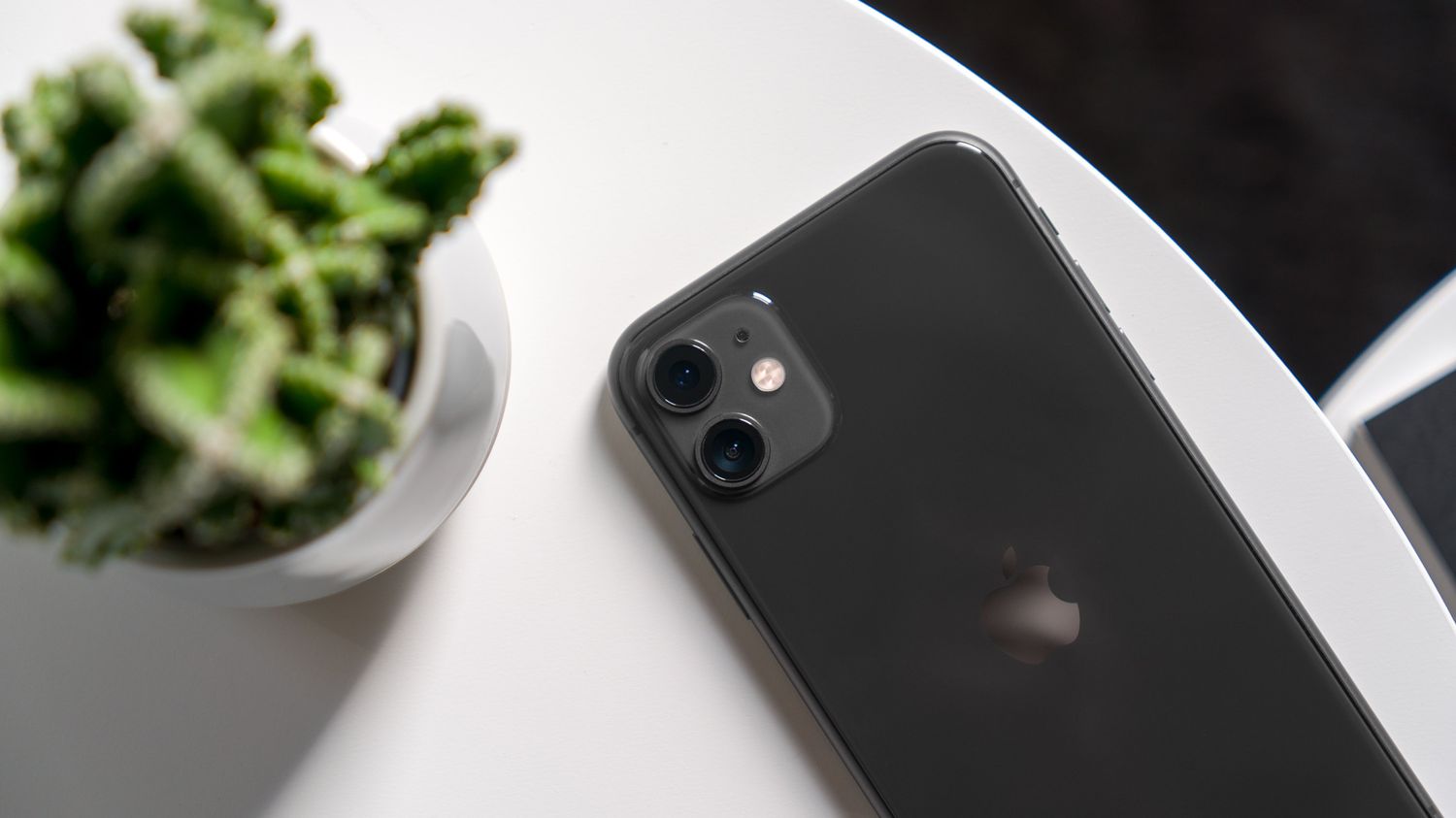
To take a picture of the moon with iPhone 11, use the built-in Camera app’s Night mode and manually lower the exposure.
Before you take a picture of the moon with iPhone 11
Find a spot where the moon is clearly visible and there is as little bright foreground light as possible. While the iPhone 11’s Night mode works in low light, reducing nearby light sources helps the camera focus on the moon. Use apps such as SkySafari or The Photographer's Ephemeris to research the moon's phases, rise times, and position for planning your photo shoot. Attaching a telephoto lens to your iPhone 11 can significantly improve the quality of your moon shots by magnifying the moon to capture craters and surface features with clarity. For steadier results, place your iPhone on a tripod or a stable surface; holding the phone still is sufficient, but any support reduces the risk of blur during longer exposures. Using a remote shutter release or a Bluetooth shutter remote can minimize vibrations when capturing photos.
Step-by-step Camera app settings for the moon
- Open the Camera app on your iPhone 11, iPhone 11 Pro, or iPhone 11 Pro Max.
- Use the rear camera, Night mode is supported only on the rear camera of the iPhone 11 family.
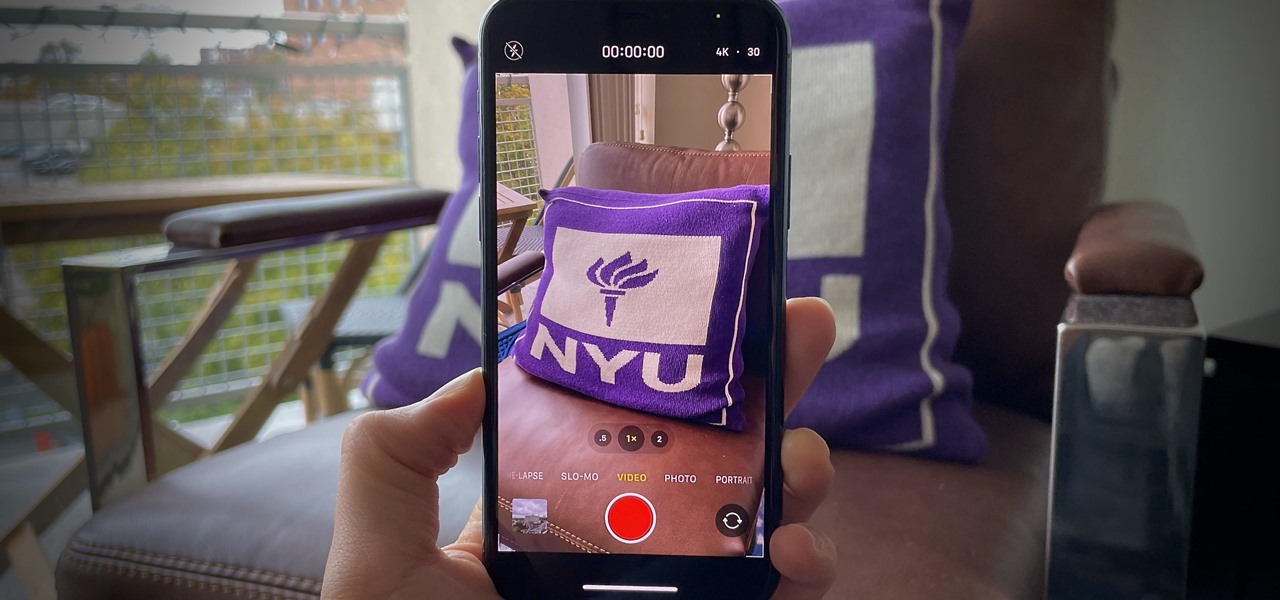
- Frame the moon in the viewfinder. Use the grid feature in the Camera app to aid in aligning the moon within the frame and achieving a well-composed shot. If the moon icon appears at the top of the screen, tap it to open Night mode controls.
- Move the Night mode slider all the way left to turn Night mode off for that shot, or adjust it to a longer interval if you prefer a brighter exposure.
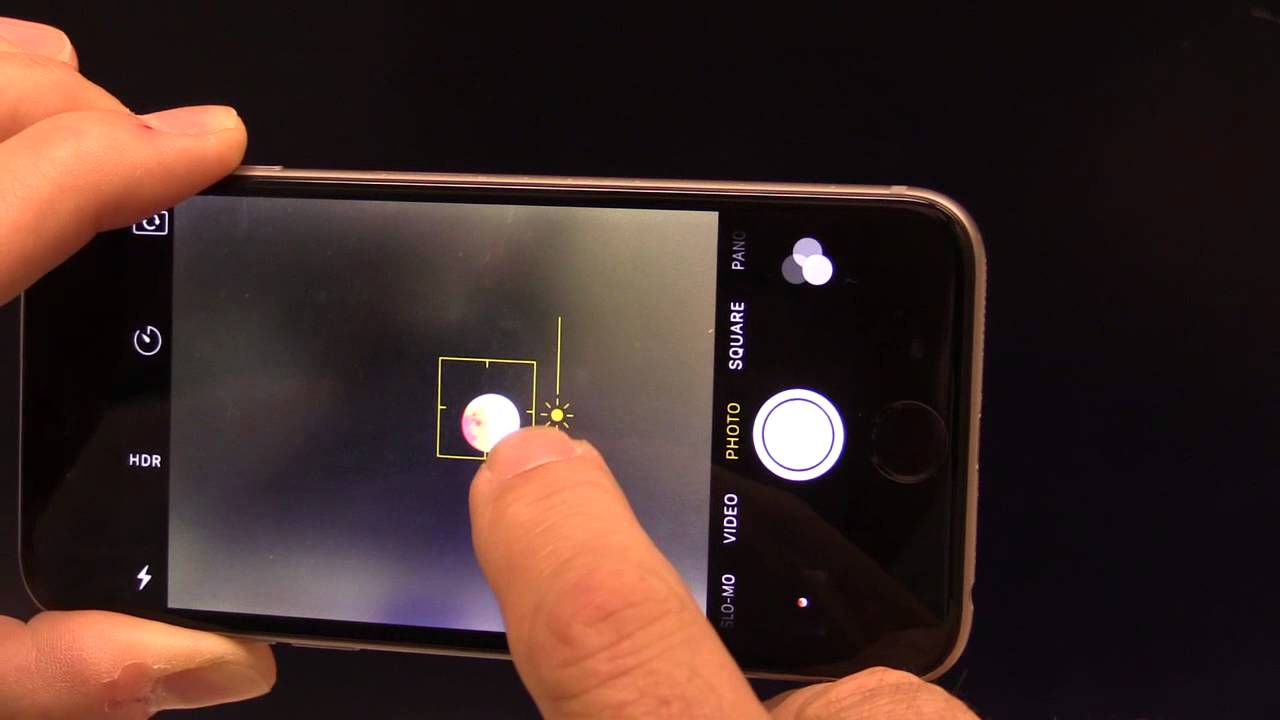
- Tap and hold on the moon until you see AE/AF Lock at the top of the screen.
- Slide the sun icon (exposure compensation slider) down to reduce brightness. This prevents the moon from appearing overexposed and washed out.
The iPhone 11’s Camera app does not provide manual ISO or shutter-speed controls, so the combination of AE/AF Lock and exposure adjustment is the only built-in way to fine-tune moon shots. In the Photos app, use the 'Duplicate' option before making significant edits to preserve the original, unaltered photo. Then, use the 'Brilliance' and 'Highlights' sliders to bring out the moon's luminosity during editing.
Frequently Asked Questions
Can iPhone 11 take a picture of the moon?
Yes, but the iPhone 11 does not have a dedicated moon-photography mode. The practical method is to use Night mode, lock focus on the moon, and lower exposure manually in the Camera app.
Which iPhone 11 models support Night mode?
Night mode is supported on the iPhone 11, iPhone 11 Pro, and iPhone 11 Pro Max. This includes all models in the iPhone 11 family with rear-camera Night mode. For details on iPhone models and camera specs, refer to Apple’s device specifications.
Can Night mode be turned off permanently?
No. Night mode is adjusted shot by shot in the Camera app. You can turn it off for an individual photo by tapping the moon icon and moving the slider all the way left, but the setting resets for the next capture.
For the wider topic, see iPhone models and camera specs.
Related reading: How To Take Moon Pictures With IPhone 14 Pro and How To Take Good Moon Pictures With IPhone 13 Pro.