






To use a DJI gimbal with your phone, you pair it with the DJI Mimo app to capture smooth, stabilized smartphone footage.
Before you begin: phone compatibility and the DJI Mimo app
DJI's phone gimbals, such as the Osmo Mobile 6, are designed for mobile phones rather than cameras. For the Osmo Mobile 6, supported phones must be 67-84 mm wide, 6.9-10 mm thick, and 170-290 g. The mandatory requirement is to download the DJI Mimo app, as DJI’s phone gimbals use DJI Mimo for pairing and features; no carrier-specific app or setup is documented.
How to pair your phone to the DJI gimbal
The core setup for a DJI phone gimbal follows a verified pairing flow. Some models also require a first-time activation prompt in the app.
- Power on the gimbal.
- Enable Bluetooth on your phone.
- Open DJI Mimo.
- Connect to the device from the app. For the Osmo Mobile SE, connect to a device with an OMSE-prefix name. For the Osmo Mobile 7 series, download and run DJI Mimo, enable Bluetooth, and pair it with the device.
- If it is the first pairing, a prompt appears in the app; tap the corresponding button to activate the device. For Osmo Mobile 6 first-time activation: after pairing in DJI Mimo, if it is the first pairing you get a prompt in the app and tap the corresponding button to activate the device.
Basic gimbal controls and mode switching
To switch gimbal modes, use the handle M button on models including Osmo Mobile 8, Osmo Mobile 7P, Osmo Mobile 7, Osmo Mobile 6, and Osmo Mobile SE. Osmo Mobile 8P can switch gimbal modes from the Osmo FrameTap home screen. Alternatively, switch modes through the app: on the camera video transmission screen in DJI Mimo, tap More → More Settings → Gimbal → Gimbal Mode, then choose the desired mode. For DJI RS series, press and hold the power button to turn on, and press the power button once to exit sleep mode after activation. Some DJI gimbals have integrated camera controls to adjust settings like shutter speed, ISO, and white balance directly from the gimbal. DJI gimbals often allow creating and saving customized profiles to quickly switch between settings and shooting modes.
Using ActiveTrack and other shooting modes
To enable ActiveTrack, open DJI Mimo and activate the feature to let the gimbal track people or other subjects. DJI gimbals offer motion control and object tracking as shooting modes. Common creative modes available in the app include time-lapse and panorama, which allow you to capture dynamic shots without complex setups. Osmo Pocket 3 app control: with DJI Mimo, users can monitor the camera view, set camera parameters, control the camera with the mobile device, transfer files, edit, share, and use Wi‑Fi livestreaming. Some DJI gimbals offer follow focus functionality to control camera focus remotely. Some DJI gimbals come with gesture control features to start recording, capture photos, or adjust settings using hand gestures.
Maintaining your gimbal for smooth footage
Periodically check the phone's balance in the clamp to ensure optimal stabilization performance. If you notice any imbalance or instability, adjust the positioning of the phone to maintain smooth footage.
Frequently Asked Questions
What is a DJI gimbal?
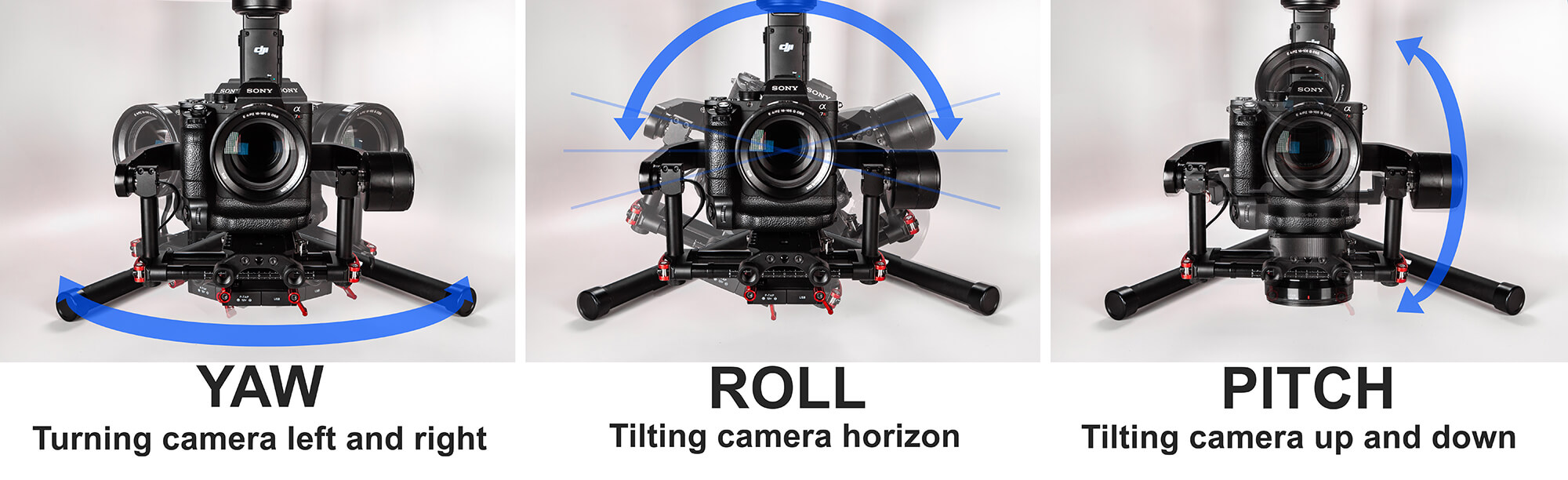
A DJI gimbal is a stabilizing device that uses motors and sensors to counteract unwanted camera shakes, vibrations, and movements, helping you capture smooth and steady footage with a phone or camera.
Can I use a DJI gimbal with other cameras besides smartphones?
Yes, DJI gimbals are compatible with a wide range of cameras, including mirrorless cameras and action cameras, though the Osmo Mobile series is specifically designed for mobile phones. Ensure your camera model is compatible with the specific gimbal you choose.
How do I update the firmware on my DJI gimbal?
Check the DJI website or the DJI Mimo app regularly for firmware updates. Follow the instructions provided in the app or on the website to update your gimbal, which ensures access to the latest features and performance improvements.
What should I do if my gimbal is not pairing with the app?
Ensure Bluetooth is enabled on your phone and the gimbal is powered on. In DJI Mimo, look for the device with the correct prefix name (e.g., OMSE for Osmo Mobile SE) and try pairing again. If the issue persists, restart both the gimbal and the app.
Can I use virtual reality and accessories with my DJI gimbal?
Virtual reality and accessories are not directly supported by the Osmo Mobile series, which is designed for standard smartphone videography. For VR-related content, you would need specialized equipment beyond a phone gimbal.

















