Fitbit troubleshooting: getting started and basic setup
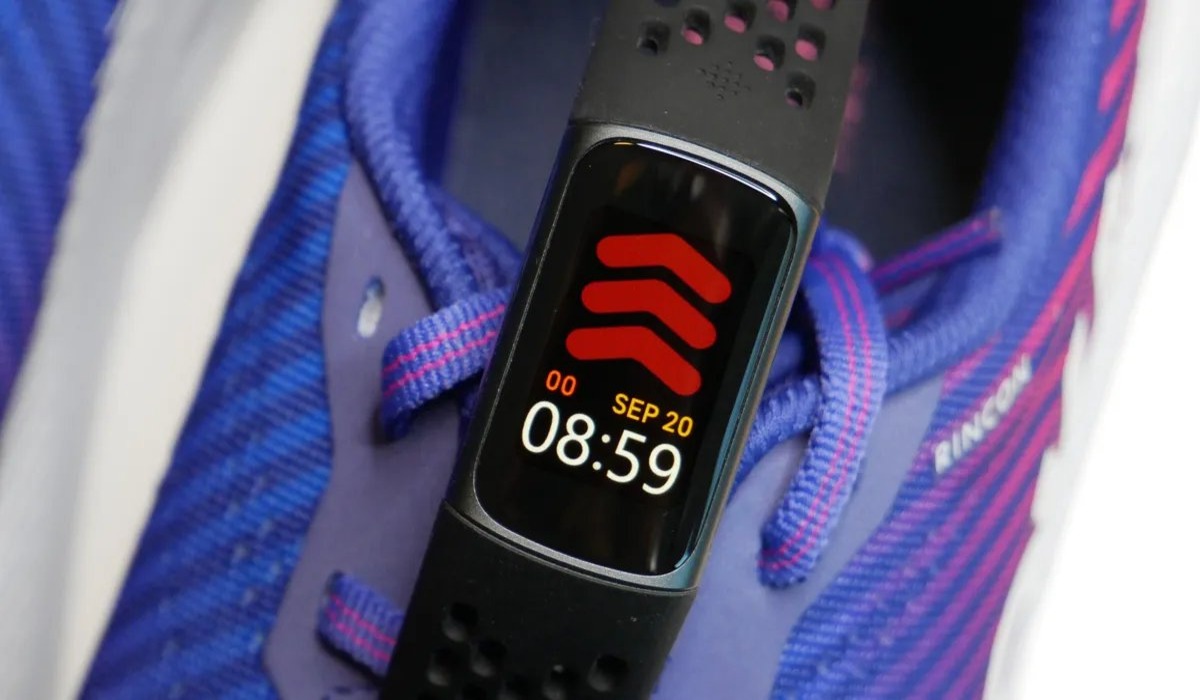
Getting the fundamentals right often prevents the Fitbit troubleshooting problems that send people searching for fixes later. A snug but comfortable fit keeps the sensors in consistent contact with your skin, so take a moment to review the proper Fitbit band placement before you start your first workout. It also matters which arm you choose, because the wrist placement for Fitbit accuracy can be updated if you ever decide to switch sides. Before diving into the app, consider that a clean installation of the companion software solves many connectivity headaches. If pairing repeatedly fails, a clean installation of the companion software can clear out corrupted cache files that block the initial handshake. You may also want to read the article on how to uninstall Fitbit app if you are starting fresh or need to remove a problematic version entirely. Once you are set up, you can connect services like Spotify on Fitbit, which lets you play, pause, and skip music and podcasts directly from your wrist. To link your accounts, open the app, go to the Today tab, tap your profile picture, then your device image, and finally the Apps tile. From there, tap the gear icon next to Spotify, log in, and follow the prompts to connect a Spotify Premium account.
Power, charging, and battery life
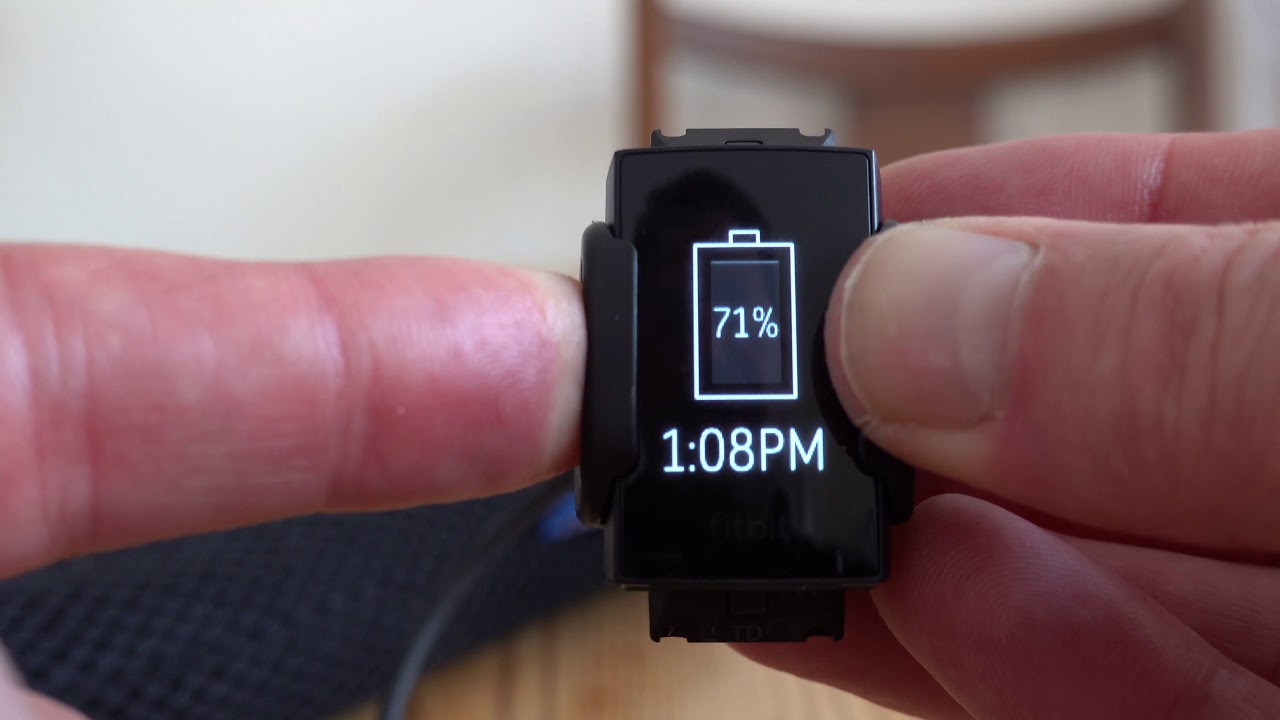
Many cases of rapid Fitbit battery drain trace back to a stuck background process rather than a failing cell, so restarting the device often restores normal endurance before you need to run a full diagnostic. If your tracker feels warm while charging or the percentage barely climbs, clean the gold contacts on both the device and the cable with a dry cloth, and make sure you are using the charger that shipped with it, plugged into a standard wall outlet. The overall Fitbit charging duration varies by model and power source, and a fully depleted cell typically needs at least 30 minutes on the charger before the screen wakes up.
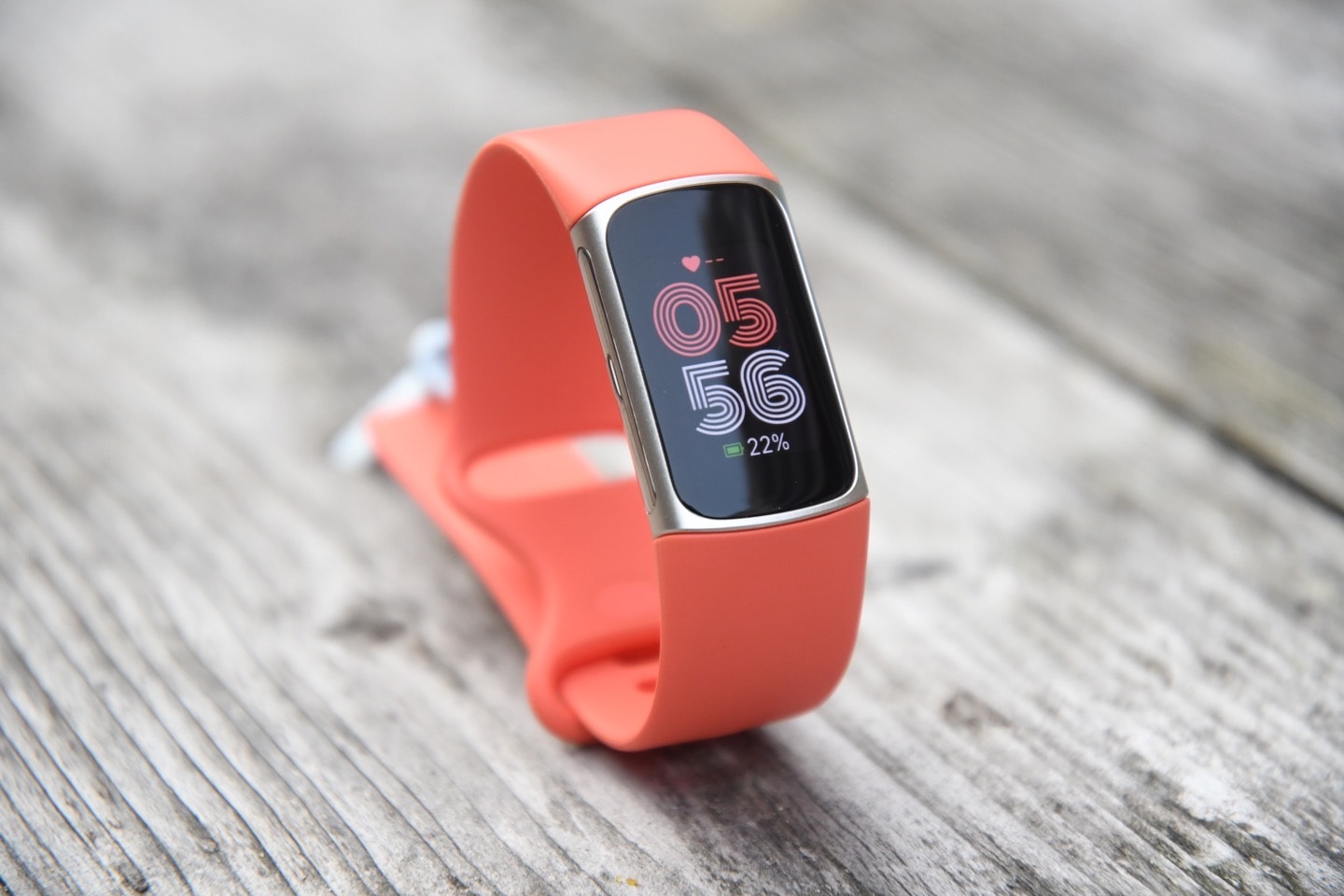
To understand what you can realistically expect from your device, you should review the Fitbit Charge 5 battery life expectations, which top out around a week on a full charge, but actual longevity shifts based on screen wake options, GPS use, and the number of notifications you receive. Turning off the always-on display is an effective change you can make in the device configuration if the percentage drops by double digits overnight. Similarly, the battery life of a Fitbit Versa or a Sense can be affected by whether features like the always-on display remain active, so a quick configuration review can rule out a misconfigured screen before you assume a hardware fault. The same principle applies to the Fitbit Sense battery life span, so confirm that the screen wake option is set to manual or motion, because a face that stays lit continuously will drain the power reserve in under a day. If the screen stays black no matter what you try, troubleshooting a dead Fitbit starts with leaving it connected to power for a full half hour. This step is especially critical if the device sat unused for months and the power cell hit absolute zero, and a response from the device after some time on the charger usually confirms the unit is recovering.
Syncing and Bluetooth connection
Open the device options on the watch and pick a shorter display timeout, because a screen that stays lit for many seconds drains the cell faster than one that dims quickly.
When you run into persistent Fitbit Bluetooth disconnection issues, the first move is a simple radio reset. Open your phone's controls, navigate to the Bluetooth menu, turn it off, wait at least three seconds, and turn it back on. The Fitbit app also needs an active internet connection to push data back and forth, so confirm your phone is on cellular data or Wi‑Fi before assuming the handshake itself is broken. Many Fitbit app malfunction solutions start with checking that network access, since a missing connection often looks exactly like an unresponsive interface.
You may notice that Fitbit sync completion time varies from one session to the next, and a sync that takes a minute or two is not automatically a sign of trouble. Even a Fitbit going without syncing for several days will queue its stored steps and heart-rate data. Keeping Bluetooth enabled and letting the app run in the background gives the system its best shot at a clean, quiet connection, and staying within range of your phone also helps.
Software updates and device responsiveness
When your device stops reacting to taps or the display stays dark, the simplest path to unresponsive Fitbit screen fixes often begins with a forced restart using the button combination specific to your model. If the screen is flickering or rebooting on its own, use that restart procedure first and keep the tracker close to your phone so it can finish any background tasks locking up the interface. A pending installation can mimic hardware failure, so open the Fitbit or Google Health app, go to your device page, and look for a pink Update button. Tapping it lets you update my Fitbit software as long as the wearable stays within range and a progress bar appears on both screens. The Fitbit firmware update duration is not published as a fixed number of minutes; the process simply runs until completion and you can check the on-screen bar to gauge how far along it is. If the tracker keeps Fitbit powering off unexpectedly even after a restart, force quit the companion app, then turn Bluetooth off in your phone’s connectivity controls for at least ten seconds before switching it back on. Temporarily disabling Bluetooth on nearby secondary phones and smart home hubs removes interference that can interrupt the connection.
- unresponsive Fitbit screen fixes
- Fitbit powering off unexpectedly
- Fitbit firmware update duration
- update my Fitbit software
Missing data and app display issues
When you notice a Fitbit app step count missing from the main tile, the cause is almost always a sync gap rather than lost data, because the tracker stores your movement locally until the next successful handshake. Forcing a manual sync from the app's device screen usually restores the numbers within a minute or two. If you are unsure why your steps are not appearing, you can read the article "Why Is My Fitbit App Not Showing My Steps" to understand the common causes behind a Fitbit app step count missing.
If you wake up to missing sleep scores on a Fitbit, check that you logged at least three hours of rest and that the tracker still had enough charge to maintain heart-rate monitoring through the night, since shorter sessions or a depleted cell prevent the algorithm from generating a score entirely.
A missing weekly Fitbit report often points to notification permissions being toggled off at the phone level, as the summary is pushed through your device's alert system rather than appearing only inside the app. For a deeper explanation of why you might be experiencing a missing weekly Fitbit report, the article "Why Didnt I Get My Weekly Fitbit Report" provides helpful troubleshooting steps. Should your dashboard suddenly switch to a Fitbit app showing only calories while hiding steps, distance, and active minutes, restarting the app or forcing a sync may restore the full view by rebuilding the interface without wiping any synced history waiting on Fitbit's servers. If you encounter this issue, the article "Why Is My Fitbit App Only Showing Calories" details what causes a Fitbit app showing only calories and how to fix it.
- missing sleep scores on a Fitbit
- Fitbit app showing only calories
- Fitbit app step count missing
- missing weekly Fitbit report
Alerts, vibrations, and device signals
If you glance at your wrist and see a Fitbit Look Alive message meaning the device thinks you have been still for a while, treat it as a nudge to get some steps in. The exact wording and supported models for that prompt are not locked down in the official documentation, but the intent is always a movement reminder. When you need to test the motor or simply want to make your Fitbit vibrate, first confirm that both Do Not Disturb and Sleep Mode are turned off on the device. Either one will suppress haptic feedback. On a Fitbit Charge 3 or Charge 4 you can keep those quiet hours active and still get workout buzzes by enabling Exercise alerts separately.
Understanding Fitbit Flex LED light patterns lets you read device status without a screen. When the band has slipped between couch cushions, the fastest way to find my Fitbit watch is to open the app and check the last sync time. A recent timestamp means the tracker is almost certainly still within Bluetooth range of your phone. Walk through the room with your handset and a third-party locator like LightBlue Explorer on iPhone or Bluetooth Finder on Android. Watch for the signal strength to climb as you get closer to a silent device.
Frequently Asked Questions
Can I use Spotify on my Fitbit without a Premium account?
No, Spotify on Fitbit requires a Spotify Premium account. The official Spotify help page confirms you must log in with Premium credentials through the Fitbit app's Apps tile to play, pause, and skip music and podcasts from your wrist.
Why does my Fitbit Charge 5 battery only last two days?
Turn off the Always-On Display in your device settings, as a screen that stays lit continuously can drain the battery in under a day. Background apps can also cause rapid drain, so restart the device. The Charge 5 can last up to seven days with typical use.
What do the lights on my Fitbit Flex mean?
Each LED light represents 20% of your daily step goal, so five solid lights mean you hit your target. A blinking light shows progress within that 20% increment. The official documentation for Flex LED patterns was not available in verified sources.
Why did my Fitbit app update take over an hour?
Firmware updates run until completion with no fixed duration. A progress bar appears on both the device and in the app. The update time depends on the size of the firmware, your connection stability, and whether the device stays within range of your phone.
How do I find my lost Fitbit if the battery is dead?
Check the last sync time in the Fitbit app to see where it was when it last connected. If the battery is dead, Bluetooth locator apps like LightBlue Explorer or Bluetooth Finder will not work, so retrace your steps and check between couch cushions and under furniture.