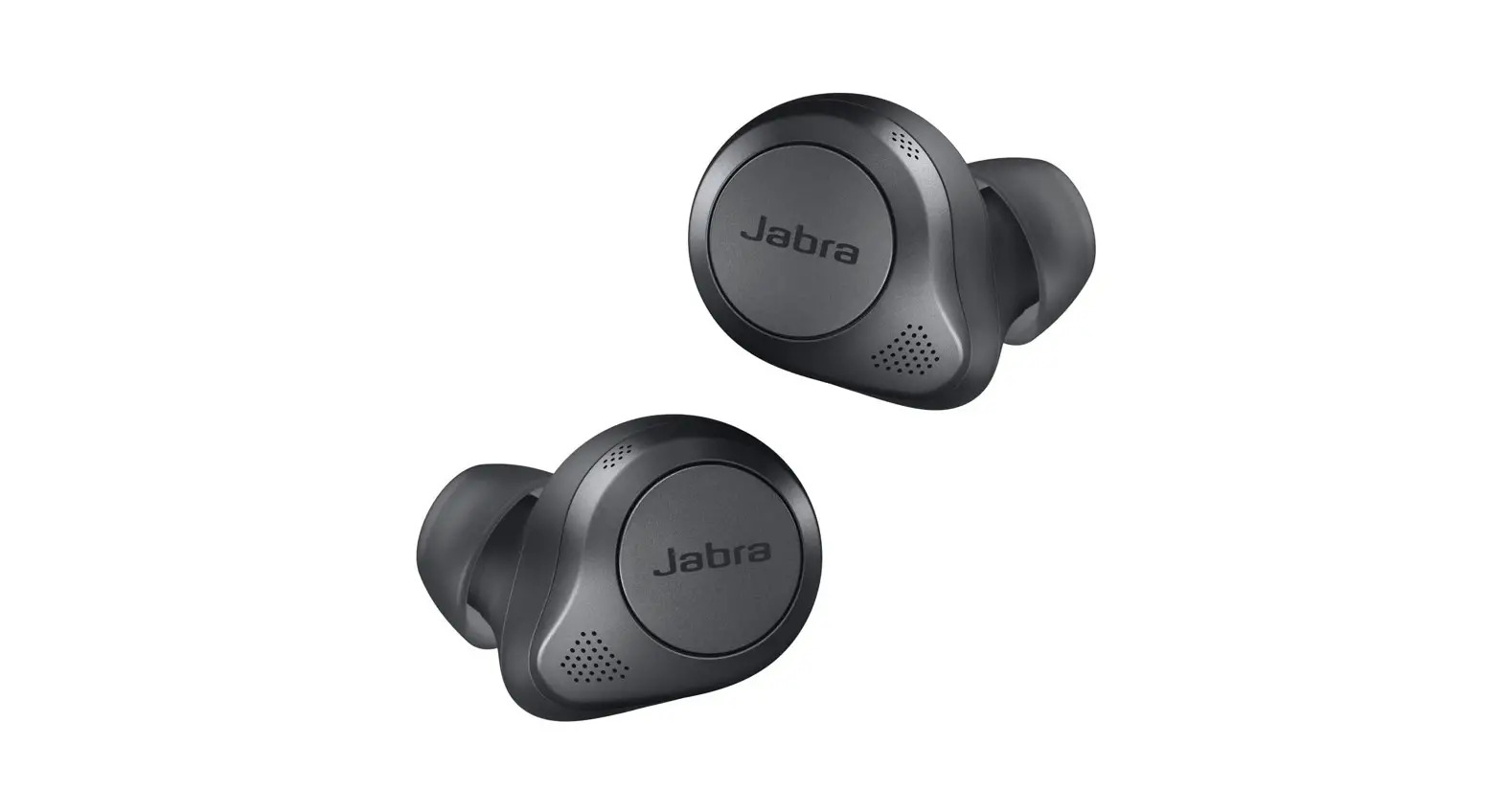
To connect Jabra wireless headphones, first ensure Bluetooth is enabled on your phone or computer, then put the headphones into pairing mode. The specific steps for pairing wireless earbuds differ from those for over-ear or on-ear headsets, so identify your model before you begin.
Before You Connect Your Jabra Wireless Headphones
To begin, ensure Bluetooth is enabled on your mobile device or computer. Before starting, confirm Bluetooth is turned on in your device’s settings. Next, identify which type of Jabra product you have: true wireless earbuds (like the Elite 75t or Elite 8 Active) or a traditional headset (like the BT2035 or Evolve series). The pairing process is different for each.
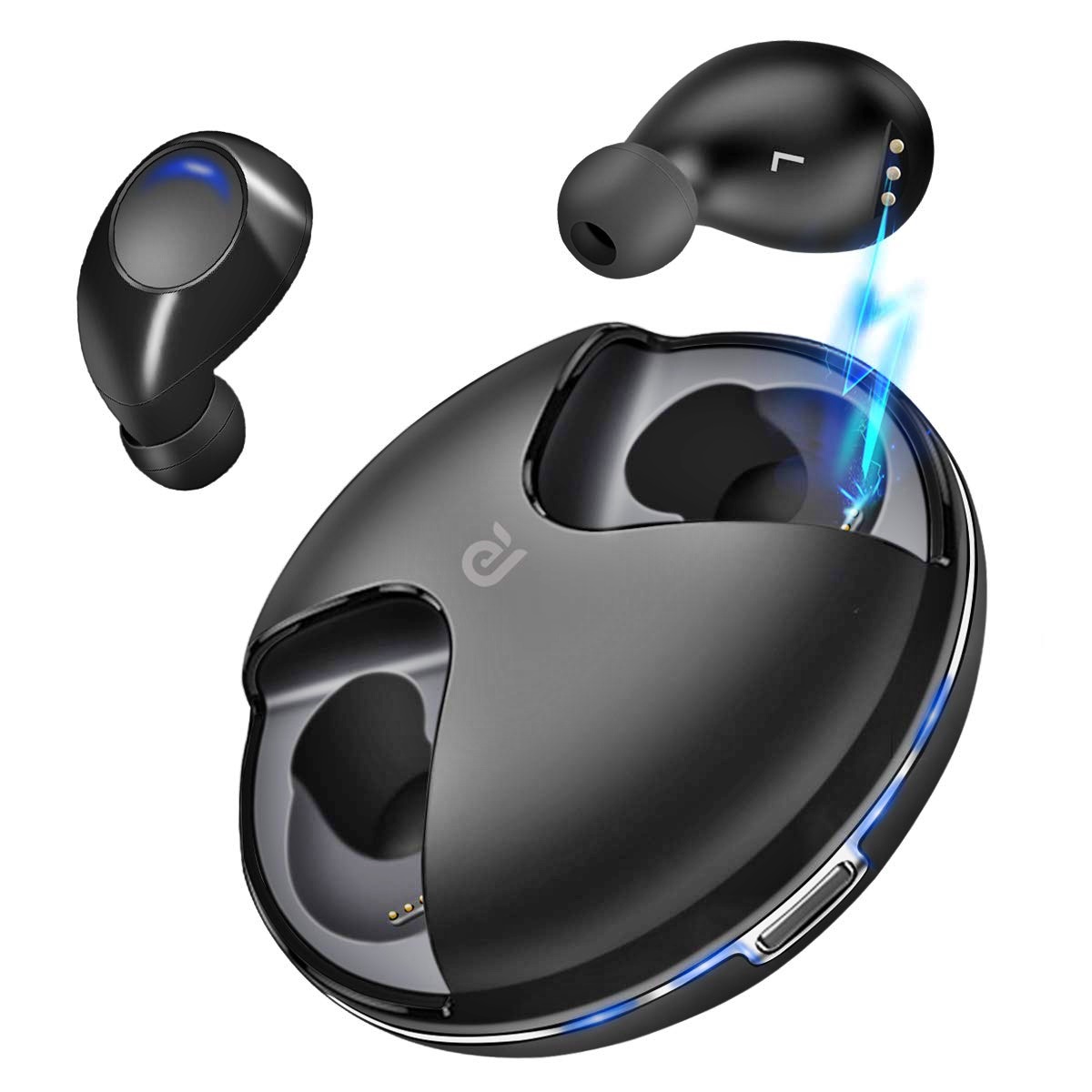
How to Pair Jabra Earbuds (like Elite 75t, Elite 8 Active)
- For most Jabra earbuds (e.g., Elite 75t, Elite 8 Active), turn them on by removing them from the charging case, or by simultaneously pressing and holding the Left and Right buttons for 1-2 seconds.
- To enter pairing mode for Jabra earbuds, simultaneously press and hold the Left and Right buttons for 3 seconds until the right earbud's LED flashes blue or a pairing notification is announced.
- Once in pairing mode, open the Bluetooth menu on your mobile device or computer and select the Jabra headphones from the list of available devices.
How to Pair Jabra Headsets (like BT2035, Evolve Series)
- Turn off the headset if it is on.
- For some Jabra headsets (e.g., BT2035), turn off the headset, then press and hold the Answer/end button until the light turns blue to enter pairing mode.
For connecting to a computer, if your Jabra device comes with a Jabra Link Bluetooth adapter, plug the adapter into a USB port on your computer. The headset should connect automatically.
What to Do if Prompted for a PIN Code
If prompted for a PIN code during pairing, enter '0000' (four zeros). This is the standard code for Jabra wireless headphones.
Connecting to a Second Device with Multipoint
Many Jabra wireless headphones support Multiuse or Multipoint, allowing them to connect simultaneously to two devices, though only one device can play audio at a time. Jabra devices can remember a varying number of paired devices; for example, some remember up to 8 devices (e.g., Elite 75t, Evolve2 65 Flex), others up to 6 (e.g., Elite 5, Elite 2), and some up to 10 (e.g., Elite 8 Active).
Troubleshooting: When Your Jabra Headphones Won't Connect
If your Jabra headphones fail to pair, try these verified fixes in order:
- Repeat the full pairing steps for your specific model. A small misstep can prevent connection.
- If pairing is unsuccessful, repeat the pairing steps or attempt to pair with a different Bluetooth-enabled device.
- If the Jabra Sound+ app does not detect a paired device, ensure the Jabra device is on, Bluetooth is active, and try force quitting and re-launching the app.
- Perform a factory reset. A factory reset will clear all previously paired devices and settings from your Jabra headphones, so you will need to re-pair afterward and delete any old pairings from your device's Bluetooth menu. The reset method depends on your model:
- For some Jabra earbuds (e.g., Elite 4 Active): Place both earbuds in the charging case with the lid open. Simultaneously press and hold the Left and Right buttons for 10 seconds until the earbud LEDs flash pink.
- For some Jabra headphones (e.g., Elite 65e): Ensure they are on and not on a call. Simultaneously press and hold the Volume up button and the Multi-function button for 5 seconds.
Frequently Asked Questions
How do I know if my Jabra headphones are in pairing mode?
You will see a flashing blue LED on the earbuds or headset. Some models also announce "pairing" or "ready to pair" through the speaker.
Can I connect my Jabra headphones to a computer without a Bluetooth adapter?
Yes, if your computer has built-in Bluetooth. Simply put the headphones in pairing mode and select them from the computer's Bluetooth settings. A Jabra Link adapter is only necessary for computers without Bluetooth or for a more stable connection.
Why do my Jabra earbuds only connect to one earbud?
This usually means the earbuds are not properly paired with each other. Place both earbuds back in the charging case, close the lid, wait a few seconds, then remove them again. If the issue persists, perform a factory reset.
How do I disconnect my Jabra headphones from a device without unpairing them?
Turn off the headphones. This will disconnect them from the current device but keep the pairing information saved, allowing them to reconnect automatically when turned back on.
Will a factory reset fix all connection problems?
A factory reset is the most thorough troubleshooting step and will resolve most persistent pairing issues by clearing all saved connections and settings. If the problem continues after a reset, the issue may be with your device's Bluetooth hardware or software.