Before you start: check your TV's wireless TV audio features
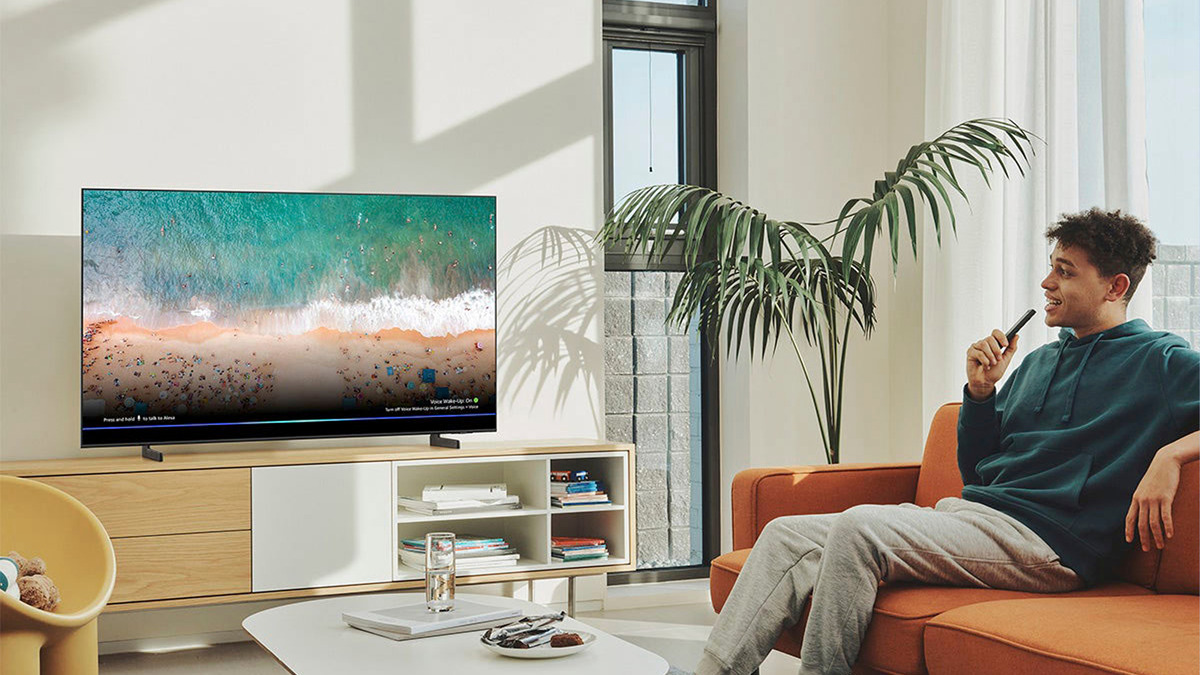
Setting up wireless TV audio starts with knowing what your screen can actually do, because many people assume every modern television can receive a Bluetooth signal from a phone. The reality is different. Most smart TVs are designed to send audio out to headphones or a soundbar. They are not built to act as a wireless unit for your playlist. To see if yours is ready, start with the most direct check. If you own a Samsung TV, you will want to read the article about "the Bluetooth on Samsung TV" to learn exactly where to find the settings menu for wireless audio output. Navigate to Settings > All Settings > General & Privacy > Accessibility > Multi-output Audio to check if it supports Bluetooth. Look for the Bluetooth Speaker List option. If that menu item appears, the screen supports wireless audio output. On a different brand, the process shifts. For example, to find device connector on LG TV, the setup information may vary by model and year. The software path for wireless linking varies by year and platform. The IR blaster on LG TV is a small wired accessory that plugs into a dedicated port to control a set-top box with infrared commands. It has nothing to do with transmitting audio. Once you confirm your display's capabilities, you will know if you can link directly or if you need a separate transmitter. If you ever need to disconnect a paired gadget, the steps to turn off Bluetooth Samsung TV may vary by model. The support guidance focuses on checking Bluetooth support and pairing devices through the Sound Output list. You should also check the article about which "Samsung TVs have Bluetooth" to confirm your specific model is equipped for wireless audio before you invest in accessories. Knowing the difference between output and input up front saves you from buying gear your screen cannot use.
Connecting your TV to Wi-Fi
Getting your television online is the first step before any wireless audio features can work. If you need to connect Samsung TV to wireless internet, open Settings, go to Network, select your Wi‑Fi network from the list, and enter the password. The on-screen menus vary by model year and webOS version when you set up LG TV to wireless network, so look for the network settings in the menu. For older plasma and LCD displays, the path to connect Panasonic Viera TV to wireless internet may require a compatible USB dongle before the wireless option appears. Keep in mind that joining your home network is not the same as enabling a direct audio link, so your TV may still need a separate Bluetooth transmitter to send sound to headphones even after you connect Sony TV to Wi-Fi wireless, connect Vizio TV to internet wireless, connect TV to Netflix wireless, or connect computer to Roku TV wireless.
Pairing Bluetooth headphones and earbuds
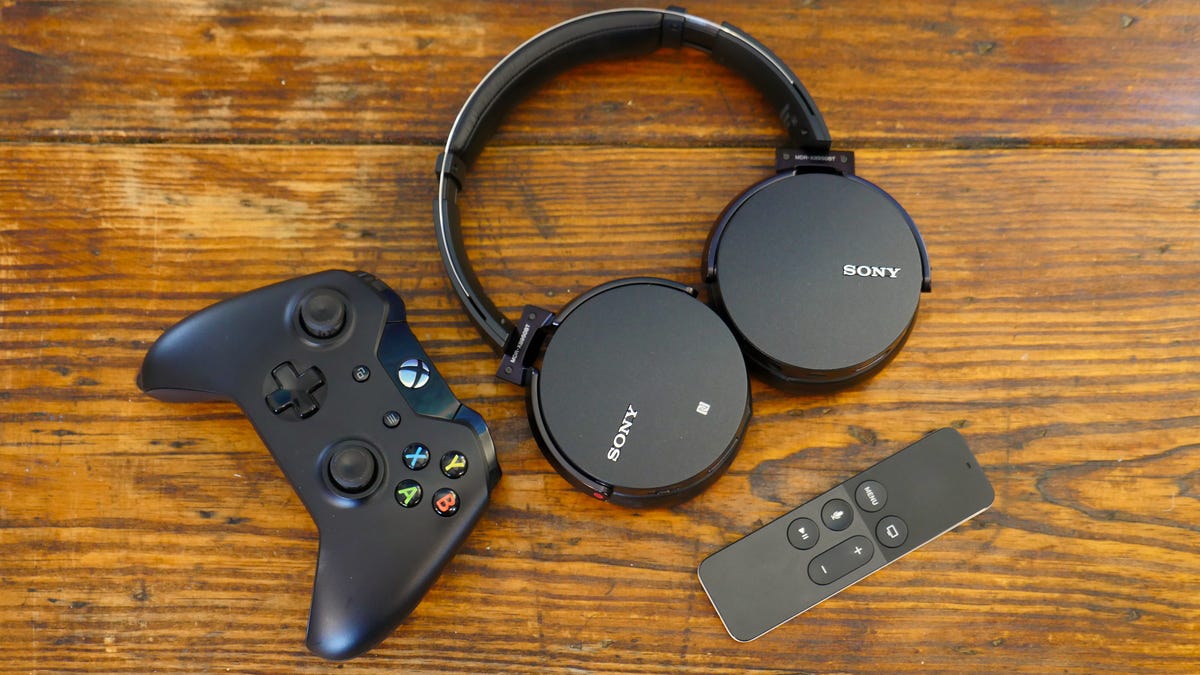
If your television already has Bluetooth built in, the linking sequence is similar across brands, though the menu path changes by model year. When you want to link Bluetooth headphones to Samsung TV, open the Sound Output menu and look for the Bluetooth Speaker List or similar option; the exact label varies by model year. Once your earbuds or headset appear, select the device and confirm Pair and Connect. To pair wireless headphones to Roku TV without using the mobile app, you need a compatible Roku TV or streaming player that supports direct headphone connection over Bluetooth; check your device's specifications for Bluetooth Headphone Mode support. The pathway looks different when you connect LG TV to wireless headphones, and the exact menu path varies by model; you will typically find the linking controls inside the sound settings. Whether wireless earbuds work with TV comes down to the same basic requirement: the set must transmit audio over the short-range radio, not receive it. Most earbuds enter discovery mode with a long press on the case or stem, and once the screen discovers them, the link behaves like any other headphone connection.
Adding a wireless speaker or soundbar
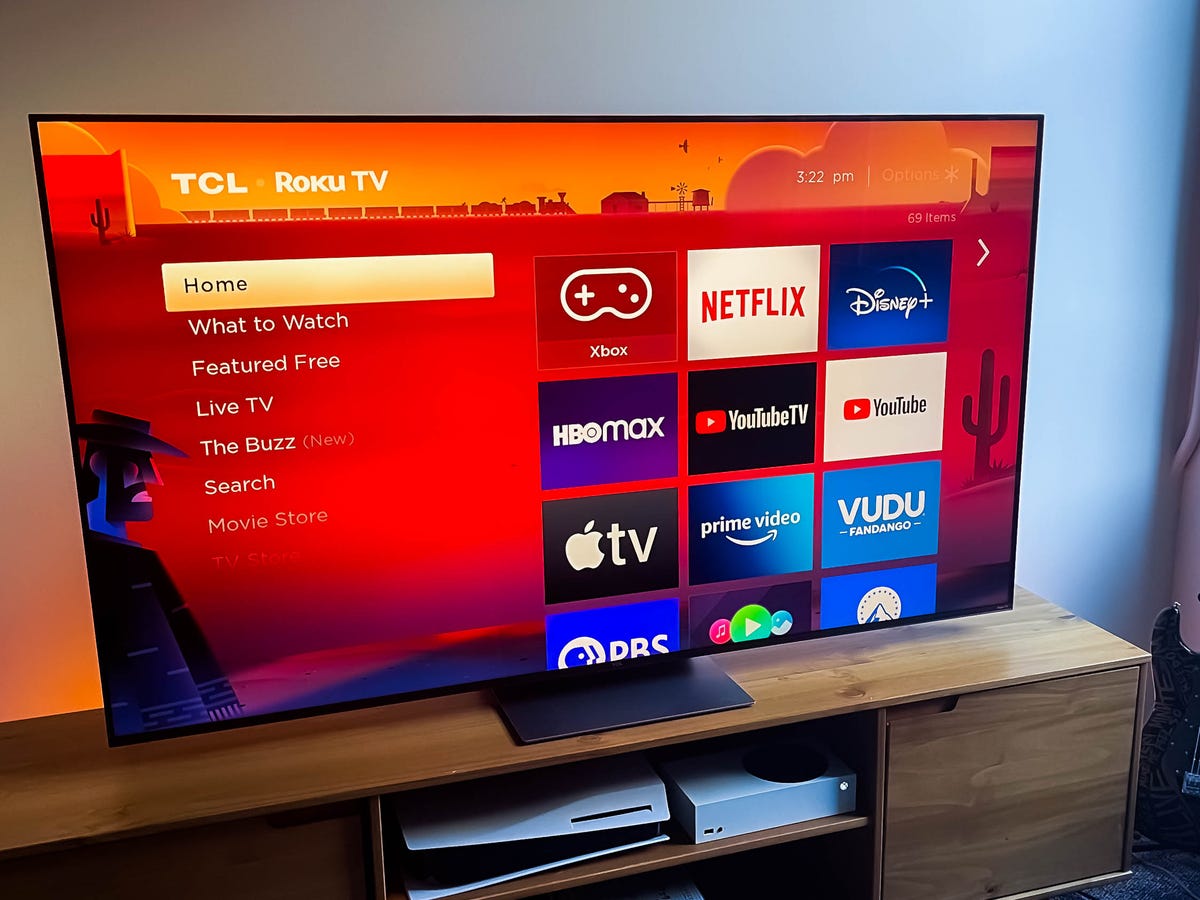
Your television’s built-in speakers rarely do justice to a movie soundtrack, but adding a wireless unit or soundbar can fix that in minutes. Most modern Samsung TVs confirm Bluetooth capability when you see a Bluetooth Speaker List option under Sound Output in the menu; if that item is missing, your screen likely needs a dedicated transmitter plugged into its audio port. Before you commit to a specific accessory, it pays to know how to connect wireless speakers to a television from a different brand, because Roku TVs play by their own rules. On those platforms, standalone Bluetooth linking is available on compatible models, though you may also add Roku Wireless Speakers or a Roku TV Wireless Soundbar to access the feature.
Once you have the right hardware, put the audio device into discovery mode and pick it from the on-screen list, though the exact menu labels shift from one manufacturer to the next. You will follow an entirely different path when you set up LG wireless sound bar hardware, and the button sequence on a Vizio remote will not help you pair a Sony soundbar. The steps you need depend on which screen sits in your living room, whether you want to connect a wireless speaker to a Roku TV, connect a Bluetooth speaker to a Samsung TV, connect a JBL speaker to a Samsung TV, connect Bluetooth speakers to TV, connect wireless headphones to a TV, connect Beats wireless to Samsung smart TV, connect wireless headphones to Sony TV, connect Bose docking station to TV, or connect wireless keyboard to Samsung TV.
Linking surround sound and subwoofers
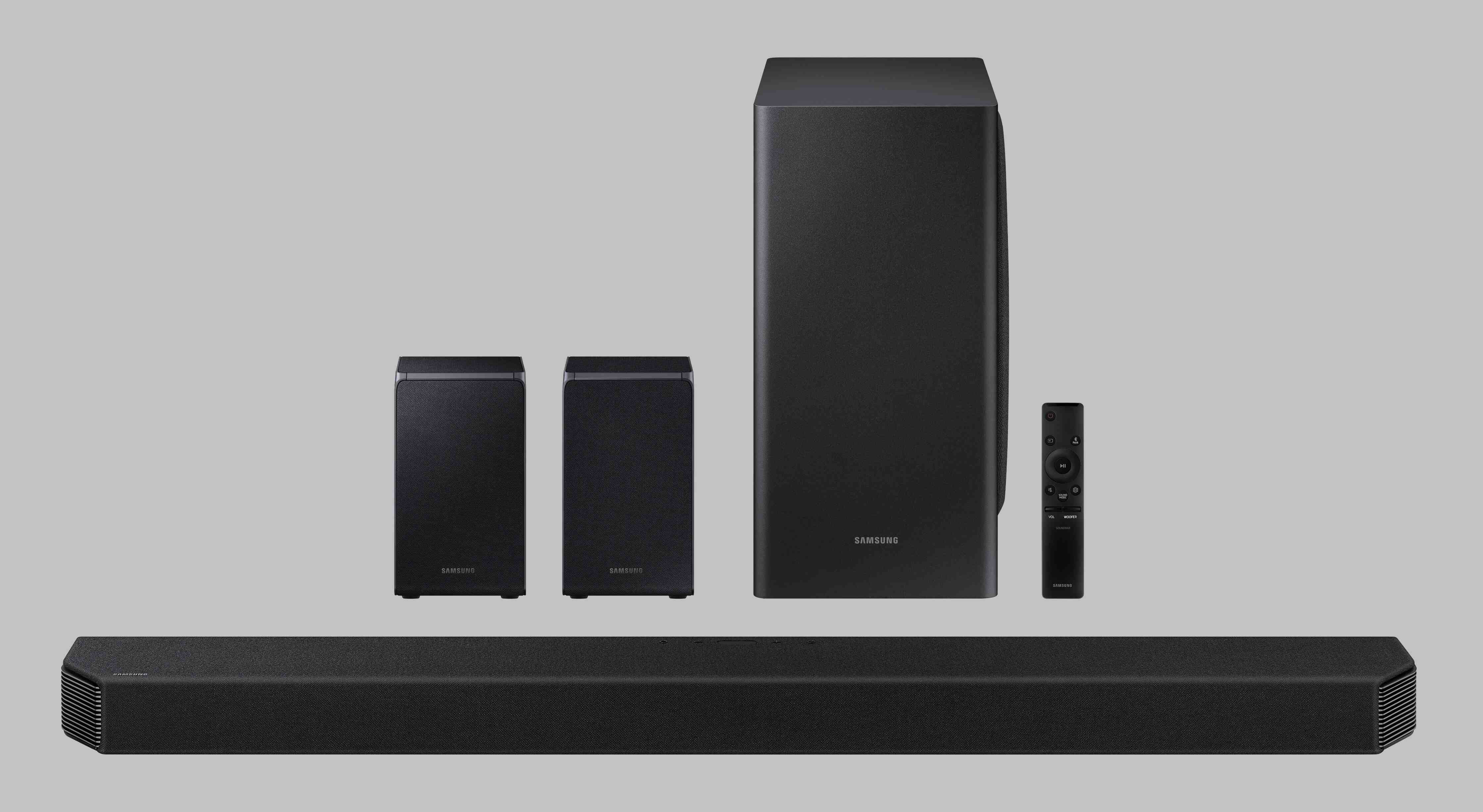
Adding a subwoofer or rear speakers to your TV setup often starts with the soundbar itself. If you need to link Samsung wireless subwoofer hardware that has lost its connection, the fix is usually performed via an ID SET process on the soundbar, then press the small LINK or ID SET button on the back of the subwoofer within about a minute. The path to connect wireless rear speakers to receiver is less direct than many people expect, as most Samsung kits use a separate wireless receiver module that talks to the soundbar, and you still run standard speaker wire from that module to the left and right rear units. The SWA-9500S kit is the outlier here, because the units themselves are wireless and only need their own power cords. If your setup is built around a traditional AV component instead of a soundbar, the process for connecting wireless speakers to a stereo receiver follows a different logic on supported Sony models. Sony’s STR-AN1000, for instance, supports one pair of wireless rear units, and you initiate the handshake through a Secure Link menu path on the receiver, not the television. The documented setup does not use your phone’s Bluetooth menu.
Using specialized audio accessories
When standard Bluetooth transmitters fall short, some hearing aids and brand-specific audio gear require their own dedicated connection hardware. If you use compatible Phonak direct streaming hearing aids, you can set up Phonak TV connector hardware in a few minutes without touching a phone app. The device draws power over USB and plugs into your screen's optical digital audio output. The first time it receives power, it automatically searches for nearby hearing aids that are switched on, and a confirmation tone plays in the aids once the link is established. From that point on, a stable streaming signal is ensured within range. Should you need to add a second pair of hearing aids later, a button on the unit triggers a fresh handshake cycle.
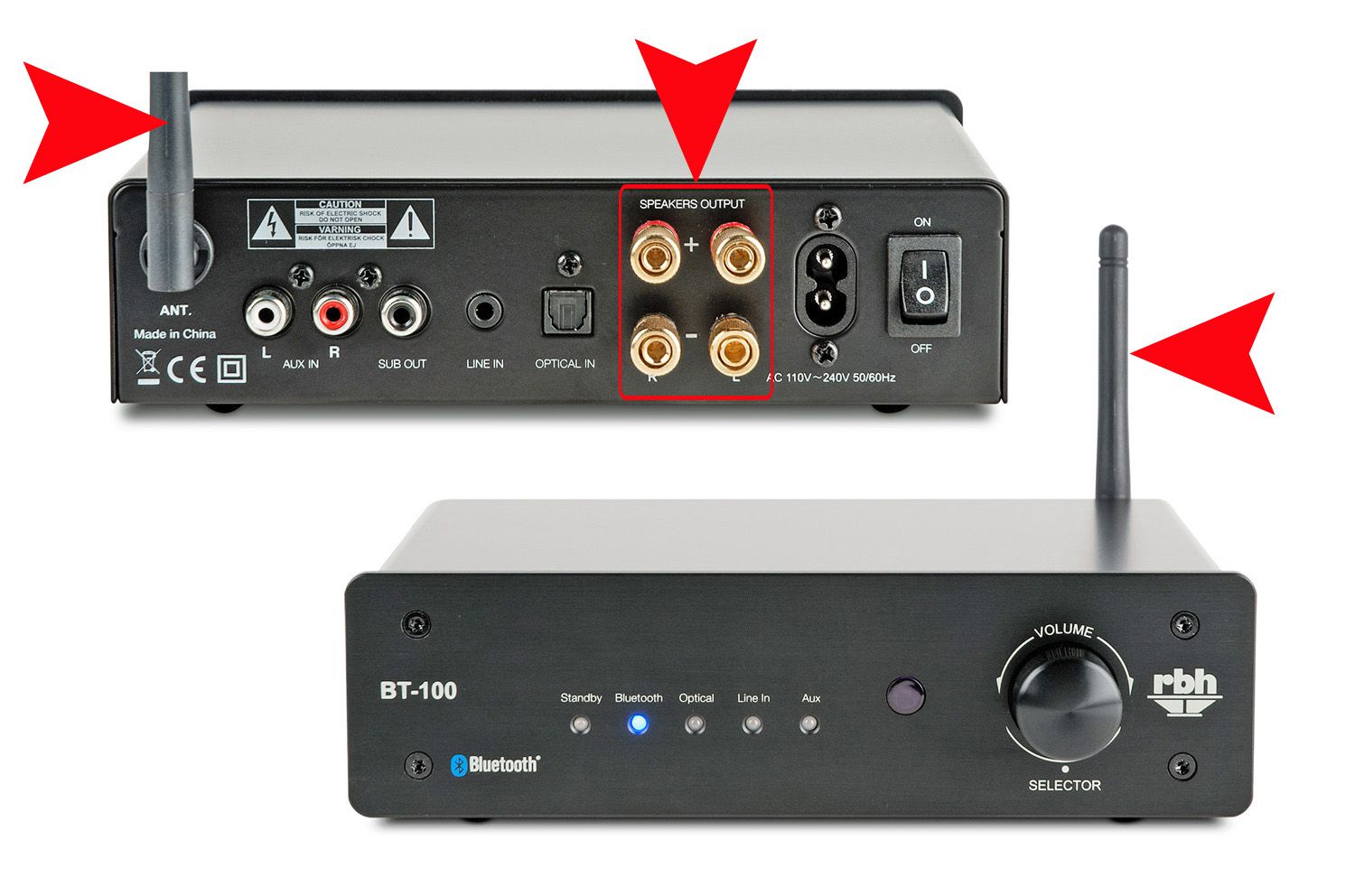
Proprietary docks for wireless headphones work on a similar principle, acting as a dedicated transmitter that bypasses your television's built-in Bluetooth stack entirely. These accessories treat the TV strictly as an audio source, so you configure the connection on the dock or connector itself rather than hunting through your set's sound menus.
Making video sources wireless
Most cable boxes and video sources are not wireless by default, but a few provider-supplied models connect over Wi‑Fi instead of coax. When you set up Xfinity wireless TV box hardware, turn on the TV box, wait for the Welcome screen, and follow the on-screen flow to select your home network and enter the Wi‑Fi password, or choose Join another network / Initiate Pairing and press the WPS key on the Xfinity Gateway within two minutes. Similarly, when you set up Fios TV one mini wireless, the critical physical rule is to leave the coax cable disconnected so the box syncs over Wi‑Fi automatically; you connect the HDMI cable from the Mini to the TV, attach power, and follow the on-screen activation prompts. If your display lacks an HDMI port, use composite cables with the provided adapter instead. Beyond those two provider-specific boxes, there is no generic method to make a cable box wireless, make a projector wireless, or make your TV wireless. No Samsung-specific setup was available to make Samsung TV wireless. The path you follow depends entirely on which hardware you own.
Going fully wireless and managing audio output
Once you have decided to eliminate every cable from the television, the first thing to confirm is whether your set can handle the job natively, though some require a small adapter plugged into the digital audio port. Many modern panels include a Bluetooth transmitter in their settings, and you will still need to know how to mute the TV speaker on a Samsung smart TV by selecting an external output in the Sound or Speaker Settings so that sound plays only through your wireless headphones or earbuds, preventing an awkward echo from the built-in drivers. The exact menu labels vary by model year, but choosing an external output there silences the television’s own speakers and keeps the audio stream active for your listening device. If your set predates that function or its Bluetooth menu remains stubbornly greyed out, a low-profile transmitter that draws power over USB and plugs into the optical jack solves the problem. The key rule is that the television almost always acts as a sender, so you pair your headphones to it rather than the other way around.
Frequently Asked Questions
How do I turn off Bluetooth on my Samsung TV?
Samsung’s support pages do not document a dedicated “turn off” menu path. You can effectively disable it by selecting the TV’s internal speakers in the Sound Output menu instead of the Bluetooth Speaker List.
Can I pair Bluetooth headphones directly to a Roku Express?
No. Roku lists the Express among devices that do not support Headphone Mode. You must use the Roku mobile app for private listening on that model.
Does the Phonak TV Connector work without a phone app?
Yes. The device draws power over USB, plugs into your screen’s optical digital audio output, and automatically searches for nearby switched-on hearing aids the first time it receives power.
Which Roku TVs support direct Bluetooth headphone pairing?
Only Roku Select Series 4K (2025), Roku Plus Series, and Roku Pro Series TVs can pair Bluetooth headphones directly for Headphone Mode. All other Roku TVs require the mobile app.