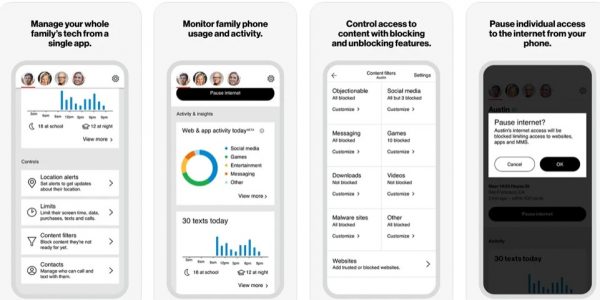
Verizon Smart Family, now called Verizon Family and Verizon Family Plus, is Verizon’s built-in parental-control service for managing a child’s smartphone or Android tablet on the same Verizon mobile account. It gives you tools to filter content, monitor calls and texts, set screen-time limits, pause internet access, and track your child’s location from a single app.
What is Verizon Smart Family (now Verizon Family)?
Verizon’s current support pages say Verizon Family and Verizon Family Plus are the newer names, with Verizon Family Plus formerly called Verizon Smart Family. The service helps manage a child’s device from a single app, including content filtering, call/text monitoring, web/app activity monitoring, screen time, internet pause, and location features such as pick-me-up and check-in.

What you need before you start
To use Verizon Smart Family, you need a Verizon mobile account that can manage all compatible devices on the same account. You need Verizon's standard account with at most 10 lines to be able to sign up. The child’s device must be a smartphone or Android tablet, iPads are not currently supported. You also need a phone designated as the parent’s device (Android smartphone or iPhone) to install the main app.
How to sign up and set up Verizon Family
Verizon’s official setup flow requires you to download the app onto the phone you designate as the parent device first. Open the Verizon Smart Family app on an Android smartphone or iPhone and tap Get started. Sign in with your Verizon account credentials, then choose a plan. The Premium version gets a free trial for 30 days. After that, activate the child’s line second. The account can then manage all compatible devices on the same Verizon mobile account.
Key features you can control
Verizon Smart Family provides several main parental control categories:
- Content filtering: Filter web content and block specific websites. To enable content filtering: Tap on the child icon, select 'Manage Controls section.' Go on 'Content filters,' then choose the kind of content you want to filter. Toggle on the switch for content filtering. A black switch indicates that content filtering is on, while a white switch is disabled.
- Call and text monitoring: Limit and monitor call and text activity, and block contacts. You can add up to 20 blocked numbers or contacts. You can add up to 20 trusted contacts. To view your child's top contacts: Tap on the 'child' at the top of your screen, then go to the 'Manage Controls section.' Select 'Contacts,' then tap on 'Top contacts.' To receive notifications on your child's certain contact, press on the contact. Tap on 'Contact alerts,' then tap on 'Customize,' then tap on 'Watchlist.'
- Web and app activity monitoring: View what your child does online and in apps.
- Screen time limits: Set time restrictions and data targets for the child’s device.
- Internet pausing: Pause internet usage on the child’s device, including Wi-Fi and data. To pause the internet: Tap on the 'Child' at the top of your screen. Select 'Pause Internet.' When prompted, hit 'OK.'
- Location features: Use pick-me-up and check-in to see your child’s location in near real time. The location tracker is only available on Verizon's Smart Family Premium plan. To locate your child: Select your kid's icon. It will automatically give you an idea of where your child has been. To gain more detail, tap on the Map on the picture's background. Here, you can also view your child's location history. To set departure and arrival alerts: Go to your child's profile, look for the 'Manage controls section,' select 'Location alerts.' Go to 'Places & alerts,' then go to 'Add a place.' Add your desired address and name the place. Toggle on 'Arrival alert' and/or 'Departure alert.' To set scheduled location alerts: Tap at the child icon, scroll down to 'Location alerts,' then go on 'Scheduled alerts.' Tap on 'Add alert,' then set a schedule.
Note that exact menu paths and button labels change with app updates, so always follow the in-app prompts.
How to pair your child's device
Pairing the parent app with the child’s device requires sending an invite from the parent app to the child’s device and completing verification. The companion app must be paired with the Smart Family app on the parent device for features like driving insights to work. The exact steps vary by operating system, iOS and Android have different pairing flows, so you should follow the instructions that appear inside the app. The child will receive an invite link via SMS or messaging service, then must complete verification and allow permissions, including setting up a VPN profile if required.
Where to find the latest instructions
Verizon’s official support pages are the most reliable source for current step-by-step guides. App interfaces change frequently, and official documentation provides the most up-to-date information. Verizon also states that Smart Family can be managed through My Verizon’s website or the Verizon Smart Family app.
Frequently Asked Questions
Can I use Verizon Smart Family on an iPad?
No, iPads are not currently supported. The service works only with a child’s smartphone or Android tablet.
Do I need a separate plan for each child’s device?
All compatible devices on the same Verizon mobile account can be managed from the same parent app. You don’t need separate subscriptions for each device as long as they are on your account.
Is the location tracking feature available on the basic plan?
Location features such as pick-me-up and check-in are available, but near real-time location may require the premium plan. Check Verizon’s current plan details in the app or on the support site.
Can I block specific contacts on my child’s phone?
Yes, Verizon Smart Family includes call and text monitoring and controls that can block contacts. However, the exact steps for blocking numbers are not currently documented in official support pages, so use the in-app options.
Will pausing the internet affect my child’s calls and texts?
Pausing internet usage typically affects data and Wi-Fi access, not standard cellular calls and texts. The service is designed to pause web and app activity while allowing communication features.
How do I know if T-Mobile Home Internet speed limits affect my setup?
T-Mobile Home Internet speed limits are unrelated to Verizon Smart Family, as the service operates on Verizon’s network. If you are considering switching providers, understanding T-Mobile Home Internet speed limits can help you compare performance and make an informed decision about your home connectivity needs.
Related reading: The Safest Phones For Kids and Why Should Cellphone Be Allowed In School.