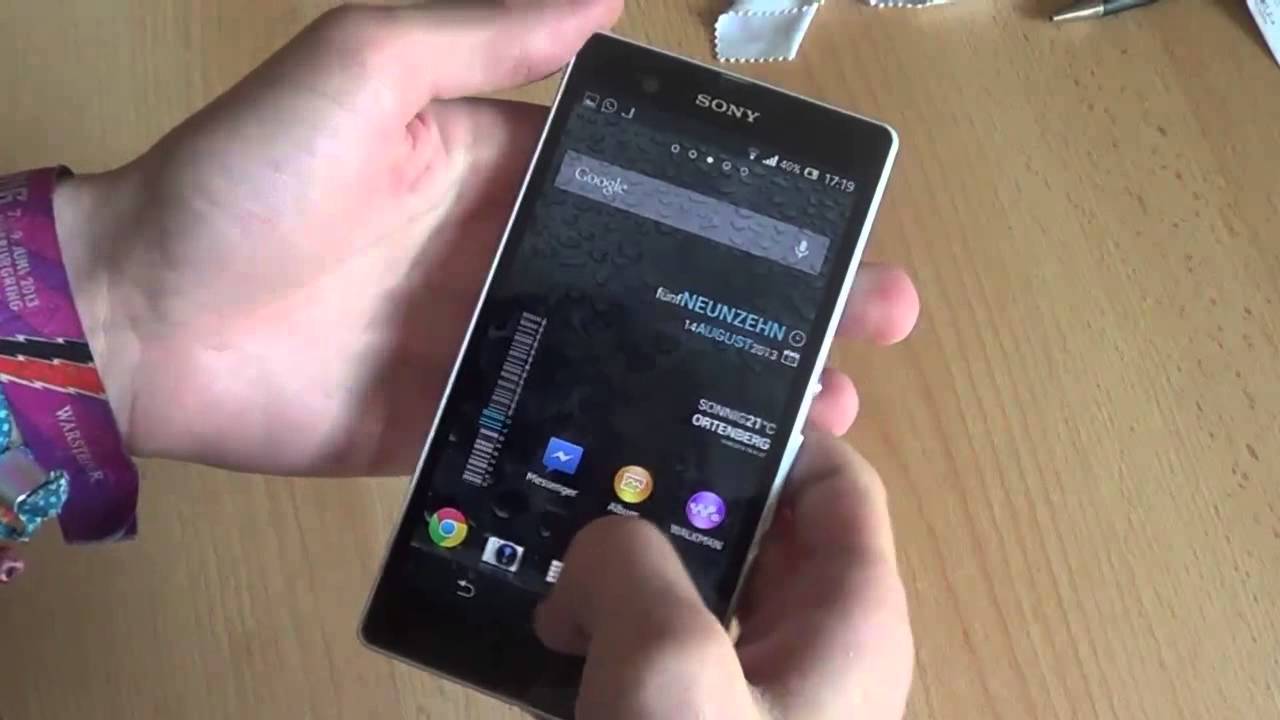
To hard reset a Sony Xperia Z, use the Settings menu to restore the device to its original factory state, which fixes persistent software issues or prepares the phone for a new user. This hard reset Sony Xperia Z process erases all data and settings, so follow the prerequisites carefully before starting.
Before you hard reset your Sony Xperia Z: Prerequisites
Before resetting, back up important data such as photos, contacts, and files to cloud storage or a computer, as the reset will erase everything on the device. Charge the phone sufficiently or connect it to a power source to prevent it from powering off during the procedure. Remove the SD card to avoid accidental formatting or data loss. Ensure you know your Google account credentials, as you will need to sign in after the reset to access the device. Disable Factory Reset Protection (FRP) in Settings > Security before resetting.
How to hard reset a Sony Xperia Z through settings
This is the verified Sony-supported method for the Xperia Z. Follow these steps exactly:
- Open the Settings app from the app drawer or notification panel.
- Scroll down and tap Backup & reset.
- Tap Factory data reset.
- Optionally, mark the checkbox for Erase internal storage to delete all data on the internal memory, including music, photos, and other user files.
- Tap Reset phone.
- If prompted, enter your screen unlock pattern, password, or PIN.
- Confirm by tapping Erase everything.
Do not restart the device while the reset procedure is underway. The process may take a few minutes to complete. The reset path for newer Xperia software is Settings > System > Reset options > Erase all data (factory reset) > RESET PHONE > ERASE EVERYTHING, but this is for Android 9.0 or higher and not specific to Xperia Z.
What to expect after the reset
Once the reset finishes, the device will reboot and display the initial setup screen, just like when you first bought it. You will need to sign in with your Google account to proceed. This is part of the standard process for restarting and rebooting phones, ensuring your device is ready for a fresh start or a new user.
Frequently Asked Questions
Will a hard reset remove a screen lock or password?
Yes, a factory data reset removes the current screen lock, pattern, or PIN. However, after the reset, you must sign in with the Google account that was previously synced on the device to bypass Factory Reset Protection.
Can I hard reset my Sony Xperia Z without the Settings menu?
If you cannot access the Settings menu, contact Sony customer support for further assistance.
Does a factory reset fix all software problems?
A factory reset resolves many software issues such as freezing, crashing, or sluggish performance. If problems persist after the reset, the issue may be hardware-related, and professional repair or Sony support is recommended.
How long does the hard reset take?
The reset process typically takes a few minutes. The device will restart multiple times; let it complete without interruption.
Will I lose my Google account after the reset?
Your Google account is removed from the device during the reset, but the account itself remains active online. You will need to sign in again during setup to restore access and synced data. Xperia Companion supports software repair, but versions older than 24.9.1.202408201019 are no longer supported.