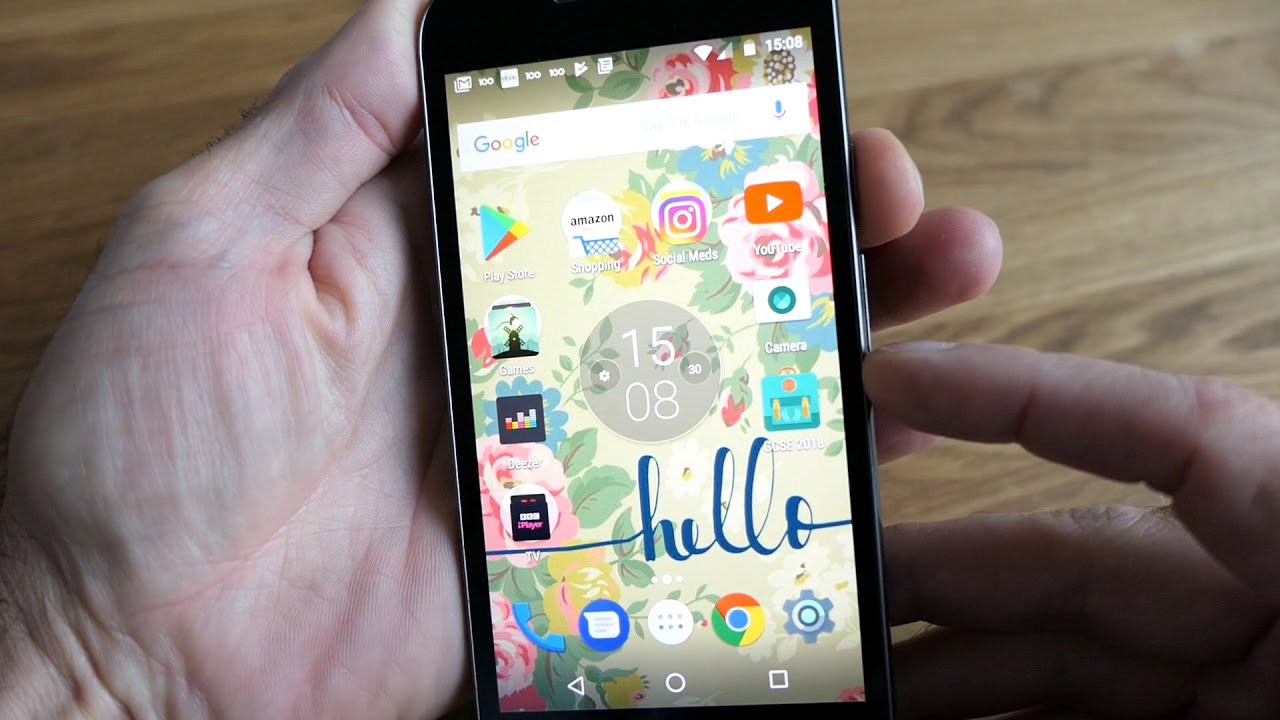
To take a screenshot on Motorola Android, the fastest built-in method is pressing and holding the Power button and Volume Down button simultaneously for about 1-2 seconds. You will see a brief animation or hear a shutter sound, confirming the screenshot on your Motorola Android has been captured and saved automatically.
How to screenshot on Motorola Android with the physical buttons
This is the most common and quickest way to capture your screen. Press and hold the Power button and the Volume Down button at the exact same time for about 1-2 seconds. You will see a flash on the screen or hear a camera-like sound, indicating the screenshot was taken. Release both buttons immediately after the capture.
Take a screenshot from the Power button menu
If you prefer not to use the button combination, press and hold the Power button until a shortcut dialog appears on your screen. In that menu, tap the Screenshot icon to capture the current screen. This method is especially useful if you want to take a screenshot on my Android without fumbling for the volume key.
Use the three-finger swipe gesture to capture your screen
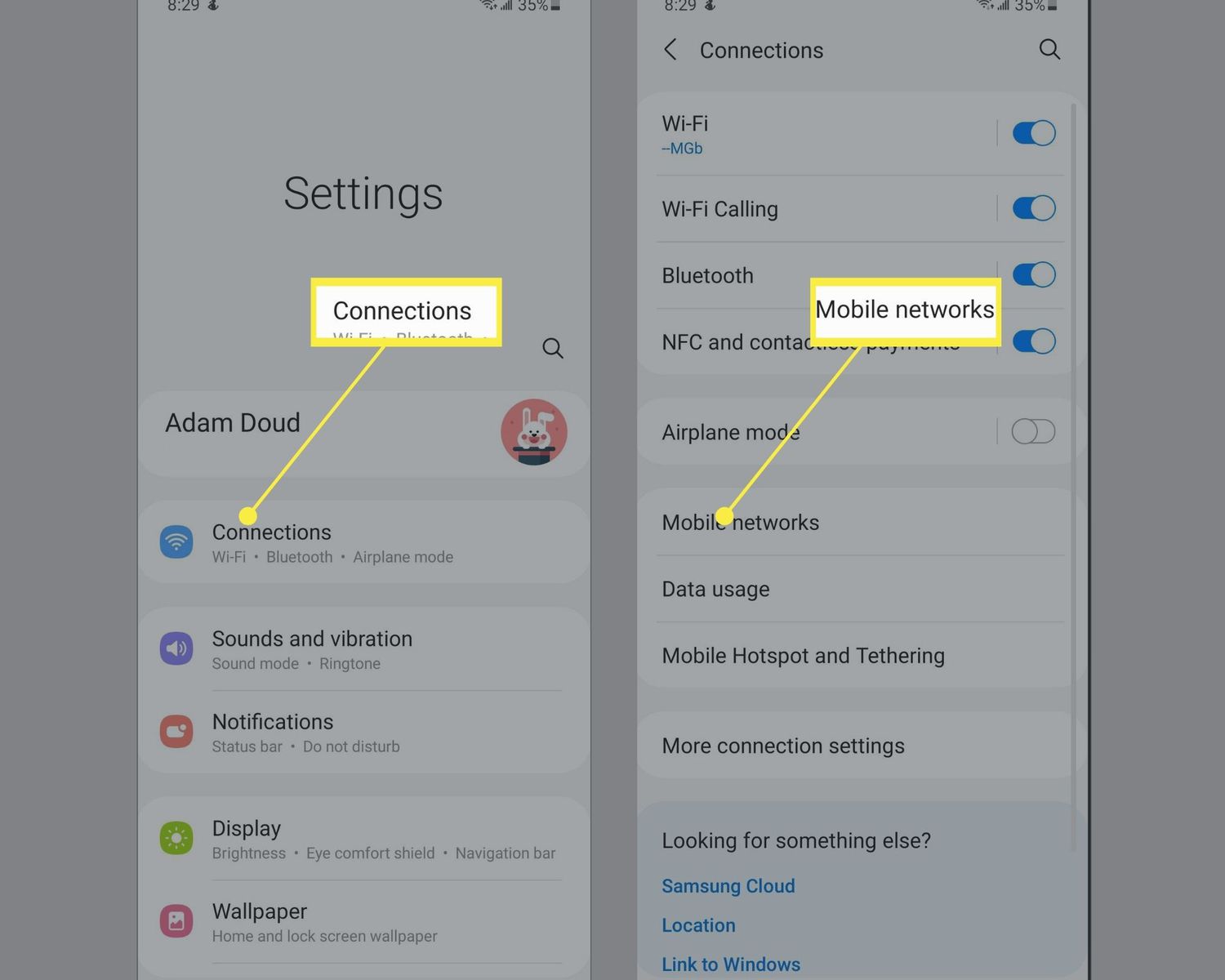
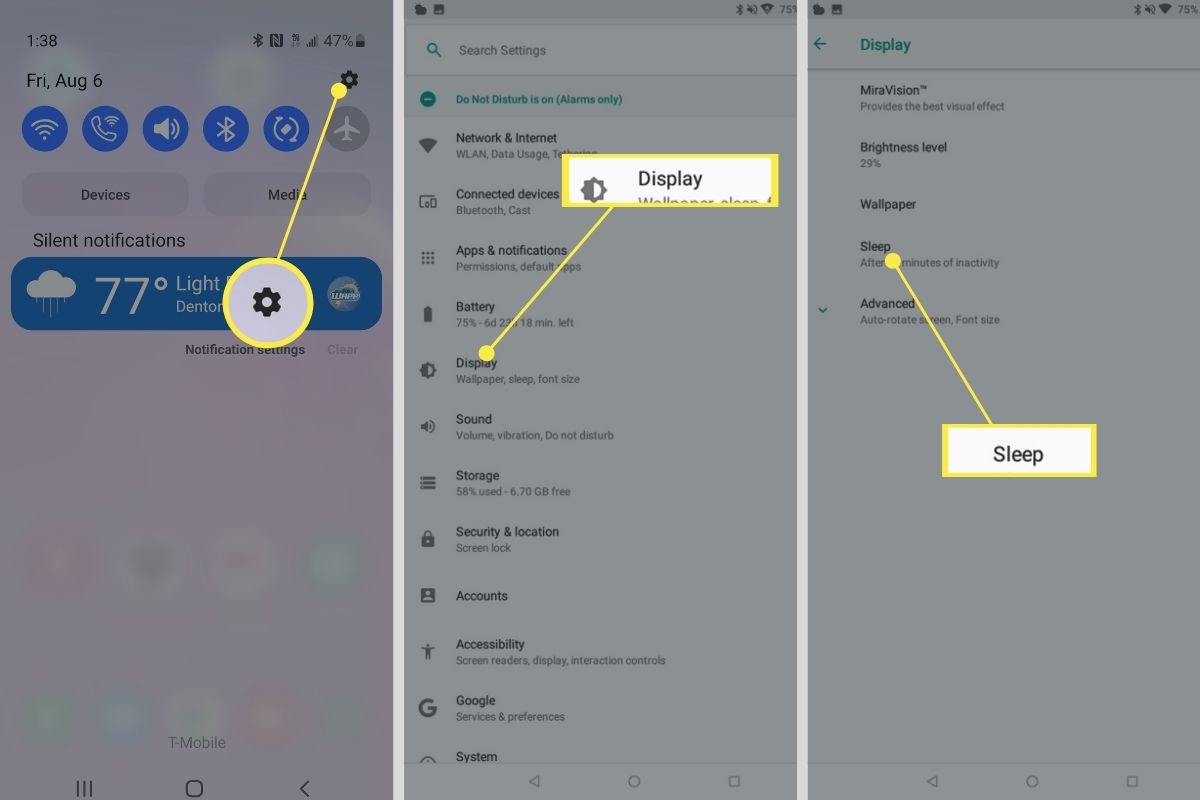
Many newer Motorola phones support a three-finger swipe gesture for quick screenshots. To enable it, go to Settings > Accessibility > Gestures (or Settings > Advanced Features > Moto Actions/Gestures) and toggle on Three-finger screenshot. Once enabled, simply swipe down with three fingers anywhere on the screen to capture a screenshot instantly. This is a convenient hands-free option if you need to take a screenshot on Google phone while holding the device with one hand.
Capture a screenshot from the Recent apps menu
Open the recent items view by swiping up from the bottom (if using gesture navigation) or tapping the square recent items button. Below the app preview you want to capture, tap the Screenshot button. This method lets you capture a specific app screen without leaving the multitasking view.
Where to find your screenshots and what to do next
All screenshots are automatically saved to your phone’s photo gallery. Open the Gallery app or Google Photos and look for a folder named Screenshots. From there, you can view, edit, crop, or share your captures directly. Note that some applications may restrict screenshots, if you try the button combination or gesture and nothing happens, or if the Screenshot button in the recent apps menu is greyed out, the app has blocked the feature.
Frequently Asked Questions
Can I take a scrolling screenshot on my Motorola Android device?
Yes, certain Motorola models support scrolling or long screenshots. After taking a regular screenshot using the button combination, look for a scrolling screenshot option that appears in the toolbar or notification panel, then tap it to capture extended content like a webpage or conversation. Some Motorola devices also offer long/scrollable screenshots accessible via screenshot settings or specific gestures.
Why is my screenshot not saving on my Motorola phone?
If your screenshot does not save, check that you have enough storage space on your device. Also, ensure that the Gallery or Google Photos app has permission to access your storage in Settings > Apps > App permissions.
Can I use Google Assistant to take a screenshot on my Motorola?
Yes, you can activate Google Assistant by saying “Hey Google” or pressing the home button, then say “Take a screenshot.” The assistant will capture the screen and offer options to edit or share it immediately.
How do I take a screenshot if my volume down button is broken?
If the physical buttons are not working, you can use the Power button menu method (press and hold Power, then tap Screenshot) or enable the three-finger swipe gesture. Both methods bypass the need for the volume key. You can also use third-party apps like Screenshot Easy, Screenshot Capture, Super Screenshot, Screen Master, Apowersoft Screenshot, or Screen Capture.
Where do screenshots go on a Motorola phone with Android 12 or newer?
Screenshots are still saved to the Screenshots folder inside the Gallery or Google Photos app, regardless of the Android version. On newer versions, you may also see a notification that lets you edit or share the screenshot immediately after capture.
Can I share my screenshots directly from my Motorola Android device?
Yes, you can share screenshots directly by opening the Gallery or Google Photos app, selecting the screenshot, and tapping the share icon to send it via messaging apps, email, or social media.
Is there a way to edit and annotate screenshots on my Motorola Android device?
Yes, after capturing a screenshot, tap the edit or markup option that appears in the notification or within the Gallery/Google Photos app to crop, draw, or add text. You can also use third-party editing apps for more advanced annotation tools.