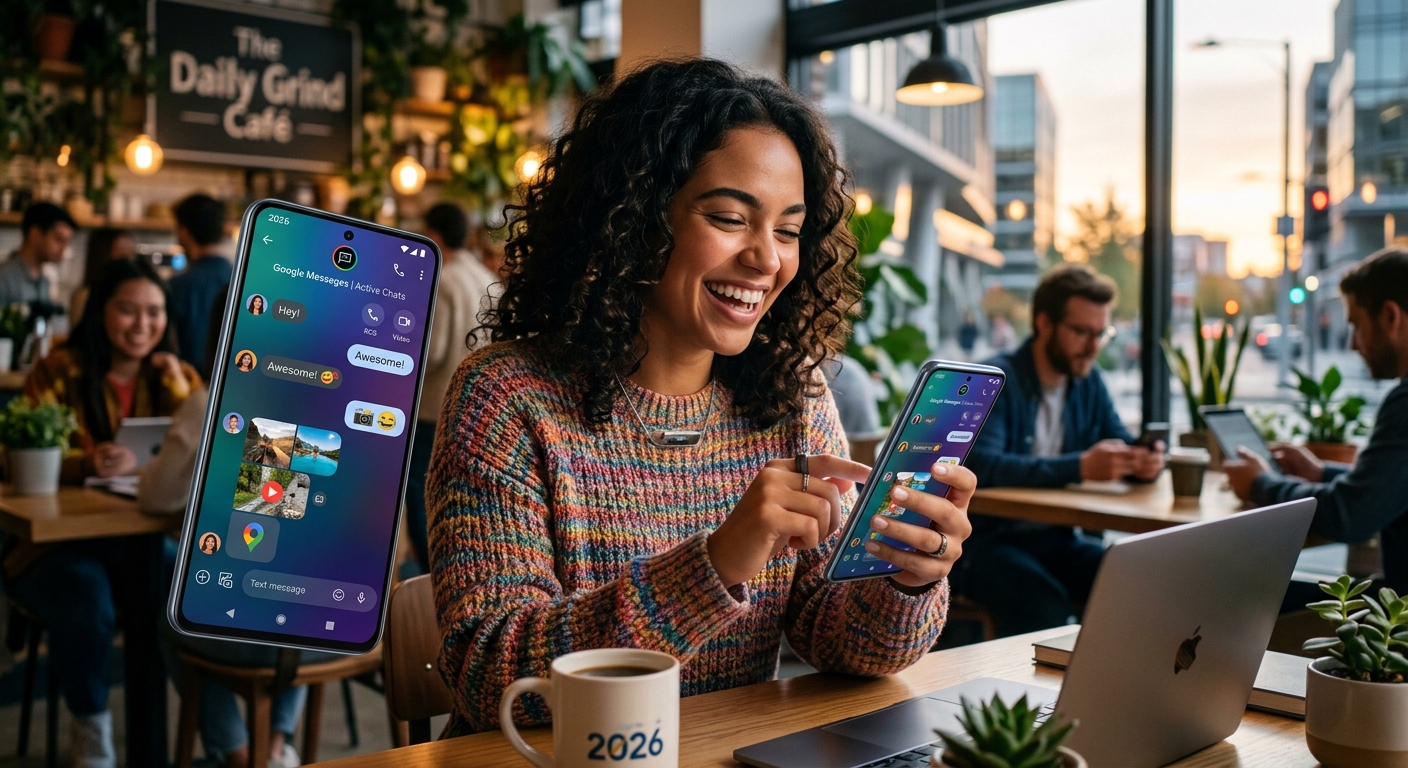
Your Android messaging app is sitting on top of a stack of features that most people never touch. Reactions, scheduled messages, RCS capabilities, customizable notifications, and a keyboard that can type twice as fast with the right settings. None of this requires a third-party app. It is already built into your phone and waiting to be configured. This article walks through the features worth knowing and the settings worth changing, starting with where most people go wrong from day one.
What You Will Pick Up Here
Android messaging in 2026 packs far more capability than most users ever access. This article covers the settings and features that genuinely change your daily texting experience, from keyboard tweaks and RCS to message reactions, scheduled sends, notification control, and knowing how emoji actually look on your device before you send them. Each section focuses on changes you can make in minutes, not hours.
Getting Your Keyboard Settings Right from the Start
Most Android users never open their keyboard settings. That is a missed opportunity. Gboard, the default keyboard on most Android devices, ships with several genuinely useful features either switched off or buried in menus that rarely get visited. A few minutes of setup here pays off every single day.
Open Gboard settings by long-pressing the comma key and tapping the gear icon. You will find options that change how you type entirely. Google's keyboard feature documentation covers each setting in detail, and several need to be manually enabled before they do anything at all.
Features worth switching on right away:
- Glide Typing: Slide your finger across letters instead of tapping each one. Most people double their typing speed within a day of practicing this, and it requires no learning curve after the first hour.
- Voice Typing: Tap the microphone in the keyboard toolbar and speak naturally. Accuracy in 2026 is solid, and punctuation is added automatically in most situations.
- Clipboard History: Enable clipboard access under the keyboard toolbar to keep recently copied items ready to paste. Items stay available for up to an hour by default, which covers most workflows.
- Permanent Number Row: Add a dedicated row of numbers above the letter keys. This removes a huge amount of mid-message keyboard switching, especially for addresses, codes, and phone numbers.
- One-Handed Mode: Squeeze the keyboard to one side of the screen for easier single-thumb use. Find it under Preferences in the keyboard settings.
- Autocorrect Sensitivity: If the default corrections keep rewriting your texts in ways you did not intend, dial down the aggressiveness under Text Correction. Mild correction still catches genuine typos without overriding your words.
How RCS Changes What Texting Can Actually Do
If you are still sending plain SMS messages, you are missing features that Google Messages has made available for years. RCS, or Rich Communication Services, replaces traditional SMS with read receipts, typing indicators, high-resolution photo and video sharing, and group chat management that actually functions reliably. The RCS standard, developed and maintained by the GSMA, is now supported by virtually all major carriers across North America, Europe, and most of Asia.
To check if RCS is active on your device, open Google Messages, go to Settings, tap your phone number, and look for Chat Features. If it says "Connected," you are already using it. If not, you can enable it from that same screen.
RCS works best when both sender and recipient are on compatible networks using Google Messages. When that is the case, conversations upgrade automatically without any action needed. The difference in quality, especially for photos and group chats, is immediately noticeable compared to SMS.
Using Message Reactions Without Sending Mixed Signals
Reactions in Google Messages let you respond to a specific message bubble without typing a full reply. Long-press any message and a row of emoji options appears just above it. Your chosen reaction shows up as a small sticker on the bottom corner of the original message.
The catch is how reactions behave when one person is on RCS and the other is on SMS. With RCS between two compatible users, reactions appear natively and cleanly. With SMS, the reaction generates a separate follow-up text that reads something like "Reacted with a heart to: [original message]." That can feel clunky, especially in a longer thread. Knowing this helps you decide when a reaction is appropriate and when a short typed reply is cleaner.
Group chats benefit the most from reactions. Instead of fifteen people sending "haha" or "agreed" one after another, a thumbs up or laugh keeps the thread readable. That said, knowing when to skip the reaction and send an actual reply is part of using them well.
Scheduling Texts So They Arrive at the Right Moment
Writing a message at 11pm but not wanting to wake someone up? Remembering a birthday at the worst possible time? Google Messages has a built-in scheduler that handles these situations without any third-party app required.
Here is how to schedule a text:
- Open any conversation thread and type your message as usual.
- Long-press the send button, which is the arrow icon in the bottom-right corner of the text field.
- A scheduling panel appears. Choose one of the suggested times or tap "Pick date and time" for full control over the exact moment.
- Set the date and time you want the message to go out.
- Tap Send. The message appears in the chat with a small clock icon, showing it is queued and waiting.
- To cancel or edit it before it sends, tap the queued message and choose the option that appears in the menu.
The message sends automatically as long as your phone is powered on and connected at the scheduled time. You do not need to keep the app open. For recurring situations like weekly check-ins or predictable birthday wishes, this turns a good intention into an automatic one without any mental effort after the first setup.
Customizing Notifications So Your Phone Stops Interrupting You
Default messaging notifications treat every text as equally urgent. They are not. Android gives you enough granular control that you can make the system respond to how you actually use your phone, rather than the reverse.
Go to Settings, then Apps, find your messaging app, and tap Notifications. From there, you have several options worth configuring:
- Per-contact settings: In Google Messages, open any conversation, tap the three-dot menu, and select "People and options." You can prioritize specific contacts or mute threads entirely without leaving the conversation view.
- Notification channels: Android separates alerts into categories. You can assign different sounds or vibration patterns to incoming messages versus delivery receipts, so you know at a glance which type just arrived.
- Do Not Disturb exceptions: Star your most critical contacts in your address book. Their messages break through DND while everyone else waits. This is the single most useful DND configuration for most people.
- Lock screen behavior: Choose whether full message content appears on your lock screen or just a generic "New message" label. The second option protects you in shared spaces without muting the notification entirely.
Understanding How Your Emoji Actually Looks Before You Send It
Emoji feel universal until you realize they are not. The same character looks completely different depending on the platform and device receiving it. An expression that reads as playful on one screen can appear flat, eerie, or ambiguous on another. This matters more than most people realize, especially in professional or early-stage conversations where tone is still being established.
Before using an unfamiliar emoji in a context where tone matters, checking the actual android emojis reference shows you the exact Google-designed version of every character, along with descriptions of their intended meanings. It is practical due diligence that takes about ten seconds and prevents a lot of awkward follow-up messages.
Beyond standard emoji, Gboard gives you stickers and GIFs directly from the keyboard without leaving the conversation. Tap the smiley face icon in the keyboard toolbar to browse available sticker packs. Google Messages also includes a built-in GIF search powered by Tenor, accessible through the attachment button in any thread.
Stickers and Custom Reactions Worth Knowing About
If you use a Pixel or have Google Photos installed, you can create custom sticker packs from your own photos. Open Google Photos, select an image, and look for the sticker creation option in the menu. Once generated, those stickers appear in your Gboard sticker tray and can be sent in any conversation.
Some Android versions and carriers also support an expanded reaction picker inside Google Messages. Instead of the default row of six emoji, long-pressing the reaction strip opens the full emoji library for a more specific response. Whether your device supports this depends on your carrier and current version of Google Messages, but it is worth checking the next time you long-press a message bubble.
How Popular Android Messaging Apps Stack Up in 2026
Not every Android user sticks with Google Messages, and the feature set varies significantly across the main alternatives. This comparison covers the four apps most commonly used on Android devices today.
Feature Support Across the Four Main Options
| App | RCS Support | Message Scheduling | Reactions | End-to-End Encryption |
|---|---|---|---|---|
| Google Messages | Yes | Yes | Yes | Yes (RCS chats) |
| Samsung Messages | Partial | No | Limited | No |
| No | Limited | Yes | Yes | |
| Signal | No | No | Yes | Yes |
Making These Changes Stick in Your Daily Texting Life
None of these settings take long to apply. The keyboard adjustments take under five minutes. Scheduling your first text takes ten seconds. Checking an emoji before sending it takes less time than composing the message. Customizing one contact's notification settings takes about thirty seconds. The total investment across everything covered here is under fifteen minutes.
The real shift is treating your messaging app as something worth setting up, rather than something you open and use as-is forever. Android's built-in tools in 2026 are capable enough that the gap between someone who has configured them and someone who has not is immediately noticeable in daily use. Fewer interruptions, faster typing, better-timed messages, and less miscommunication from an emoji that landed wrong.
A practical approach: pick one section from this article and apply it today. Adjust your keyboard settings, or schedule one upcoming text, or mute one group chat that has been pulling your attention. These are not big commitments. They are small experiments, each of which takes less time to try than it took to read about. Once you feel the difference in one area, the rest of the changes start to make obvious sense on their own.