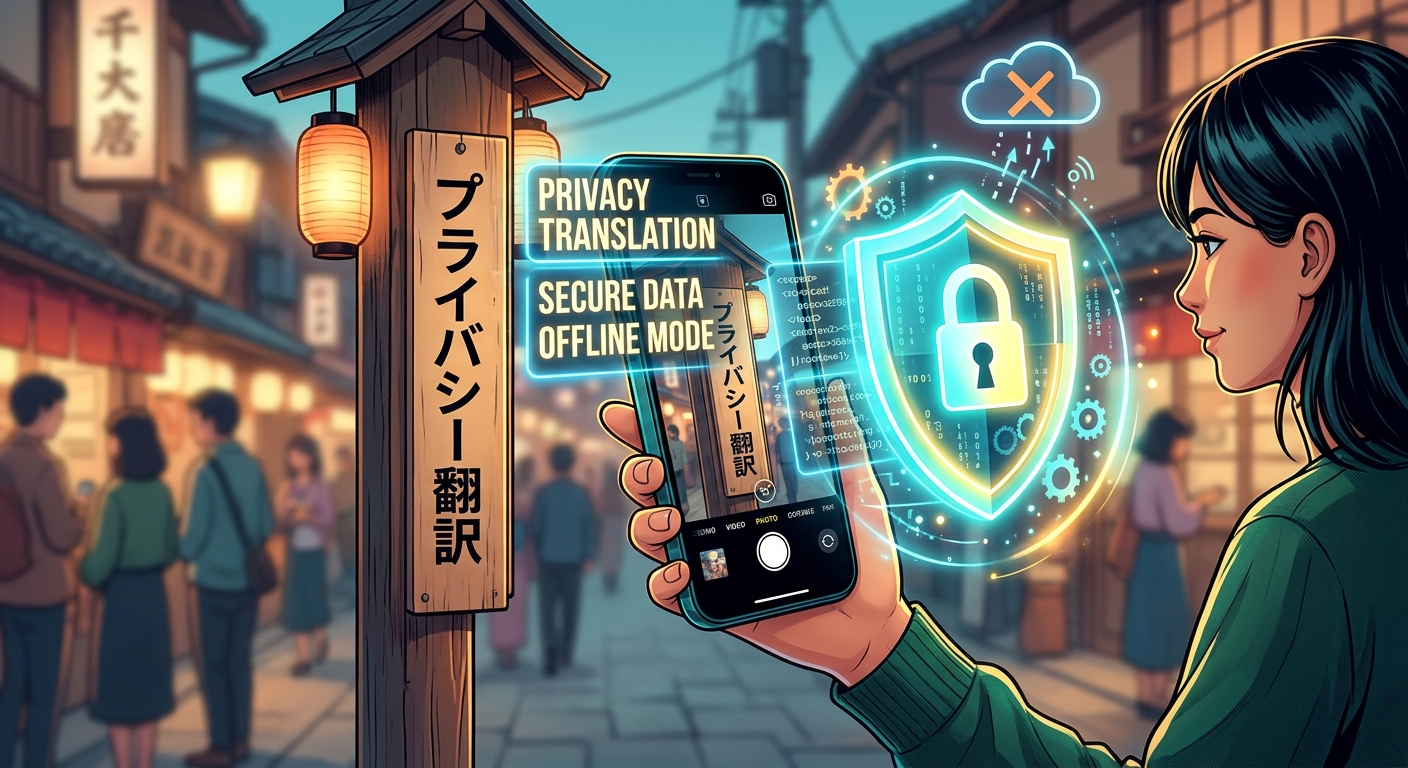
Your dinner menu needs translating. Your passport, sitting beside it, does not. Yet one careless photo can capture both. Phone translation tools are handy for restaurant orders, unfamiliar signs, screenshots, and paperwork. The privacy challenge is controlling what enters the image and where that image goes afterward. A few changes to your camera habits, app permissions, and translation settings can help you read what you need while keeping personal details out of the process.
Your Privacy Starting Point
- Crop private details before opening an image in a translator.
- Download supported languages and test translation without internet access.
- Give apps access only to the camera or selected photos they need.
- Check upload, storage, and deletion policies before using an online service.
- Review translated numbers, warnings, and instructions before acting.
Know What Happens Between Taking a Photo and Reading It
Photo translation usually involves two tasks. First, software recognizes the words in an image. This is called optical character recognition, or OCR. Next, a translation system turns those words into another language.
Those tasks may happen on your phone, on a company's servers, or through a mixture of both. An app might recognize text locally but send the extracted words away for translation. That still shares information, even if the original photo stays on your device.
On-device processing means a particular task runs locally. It does not automatically mean every feature in the app works locally. A downloaded language pack also does not guarantee that camera translation, saved images, and document imports all work offline.
Check the feature you plan to use. Then try it with an ordinary menu or public sign while disconnected. This gives you a useful test before you handle anything personal.
Prepare a Photo That Contains Only the Words You Need
The strongest privacy step happens before translation begins: leave unnecessary information out of the picture. Move a receipt away from your bank card. Place a document on a plain surface. Close unrelated windows before taking a screenshot.
For an existing image, open your phone's photo editor and crop tightly around the relevant passage. Keep complete sentences and nearby labels where they affect meaning. A price without its currency or a warning without its heading can produce a misleading result.
- Menus: Exclude payment cards, receipts, faces, and anything else on the table.
- Signs: Frame the wording without nearby people, vehicle plates, or private door codes.
- Screenshots: Remove notifications, account names, message previews, and browser tabs.
- Documents: Leave out signatures, addresses, account numbers, barcodes, and QR codes.
Do the editing before selecting the image inside a translation app. Cropping after an upload cannot retrieve information already sent.
Be careful with translucent marker tools. They can leave underlying text readable. Cropping away a detail is usually easier to verify. If you must cover something, use a fully opaque block and inspect the exported image closely.
Some editors preserve reversible edits. For sensitive material, create a separate, flattened copy of the edited result. One option is to take a screenshot of the tightly cropped view, then crop that screenshot again. Check the actual file you will submit, including its edges and any visible interface elements.
Translate Photos on iPhone With Local Processing in Mind
On a supported iPhone, Apple's Translate app can translate text through its camera view. Open Translate, choose Camera, and select the source and destination languages. Hold the phone steady so the words are clear. Options and language support vary with your software and device.
For a saved photo or screenshot, open it in Photos. If Live Text recognizes the writing, touch and hold the text, adjust the selection, and look for Translate. Selecting a single passage helps you focus on the relevant wording. It does not, by itself, establish where translation happens.
Before working with sensitive text, review Translate settings. On recent iOS versions, look under Settings, Apps, then Translate. Download the languages you need and enable On-Device Mode where available. Apple's instructions for offline translation explain that both the input and output languages need downloading for translation without an internet connection.
Test your intended workflow with harmless text. Turn on Airplane Mode, confirm Wi-Fi is also off, and try translating a newly opened image. A working test shows that this particular operation can run disconnected. Keep the phone disconnected while handling the sensitive passage.
Your photo storage needs a separate check. If iCloud Photos is enabled, a picture saved to your library may sync independently of the translator. Local translation settings do not control that backup process.
Translate Photos on Android Without Granting Broad Access
Google Translate provides a camera workflow on Android. Choose the languages, tap Camera, and frame the text. You can also select a saved image through the available import option. Button names and the camera interface can vary by app version.
Download available language packs before traveling or handling personal documents. Then test the exact camera or image import feature with internet access disabled. Offline support can differ between features and language pairs. If the feature asks to reconnect, that workflow is not ready for private offline use.
Some Android phones also include translation tools in their camera, gallery, or system features. Check each tool's processing settings separately. An offline option in one app does not apply to every translation shortcut on the phone.
When importing a screenshot, use the system photo picker or selected-photo access where offered. Choose the cropped copy you prepared. A translator reading one menu does not need ongoing access to years of family pictures.
Check the Service Before Uploading Anything Personal
An online translator may be useful when your phone lacks a language or cannot read a difficult layout. Before uploading, review what the service says about receiving, storing, and deleting images. Guidance on image translation provides a useful starting point for checking privacy and safety questions before sending a photo.
Look for specific answers. Does the service retain the original image? Does it store the recognized text or translated result? Can staff or contractors review submissions? Are uploads used to improve models? Does deleting your history also delete server copies, and on what schedule?
A statement that files are encrypted during transfer addresses the connection. It does not explain how long files remain stored or who can access them afterward. A private browsing tab also does not prevent a service from receiving an uploaded photo.
If those answers are unclear, keep sensitive material out of the upload. Type an anonymous sentence instead, or translate a carefully cropped passage that contains no identifiers. For confidential work documents, follow your employer's approved process.
Give Each Permission a Specific Job
Camera access lets an app read a live scene or take a picture. Photo access lets it open saved images. Microphone access supports speech features. These permissions serve different purposes, and reading a photographed menu generally does not require all of them.
- Camera: Allow access while using the app when you need live translation.
- Photos: Choose selected images or a system picker when available.
- Microphone: Leave access disabled unless you use voice translation.
- Location: Decline it if the translation feature works without it.
- Contacts: Question any request that has no clear connection to your task.
On iPhone, review these controls in Settings under Privacy & Security or within the app's settings. On Android, open Settings, find the app, and check Permissions. Labels vary between devices.
Permissions limit access to phone resources. They do not prevent an app from uploading an image you deliberately select. Pair narrow permissions with local processing or careful preparation of the file.
Use a Repeatable Routine for Private Documents
A restaurant menu rarely needs the same care as a medical letter or account statement. For personal paperwork, slow down before tapping the translation button. This routine keeps the privacy decisions in a sensible order.
- Identify the passage. Decide which sentence or section you actually need translated.
- Remove identifiers. Crop out names, addresses, reference numbers, signatures, and machine-readable codes.
- Inspect the copy. Open the final image and check that hidden details are absent or unreadable.
- Prepare local translation. Download supported languages, enable local processing where available, and test with harmless text.
- Translate while disconnected. Keep Wi-Fi and mobile data off for the sensitive operation.
- Review and clean up. Check the wording, then remove temporary copies and saved history you no longer need.
Disconnecting prevents an immediate network transfer. It does not prove that an unfamiliar app will never store content for later transmission. Use a tool whose documented behavior fits your needs, and check history settings before reconnecting.
Deleting local files also does not erase copies already uploaded or backed up. Review your photo backup service, translation history, and Recently Deleted or Trash folder separately.
Keep Enough Context for a Useful Translation
Privacy edits should preserve meaning. On a menu, keep an item's name beside its description and price. For a road sign, include the full warning. On a document, retain headings that explain whether a number is a date, amount, or reference.
Improve the image before trying another service. Flatten the paper, reduce glare, and hold the camera square to the text. Translate one section at a time if columns are getting mixed together.
If recognition still fails, type the anonymous passage into an offline text translator. This avoids sharing the image background and can correct words that the camera misread.
Check numbers and negative wording closely. “Do not enter” and “enter” lead to very different actions. For allergy advice, medication instructions, legal obligations, or other decisions with serious consequences, get confirmation from a qualified person.
Leave With the Translation, Keep Your Details Private
You can make photo translation a more private habit without turning every menu into a technical project. Frame less. Crop first. Grant narrow permissions. Use supported local processing and verify it before trusting it with personal information.
For a public sign, that may take only a few taps. For a private document, the extra care gives you control over what leaves your phone. The useful result is the translated sentence. Everything around it deserves a reason to be shared.