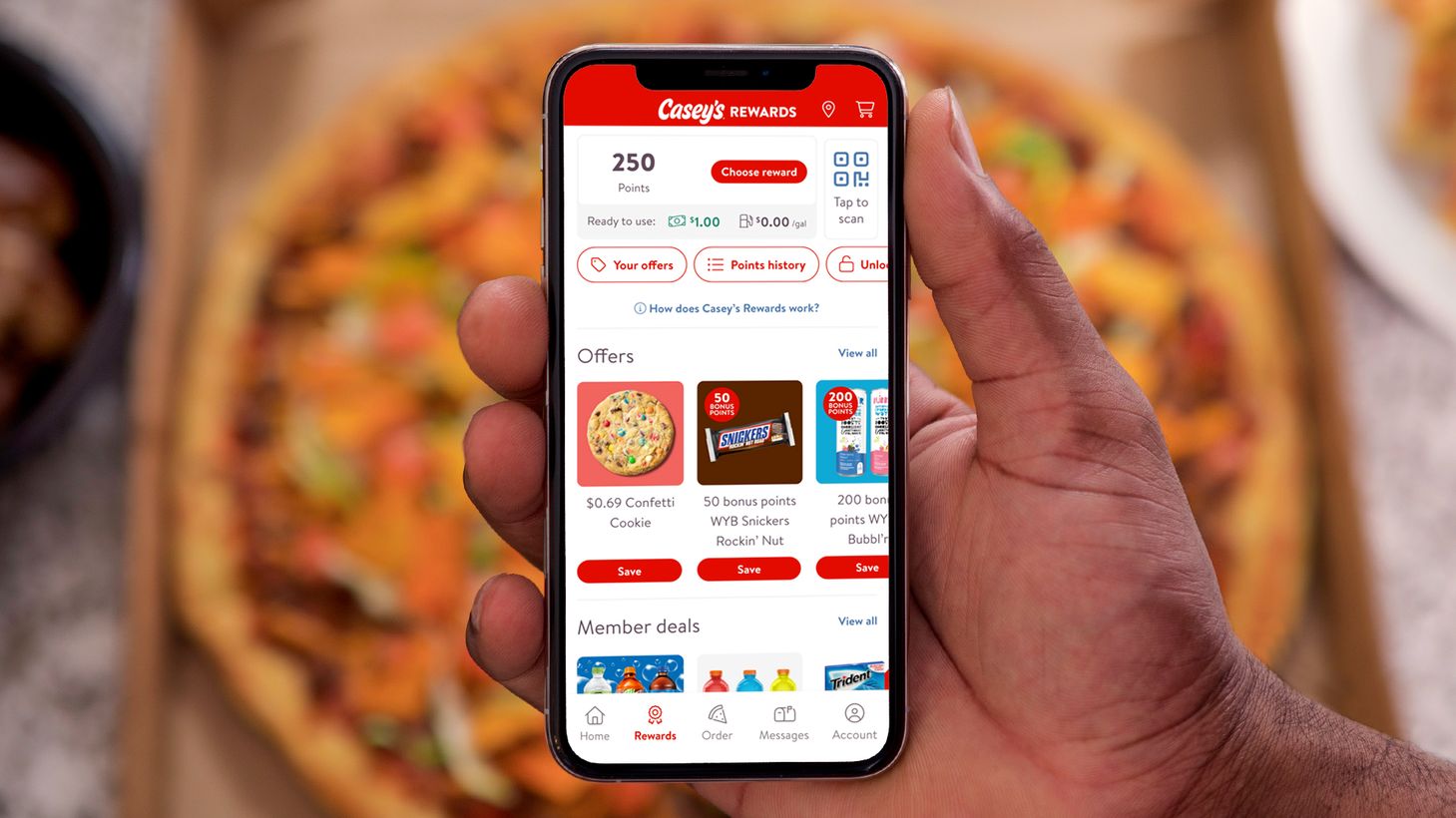
You can check your Casey's Rewards balance and available offers by entering your phone number at the in-store keypad or the pump during a transaction. You can also view your points and offers directly inside the Casey's mobile app, which is available for iOS and Android through the App Store and Google Play.
How to check Casey's rewards with your phone number
There are two primary ways to check your Casey's Rewards using your phone number. Both methods rely on your phone number being linked to your rewards account during setup.
At the pump or in-store register
- At the fuel pump, look for the keypad and enter the phone number associated with your Casey's Rewards account.
- At the in-store register, tell the cashier you want to use your rewards and provide your phone number when prompted.
- The system will retrieve your account details, including your points balance and any personalized offers, and apply them to your transaction.
Inside the Casey's mobile app
- Open the Casey's app on your mobile device.
- Navigate to the rewards section of the app to view your current points balance and available offers.
- The app also allows you to track your progress toward earning rewards and explore upcoming promotions.
Dial the Casey's customer service number provided on the back of your rewards card to check rewards via phone. When calling, follow automated instructions after entering your phone number to access rewards balance and offers. Using your phone number at checkout eliminates the need to carry a physical card or remember an account number. The system recognizes your account and presents exclusive deals tailored to your purchasing habits. When you are ready to redeem, simply inform the cashier, and they will apply the discounts or free items to your purchase.
What to do if your phone number won't link to your rewards account
If your phone number does not link to your Casey's Rewards account when you enter it at the pump or register, or if you cannot connect it during app setup, follow these troubleshooting steps.
- Double-check that the phone number you are entering matches the one you used when you created your rewards account. A single digit difference will prevent the link.
- If you are setting up the account for the first time, ensure you complete the step that links your phone number during the account creation process inside the app.
- If the number still will not link, contact Casey's customer support at 866-922-0767 for assistance. They can help troubleshoot the issue and ensure your phone number is correctly associated with your account.
Another common issue involves finding account and PIN numbers on mobile. If you need to locate your account details within the app, check the account settings or profile section where your linked information is stored. Customize preferences in the app such as selecting favorite Casey's locations, specifying preferred fuel grade, and indicating preferred payment methods.
Frequently Asked Questions about Casey's rewards and phone numbers
What should I do if I have points missing from my account?
Contact Casey's customer support at 866-922-0767 and provide details about the transactions in question. They will investigate to ensure your points balance accurately reflects your qualifying purchases.
Can I use my Casey's Rewards at any Casey's location?
Yes, your Casey's Rewards can be used at any participating Casey's location. Your points and offers are accessible whether you are fueling up, making in-store purchases, or ordering through the app.
How can I update my personal information, like my phone number or email?
Open the Casey's app and go to the account settings section. From there, you can modify and save changes to your phone number, email address, or preferred payment methods.
I forgot my Casey's Rewards account password. How can I reset it?
Initiate a password reset from the Casey's app login screen by selecting the "Forgot Password" option. Follow the prompts to create a new secure password and regain access to your account.
Why am I not receiving notifications for exclusive offers?
Check that the Casey's app has permission to send notifications in your device's settings. Also, confirm within the app's account settings that you have opted in to receive notifications.
Related reading: How To Check Lycamobile Phone Number and How Do I Fax To A Phone Number.