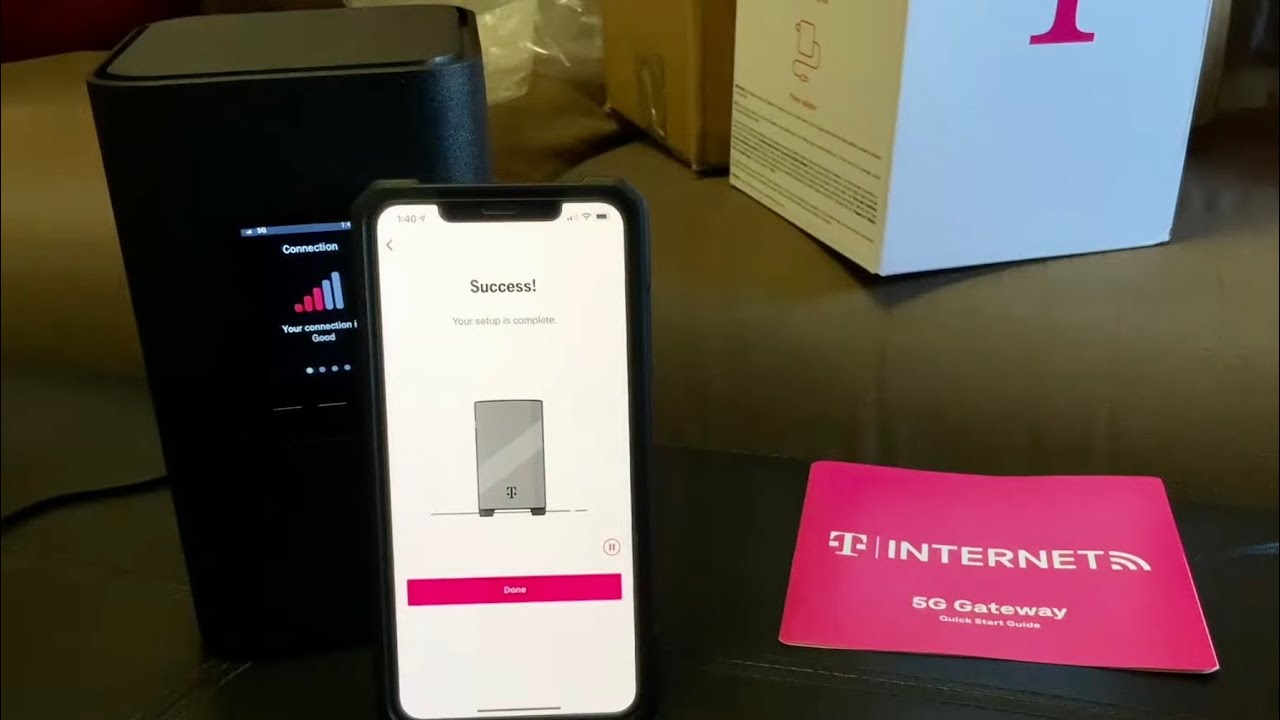
To connect T-Mobile internet to your TV, you can use either a Wi-Fi or Ethernet connection to link your T-Mobile Home Internet gateway directly to a smart TV or a streaming device. This process enables you to stream content on the big screen, though you should be aware that some live TV services may have compatibility issues due to T-Mobile's dynamic IP addressing.
Before you connect T-Mobile internet to your TV
T-Mobile Home Internet uses a 5G Gateway to deliver wireless broadband to your home. Typical download speeds range from 133 to 498 Mbps, depending on signal strength and network congestion. For a small household, a stable 100-200 Mbps connection is a solid baseline for streaming, while 200 Mbps or higher is recommended for a family of four with multi-device streaming, 4K content, or remote work.
A key limitation is that T-Mobile Home Internet uses dynamic IP addressing, meaning your public IP address changes over time. This can cause compatibility issues with live TV streaming services that rely on IP address for location data. Hulu Live and Sling Live TV may not work reliably. YouTube TV, however, supports the required location data and is compatible.
T-Mobile gateways do not support advanced settings like NAT/Port forwarding, UPnP, or Static IP, which some online gaming systems might require.
Some smart TVs offer dedicated apps for T-Mobile services, allowing for a more integrated and user-friendly experience.
Connect T-Mobile internet to your TV via Wi-Fi
Connecting wirelessly is the most common method for modern smart TVs. Follow these steps:
- Turn on your TV and ensure it is within range of your T-Mobile gateway's Wi-Fi signal.
- Using your TV's remote, go to the "Settings" menu, then navigate to "Network" or "Internet Settings."
- Select "Wi-Fi" or "Wireless Connection" to see a list of available networks.
- Choose your T-Mobile Wi-Fi network name (SSID) from the list.
- Enter the Wi-Fi password. This is typically printed on the T-Mobile gateway label or can be found in the T-Life app.
- Select "Connect" and wait for the TV to join the network. Verify the connection by checking the network status in your TV's settings.
Connect T-Mobile internet to your TV via Ethernet cable
A wired Ethernet connection provides greater stability for streaming, especially for 4K content or multiple devices. Follow these steps:
- Gather an Ethernet cable long enough to reach from your TV to the T-Mobile gateway.
- Locate the Ethernet port on your TV, usually on the rear panel.
- Insert one end of the Ethernet cable firmly into the TV's Ethernet port.
- Insert the other end into an available Ethernet port on the T-Mobile gateway.
- On your TV, navigate to network settings and select "Wired Network" or "Ethernet" to detect the connection.
- Verify the connection by checking for a successful IP address assignment and network status in your TV's settings.
For wired connections, confirm the Ethernet standards supported by both devices, such as 10/100/1000 Mbps.
Connecting streaming devices to T-Mobile internet
The same Wi-Fi or Ethernet connection methods apply to external streaming devices. If your TV is not a smart TV, or you prefer a different interface, you can plug a Roku, Amazon Fire TV Stick, Apple TV, or Google Chromecast into your TV's HDMI port. Each device has its own on-screen setup process where you select your T-Mobile Wi-Fi network and enter the password. For wired connections, connect an Ethernet cable directly to the streaming device if it supports that option.
Using the T-Life app to optimize your connection
The T-Life app helps you get the best performance from your T-Mobile Home Internet. Use it to find the optimal placement for your gateway, monitor Wi-Fi connectivity, and manage network settings. If you have older smart devices that only support 2.4 GHz Wi-Fi, the app allows you to separate the 2.4 GHz and 5 GHz networks into distinct SSIDs, which can improve compatibility and reduce interference.
Troubleshooting T-Mobile internet connection issues with your TV
If you experience connectivity problems, try these practical fixes:
- Signal strength assessment: Check the proximity of your TV to the gateway. Remove physical obstructions and move electronic devices that may cause interference.
- Router reboot: Power off the T-Mobile gateway, wait a few minutes, and power it back on to refresh network settings.
- Network settings verification: Confirm that your TV has selected the correct T-Mobile Wi-Fi network and that the password is entered accurately.
- Firmware updates: Check for firmware updates for both your TV and the T-Mobile gateway to resolve compatibility issues.
- Bandwidth allocation: If multiple devices are connected, they may consume bandwidth. Prioritize your TV's connection or reduce activity on other devices.
- DNS configuration: Examine the DNS settings in your TV's network configuration. Use T-Mobile's recommended DNS servers or set the TV to obtain DNS automatically.
- Router placement and antenna positioning: Place the gateway in a central, elevated location and adjust its antennas to maximize Wi-Fi coverage.
If persistent issues persist, consider reaching out to T-Mobile's customer support for further assistance and technical guidance tailored to your specific setup.
Frequently Asked Questions
Can I connect T-Mobile internet to my TV?
Yes. You can connect any smart TV or streaming device to T-Mobile Home Internet using Wi-Fi or an Ethernet cable. The process is the same as connecting to any other home internet service.
What are the benefits of connecting T-Mobile internet to my TV?
Connecting allows you to stream shows, movies, and live content directly on your TV. You also gain access to T-Mobile streaming benefits, such as the ability to use your home internet for multiple devices simultaneously without data caps on most plans.
What devices work with T-Mobile internet for TV?
Smart TVs, Roku, Amazon Fire TV Stick, Apple TV, and Google Chromecast all work. Any device with Wi-Fi or an Ethernet port can connect. For casting your phone to a TV, you can use a Chromecast or a smart TV that supports screen mirroring.
Do I need a specific T-Mobile plan to connect my TV?
No. T-Mobile Home Internet is a single plan that provides unlimited data for all connected devices, including your TV. You do not need a separate or upgraded plan for TV streaming.
Are there data usage considerations when streaming?
T-Mobile Home Internet plans are unlimited, so data caps are not a concern for streaming. However, streaming 4K content uses more bandwidth, so ensure your signal strength is strong enough to maintain a stable connection at higher resolutions.