Before you start: the one cast phone to TV mistake that trips everyone up
Before you can cast phone to TV using any wireless method, whether mirroring a Galaxy handset to a Samsung screen or tapping AirPlay on an iPhone, your handset and the big display must share the exact same Wi‑Fi. This single detail is where most setups fall apart, because the failure is usually silent: the two pieces of hardware simply do not see each other. Before you open brand-specific settings, pull up the Wi‑Fi menu on both screens and confirm the network name matches character for character. If you are using a dual-band router, connecting one gadget to the 2.4 GHz band and the other to the 5 GHz band counts as separate Wi‑Fi environments and will block the link. For Android users whose gear still cannot find the TV, one potential fix is to log into your router and disable AP isolation, a security setting that prevents wireless clients from talking to one another.
When a home setup is not available, a personal hotspot can fill the gap, but it introduces its own quirks. On an Apple TV, you can navigate to network settings and select the nearby iPhone or iPad providing the hotspot. If you run into a TV not connecting to mobile hotspot, one suggestion is to open Personal Hotspot settings on the iPhone and turn Maximize Compatibility on, or cycle it off and back on if it was already enabled. The hotspot creates a temporary Wi‑Fi bubble, so the same fundamental rule applies, both the phone generating the hotspot and the TV must join that temporary bubble, not a remembered home link.
Once you have confirmed the wireless setup, the path forward depends on your specific combination of handset and screen, and the steps vary by manufacturer. Pick the one that matches the gear in front of you to open the right walkthrough.
To connect mobile data to smart TV without a router, turn your phone into a hotspot first. On the television, open the Wi‑Fi settings and join that hotspot just as you would any other wireless signal. Once both share the same hotspot, the casting app can detect the screen and establish the link.
To connect mobile hotspot to Samsung smart TV, press the Home button on the Samsung remote and navigate to network settings, then select Wireless. Select the phone’s hotspot from the list and enter the password. After the Samsung set joins, open the SmartThings or Smart View app to begin sharing your screen.
To connect T-Mobile internet to TV, enable the hotspot on the handset and join the TV to that signal, then launch the casting tool you prefer.
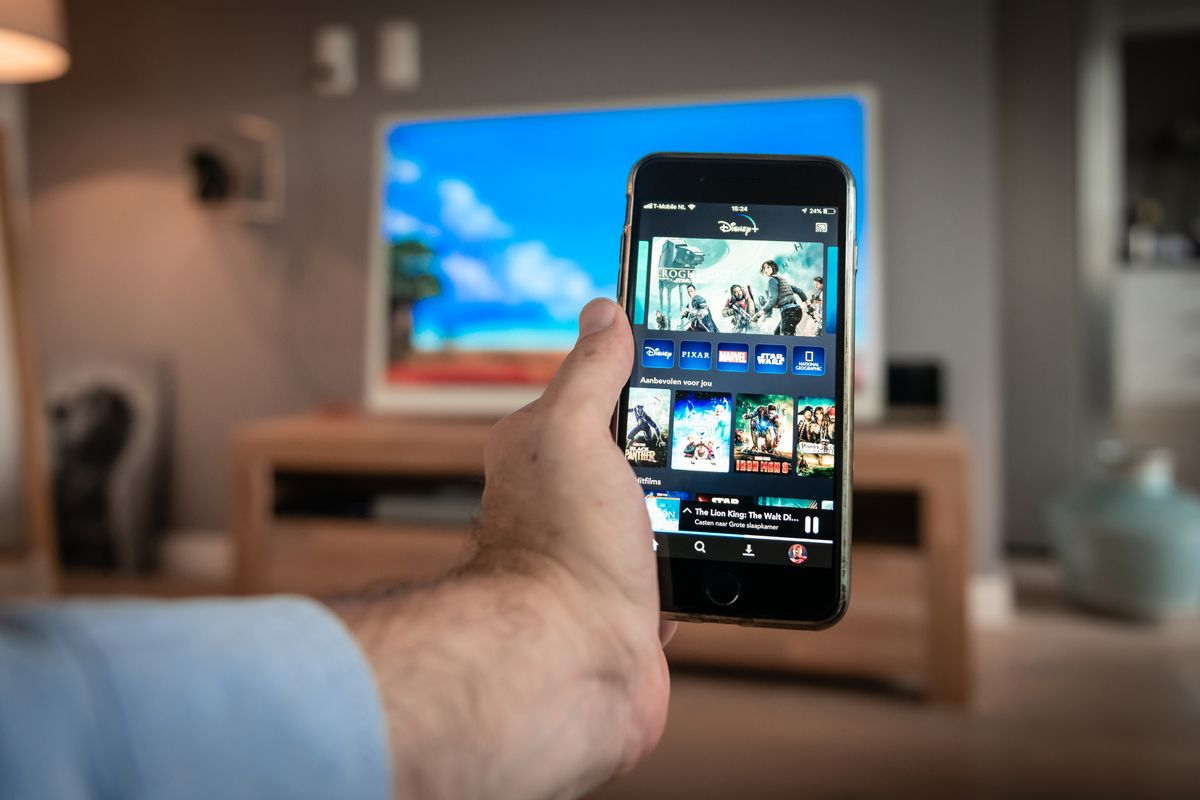
The quickest way to connect my phone to a Samsung TV is through the Smart View or SmartThings app. Confirm both are on the same wireless signal, open the app, tap the Samsung display when it appears, and the phone’s screen will appear on the television within seconds.
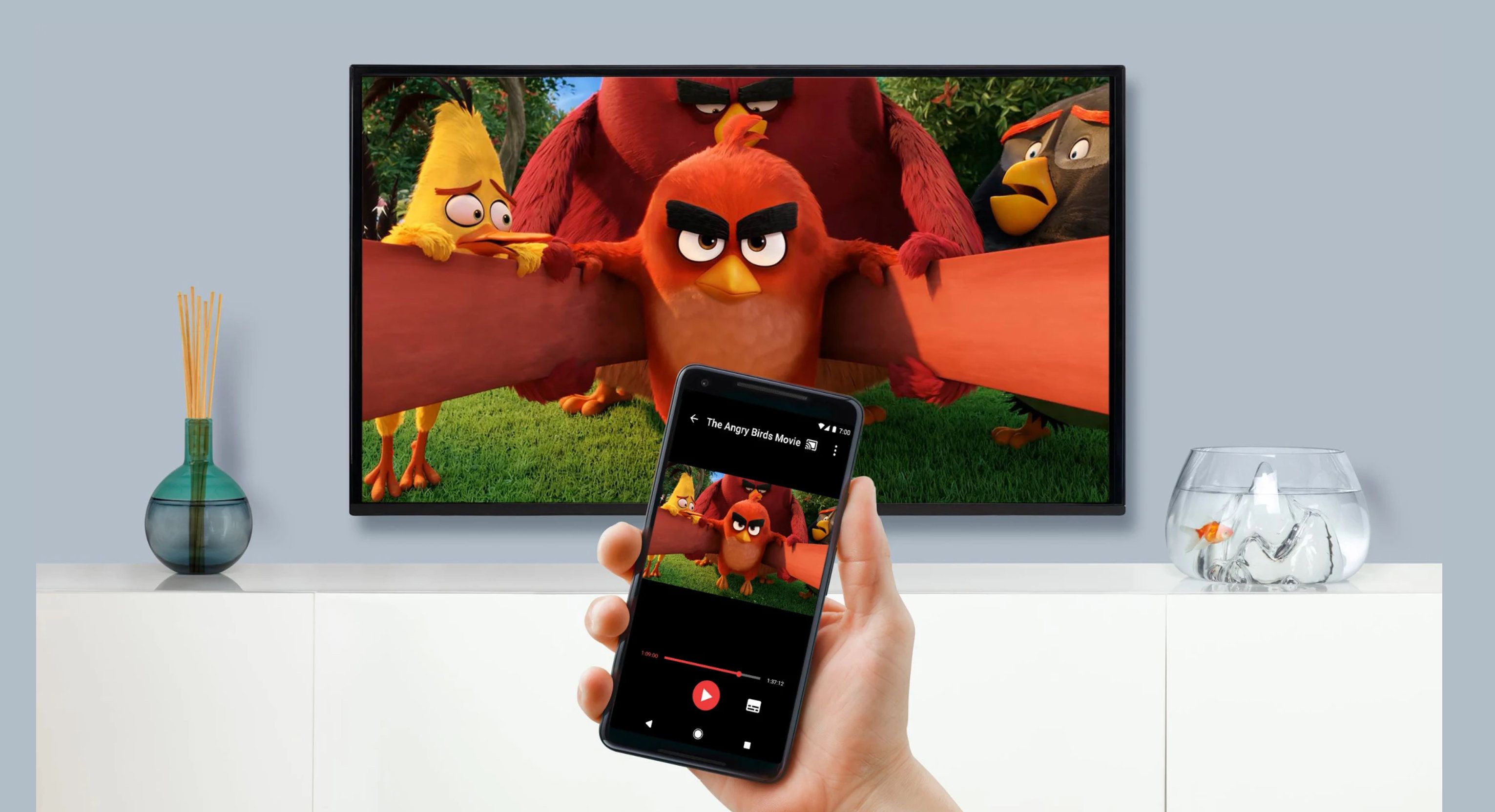
A universal starting point to connect your phone to a TV is to check the quick-settings panel on the handset for a Cast, Screen Mirroring, or Smart View icon. Tap it and wait for the television to appear in the device list. If nothing shows up, double-check that the TV’s screen-sharing or Wi‑Fi mode is enabled in its settings menu.
To connect phone to sharp TV, open the television’s input menu and select the screen mirroring or wireless display option. On the handset, pull down the quick settings and tap Cast or Screen Mirroring. Choose the Sharp display from the list and accept the pairing request on the television to begin duplicating your screen.
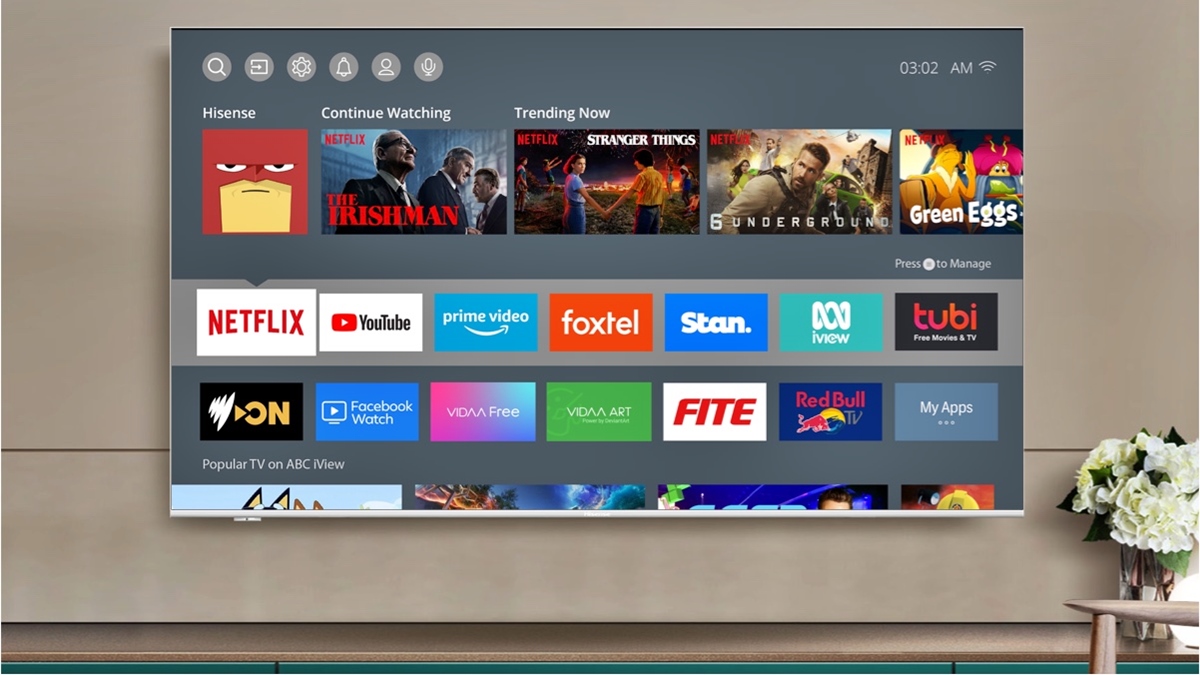
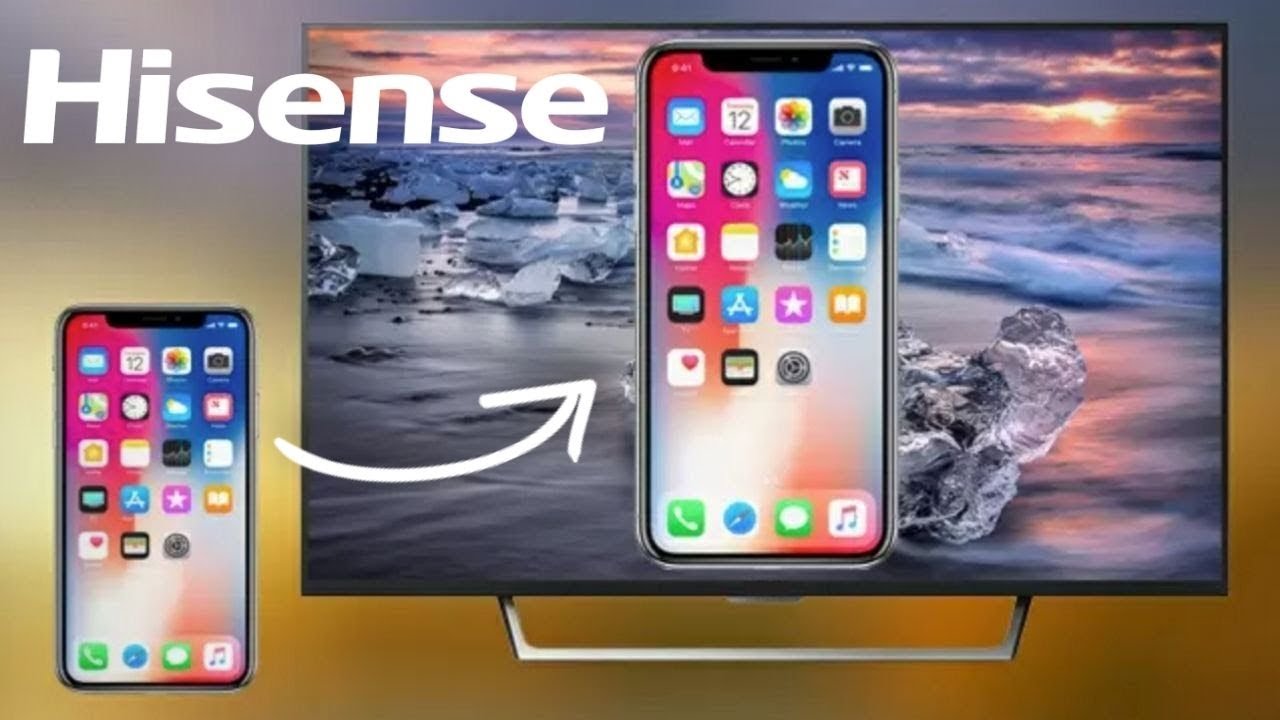
To connect your phone to a Hisense TV, join the same wireless signal as the handset through the TV's network settings. Then open the screen mirroring app on the television. On the phone, enable wireless display from the quick-settings panel and select the Hisense screen to start the session.
A reliable method to connect Android to TV is to pull down the notification shade twice, tap the Cast or Screen Cast tile, and wait for nearby displays to populate. If the television supports Chromecast built-in, it will appear automatically. For sets without Chromecast, you may need to enable Miracast or wireless display in the TV’s input settings first.
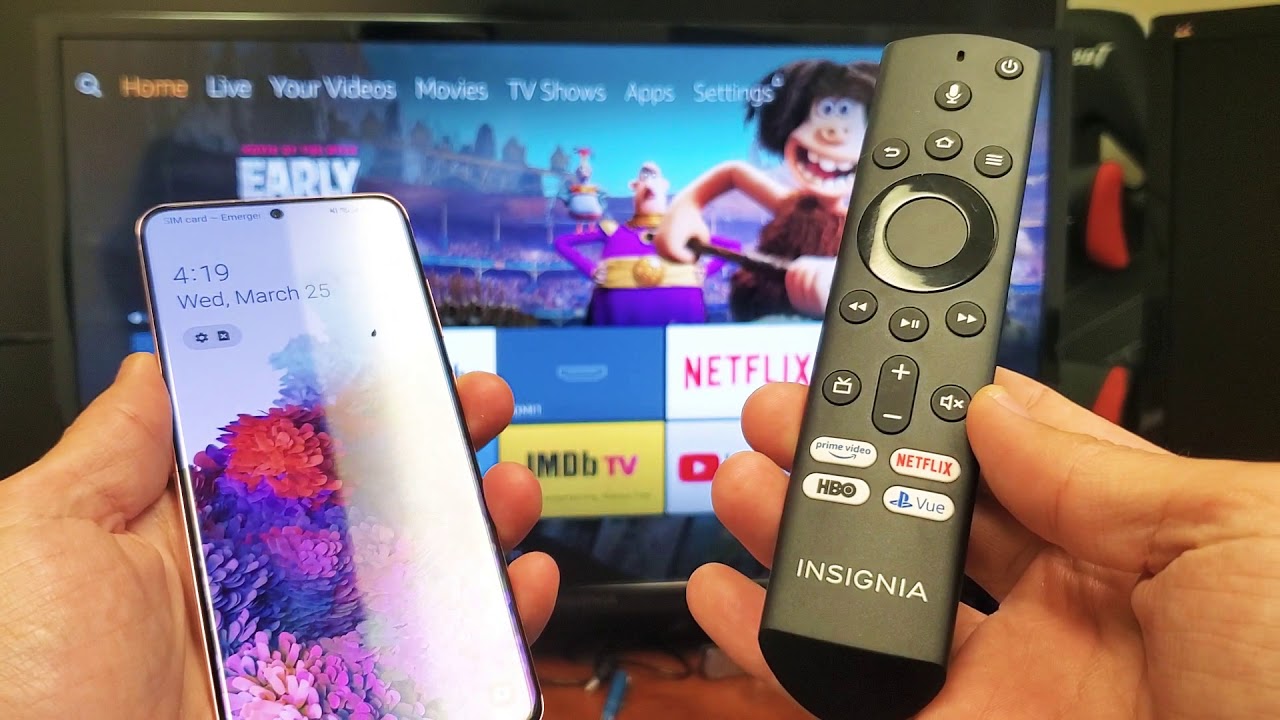
When you need to connect phone to Insignia Fire TV, start by holding the Home button on the Fire TV remote and selecting Mirroring from the menu. On the handset, open the quick-settings panel, tap Cast or Screen Mirroring, and choose the Insignia display once it becomes visible. The television will show a confirmation screen before the mirrored image appears.
To connect phone to sceptre TV, turn on the television and press the Source button on the remote, then select the Screen Mirroring or Wireless option. On the handset, swipe down to open quick settings and tap the Cast or Screen Mirroring icon. Select the Sceptre display from the list and wait for the link to complete.
If you are trying to connect phone to TCL TV, open the TCL television’s settings and enable Screen Mirroring or Wireless Display mode. On the handset, pull down the quick-settings shade and tap Cast. Choose the TCL screen from the available devices and the phone’s display will appear on the television after a brief handshake.
To connect your phone to a Philips TV, press the Home button on the Philips remote and navigate to network settings to join the same wireless signal as the handset. Then open the Screen Mirroring or Miracast app on the television.
The universal casting methods for any phone and TV
When you need a method that works across different brands, the starting point is always the network. Both gadgets must sit on the identical Wi‑Fi, and that single check resolves more failures than any brand-specific setting. Once you confirm the Wi‑Fi matches, you can move to the casting protocol that your particular combination supports. For most iPhones, the path is AirPlay, not Bluetooth, relying on a shared network rather than a direct pairing. For how to connect phone to TV using Bluetooth iPhone, the official steps point you to the Screen Mirroring button in Control Center instead, since no passcode-based Bluetooth handshake exists for screen duplication in Apple’s support materials. The same network-first logic applies to sets from other manufacturers. When you set up wireless screencasting on Philips Smart TV, the TV appears in your phone’s cast list by its model name once you activate screen mirroring on the mobile device, relying entirely on the local router rather than a direct wireless bond. On Android, the exact menu labels vary by phone maker, but the principle stays consistent: open the screen casting or Smart View option, let it scan, then select the TV name that matches what you see on the screen. If either unit fails to appear, revisiting the network name and band is the fastest fix before you try anything else.
Casting and controlling Samsung TVs
Once both devices share the same Wi‑Fi, the app can detect the TV and establish the link.
When you are certain both gadgets are on the same signal, casting from a Galaxy phone to a Samsung TV is straightforward: pull down the Quick panel from the top of the screen and tap Smart View, then select your set from the list and accept the pairing prompt when it appears on the big screen. If the icon is not in your quick settings, you can also find it under Settings, then Connected Devices. For Google handsets, the reliable path is to open a cast‑enabled app like YouTube and tap the Cast icon inside the app itself.
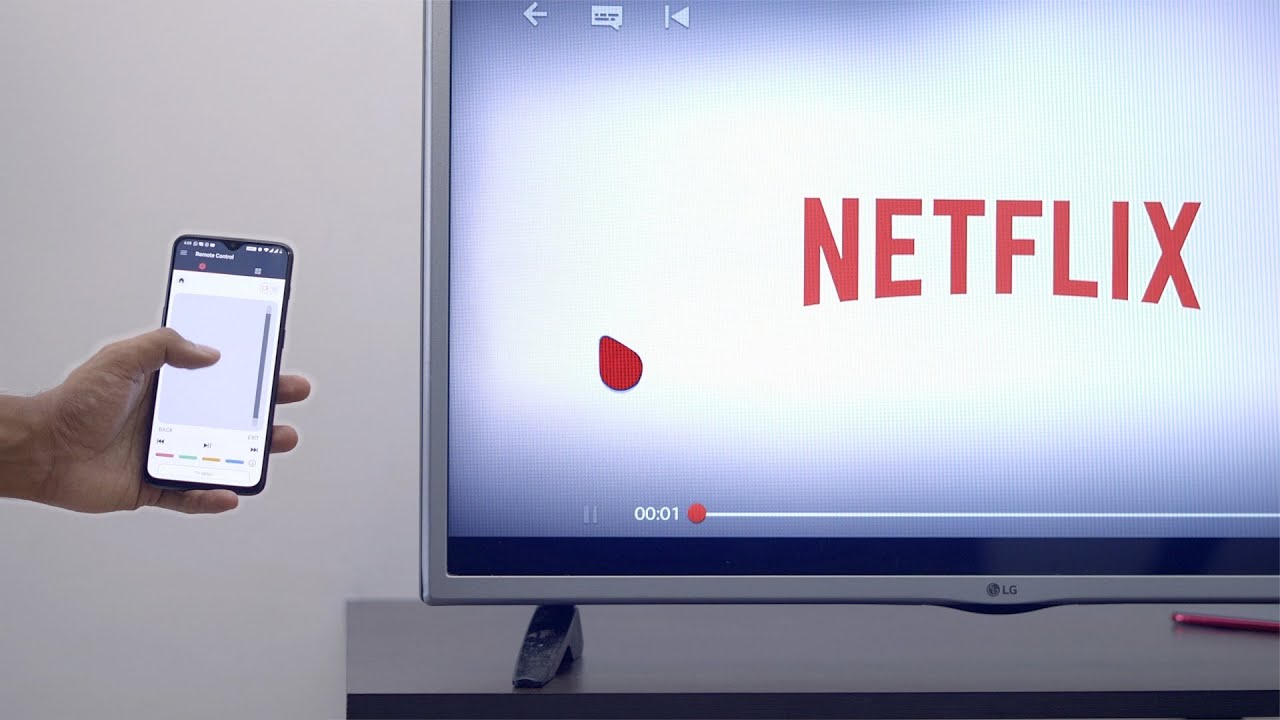
When you want to go beyond simple duplication and control a Samsung TV with your phone, the SmartThings app is the tool for the job. After opening the app, tap the Devices tab, select your TV's card, and then tap the mobile Remote control icon to bring up a full remote with volume, channel, and Tizen feature controls.
Because the process of starting a screen‑sharing session varies only slightly by phone model, you will find short guides below covering specific pairings like cast from my Google phone to my Samsung TV, cast Galaxy phone to TV, cast from a Samsung phone to TV, cast from Samsung S20 FE to TV, cast my phone to my Vizio TV, cast Android to TV, cast phone to Sony TV, and cast phone to Insignia TV. Pick the one that matches the phone in your hand to see the exact menu names and confirmation screens for that model.
Connecting to Vizio, TCL, and Hisense screens
How to pair my phone to my Vizio TV, how to use phone as remote for Vizio TV, or how to mirror Android to Vizio TV. Tapping the Cast icon in a compatible app sends your screen to the display on supported models.
When you need a signal boost or a laptop
Sometimes the missing piece is not the phone or the TV software but the wireless reach inside your home. When a set sits in a basement or a back bedroom where the router signal barely registers, even a perfectly paired unit will drop frames or refuse to appear in the cast list. In those rooms, you can use a TV signal booster placed between the router and the entertainment center to give the local link enough strength for a stable screen-sharing session, which is exactly why you would read the article on how to use a TV signal booster.
A completely separate case is casting your laptop screen directly, so you’d check the guide on how to stream from laptop to TV wireless. On a Windows laptop, press the Windows logo key and the K key together to open the Connect quick action, and pick the display from the list. If the screen shows a PIN, type it on the laptop to complete the handshake. The laptop and the screen must sit on the identical wireless link, or the set name will never populate the list.
Wrapping up: disconnecting and troubleshooting
When a movie ends or a presentation wraps up, the cleanest way to finish is to open the casting control on your phone and tap Disconnect, Stop Casting, or Stop Mirroring. The exact label varies by app, but the effect is the same. iPhone users typically disconnect from Control Center, while Android users may disconnect from a quick settings tile, though the exact label varies by device. If the button seems to do nothing and the screen stays frozen on the TV, the phone and the screen have likely drifted onto different bands or Wi‑Fi setups, breaking the handshake silently. A fast recovery is to turn Wi‑Fi off and back on for both pieces of hardware so they reconnect to the identical access point, which can help restore the cast list. When the link drops repeatedly mid-stream, the culprit is rarely the phone or TV model; instead, check that both devices remain on the same Wi‑Fi network and that no router settings are interfering with the connection. You can also perform a full disconnect TV from phone session by clearing the television from your phone's connected-device settings and re-establishing the link to remove any stale pairing data.
Frequently Asked Questions
How do I turn off AP isolation on my router for Android casting?
Log into your router's administration panel and locate the AP isolation or client isolation setting, typically found under advanced wireless or security options, then disable it. The exact menu name varies by router manufacturer, but the setting prevents wireless clients from talking to one another and blocks the casting link.
Where is the Maximize Compatibility toggle on an iPhone hotspot?
Open Settings, tap Cellular, then tap Personal Hotspot, and turn Maximize Compatibility on. If the toggle was already enabled, cycle it off and back on to refresh the connection, which helps when a TV fails to join the iPhone's temporary Wi‑Fi bubble.
Which quick-settings tile casts an Android phone to a TCL TV?
Pull down the notification shade twice and tap the Cast or Screen Cast tile, then wait for nearby displays to populate. The TCL television must have Screen Mirroring or Wireless Display mode enabled in its settings for the handset to detect it.