To remove SOS mode on an iPhone, you first need to understand that "SOS mode" can mean two different things: the "SOS" or "SOS only" in the status bar, which indicates no cellular service, or the Emergency SOS feature that can accidentally trigger emergency calls.
What 'SOS mode' really means on your iPhone
When your iPhone shows "SOS" or "SOS only" in the status bar, Apple says the device is not connected to your cellular network, but it can still make emergency calls through other carrier networks where supported in the U.S., Canada, and Australia. This is not a mode you can "turn off", the solution is to restore cellular connectivity. Separately, Emergency SOS is the built-in feature that can call emergency services and alert your emergency contacts. It can be triggered by pressing and holding the side button and either volume button, or by enabling the five-press option in Settings. Emergency SOS via satellite is available on iPhone 14 or later (all models), with different minimum iOS versions by region (e.g., U.S. and Canada iOS 16.1 or later; France, Germany, Ireland, U.K. iOS 16.2 or later; Japan iOS 17.6 or later; Mexico iOS 18.4 or later). Understanding this distinction tells you which fix applies to your situation.
How to remove SOS or SOS only from the status bar
To restore normal cellular service and remove the "SOS" or "SOS only" indicator, follow these steps in order:
- Check your coverage area, move to a location with known cellular service.
- Toggle Airplane Mode on and then off to refresh the network connection.
- Restart your iPhone by turning it off and on again.
- Check for a carrier settings update by going to Settings > General > About and waiting for a prompt.
- Update iOS to the latest version via Settings > General > Software Update.
- Contact your carrier if the issue persists, as it may be an account or network problem.
How to stop Emergency SOS from triggering accidentally
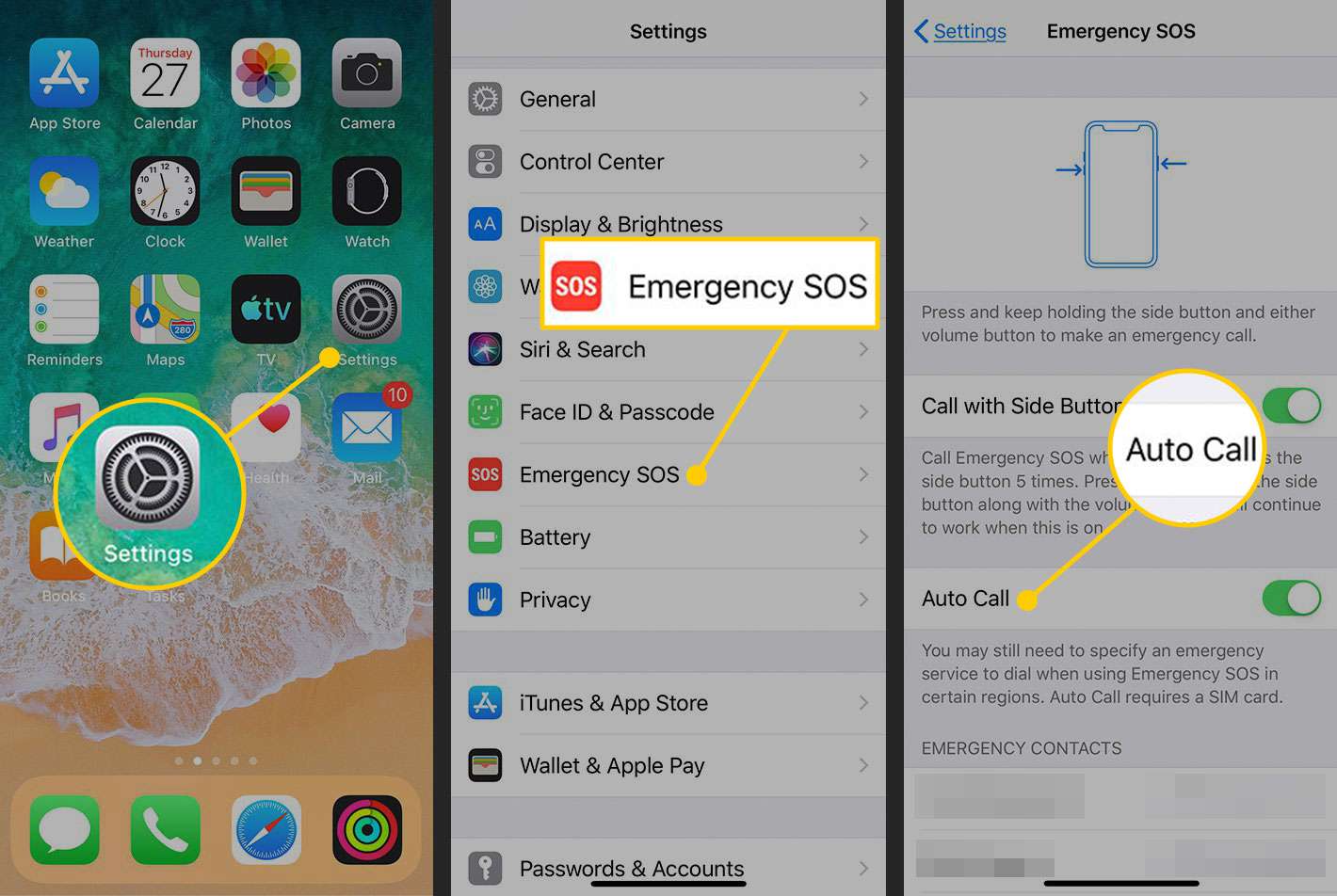
To prevent accidental emergency calls, open Settings > Emergency SOS. Turn off "Call with 5 Presses" to stop the five-press trigger. You can also adjust "Auto Call" and "Countdown Sound" here. On the Emergency Call screen, tap the 'Stop' button to disable an active Emergency SOS countdown or call. Note that on supported iPhones, Emergency SOS cannot be fully disabled, only the five-press trigger can be turned off. If you want to avoid accidental activations while keeping the feature available for genuine emergencies, these settings give you control without disabling SOS mode entirely.
What to do if SOS or SOS only won't go away
If the status bar indicator persists after the basic steps, try these additional troubleshooting measures:
- Remove and reinsert your SIM card to ensure proper contact.
- Check for a carrier outage by visiting your carrier's website or contacting them.
- Reset network settings as a last resort by going to Settings > General > Transfer or Reset iPhone > Reset > Reset Network Settings. This erases saved Wi-Fi passwords and Bluetooth pairings but can resolve stubborn connectivity issues.
- Contact Apple Support or your carrier if the problem continues, as it may indicate a hardware issue or account problem.
Frequently Asked Questions
What is SOS mode on iPhone?
SOS mode refers either to the "SOS" or "SOS only" status bar indicator meaning no cellular service, or to the Emergency SOS feature that lets you quickly call emergency services and alert your emergency contacts.
How does SOS mode become activated?
Emergency SOS can be activated by pressing and holding the side button and either volume button until the countdown ends, or by quickly pressing the side button five times if "Call with 5 Presses" is enabled. On iPhone 14 or later, Emergency SOS via satellite can activate when outside cellular and Wi‑Fi coverage.
Can I customize emergency contacts in SOS mode?
Yes. Open the Health app, tap Medical ID, then Edit. Scroll to Emergency Contacts to add or edit contacts who will be alerted when Emergency SOS is used.
Can I disable the countdown sound and auto-call feature?
Yes. Go to Settings > Emergency SOS and toggle off "Countdown Sound" and "Auto Call" to silence the alert and require manual dialing after activation.
How do I disable SOS mode on my iPhone?
Press the power button and volume up button (or volume down button on certain models) simultaneously until the Emergency SOS slider disappears.
Can I turn off SOS?
You cannot fully disable Emergency SOS on supported iPhones, but you can turn off "Call with 5 Presses" in Settings > Emergency SOS. For the "SOS" or "SOS only" status bar indicator, the fix is restoring cellular service, not disabling SOS mode.
For the wider topic, see Do Not Disturb and silent mode.