Start here: iPhone Do Not Disturb, silent, or focus?
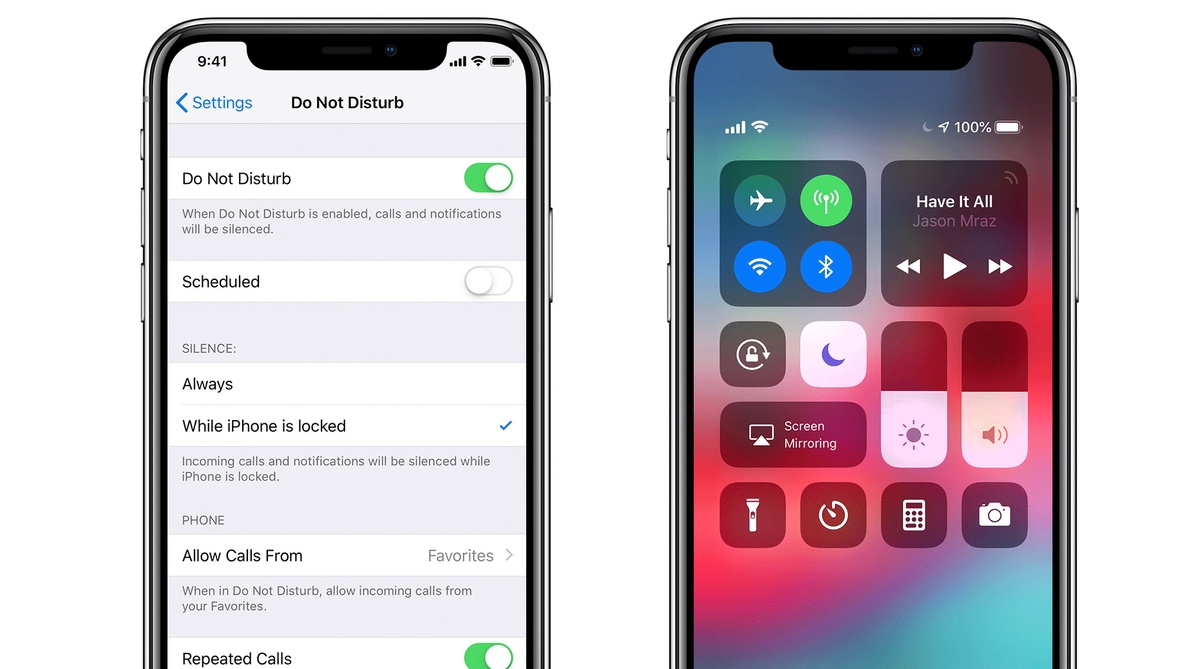
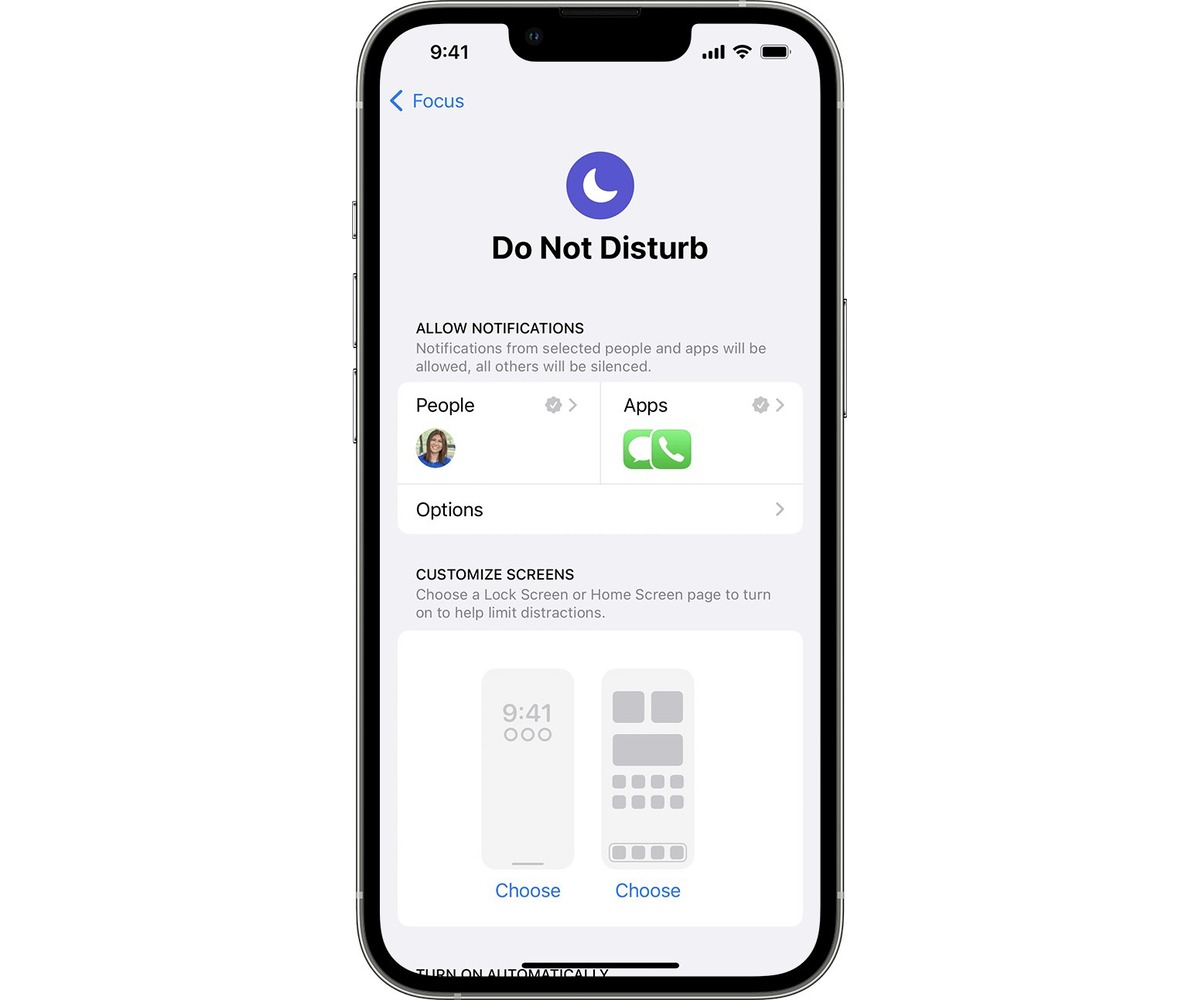
Understanding iPhone Do Not Disturb versus Silent Mode helps you stop interruptions without missing what matters. If you have ever scrambled to put my phone on silent before a meeting only to have a favorite contact break through anyway, you already know these modes behave differently. Silent mode simply kills the ringer while the screen still lights up and vibrations can still demand your attention. By contrast, put iPhone on DND and you are using a Focus option that actively silences calls, alerts, and notifications and prevents the screen from lighting up, creating a much firmer barrier that can still be configured to let specific people through. If you want to tailor your interruptions further, learning about focus mode on iPhone and how to use it will help you set up custom presets for work, sleep, or driving.
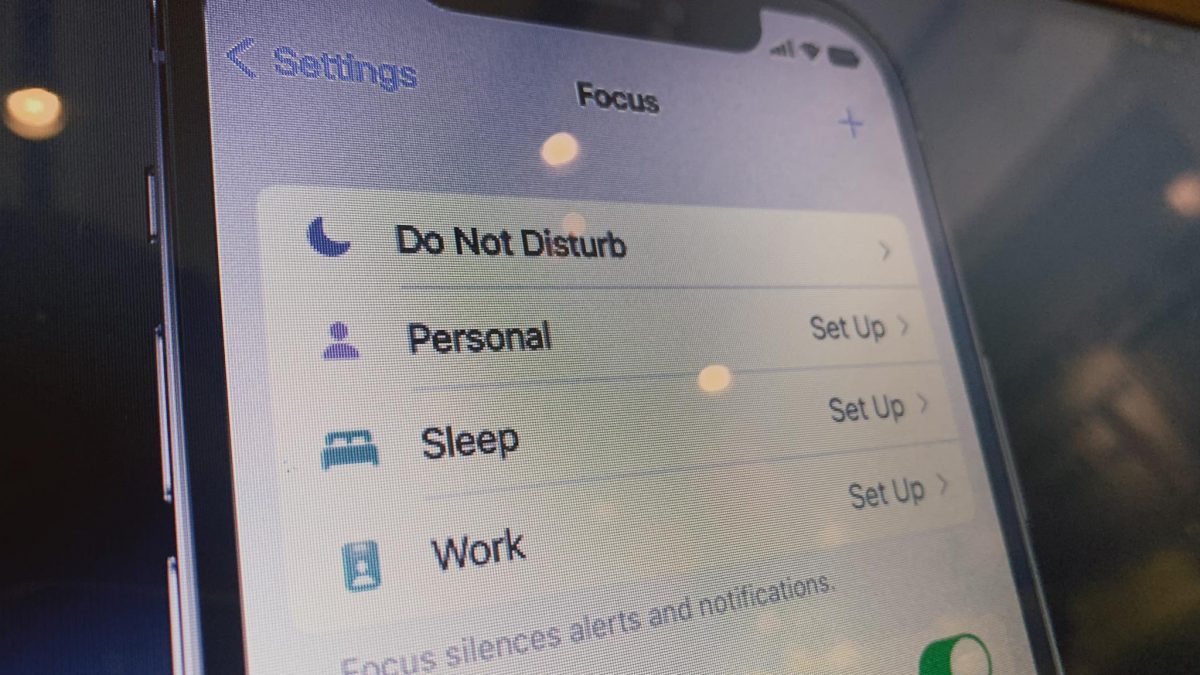
Once the quiet time is over, you can take phone off DND quickly from Control Center by swiping down from the top-right corner, tapping Focus, then tapping Do Not Disturb to dim the icon. If you prefer to take phone off of do not Disturb entirely and clear the status-bar icon, the same tap disables it. Understanding the focus mode on iPhone and how to use it matters here because DND is just one preset inside a larger system that also offers Work, Sleep, Driving, and Personal Focus options, each with its own filtering rules. When a custom Focus keeps turning itself on a schedule you forgot about, you can disable focus on iPhone by going to Settings > Focus, selecting the active mode, and adjusting its automation or deleting it outright.
- take phone off of do not Disturb
- disable focus on iPhone
- put my phone on silent
- take phone off DND
- put iPhone on DND
Silence calls, alerts, and flashes
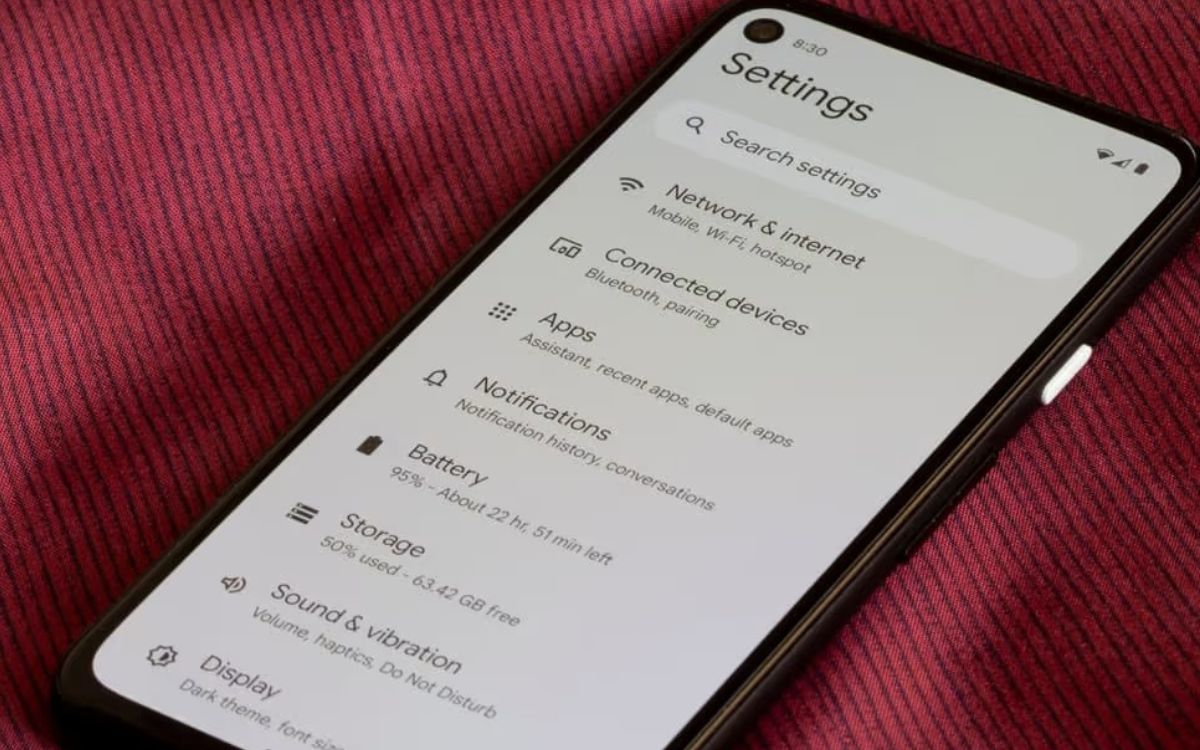
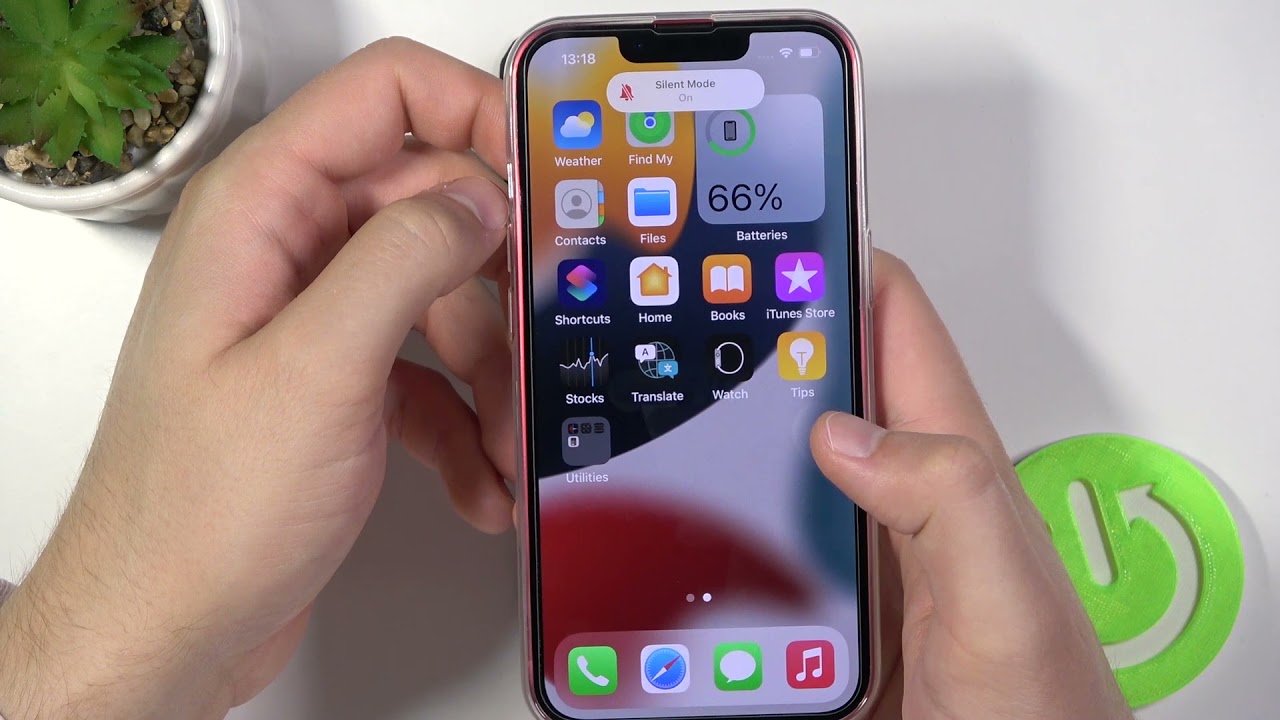
Putting your device on silent is often the first instinct, but the method varies by phone and doesn't always stop every distraction. On an iPhone, you can enable Silent mode using the physical Ring/Silent switch, or use Do Not Disturb from the Control Center. This mutes ringtones and alerts but the handset may still vibrate. If you need to turn off flash when phone rings, Android users can open the device's configuration panel and go to Settings > Notifications > Flash notifications to turn off Camera flash or Screen flash, as these visual cues persist even when the handset is otherwise silenced. For broader control, you might silence notifications at night by scheduling a Do Not Disturb Focus on iPhone, which lets you pick specific people and apps to allow while silencing everything else.
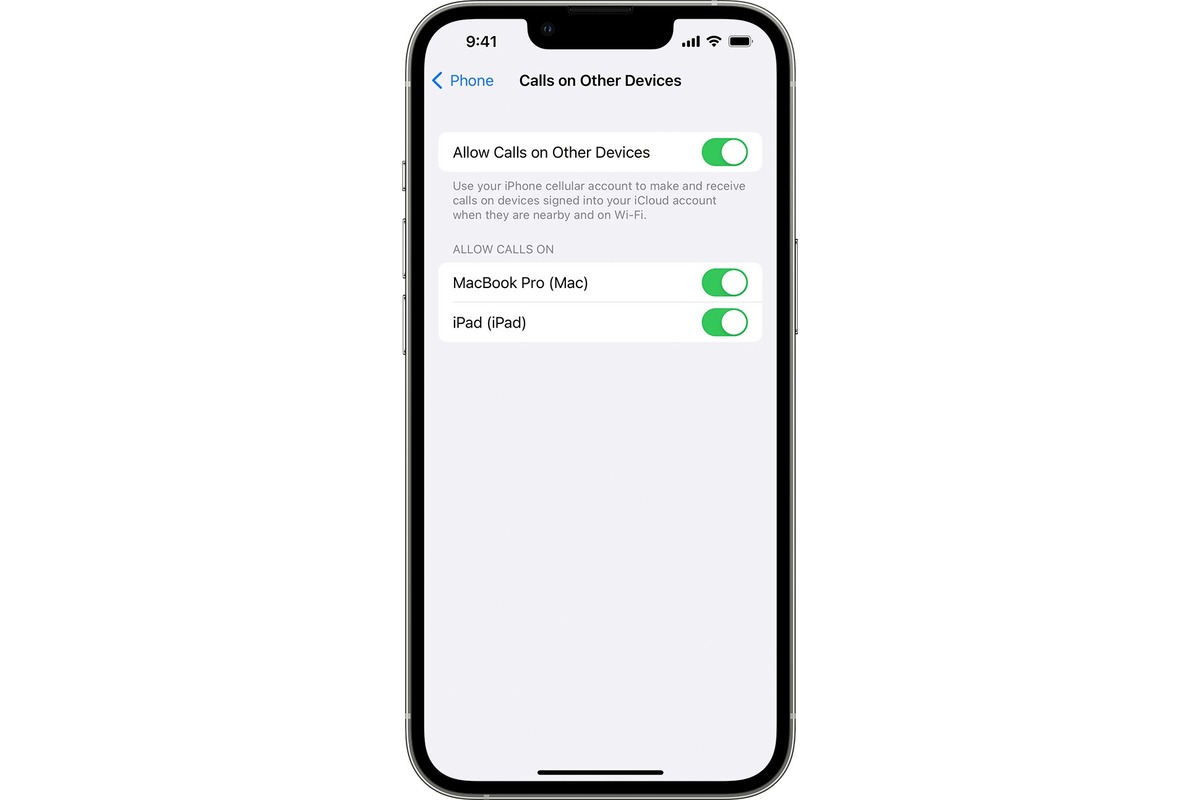
When you want to turn off phone ringing on Mac, Focus modes sync across your Apple devices to prevent the interruption. On the Google-powered side, if you need to turn off notification on Samsung phone, you can adjust per-app alert categories in the device's settings, though the exact menu labels shift between One UI versions. The system-wide option to turn off notifications in Android is managed app by app, giving you the choice to block specific conversation threads without silencing the entire phone. Ultimately, if the goal is to silence Android phone completely, remember that disabling the ringer alone won't extinguish a blinking camera light, so you must address flash alerts separately.
Auto-reply and call handling while busy
When you cannot pick up, your phone can still speak for you. The options depend on what kind of quiet you have chosen. If you want to send auto reply from iPhone, you use the Driving Focus specifically. Regular Do Not Disturb does not offer automatic text responses. Open Settings > Focus > Driving. Tap Auto-Reply. Pick whether the message goes to No One, Recents, Favorites, or All Contacts. Then edit the reply text itself. This same menu is where you stop automatic answering iPhone triggers when a Focus activates. Either switch the Driving Focus off entirely. Or change the Auto-Reply recipient setting to No One. That way the phone stays silent. If you prefer a more general solution, you can set up auto-reply for texts & calls with do not Disturb, which gives you a hands-free way to acknowledge incoming messages even when you are unavailable.
Configuring auto-reply on Android works differently. The feature varies by manufacturer. Some devices include a busy-response option buried in the phone app’s calling menus. If your primary workspace is email, you can set out of office in Outlook mobile by going into the app’s account preferences and toggling Automatic Replies to On. This runs from the server. It fires even if your handset is powered down. When you are on the other side of the quiet barrier, reaching someone on do not disturb usually requires that they have placed your contact in their Focus-allowed list. Otherwise your call will route to voicemail or sit silently depending on their exact configuration.
Stop emergency and SOS triggers
When an emergency override cuts through your silent settings with a blaring alarm, you need to address the trigger itself rather than just the volume. On iPhone, turning off emergency SOS feature gestures prevents accidental activations, which is why you would want to read about disabling SOS mode to stop false alarms from interrupting your focus. Open Settings > Emergency SOS and disable the hold-and-release and five-button-press call triggers. You can also switch off Crash Detection on newer models so a detected collision does not bypass your quiet preferences.
If your screen is frozen on the countdown slider, you would want to read how to get my phone out of SOS mode to end the emergency sequence immediately. This halts the emergency sequence immediately. The more stubborn situation involves the SOS or SOS only label sitting in the status bar. Apple clarifies that you cannot turn off SOS on my phone when it appears there as a mode because this is not a mode you activated. It means your device has lost its carrier connection, though emergency calls may still route through other carrier networks. Check that Airplane Mode is off. Confirm your cellular line is enabled, and contact your carrier if the indicator persists.
On the Google platform, you manage these overrides via the Personal Safety app. You can turn off emergency SOS on Android by opening the app and managing the feature there. The same menu lets you adjust emergency contacts and lock screen information without leaving the device vulnerable. To remove SOS mode on iPhone when the status indicator appears, you need to restore your network connection rather than hunt for a software switch. The phone displays this warning automatically whenever normal cellular service drops.
Control read receipts and online visibility
Controlling what others can see often matters as much as controlling what you hear. In WhatsApp, you can limit visibility by heading to Privacy options and using the Last Seen and Online controls to manage your presence, though hiding your own status typically means you won't see other people's either. For iMessage users, Apple ties the feature to a master switch in the Messages configuration panel where toggling off Send Read Receipts applies globally, but you can still manage the setting for a specific person by toggling it inside their conversation thread.
On Android, the approach is less centralised. There is no documented setting to get Life360 to say no network or phone off on demand; only troubleshooting steps for network errors are typically available. The app interprets a connection loss as a network error, and troubleshooting typically involves refreshing the connection.
Managing interruptions on a Google-powered device starts with the sound and vibration profile. You can quickly toggle between ring, vibrate, and mute by pressing a physical volume key and tapping the icon above the slider, which cycles through three distinct states. For deeper customisation, explore the system sound menu where you will find volume sliders for media, calls, alarms, and touch feedback. Separating these channels prevents a loud notification from disrupting your music or a critical morning alarm from being silenced by mistake.
The Do Not Disturb mode acts as a central hub for blocking unwanted noise, and you can schedule it to activate during meetings, at bedtime, or whenever your calendar shows you are busy. The system allows you to define exceptions, letting calls from starred contacts break through the silence or permitting repeat callers to ring if someone dials twice within fifteen minutes. This balances peace of mind with the need to stay reachable for urgent matters.
Alerts from apps require a different strategy. You can long-press an intrusive alert from the notification shade to reveal its channel and switch it to a silent delivery method, so it still appears in your tray but does not vibrate or make a sound. You can also disable the notification dot that appears on app icons to remove the visual pressure to check an app immediately. For apps that send constant pings, you can set them to deliver their content quietly without ever lighting up your lock screen.
Focus modes offer a more granular layer of control than the global Do Not Disturb function. You can build a custom mode for exercise that pauses only work-related apps, or create a driving mode that limits distractions to navigation and music. These modes can activate automatically based on an action like connecting to a specific Bluetooth device, and they can also pause the home screen layout to hide distracting apps entirely, making it easier to stick to your intentions without relying on willpower alone.
Conversation priorities help you filter out low-value chatter. You can mark a messaging thread as a priority conversation, which allows the person’s avatar to appear on your lock screen and bypasses the silent profile, while lower-priority conversations get relegated to a separate, muted section in the notification tray. You can also bubble a conversation so it floats as a small icon on the edge of your screen, keeping a live chat accessible without forcing you to switch back and forth between apps.
Digital Wellbeing tools provide a final layer of defence against constant pings. The dashboard shows how many times you unlock your phone and which apps send the most alerts, and you can set app timers to grey out a distracting app after a daily limit. Wind Down mode fades the screen to greyscale and silences all calls before bed, a gentle nudge that encourages you to put the device down. Focus mode can also pause selected apps manually when you need a short burst of deep work.
On a Samsung Galaxy, the software experience adds proprietary features on top of the standard options. The Modes and Routines tool automates behaviour based on your location or the time of day, so you can set a sleep routine that turns on power saving and disables the always-on display, or configure a work routine that limits media volume and restricts notifications to a handful of approved apps. These routines can change your watch face, adjust the edge lighting style, and toggle the blue light filter simultaneously.
Notification categories on a Galaxy device are highly detailed. You can dive into the app notification menu and find individual channels for marketing emails, direct messages, and background sync, muting the marketing channel while keeping the direct message channel loud. The edge lighting feature provides a subtle visual cue for new alerts by illuminating the curved sides of the screen with a custom colour and pattern, and you can assign a specific colour to a contact to identify a message without even picking up the phone.
WhatsApp provides its own internal system for muting group chats and personal threads for eight hours, a week, or forever, and you can also disable high-priority alerts that pop up at the top of the screen. To turn off online status on WhatsApp, you need to navigate to Settings > Privacy > Last Seen and Online. This setting prevents contacts from seeing when you are active and restricts your last seen timestamp, with the trade-off being that you lose visibility of other people's online activity in return.
Advanced call blocking uses a combination of carrier tools and on-device filters. You can block unknown callers by routing them directly to voicemail, and the Phone app can also identify spam calls automatically and flag them with a warning label. You can silence unknown numbers entirely so your phone never rings for a potential robocall. Verified calls from businesses can show a checkmark and a reason for calling, helping you distinguish a real delivery driver from a phishing attempt.
Sound separation is a crucial part of managing interruptions. You can route music to a Bluetooth speaker while keeping notifications on the phone's internal earpiece, and apps can play sound on different output devices simultaneously. You can also use separate app sound to send a music app to a portable speaker while a video call stays on your phone, preventing a call from blasting over your party playlist and keeping your private conversation private without requiring you
- get Life360 to say no network or phone off
- turn off read receipts on Galaxy S21
- turn off online status on WhatsApp
- turn off read receipts on Android
Manage reminders, alarms, and timers
When you set an alarm on Android through the Clock app, the sound will break through both Silent Mode and Do Not Disturb, so double-check which silencing method you have enabled if you cannot afford to be woken. For iPhone users, you can set alarm on iPhone 11 by opening the Clock app, tapping the Alarm tab, and saving your preferred time and repeat schedule. Timers behave similarly, and you can explore ways to set sleep timer on your Android and iPhone devices within the Clock app to automatically stop media playback without silencing a critical morning alert. To keep task alerts from becoming noise, you can set a reminder on Android so it pops up quietly on screen instead of blaring an audible alert during a focus block. If a persistent chime is breaking your concentration, you can turn off 2-minute text reminder on iPhone 12 by navigating to Settings, going to Notifications, then Messages, then Customize Notifications, and setting Repeat Alerts to Never, which stops the default second alert without blocking the initial buzz.
Quiet accessories and secondary devices
Your phone’s silence settings mean little if a secondary device decides to override them with its own alerts. If Siri is reading texts aloud through your earbuds during a meeting, you can turn off AirPod announcements by opening the iPhone’s notification controls. Switch off Announce Notifications entirely in Settings > Notifications > Announce Notifications, or use the Control Center button for a temporary mute. The same logic applies to your wrist. You want to check "DND" on a smartwatch because it does not always mirror your phone’s block list. The exact menu path varies, so you need to verify the wearable isn’t set to bypass your main device’s focus state. While driving, your handset may automatically suppress alerts. You can turn off car mode on iPhone by going to Settings > Focus and adjusting the Driving Focus activation trigger. Move it away from Automatic or Bluetooth connections so it stops silencing inbound calls when you are just a passenger. Even household hardware can disrupt a quiet environment. You can stop your ADT alarm from beeping with low battery by entering OFF at the keypad, or on some systems [1] OFF, CANCEL, or [*] and then changing the arming level, though ADT notes that specific button sequences can differ across panel models.
Prevent accidental sounds and dials
Even when your phone is set to silent, a few overlooked options can still pierce the quiet with an unwanted sound. The loudest offender is often the alert system for wireless emergency broadcasts. You should turn off government alerts through your device's notification settings. Then locate the Government Alerts category. Disable the specific categories that can override your ringer switch. This is especially critical because critical broadcasts can be configured to always play a sound. They will blare even when your device is in Silent mode.
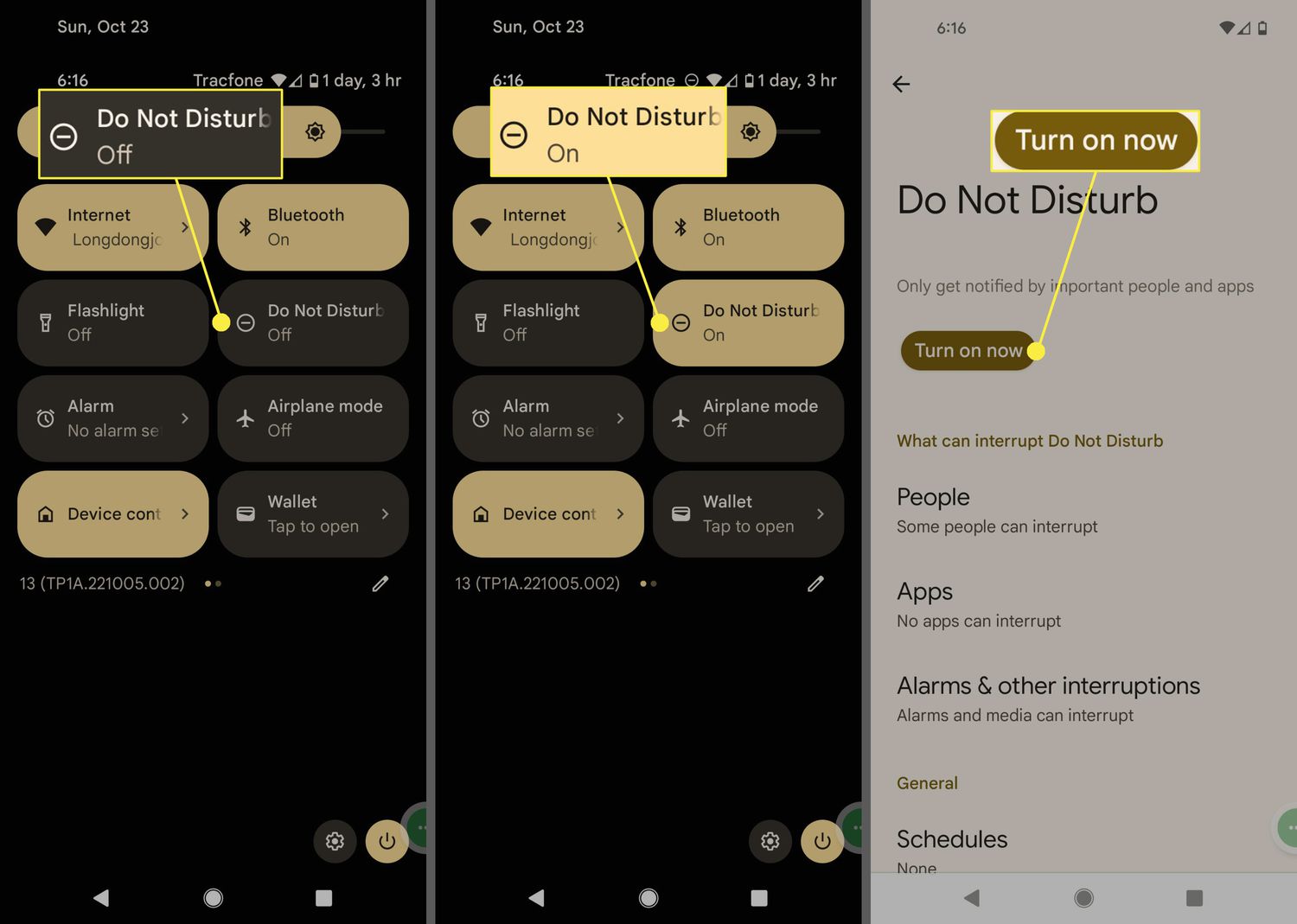
For Google-powered devices, the logic is similar. You will need to enable push notifications on Android selectively within individual app configurations. The retrieved official Android page does not give a universal push-notification setup path. While you are checking those permissions, verify that you properly use Do Not Disturb mode in Android by swiping down from the top of the screen and tapping Do Not Disturb, or through Settings. The swipe-down method reveals the quick controls tile. This mode actively blocks interruptions instead of just muting the speaker.
Finally, a quiet setup is useless if your phone dials someone from your pocket the moment you start moving. To stop pocket dialing on iPhone 12, a secure passcode remains your primary defense. A secure passcode remains your primary defense. A secure passcode remains your primary defense.
Frequently Asked Questions
How do I turn off flash notifications on my Samsung phone?
Open Settings, tap Notifications, then tap Flash notifications and turn off Camera flash or Screen flash. The exact menu labels shift between One UI versions, but the setting lives in the Notifications section of the device configuration panel.
Can I set an auto-reply for regular Do Not Disturb on iPhone?
No. Apple only documents automatic text replies for the Driving Focus, not for regular Do Not Disturb. Open Settings, tap Focus, tap Driving, then tap Auto-Reply to configure the message and choose recipients like No One, Recents, Favorites, or All Contacts.
How do I stop my Android phone from vibrating in silent mode?
Press a physical volume key, tap the icon above the slider, and cycle through ring, vibrate, and mute states. For deeper control, open the system sound menu and separate the vibration settings for calls, notifications, and touch feedback individually.
How do I set up out of office replies in Outlook on my phone?
Open the Outlook app, go into account preferences, and toggle Automatic Replies to On. This runs from the server and fires even if your handset is powered down, and Microsoft documents it as a per-account setting within the app.