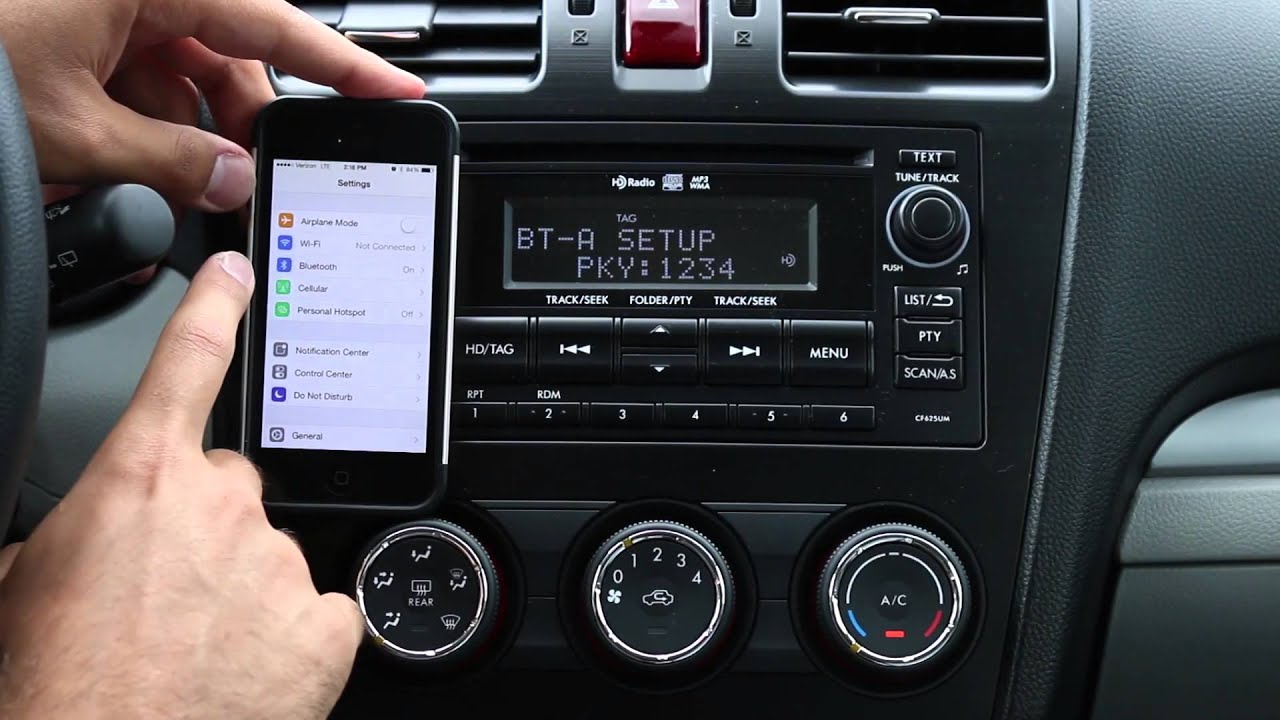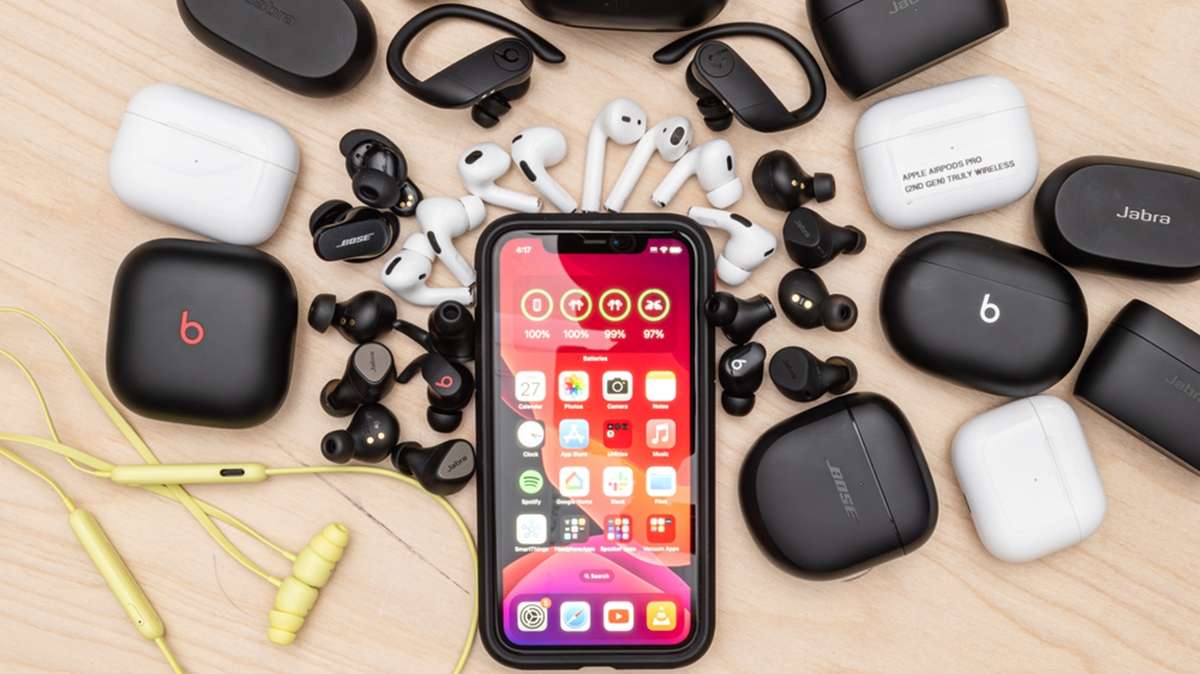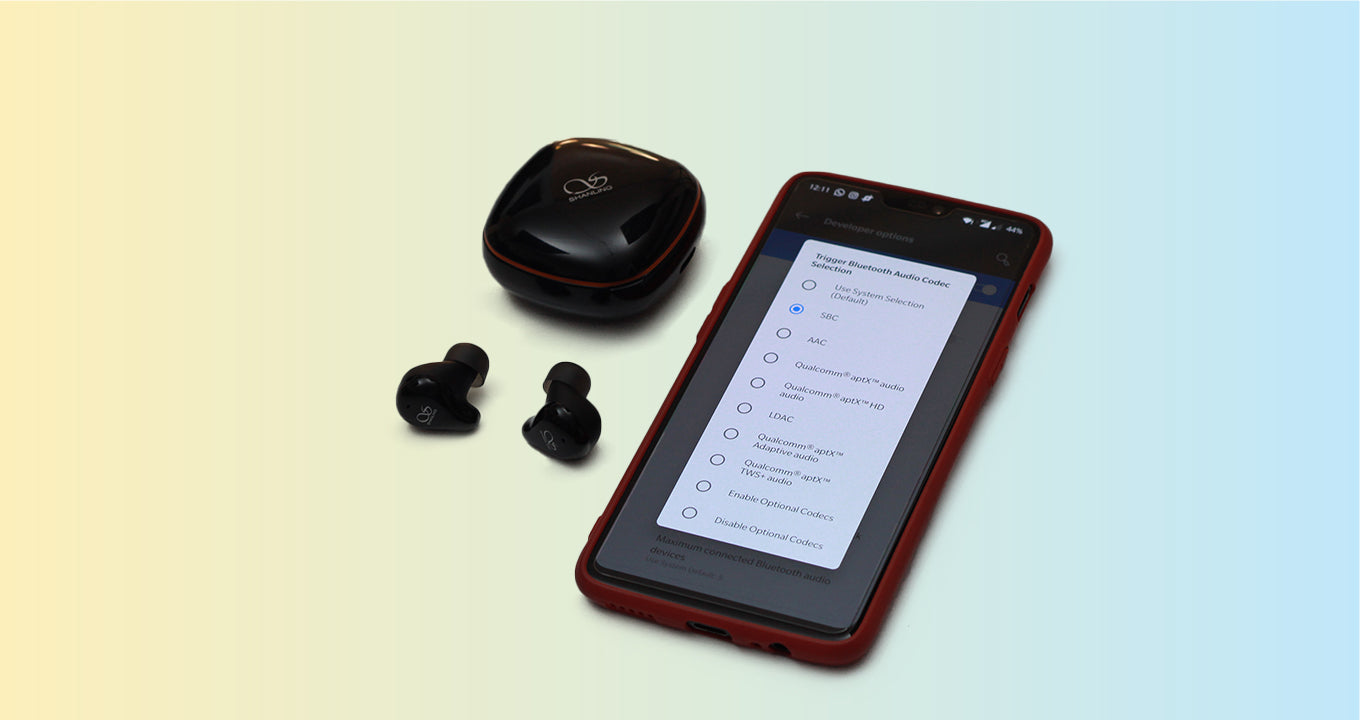
You cannot manually change the Bluetooth codec on an iPhone. iOS automatically selects the optimal codec for your connected accessory, and unlike Android, there is no built-in setting to force a different codec like aptX or LDAC.
Can you change the Bluetooth codec on iPhone?
No. Apple does not provide a manual codec selector in iOS. The operating system negotiates the best available codec with your Bluetooth device and uses it automatically. This means you cannot override the system's choice to prioritize a specific codec for audio quality or latency. If you want a different codec, you must use an accessory that supports a codec iOS prefers, such as AAC.
What is a Bluetooth codec?
A Bluetooth codec is a technology that encodes and decodes audio data transmitted over a wireless Bluetooth connection. It determines the quality, efficiency, and latency of audio streaming between your iPhone and your headphones or speaker. Common codecs include SBC (Subband Coding), which is the most basic and widely supported; AAC (Advanced Audio Coding), which iOS prioritizes for its superior audio quality; and aptX, which offers high-quality audio with low latency but requires both the iPhone and the accessory to support it. Other codecs like aptX HD and LDAC exist, but iOS does not natively support them. The codec your iPhone uses directly affects sound quality and how well audio syncs with video, making it important when connecting Bluetooth to phones for music or media playback. iPhone models support various Bluetooth versions, for example, iPhone 13 supports Bluetooth 5.0, iPhone 16 supports Bluetooth 5.3, and iPhone 18 Pro supports Bluetooth 6.
How to check the current Bluetooth codec on iPhone
You can see which codec your iPhone is using for a connected Bluetooth device. Follow these steps:
- Open the Settings app on your iPhone.
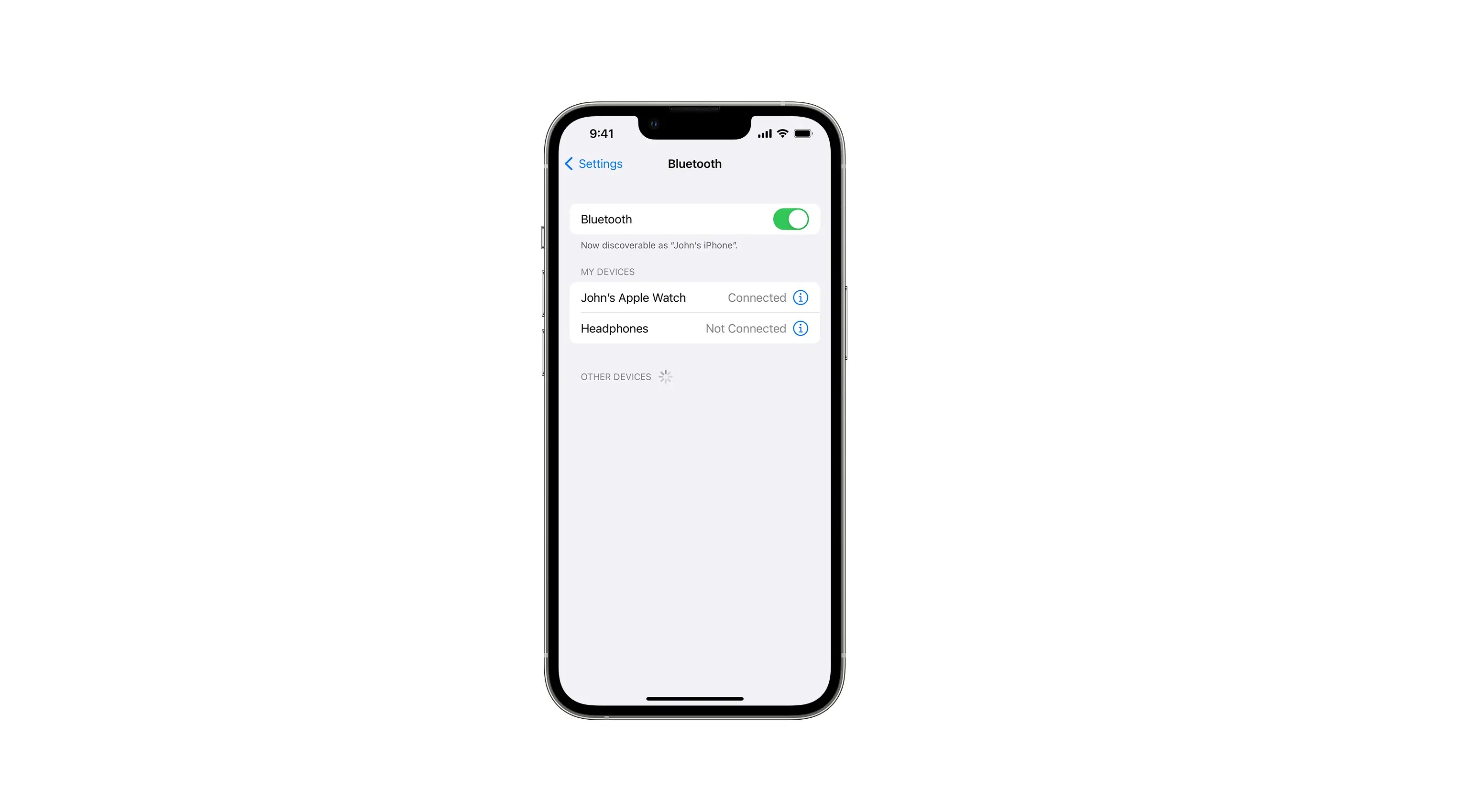
- Tap Bluetooth.
- Find your connected Bluetooth device in the list and tap the information (i) icon next to it.
- Look for the section labeled "Codec" or "Bluetooth Codec." The current codec will be displayed there.
Common codecs you may see include SBC, AAC, or, in rare cases, aptX if the accessory supports it and iOS negotiates it. Knowing the active codec helps you understand the audio quality you are getting.
How to improve Bluetooth audio quality on iPhone
Since you cannot manually select a codec, Apple provides official methods to improve perceived audio quality. These focus on optimizing the Bluetooth connection and using accessibility features.
To reduce interference and maintain a strong signal, keep your iPhone close to your Bluetooth headphones or speaker. Move away from sources of wireless interference such as crowded Wi-Fi networks, many people in the same area, and microwave ovens. If sound quality is reduced, Apple Support suggests improving the Bluetooth connection by keeping the iPhone close to the headphones and moving away from interference sources.
You can also adjust audio settings using Headphone Accommodations. Go to Settings > Accessibility > Audio & Visual > Headphone Accommodations. Here you can boost different frequencies or soft sounds, which can improve perceived audio quality for music, calls, and other audio. This setting works with any Bluetooth codec and can make a noticeable difference.
Troubleshooting Bluetooth codec issues on iPhone
If you experience persistent audio problems like stuttering, low volume, or poor sound quality, try these practical fixes:
- Restart your iPhone and your Bluetooth accessory. Turn both off and on again to clear temporary glitches.
- Forget and re-pair the Bluetooth accessory. Go to Settings > Bluetooth, tap the information (i) icon next to the device, and select "Forget This Device." Then reconnect the accessory by following the manufacturer's pairing instructions. If sound quality is reduced, Apple Support suggests unpairing/re-pairing the headphones as a specific fix.
- Update your iPhone's software. Go to Settings > General > Software Update and install any available updates. New iOS versions can improve Bluetooth compatibility and performance.
- Reset network settings. Go to Settings > General > Reset > Reset Network Settings. This erases saved Wi-Fi networks and passwords but can resolve Bluetooth connectivity issues.
If the problem continues, try a different Bluetooth accessory to determine whether the issue is with your iPhone or the original device.
Frequently Asked Questions
Why would I want to change the Bluetooth codec on my iPhone?
Users often want to change the codec to improve audio quality or reduce latency, especially when using high-end headphones that support codecs like aptX or LDAC. However, iOS does not allow manual selection, so the only way to use a different codec is to switch to an accessory that uses a codec iOS prefers, such as AAC.
Can third-party apps change the Bluetooth codec on iPhone?
No. Third-party apps cannot override the system-level Bluetooth codec selection on iOS. Some apps claim to offer codec control, but they do not have the necessary permissions to change the codec used by the operating system.
Does my iPhone support aptX or LDAC?
No. iOS does not natively support aptX, aptX HD, or LDAC. iPhones use AAC as the preferred codec for Bluetooth audio. Even if your headphones support these codecs, your iPhone will not use them.
Can I change the Bluetooth codec with a Bluetooth accessory?
Some Bluetooth accessories have companion apps that let you select a codec within the accessory itself. However, the iPhone will still use the codec it negotiates with the accessory. The accessory's app cannot force iOS to use a codec it does not support.
What are some popular Bluetooth codecs?
SBC is the mandatory baseline codec with basic quality. AAC is preferred by iOS for its superior audio quality. aptX offers high-quality audio with low latency. aptX LL is designed for minimal latency, ideal for gaming and video. LDAC allows high-resolution audio streaming at higher bitrates.
Related reading: Why Does Bluetooth Turn On Automatically On IPhone and How To Connect Waterproof Boom Speaker To IPhone.