To connect your printer to T-Mobile Internet, you need to manually join your printer to the T-Mobile gateway's Wi-Fi network using the network name (SSID) and password. This is because T-Mobile gateways do not have a WPS (Wi-Fi Protected Setup) button, so the standard push-button connection method is not available.
Why WPS won't work with your T-Mobile gateway
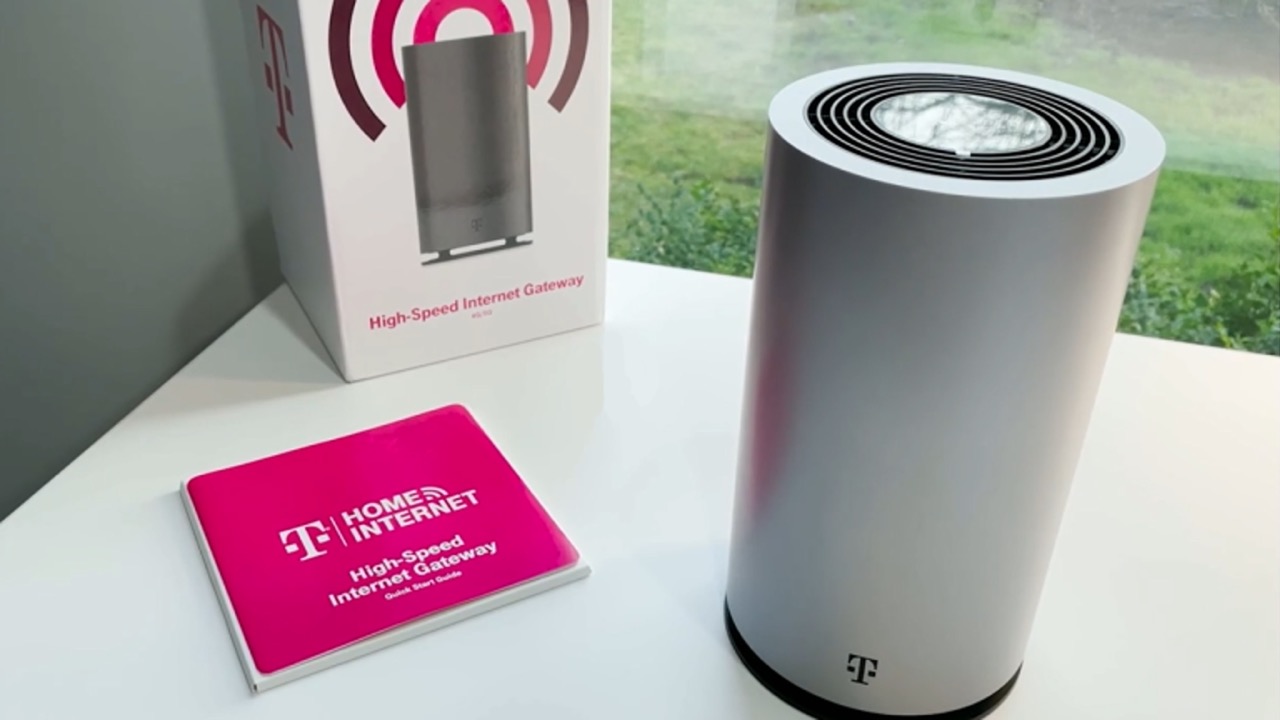
T-Mobile home internet gateways lack a WPS button entirely. This is a critical, verified fact that means you cannot use the quick-press method found on many other routers. Instead, you must complete a manual wireless printer setup by selecting the network and typing in the password. Knowing this upfront saves you from searching for a button that does not exist and allows you to proceed directly with the correct connection method.
Find your T-Mobile network name and password
Your T-Mobile Wi-Fi network name (SSID) and password are printed on a label on the gateway device itself. You can also find this information within the T-Mobile Internet app, which displays your current network credentials. Keep these details handy before you begin the printer setup process. T-Mobile operates on various network frequencies, including 600 MHz, 700 MHz, and 1900 MHz bands; ensure printer's wireless capabilities align with these bands.
Connect your printer to the T-Mobile Wi-Fi
- On your printer's control panel or touchscreen, navigate to the wireless settings or Wi-Fi setup menu. The exact wording may vary by printer brand, but look for "Network," "Wireless," or "Settings."
- Select the option to connect to a new Wi-Fi network. Your printer will scan for available networks.
- From the list of available networks, select your T-Mobile Wi-Fi network name (SSID).
- When prompted, enter your Wi-Fi network password exactly as it appears on the gateway label or in the T-Mobile Internet app. Passwords are case-sensitive.
- Confirm the connection. Your printer will attempt to join the network. Once successful, the printer's display or status light will indicate it is connected.
If printer is not compatible with T-Mobile's wireless network, consider using a mobile hotspot or a dedicated wireless print server as alternative connectivity options. Enable Wi-Fi Direct or Bluetooth on the printer if supported, to enable direct communication with wireless devices.
Test your wireless connection
Send a test print job from a device that is also connected to the same T-Mobile Wi-Fi network, such as a smartphone, tablet, or laptop. If the printer receives and processes the print job, the connection is working correctly.
Troubleshooting connection problems
- Check signal strength: Ensure your printer is within a reasonable range of the T-Mobile gateway. Weak signals can prevent a stable connection.
- Restart devices: Power cycle both the T-Mobile gateway and your printer. Unplug each for 30 seconds, then plug them back in and try the connection process again.
- Verify credentials: Double-check that you are entering the correct SSID and password. A single typo will prevent connection.
- Update printer firmware: Check your printer manufacturer's support website for the latest firmware. Updates often resolve connectivity issues and improve network compatibility.
- Confirm T-Mobile's LTE coverage is available in your area using their coverage map tool.
- Verify the printer's IP settings are configured to obtain an IP address automatically.
- Review router and firewall settings to ensure they are not blocking the printer's communication; adjust firewall rules and port configurations if needed.
- Reinstall printer drivers on connected devices if connection issues persist, as outdated or corrupted drivers can hinder printing.
- Utilize network troubleshooting tools provided by the printer manufacturer to diagnose and resolve connectivity issues.
If you are concerned about how many devices can share your connection, review the T-Mobile home internet device limits to ensure your printer does not exceed the recommended number of connected devices for optimal performance.
Keep your printer connected
Place your printer in an open area, away from large metal objects, thick walls, and other electronics that can cause interference. Regularly check for and install printer firmware updates to maintain a stable connection and benefit from performance improvements. Implement robust network security measures such as WPA2 encryption and regularly update network passwords. Conduct routine maintenance of the T-Mobile internet network, including periodic router restarts and firmware updates for network devices. If using a dual-band printer, consider utilizing the 5GHz band for enhanced network performance and less interference. Periodically conduct connectivity tests by initiating test prints from various devices to proactively identify issues.
Frequently Asked Questions
Can I connect my printer using a USB cable to the T-Mobile gateway?
No. T-Mobile home internet gateways do not have USB ports intended for printer sharing. The only way to connect a printer is wirelessly via the gateway's Wi-Fi network.
Will connecting my printer use a lot of my T-Mobile data?
Printing documents and standard photos uses very little data. Even large print jobs are unlikely to significantly impact your data usage, as the data is transferred locally over your home Wi-Fi network, not through the cellular data connection.
My printer is connected but my computer cannot find it. What should I do?
Ensure both your computer and printer are on the exact same T-Mobile Wi-Fi network. If you have a dual-band network, make sure both devices are connected to the same band (either 2.4GHz or 5GHz). Also, install the latest printer drivers on your computer from the manufacturer's website.
Can I print from my phone when I am away from home?
No. Your printer is only accessible on your local T-Mobile home Wi-Fi network. To print remotely, you would need a printer that supports cloud printing services, which is a separate feature from simply connecting to the gateway's Wi-Fi.