To check if your Wi-Fi is 2.4 or 5 on iPhone, you need to look at your router’s settings or use a Wi‑Fi scanning tool, because Apple does not provide a direct indicator in the iPhone’s standard Wi‑Fi details screen. The two documented methods are checking your router’s connected devices list and using the AirPort Utility app’s Wi‑Fi Scanner to read channel numbers.
How to check if Wi‑Fi is 2.4 or 5 on iPhone
An iPhone does not have an Apple‑documented Settings screen that directly shows whether the current Wi‑Fi connection is 2.4 GHz or 5 GHz. Apple’s documented method for identifying Wi‑Fi bands is to check the router or use a Wi‑Fi scanning tool, not the iPhone’s standard Wi‑Fi details screen. Below are the two reliable ways to determine the band.
Check the Wi-Fi MAC address prefix: if it starts with 'F8' it is 2.4GHz, 'FC' indicates 5GHz.
Look for 'Supported PHY Modes' in Wi-Fi details: '802.11a/b/g/n' means 2.4GHz, '802.11ac' means 5GHz.
Check your router’s connected devices list
This method uses the router’s admin interface to see which band your iPhone is using. Follow these steps:
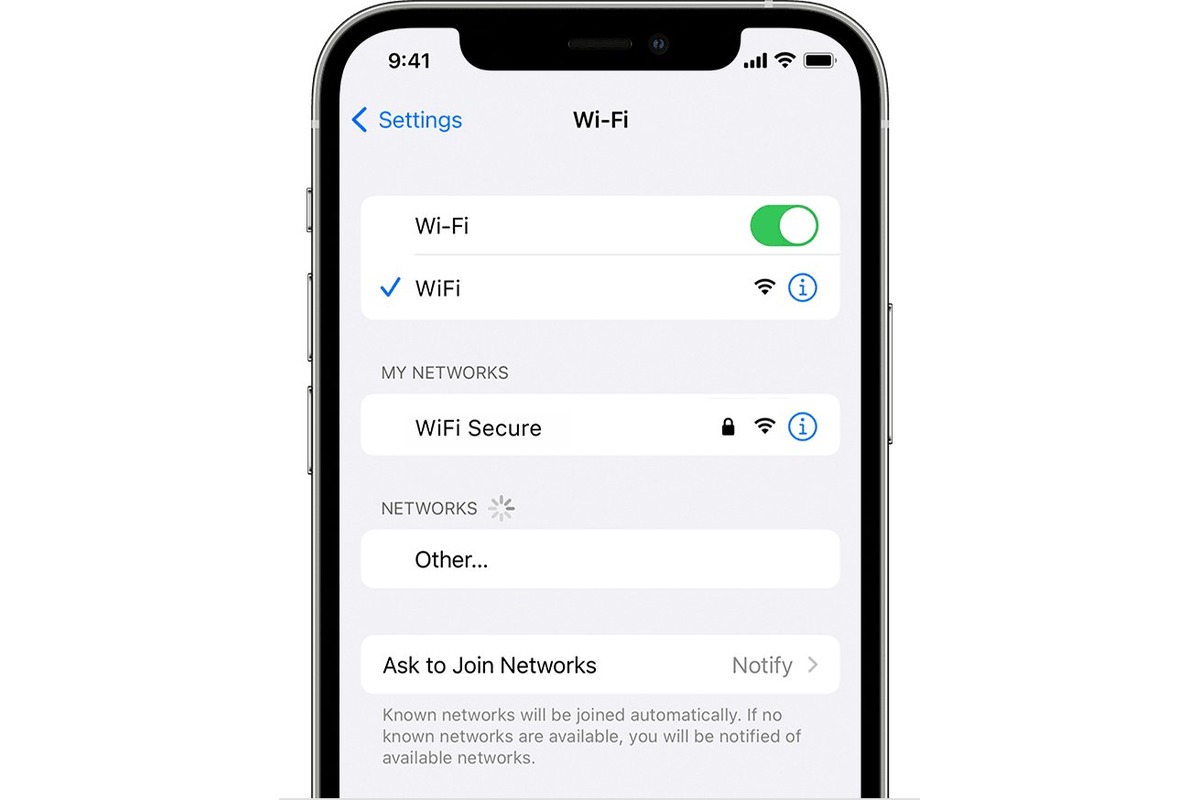
- Go to Settings > Wi‑Fi and tap the information (i) button next to the connected network.
- Note the Router address in the IPv4 Address section.
- Open that router address in a browser and sign in to the router’s admin page.
- In the router interface, look for Wireless, Wi‑Fi, Advanced, Connected Devices, Clients, Device List, or Network Map.
- Find your iPhone in the connected‑device list and read the band or channel field if the router shows one.
This method depends on the router displaying band, channel, or connection type. If it does not, the band information will not be visible. The router approach is useful when you need to confirm the band for troubleshooting or when setting up wireless connections to optimize performance.
Use AirPort Utility with Wi‑Fi Scanner
Apple’s Wi‑Fi scanning guidance relies on AirPort Utility with Wi‑Fi Scanner enabled. This tool shows nearby networks and their channel numbers, which you can use to infer the band.
- Go to Settings > AirPort Utility and toggle Wi‑Fi Scanner on.
- Open the AirPort Utility app and tap Wi‑Fi Scan in the upper‑right corner.
- Tap Scan to see a list of nearby networks with their channel numbers.
Use this method when you cannot access the router’s admin page or need a quick, on‑device check without logging into the router.
If your router names the bands separately
Some routers broadcast separate network names (SSIDs) for each band, such as MyWiFi_2.4 and MyWiFi_5. In that case, the name itself indicates the band. If you see a clear band label in the network name, you already know which band you are on without any extra steps.
Why the band matters for your connection
The 2.4 GHz band offers longer range and better wall penetration but is slower and more prone to interference from devices like microwaves and cordless phones. The 5 GHz band provides faster speeds and less congestion but has a shorter range and struggles more with obstacles. Knowing which band you are connected to helps you decide whether to switch: use 2.4 GHz for coverage across a large home, and 5 GHz for high‑speed activities like streaming or gaming near the router.
Frequently Asked Questions
How can I check if my iPhone is using a 2.4GHz or 5GHz Wi-Fi connection?
Can I switch my iPhone's Wi-Fi connection from 2.4GHz to 5GHz or vice versa?
If your router broadcasts separate SSIDs for each band, go to Settings > Wi-Fi, tap the desired network name (e.g., MyWiFi_5), and enter the password to connect manually.
Can I manually switch my iPhone between 2.4 GHz and 5 GHz?
Your iPhone automatically connects to the strongest available network. You can manually select a different network in Settings > Wi‑Fi if your router broadcasts separate SSIDs for each band, but there is no built‑in toggle to force a specific band on a single‑SSID network.
Is one band better than the other for my iPhone?
Neither is universally better. Choose 2.4 GHz for better range and compatibility with older devices, and 5 GHz for faster speeds and less interference when you are close to the router.
What should I do if my router does not show band information?
If the router’s admin page does not display a band or channel field, use AirPort Utility with Wi‑Fi Scanner to scan the network and read the channel number, which will tell you the band.
Does the iPhone’s Wi‑Fi details screen ever show the band directly?
No. The information (i) button shows network details like IP address and router, but not the frequency band.
Can I connect to both 2.4 GHz and 5 GHz at the same time on iPhone?
Some newer Apple devices support Wi‑Fi 7 in the 2.4 GHz, 5 GHz, and 6 GHz bands, but that is a hardware support statement, not a how‑to for checking the active band.
Related reading: Boosting Mobile Signal Strength and Why Do I Only Have 2 Bars On My IPhone 12.