






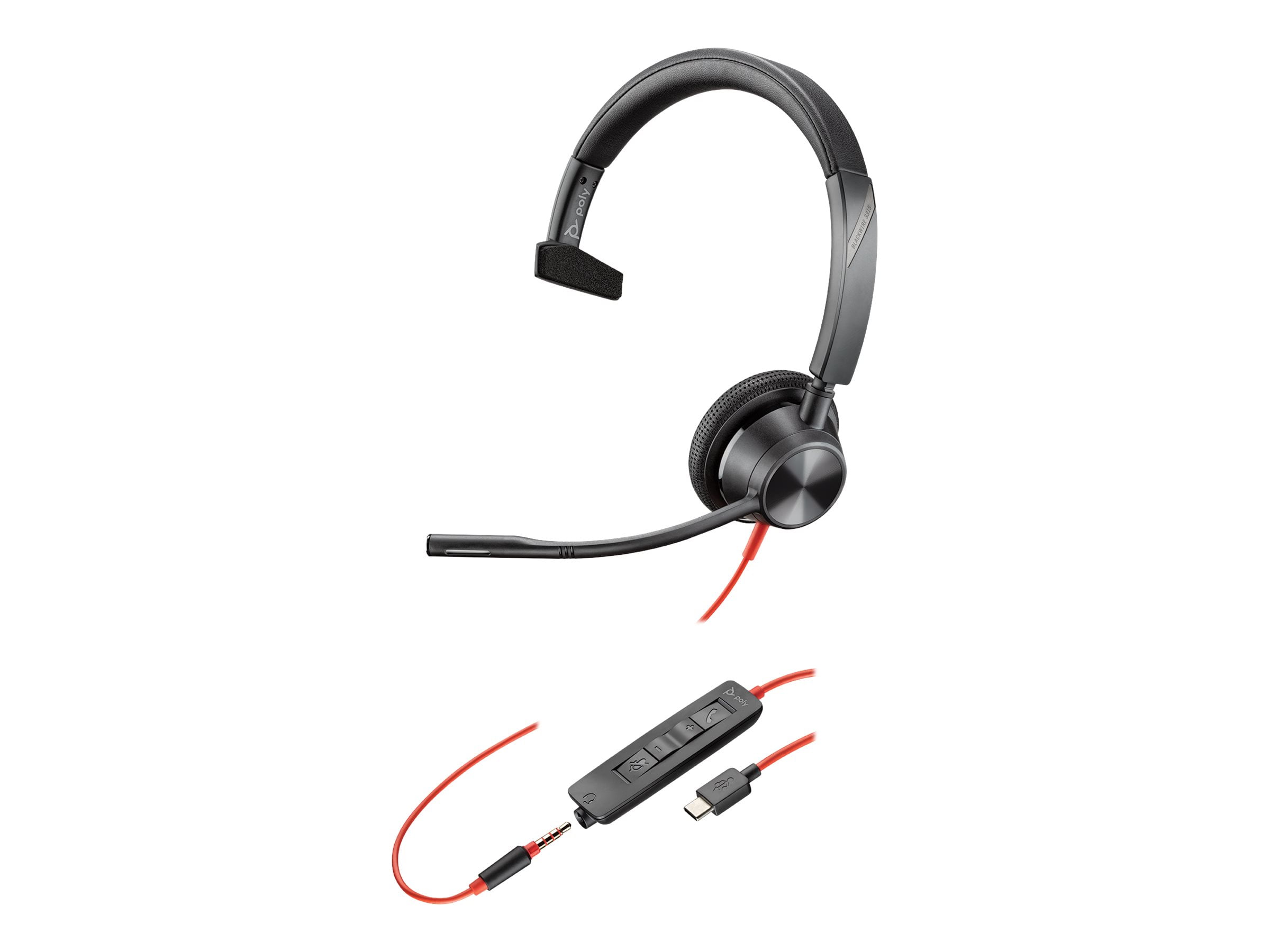
To connect a Plantronics headset, hold the power or call button until the headset announces “pairing” and the LEDs flash red/blue or blue/white, then select the headset name from your device’s Bluetooth list. This three‑sentence summary gives you the exact button hold and LED pattern so you can pair in about ten seconds if you already know how Bluetooth works.
Put your headset into pairing mode
Hold the power button or the call button until the headset says “pairing” and the LEDs flash red/blue or blue/white. The exact button and the flash colors can vary by model, but the spoken “pairing” prompt is consistent across most Plantronics (now Poly) headsets. Once the headset is in pairing mode, it stays discoverable for a limited time, so proceed to the next step promptly.
Connect to an iPhone
- Open Settings on your iPhone.
- Tap Bluetooth and turn Bluetooth On.
- , for example, PLT V5200 Series, Poly V42XX Series, PLT V8200 Series, or Poly VSurround 80.
- Wait for “Connected” to appear next to the headset name.
Connect to an Android phone
- Open Settings on your Android phone.
- Tap Bluetooth and turn Bluetooth On.
- Tap Scan for devices (or “Pair new device” depending on your Android version).
- Confirm the pairing request on both devices.
What if it asks for a passcode?
If your phone or computer prompts you for a passcode during pairing, enter 0000. The passcode may also be 1234.
Troubleshooting when the headset won’t connect
If the headset does not appear in your device’s Bluetooth list or fails to pair, try these steps in order:
- Battery check: Make sure the headset is charged. A low battery can prevent pairing mode from activating.
- Range: Keep the headset and your phone or computer within 10 meters (33 feet) of each other with no large obstacles between them.
- Clear previous pairings: If the headset was previously connected to another device, turn that device’s Bluetooth off or remove the headset from its paired list. Clear device memory by removing the headset from the paired devices list of previously connected devices.
- Restart Bluetooth: Turn Bluetooth off on your phone or computer, wait a few seconds, then turn it back on.
- Check for firmware updates: Check for firmware updates for the headset.
- Disconnect other devices: Disconnect headset from other devices before connecting to desired device when using with multiple devices.
- Honest limitation: Official troubleshooting pages for this exact pairing flow are not currently documented, so if these steps do not resolve the issue, refer to your model’s printed manual.
What we can’t tell you (and where to look instead)
Some Plantronics headsets support multipoint technology to connect to two devices simultaneously. For these details, locate your model’s manual or visit the “general headset setup” (General Headset Setup and Use) hub on the manufacturer’s support site. The information you need for your specific device, operating system, and app version is most reliably found there.
Frequently Asked Questions
How do I reset my Plantronics headset?
Most Plantronics headsets can be reset by placing them in the charging cradle, turning them off, or holding the power button for 10-15 seconds until the LED flashes red. Check your model’s manual for the exact reset sequence.
Can I connect my Plantronics headset to a computer without Bluetooth?
Can I use a Plantronics headset with a landline phone?
Why does my headset keep disconnecting from my phone?
Frequent disconnections are usually caused by low battery, being out of range (more than 10 meters/33 feet), or interference from other wireless devices. Move closer to your phone and ensure the headset is fully charged.
How do I know if my Plantronics headset is in pairing mode?
When the headset enters pairing mode, you will hear a voice prompt saying “pairing” and the LED indicator will flash alternately red/blue or blue/white. If you do not see this pattern, release the button and try again.

















