Identify your headset setup guide needs
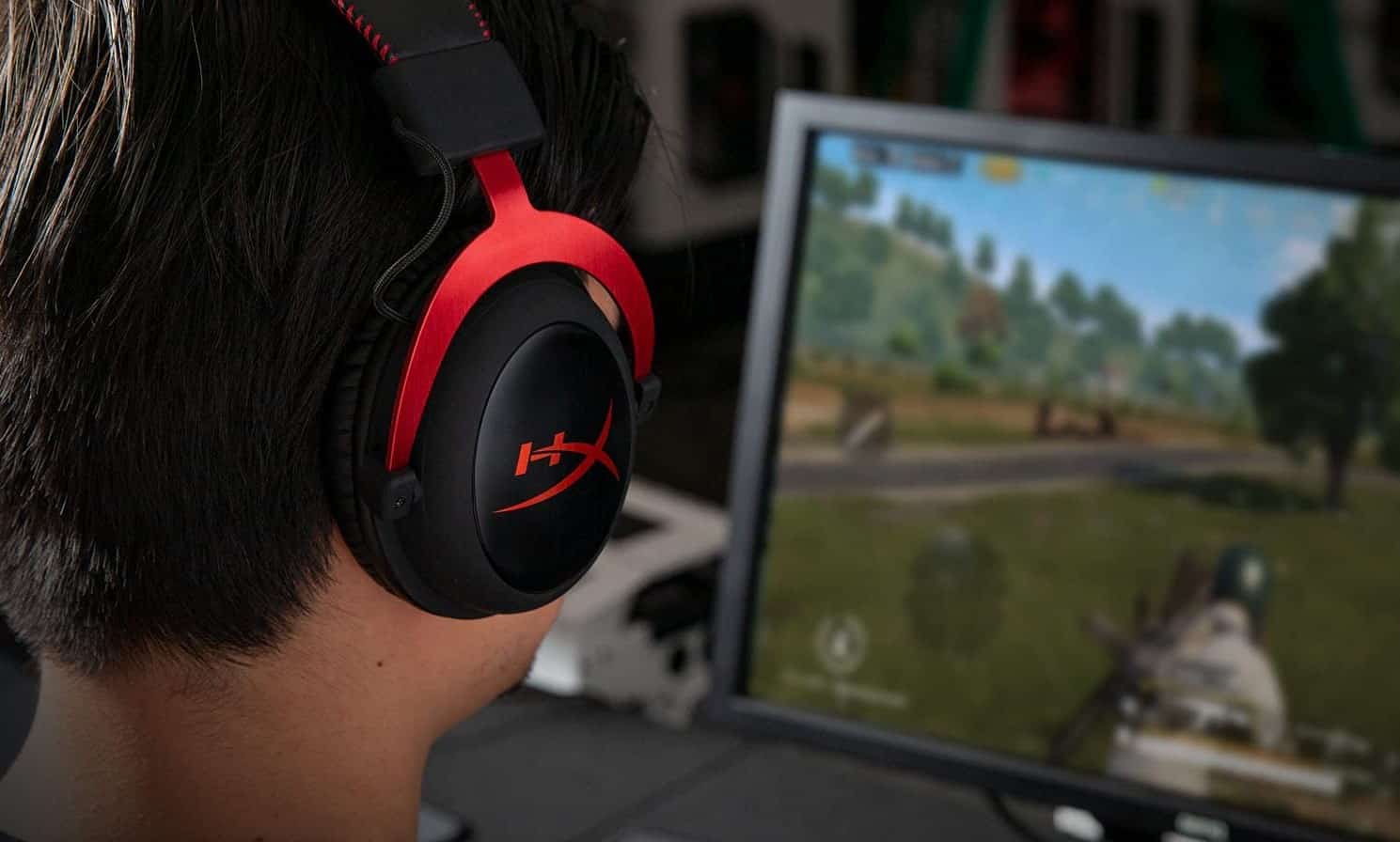
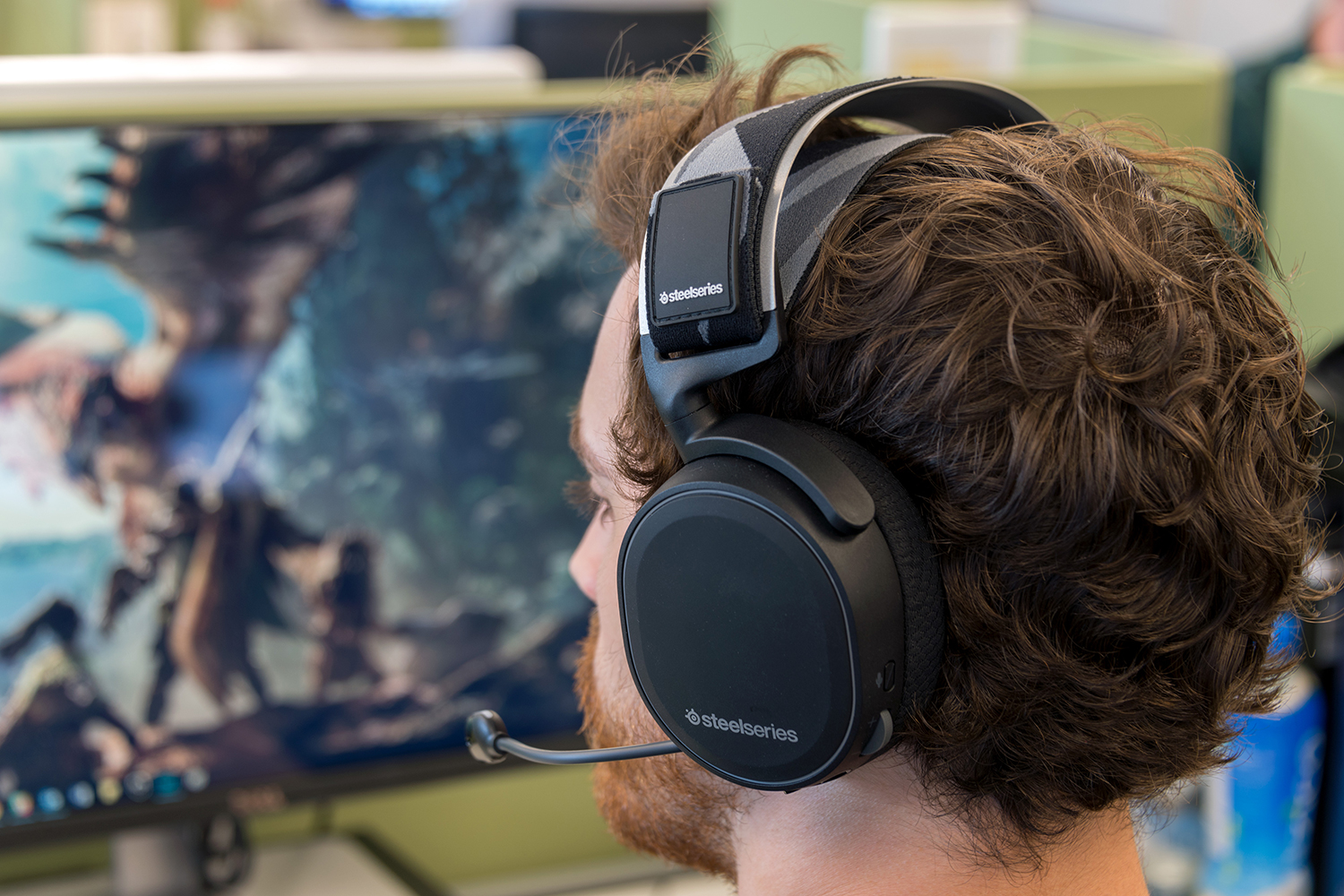
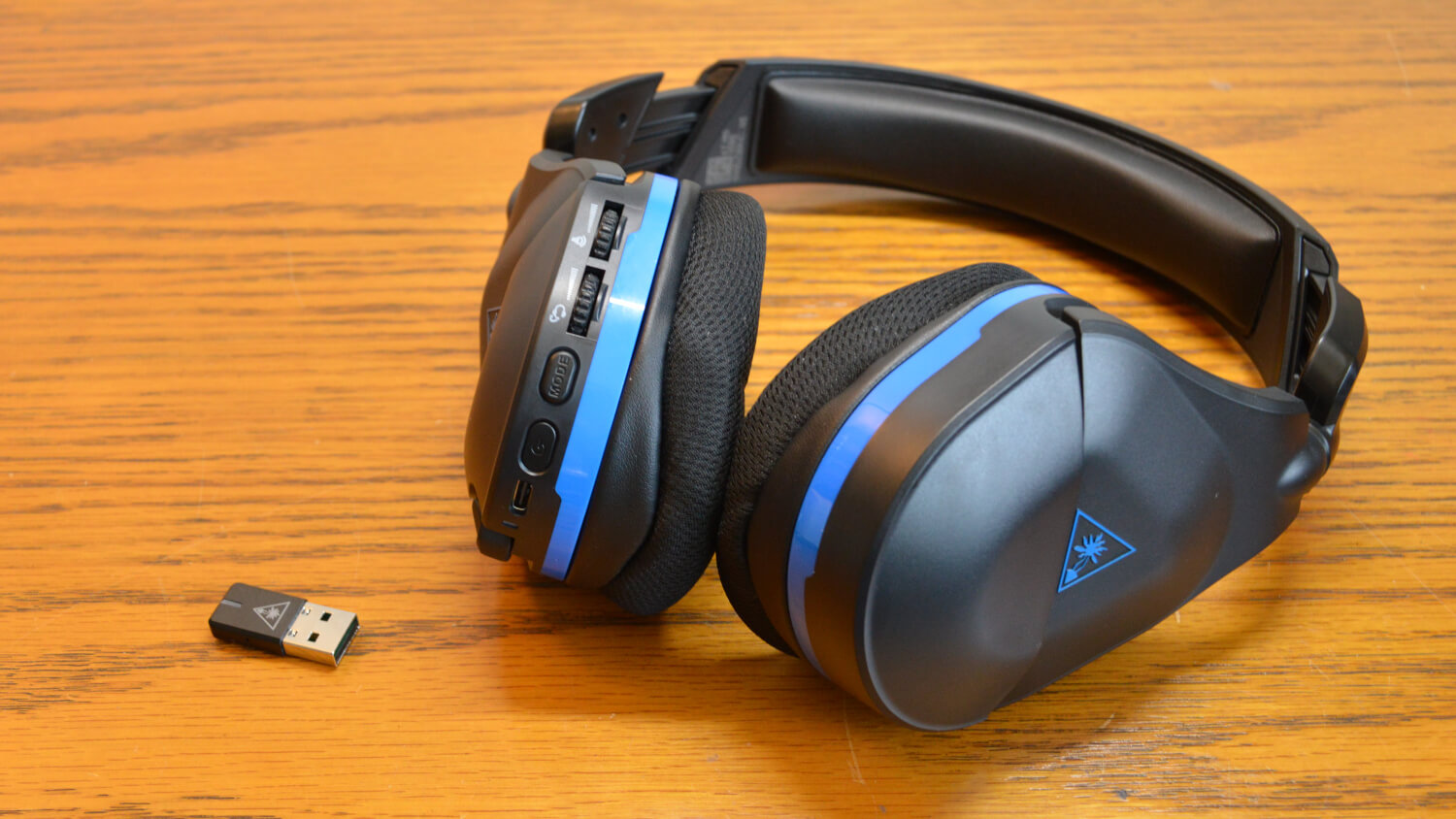
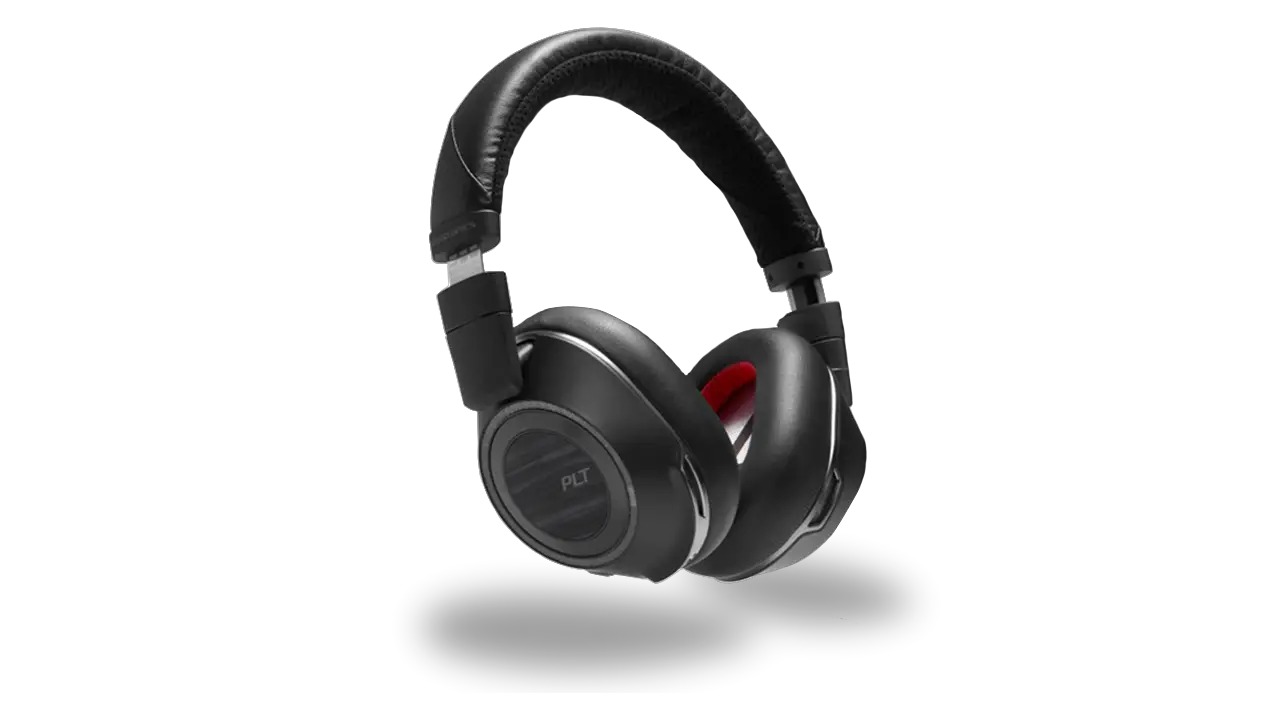
This headset setup guide starts with one rule: stop and identify exactly which headset you are holding before you do anything else. Look at how it attaches, because a permanently attached cable ending in a USB plug means one thing, a 3.5 mm jack means another, and no wire at all means something else entirely. Trace a wired model to its connector; a flat or rectangular USB-A or USB-C plug means you are dealing with a digital accessory, and you need to keep USB headset compatibility in mind. The device is identified by the system through its USB descriptors, not by simple audio jack detection. For wireless models, the model number is almost always printed in tiny text on the inside of the headband or on the bottom of one earcup, and you can use that number to tell what headset I have when checking manuals. Once you know the model, the single most important preparation step is understanding that 'pairing mode' is not the same as just turning it on. Most headsets require holding the power or wireless button for 5-10 seconds until a light flashes alternately blue and red, and skipping this step is the most common reason links fail. If your wired headset plugs into a USB port, it presents itself to the phone or computer as a USB audio device, which is how the system knows to route call controls and audio there instead of to the built-in speaker.
First-time hardware setup
Before the headset ever enters pairing or gets plugged into a phone, start by connecting the supplied USB cable to charge headset for the full initial time your manual specifies, which conditions the battery and may take anywhere from 1.5 to 5 hours. Finish your call before charging, as some models may power off when connected for charging, though others may allow use during charging; check your manual for details. While the battery tops up, take a moment to physically install headset on your body correctly, ensuring a secure and comfortable foundation for extended use. For a VR-style unit, follow the manufacturer's instructions to pull the straps over the back of your head, adjust the headset for a snug fit over the eyes, adjust side and top straps until the weight feels balanced, and adjust the lens distance with the slider until the image is sharp. On a traditional headset, adjust the fit so the drivers sit comfortably over your ears and the headband rests lightly on your head until it feels balanced and secure, as a poor fit can affect audio quality and microphone performance.
If your wired model terminates in a modular plug instead of USB-C or 3.5 mm, you will need the wiring specifications for that specific phone base.
Once charged and adjusted, you should wear headset properly by positioning the microphone boom close to your mouth for clear voice pickup, as correct positioning minimizes background noise and ensures your voice is heard distinctly by callers.
Pair or connect by brand
Getting a specific model into pairing mode almost always comes down to holding the right button long enough. If you need to pair a Blueparrott headset to my phone, the steps vary by model. For B350-XT, start with the headset powered off, press and hold the Multifunction button past the “Power on” prompt, and keep holding until the LED indicates pairing mode and you hear “Pair mode.” These models may maintain one active connection at a time unless you enable Multipoint. The process shifts when you need to pair Jabra headset with USB dongle. Before you can select the headset on your phone’s wireless device screen, you must first put my Plantronics headset in pairing mode, so the safest approach is to check the model number printed inside the headband and look up the exact button-hold duration for that unit. The same principle applies when you pair Sony headset, pair a Blueparrott headset to my phone, pair Bose headset, pair Poly headset, or pair BT600 to headset, as their steps follow a similar pattern but differ in the button name and how many seconds you hold it.
Connect to specific devices
When you need to connect headset to MacBook, open System Settings from the Apple menu , click Bluetooth, turn Bluetooth on, then find the headset in the device list and click Connect; if prompted, click Accept or enter the code. For an iPhone, go to Settings > Bluetooth, turn Bluetooth on, and tap the accessory name when it appears. The steps to connect headphones to phone on an Android device vary by model, so check your support page for the exact menu labels. If you need to connect Skullcandy headset that was previously paired, the most reliable starting point is to turn the headset off, then hold the power button until the LED flashes, as models differ in whether they re-enter pairing mode automatically or wait for a long press. To connect a Plantronics headset, some softphones require Plantronics Hub for Windows/Mac for call control. When the goal is to connect Panasonic phone to Bluetooth, remember that the handset’s own menu is where you initiate the search.
Power and basic controls
Before you join a call or head out on a ride, you need to know how to turn on Sena headset hardware without accidentally triggering a different function. On most current models, pressing and holding the designated power button combination for about one second powers the device up, and you will hear ascending beeps followed by a voice prompt confirming the battery level. To shut it down, a quick tap of the designated button combination typically plays descending tones and a “Goodbye” announcement, though a few older designs rely on a different button combination instead. Once the headset is live, tap the (+) Button to raise the volume and the (−) Button to lower it during a conversation or music playback. If you need to mute headset audio privately, press and hold the designated mute button combination for a full second, and repeating that gesture unmutes the microphone. Because button assignments can shift between firmware versions, opening the companion app on your device lets you confirm the exact layout for your unit after you use a wireless headset. You establish a link by pairing the headset to your phone through the standard wireless settings menu before launching the software.
Manage audio routing
On an iPhone, you control where call audio lands by opening Settings, then Accessibility, then Touch, then Call Audio Routing. You can choose Automatic, Bluetooth Headset, or Speaker. The setting applies to phone calls and FaceTime calls, not music or video playback. During a live call, removing a hearing aid from your ear will switch the audio back to the iPhone speaker. When you need to switch between speakers and headset on a Mac or Windows machine, you can select the correct output from the sound settings or system tray.
There is no system-level setting on an iPhone that lets you use speaker and headset at the same time for a single call, as the routing options send audio to one destination. On a computer, some softphone and streaming applications support splitting system audio and communication channels, which helps creators who want to use headset mic on Streamlabs while monitoring desktop sound through speakers.
Maintenance and background
You can unpair a device when you no longer need it linked to your phone, though the exact menu path to remove a headset varies by operating system and manufacturer skin. The most reliable approach is to open your wireless settings, locate the device in the saved list, and look for the option that reveals the Forget or Unpair option.
If you are looking to buy a blue Parrot headset, the official BlueParrott store is the primary purchase channel and, as of October 1, 2025, the brand’s products will only be available at BlueParrott.com. Some models have also launched through Amazon, Best Buy online, and select travel centers.
The question of when was the first headset invented does not have a single documented answer in the official support materials, though modern cordless headsets trace their lineage back to early aviation and telephone operator designs. Those early devices eventually evolved into the short-range wireless models recognized by the BlueParrott compatibility guide, which lists support for Apple, Samsung, and other smartphones across its product lines.
Frequently Asked Questions
How long do I hold the BlueParrott M300-XT button to enter pairing mode?
Press and hold the Multi-function button for about 6 seconds from the powered-off state until the LED flashes red and blue and you hear “Pair mode.” The headset can pair with up to 8 devices.
What is the exact pairing button sequence for a BlueParrott M500-XT?
Double-press the Multi-function button until the LED flashes red and blue. This differs from the long-press required on other BlueParrott models like the B350-XT or M300-XT.
Where do I find the pairing button on Sony WF-1000XM5 earbuds?
Place both earbuds in the charging case, open the lid, then press and hold the pairing button on the back of the case for 5 seconds or more until the indicator flashes.
Can I use my headset while it is charging?
It depends on your specific model. Some headsets power off automatically when connected to a charger, while others, like certain Philips models, allow normal use during charging. Check your manual for your unit’s behavior.
How do I connect an already-paired AirPods Max to a MacBook?
If signed in with the same Apple Account, they connect automatically. For manual pairing, hold the listening mode button until the status light flashes white, then open System Settings from the Apple menu, click Bluetooth, and click Connect.
What initial charge time does a headset with a charging case need?
One documented specification lists a 3-hour initial charge for a headset in its charging case. Always use only the supplied USB cable and follow the time stated in your specific model’s manual to condition the battery.