To use TikTok, you download the app, create an account, and start watching or making short-form videos. The platform's algorithm personalizes your "For You" feed based on your interests and interactions, making it easy to discover content without following anyone.
What is TikTok and how does it work?
TikTok is a short-form video-sharing platform that lets you create, watch, and share videos ranging from lip-syncs and dances to skits and talent showcases. The app uses an artificial intelligence algorithm to build a personalized feed based on the types of videos you select when you sign up, as well as your likes, comments, and shares. This means you see content you will love even if you do not follow the creators.
How to create a TikTok account
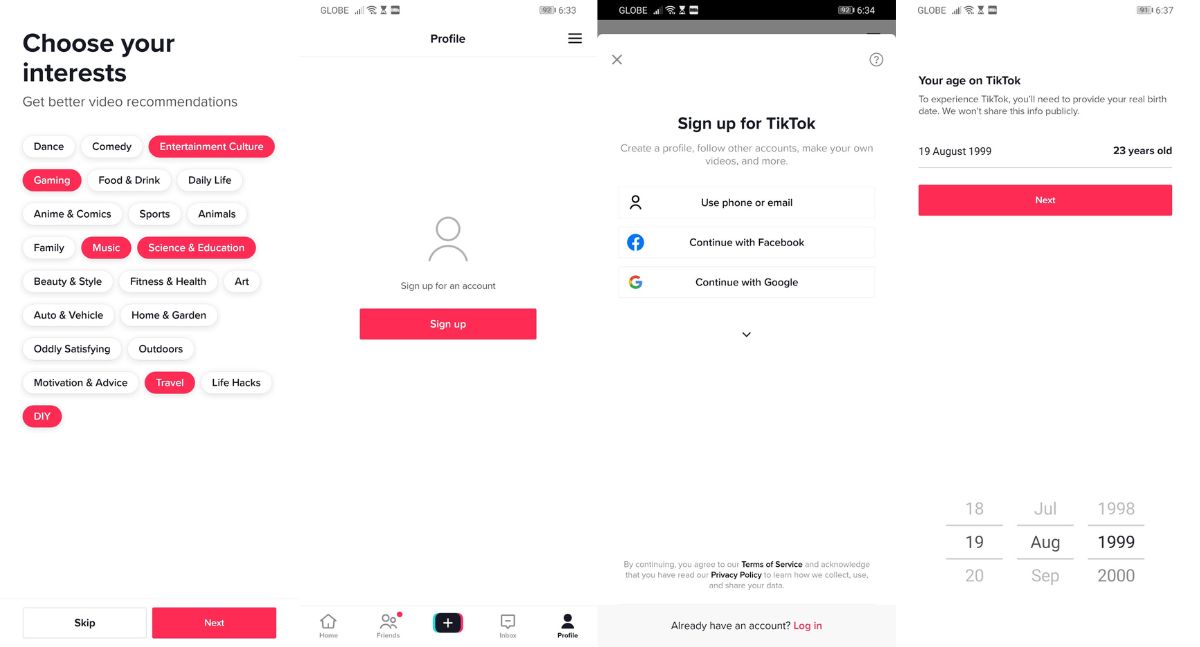
To create an account, download the TikTok app from your device's app store. Open the app, tap "Sign Up," and choose a sign-up method such as phone number, email, Facebook, Google, or Apple login. After downloading the app you first choose your interests (comedy, entertainment, talent, animals, beauty & style, sports, food, etc.) to help TikTok create personalized video recommendations. You will need to enter your birth date and create a username.
Navigating your TikTok feed: For You vs. Following
Your feed is split into two sections: For You and Following. The "For You" page shows a personalized stream created by TikTok's algorithm based on your chosen interests and your interactions with videos, such as likes, comments, and shares. The "Following" stream shows videos exclusively from the people you follow.
How to make and post your first TikTok video
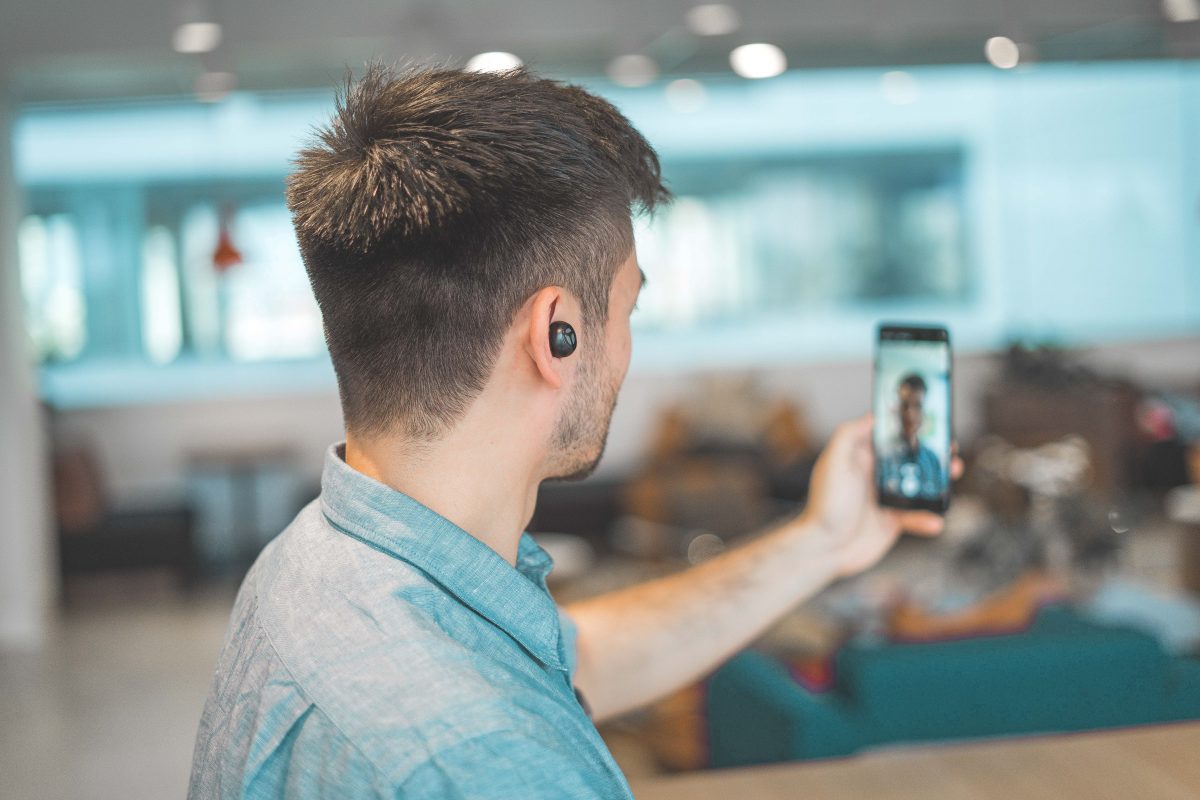
To post a video from your mobile device, tap the "Add post +" button (plus icon) at the bottom of the app. You can either record a new video directly within the app or tap "Upload" to select existing videos or photos from your device's gallery. To record, press and hold the red circle; recording stops when you lift your finger or reach the maximum length. Use the icons on the right side to flip the camera, adjust speed, or use beauty mode. After recording or uploading, you can trim the video, add effects, filters, text, and sounds. To participate in a TikTok challenge, go to the Search bar and type the hashtag or song you want to do, study the movements from existing videos, and use the same audio clips. You can start your own TikTok challenge using your original audio or songs from artists, TV shows, and video clips, choreograph your movement, and include your creative challenge hashtag in the description. Add a description with hashtags and tag friends, choose who can view the video (public, friends, or private), and tap "Post" to upload.
How to use TikTok filters and effects
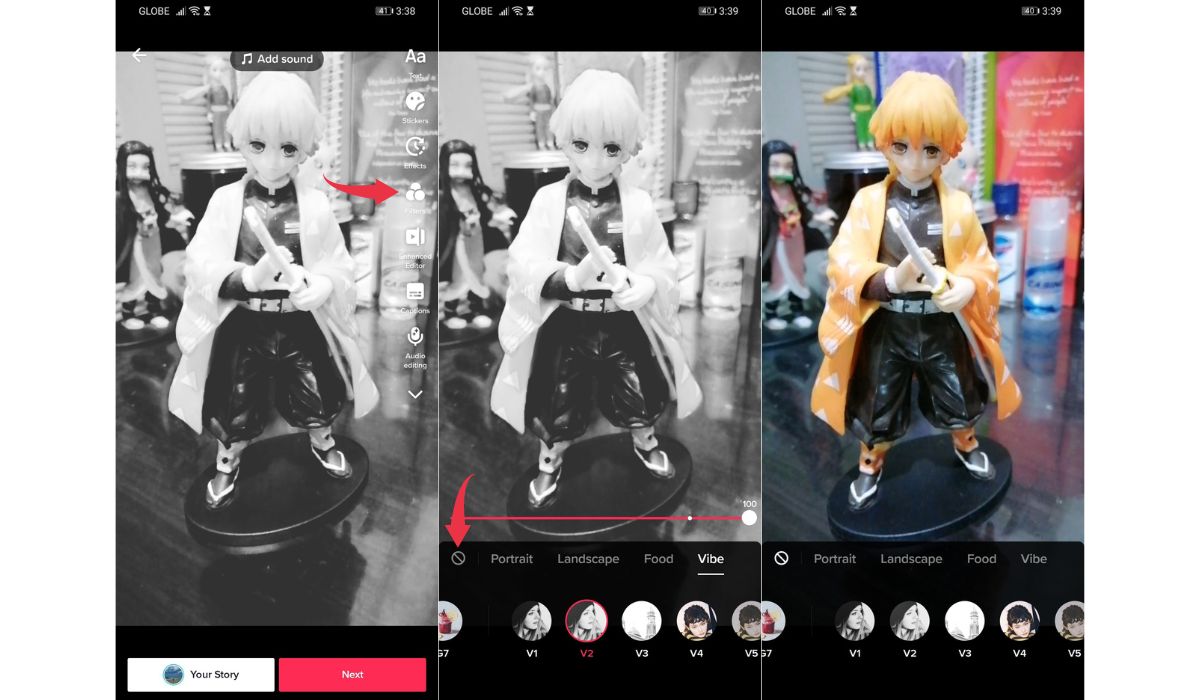
After recording or uploading a video, tap "effects" at the bottom of your screen. Scroll through options like visual filters, face effects, transitions, and split-screen effects. To apply an effect from the Visual tab, tap and hold on to the effect to apply it to the video; release the button when that part of the timeline has changed color to apply it to a portion only, or keep holding until the video has completely changed color to apply it to the entire video. Tap an effect to apply it, then adjust which portion of the video the effect appears on by moving the pink overlay on the timeline. Tap the play button to preview, then tap "Save" before posting.
How to Duet and Stitch on TikTok
The Duet feature lets you post your video side-by-side with another creator's video, with both playing simultaneously in a split screen. To create a Duet, find a video you wish to Duet, tap the "Share" button, and then select "Duet." Your account must be public for others to be able to Duet with your videos. The Stitch feature enables you to clip and integrate a snippet (up to five seconds) from another user's video into your own, playing the original clip first, followed immediately by your new video. To Stitch a video, find the desired video, tap the "Share" button, and then select "Stitch."
How to go LIVE on TikTok
To go LIVE on TikTok, users must be 18 years or older and typically need a minimum of 1,000 followers. An updated app version is also required. To go LIVE, click on the plus button at the bottom of your screen, then click on the 'Go Live' button. Add a description for your live video so your followers know what you are about, and avoid using banned words in the description. Banned words to avoid in your LIVE description include bff, duet, follow, etc.
How to message someone on TikTok
To send a direct message, ensure you are a follower of the person you want to message. Go to their profile and tap "Message." If the person does not follow you back and has not set their DMs to everyone, your message will remain unsent. To comment on a TikTok video, click the three-dotted icon on the right side of the screen, then click '@' to tag your mutuals and tap the face button to add emojis. To create a group chat, go to your inbox, tap the message icon at the top left, select a friend from your mutual followers list, then tap the three-dot icon inside the DM page and select "Group Chat." Choose more people to add and tap "Chat."
How to download TikTok videos
To save a TikTok video to your device, go to the video you want to download, tap the "Share" button, and select "Save Video." Wait for the download to finish, then locate the video in your camera roll. To share a TikTok video, click the 'save' button and share it on other social media accounts like Facebook, Messenger, Instagram, and more; you can also share it as a GIF or add it to your Favorites. Note that downloaded TikTok videos include a watermark for copyright protection.
TikTok privacy settings and account management
To make your account private, go to your "Profile," tap the "Menu ☰" button (three horizontal lines), then select "Settings and privacy" > "Privacy," and toggle "Private account" to "On." A private account ensures that only approved followers can view your profile and videos. To block TikTok users, go to the user's profile, click on the ellipsis button at the upper right of the screen, select 'Block,' and then tap to confirm. To delete a TikTok account, go to your profile, click the ellipsis button at the top right, go to 'Privacy and Settings,' then 'Manage my Account,' and at the bottom part click 'Delete account.' Your account will be permanently deleted after 30 days. For more control, explore the full TikTok Tips and Settings guide to customize your experience.

Frequently Asked Questions
Can I use TikTok if I am under 12 years old?
TikTok requires users to be at least 12 years old to create an account. You will need to enter your birth date during sign-up.
How do I find friends on TikTok?
Tap the search button at the bottom of your screen to search for usernames, or discover new people by checking out hashtags. You can also follow users who appear on your feed by swiping left to visit their profile.
Can I delete a single TikTok video without deleting my account?
Yes. Go to the video you want to delete on your profile, tap the three-dot icon on the right side of the screen, swipe left until you see the delete button, and confirm. The video will disappear immediately.
Why can't I message someone on TikTok?
You can only message users who follow you back, unless they have set their direct messages to allow messages from everyone. If the person does not follow you back and their settings restrict messages, your message will remain unsent.
What happens if I delete my TikTok account?
During this period, you can cancel the deletion by logging back into your account.