A passkey is a password replacement that lets you sign in to supported apps and websites using your device's built-in biometric verification, Face ID, Touch ID, or your device passcode, instead of typing a password. Instead of remembering or typing a string of characters, you simply confirm your identity on your phone, tablet, or computer, and the passkey handles the secure authentication behind the scenes.
What is a passkey?
A passkey is a modern, password-free sign-in method that replaces traditional passwords for supported apps and websites. On Apple devices, passkeys are created and saved in the Passwords app and stored in iCloud Keychain. On Android, they are saved in Google Password Manager or a third-party manager like Samsung Pass. In both cases, the passkey uses device-based verification, such as your face, fingerprint, or device PIN, so you never have to type a password again.
How passkeys work
Passkeys rely on public-key cryptography, a system where your device generates a unique pair of keys: a public key shared with the website or app, and a private key stored securely in your device's secure element (a dedicated, isolated chip). When you sign in, the website sends a challenge to your device. Your device uses your private key to sign that challenge, but only after you verify your identity with Face ID, Touch ID, or your device passcode. The website then checks the signature against your public key. Because the private key never leaves your device and is never transmitted, there is nothing for a hacker to steal, even if the website's server is compromised. This flow works the same way whether you are on an iPhone or an Android phone.
How to set up and use a passkey on iPhone
- Open the sign-in screen for a supported website or app.
- Tap the button or link to set up a new account, or sign in with an existing account and open account settings or management.
- When prompted, tap Continue to save the passkey.
- To sign in later, tap the account name field, select the suggested account name, then verify with Face ID, Touch ID, or your device passcode.
To delete a passkey on iPhone: open the Passwords app, tap Passkeys, tap the account, tap Edit, then tap Delete and Delete Passkey.
Requirements: iPhone with iOS 16 or later, iCloud Keychain turned on, and two-factor authentication enabled for your Apple ID. Passkeys sync through iCloud Keychain across all your approved devices signed in with the same Apple ID, and they work in Safari on supported models with Face ID or Touch ID.
How to set up and use a passkey on Android
- Go to the sign-in screen for a supported website or app.
- Choose the option to create a passkey or save credentials.
- Select where to save the passkey, Google Password Manager, Samsung Pass, Keeper, or 1Password.
- Confirm with your device’s screen lock (PIN, pattern, or biometric).
On Android, Google says passkeys can be saved in Google Password Manager or another third-party password manager such as Samsung Pass, Keeper, or 1Password. Google says passkeys saved in Google Password Manager can be used across devices when you are signed in with the same Google Account on Chrome or Android devices.
Requirements: Android 9 (API level 28) or higher for Credential Manager support.
Pros of using passkeys
- No password to type or remember. You sign in with your face, fingerprint, or device passcode, nothing to forget or mistype.
- Strong security against phishing. Because the private key never leaves your device and the website verifies you cryptographically, a fake login page cannot steal your credentials.
- Seamless syncing across approved devices. On Apple devices, passkeys sync through iCloud Keychain; on Android and Chrome, they sync through Google Password Manager when you are signed in with the same account.
- Convenient biometric verification. On iPhone, sign-in uses Face ID, Touch ID, or passcode; on Android, it uses your device’s screen lock or biometrics.
Cons of using passkeys
- Only works on supported apps and websites. Not every service supports passkeys yet, so you may still need passwords for some accounts.
- Requires iCloud Keychain and two-factor authentication on Apple devices. If these settings are off, Apple’s passkey features are not available.
- Minimum OS requirements. You need iOS 16 or later on iPhone, or Android 9+ for Credential Manager support; older devices are not supported.
- Platform dependency for syncing. Passkeys saved in iCloud Keychain do not sync to Android, and those in Google Password Manager do not sync to Apple devices, though you can use a third-party manager like 1Password for cross-platform access.
Frequently Asked Questions
Can I use a passkey on multiple devices?
Yes, but the method depends on your platform. On Apple devices, passkeys sync through iCloud Keychain across all devices signed in with the same Apple ID. On Android, they sync through Google Password Manager across devices signed in with the same Google Account. For cross-platform use, a third-party password manager like 1Password can sync passkeys between Apple and Android devices.
What happens if I lose my phone with my passkeys?
Because passkeys are synced through iCloud Keychain or Google Password Manager, you can recover them on a new device by signing in with the same Apple ID or Google Account. If you do not have syncing enabled, you may lose access to accounts that rely solely on passkeys.
Are passkeys more secure than two-factor authentication codes?
Passkeys are inherently resistant to phishing, which traditional SMS or authenticator app codes are not. A passkey cannot be intercepted or tricked by a fake website because the cryptographic challenge is tied to the actual website domain. However, passkeys do not replace the need for recovery methods or backup options.
Can I use a passkey with a website that also supports passwords?
Yes. Most services that support passkeys still allow you to sign in with your password as a fallback. You can choose to use the passkey for convenience and security, or continue using your password if you prefer.
Do passkeys work with location tracking and NFC?
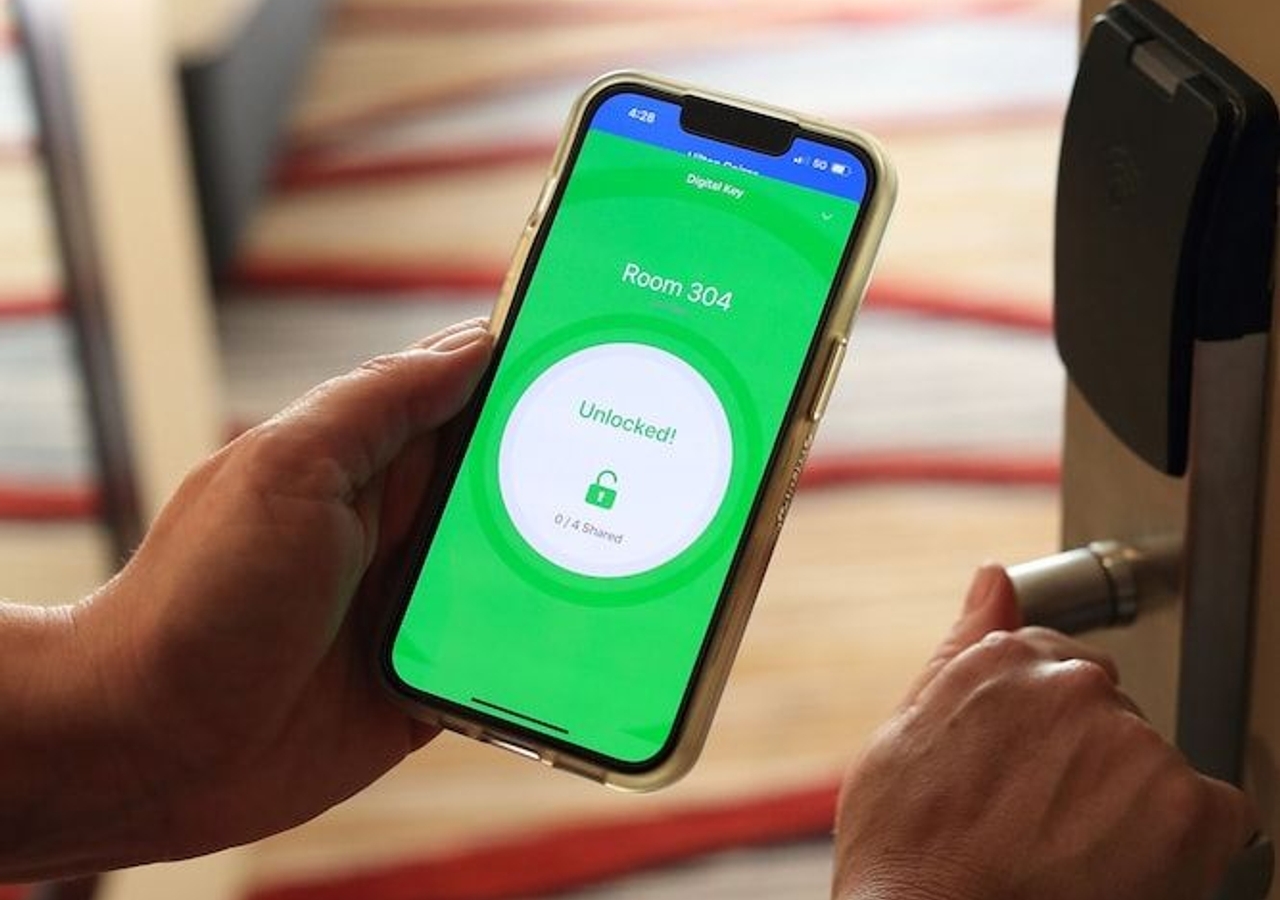
Passkeys themselves do not use location tracking and NFC; they rely on Bluetooth and internet connectivity to verify proximity between devices during cross-device authentication. Location tracking and NFC are separate features that can be used for other purposes like unlocking doors or sharing files.
Related reading: What Is Power Off?, What Is Portability?, and What Is A Power Distribution Unit (PDU)?.