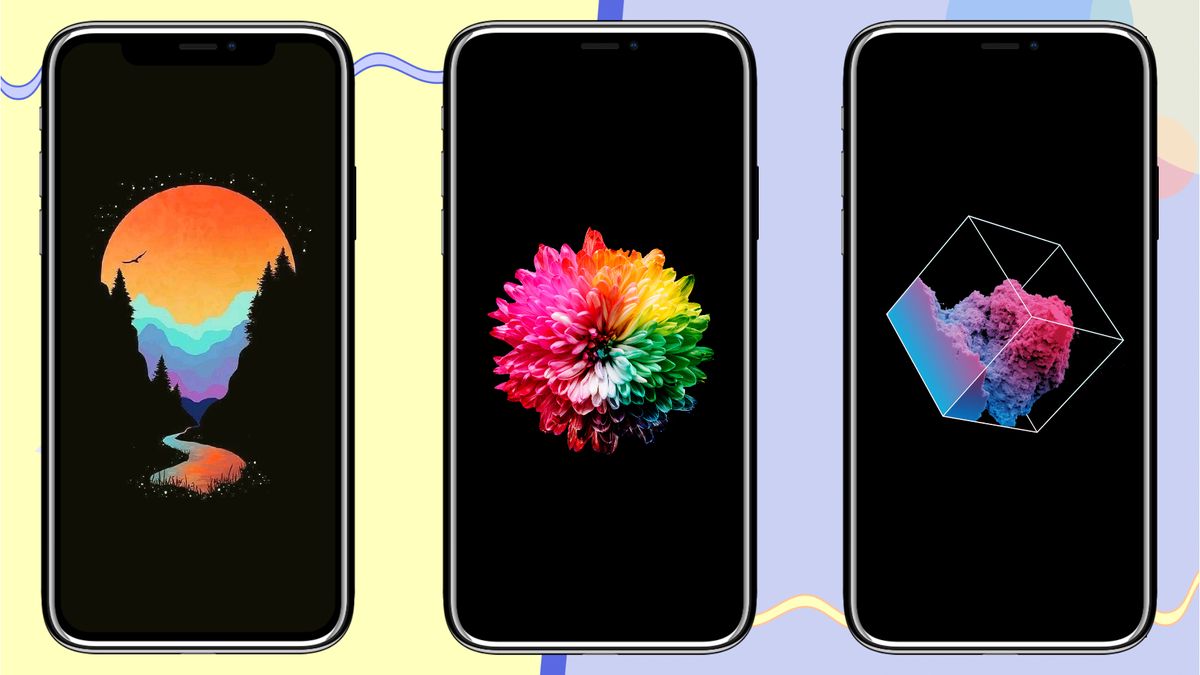
To make a wallpaper for your phone, you don't need complex design skills, you only need to pick the right photo, size it to your screen's resolution, and set it correctly. The entire process is about matching the image to your device's display, not about heavy editing.
Choosing the right image for your wallpaper
Start with a photo that's high-resolution, vibrant, and personally meaningful. A blurry or low-quality image will look worse on a modern screen, so check that the file is sharp. Choose an image with colors and contrast that appeal to you, and make sure it's in the correct orientation, portrait for most phones, since you'll be viewing it vertically.
Avoid images with important details near the edges, as your phone's clock, status bar, and app icons will cover those areas. The best wallpapers have the main subject centered or slightly off-center, leaving clean space at the top and bottom. If you're torn between two photos, test both, you can always change it later.
How to adjust the image size for a perfect fit
Before setting your image, find your phone's screen resolution. This is usually listed in your device's settings under "Display" or "About phone," or you can search online using your exact model number. Most modern phones use a resolution of 1080x1920 pixels (Full HD), but some use higher resolutions like 1440x3200.
- Open your phone's gallery or a photo editing app like Google Photos or Snapseed.
- Select your chosen image and tap "Edit" or the crop tool.
- Set the aspect ratio to your phone's screen ratio (typically 9:16 for portrait).
- Adjust the crop box to include the part of the image you want visible, then save the cropped version.
- If your phone has a higher resolution screen, use a photo resizing app to set the exact pixel dimensions (e.g., 1440x3200) without stretching the image.
Always export the final image as a JPEG or PNG to keep quality high. Avoid enlarging a small image, this causes pixelation. If you're using a computer, free tools like GIMP or online resizers can do the same job; just enter your phone's exact resolution.
How to set your custom wallpaper on an iPhone
Apple's iOS makes it easy to set a custom photo as your wallpaper, and you can even customize the Lock Screen with filters and widgets. Here's the verified method:
- Open the Settings app and tap "Wallpaper."
- Tap "Add New Wallpaper," then select "Photos" to choose your image.
- Pinch to zoom and drag the image to position it perfectly on the screen.
- Tap "Add," then choose whether to set it as the Lock Screen, Home Screen, or both.
- To customize further, tap "Customize" on the Lock Screen preview to add filters, change the clock font, or add widgets.
For a separate Home Screen look, set your Lock Screen first, then press and hold the Lock Screen and tap "Customize" to edit the Home Screen separately. You can apply a blur effect or solid color to make app icons stand out. A quicker method is to touch and hold your Lock Screen to open the wallpaper gallery and add a new one from there.
How to set your custom wallpaper on a Google Pixel
Pixel phones run stock Android, so the process is straightforward. Here's the verified way to change your wallpaper:
- Press and hold an empty space on your home screen.
- Tap "Wallpaper & style," then select "More wallpapers."
- Choose "My photos" from the bottom of the screen.
- Select your image, then adjust the crop and zoom as needed.
- Tap "Set wallpaper" and choose whether to apply it to the Home screen, Lock screen, or both.
You can also access this menu from Settings > Wallpaper & style. Pixel's interface lets you preview how the image will look with your icons before applying it. If you want a different image for each screen, set the Home screen first, then repeat the process for the Lock screen.
How to set your custom wallpaper on a Samsung Galaxy
Samsung's One UI offers more wallpaper options than stock Android, including the ability to use video wallpapers. Here's the verified method:
- Open the Settings app and tap "Wallpapers and Style."
- Tap "Change wallpapers," then select "Gallery."
- Choose your photo or video from your gallery.
- Adjust the crop and zoom, then tap "Done."
- Select whether to set it for the Home screen, Lock screen, or both.
Samsung lets you set different images for the Home and Lock screens, just tap "Set on Home screen" or "Set on Lock screen" after selecting the image. For videos, you can trim the clip to your preferred length. The same menu also lets you apply a color filter or blur effect to the Lock screen for better readability.
Go beyond photos: create dynamic and AI wallpapers
Modern phones can "make" wallpapers for you automatically, saving you the effort of manual editing. These features are built into the operating system and require no third-party apps.
On iPhone, the "Photo Shuffle" feature rotates through multiple photos on your Lock Screen at set intervals like "On Tap," "On Lock," "Hourly," or "Daily." This is perfect for people who want a fresh look throughout the day without changing wallpapers and themes manually. iPhones also support "Spatial Scene" wallpapers on iPhone 12 or later with iOS 26, which transform certain photos into 3D scenes that react to your device's motion.
Google Pixel devices include the "Emoji Workshop" in Wallpaper settings, letting you create custom emoji patterns as your wallpaper. Pixel 8 and later models also feature an AI wallpaper generator that creates unique images based on text prompts you type, just describe what you want, like "sunset over a neon city," and the phone generates it. This is the easiest way to get a one-of-a-kind wallpaper without any design skills.
Samsung offers a "Dynamic Lock screen" service that automatically changes your Lock Screen wallpaper from selected image categories, like "Landscapes" or "Art." For even more control, Samsung devices with One UI 6.1 or later can generate AI wallpapers under Settings > Wallpapers and Style > Change wallpapers > Creative > Generative. You can type a prompt or choose from pre-made styles, and the AI creates a matching image for your screen.
These dynamic options are great if you're tired of static images or want to change wallpaper on Android without opening a gallery app. They're also perfect for showcasing your favorite photos without needing to manually resize each one, the system handles the cropping and scaling for you.
Frequently Asked Questions
What's the best resolution for a phone wallpaper?
Use your phone's exact screen resolution for the sharpest result. For most modern phones, that's 1080x1920 pixels, but you can check your settings or search online for your model. If you don't know the exact number, choose a high-resolution image (at least 1080 pixels wide) and crop it to your screen's aspect ratio (usually 9:16).
Can I use a video as my phone wallpaper?
Yes, but only on certain devices. Samsung Galaxy phones allow video wallpapers on the Lock Screen, and iPhones support Live Photos (short video clips) on the Lock Screen. Google Pixel phones don't support video wallpapers natively, but you can use third-party apps like Video Live Wallpaper for this purpose.
Why does my wallpaper look blurry after I set it?
This usually happens when the image is lower resolution than your screen, or when the phone applies a zoom effect to fill the screen. To fix this, use a higher-resolution image or resize it to your exact screen dimensions before setting it. Also, check if your phone has a "blur" or "dim" toggle for the Lock Screen that you can turn off.
Can I set different wallpapers for my home and lock screens?
Yes, most modern phones let you set separate images for the Home and Lock screens. On iPhone, you'll see a "Set" button after choosing an image, and you can pick "Set Both" or choose one screen. On Android, look for a "Set wallpaper" option that lets you select "Home screen," "Lock screen," or "Both", this is available on Pixel and Samsung devices.