Understanding the basics of phone wallpaper
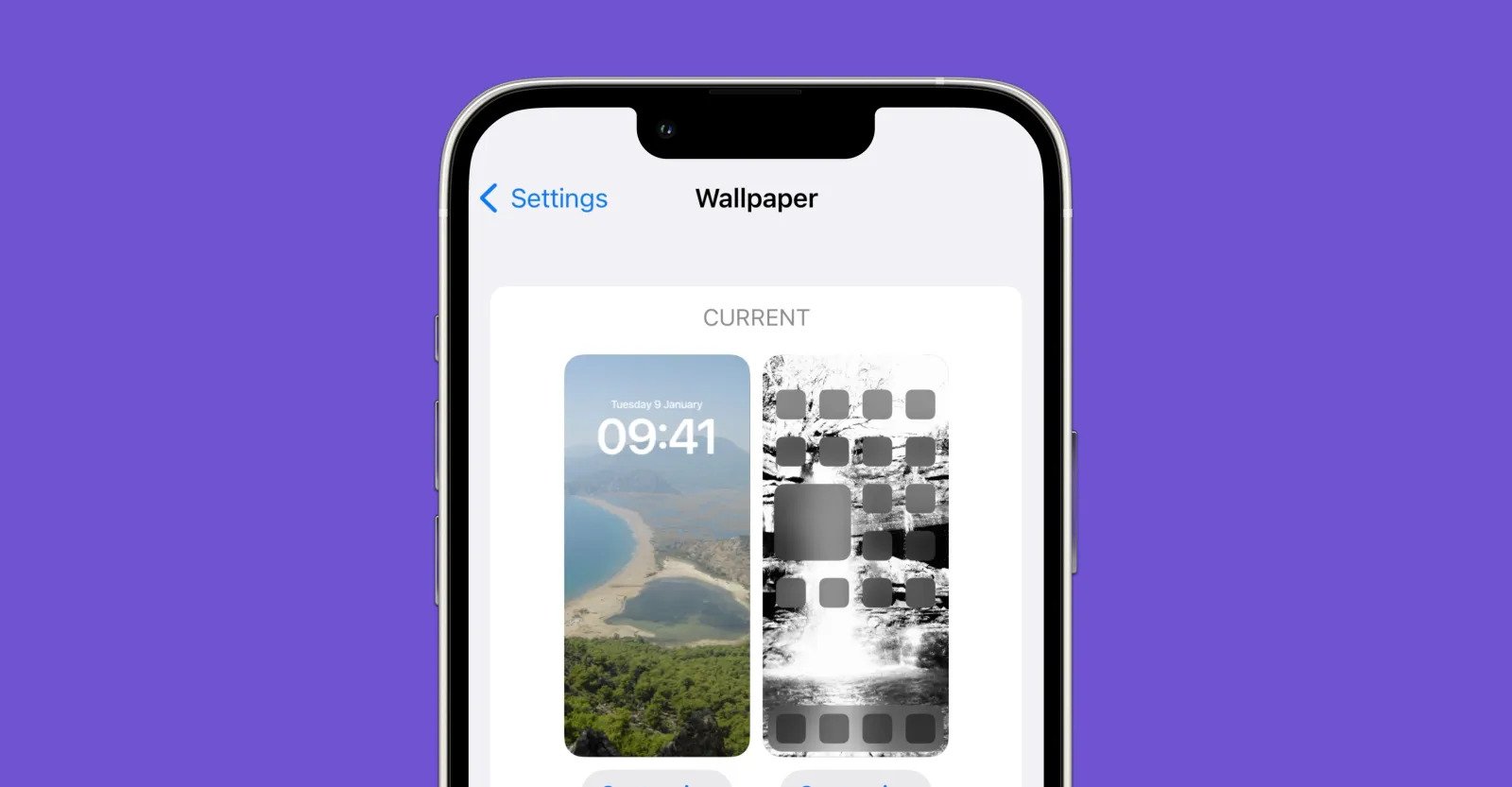
When you want to change phone wallpaper, it helps to separate the backdrop from a full system overhaul. An image or motion graphic sits on your Home Screen and Lock Screen, and on an iPhone you can even set these independently by visiting Settings > Wallpaper > Add New Wallpaper and tapping a category like Photos or Color before tapping Add. A theme, by contrast, is a broader package that can swap out app icons, fonts, and accent colors, though its exact behavior varies so widely between manufacturers that official help pages rarely define it.
Before you download anything, it helps to understand that many customization tools arrive as APK files for Android apps, the package format used to install software outside of the Play Store. The display also includes a screensaver that activates when the phone is idle or docked, and you can change screensaver on Android by going to Settings > Display > Screen saver on a Pixel, or Settings > Display > Use screen saver on supported Motorola models. If you would rather build something from scratch than browse a gallery, you can make a wallpaper for your phone using built-in gradient tools or a personal photo, and modern systems will often let you apply a depth effect that separates the subject from the clock on the lock screen.
Changing your main wallpaper
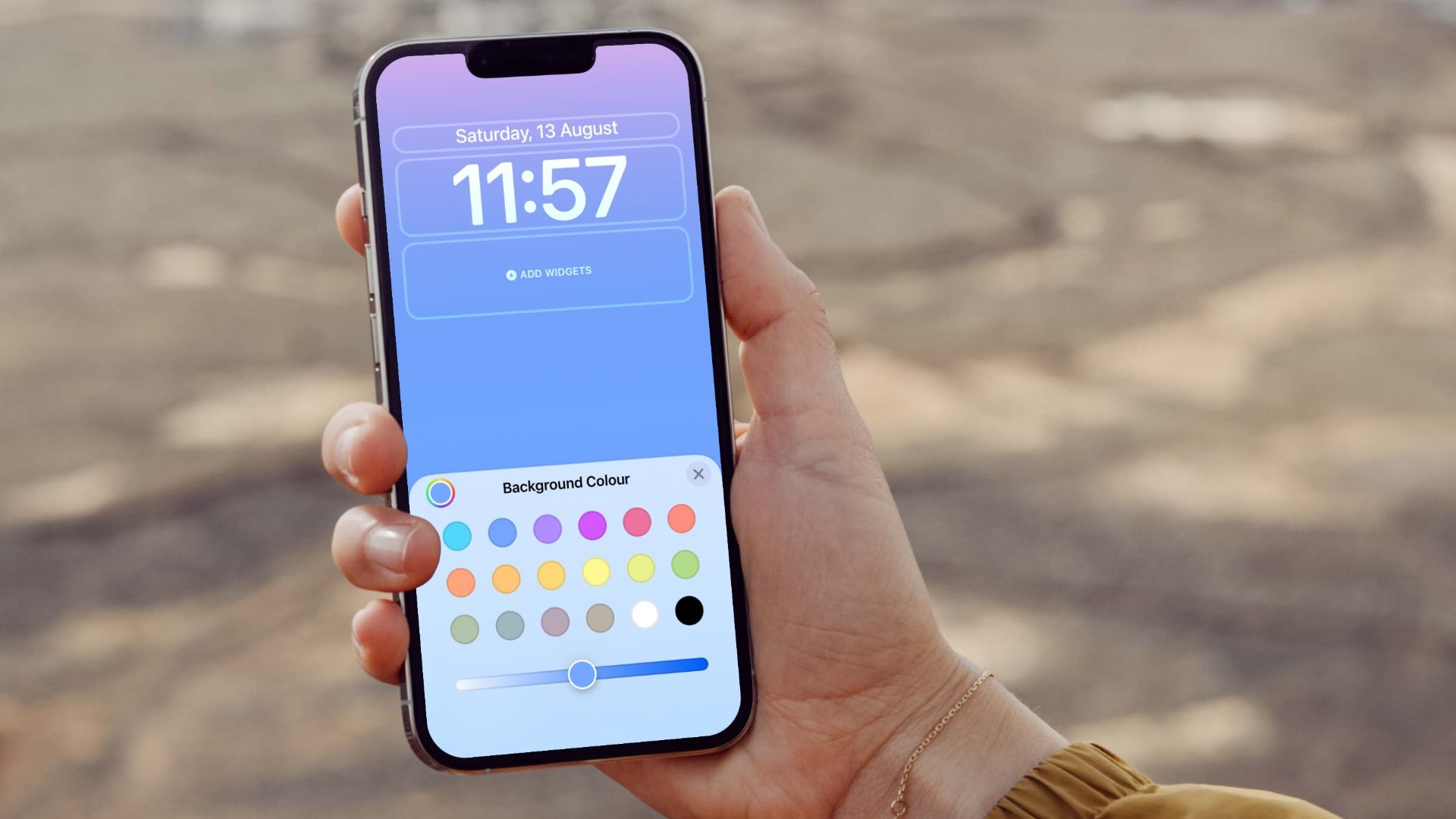
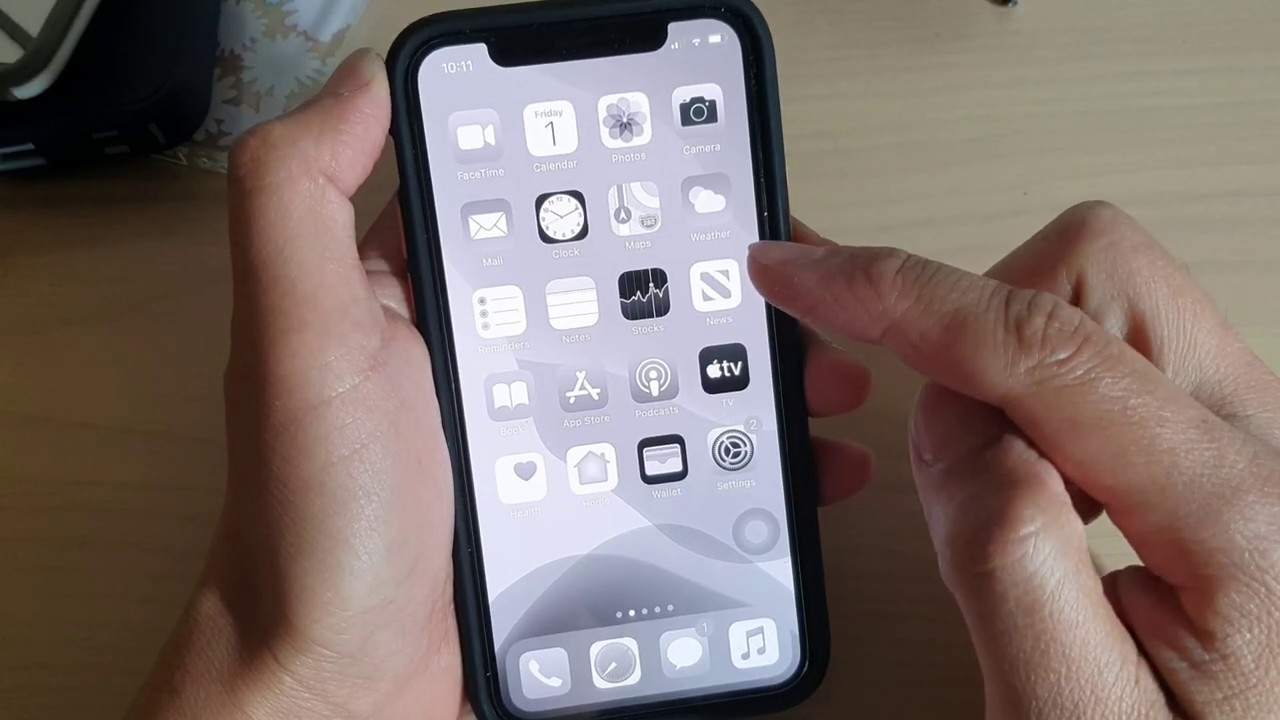
Whether you want to freshen up your home screen with a family photo or simply swap a dark display for something brighter, the process starts in the same place on most devices. On an iPhone, you can reach the full gallery by touching and holding the Lock Screen until the carousel appears, then tapping the plus button, and you can learn more about how to change the wallpaper on your iPhone & iPad. This path gives you access to dynamic options like Photo Shuffle and Weather that update throughout the day. If you have a specific vision in mind, such as a need to change background from black to white on iPhone 11, you would open Settings > Wallpaper > Add New Wallpaper and choose a Color backdrop, then apply it as a pair or customize the home screen separately.
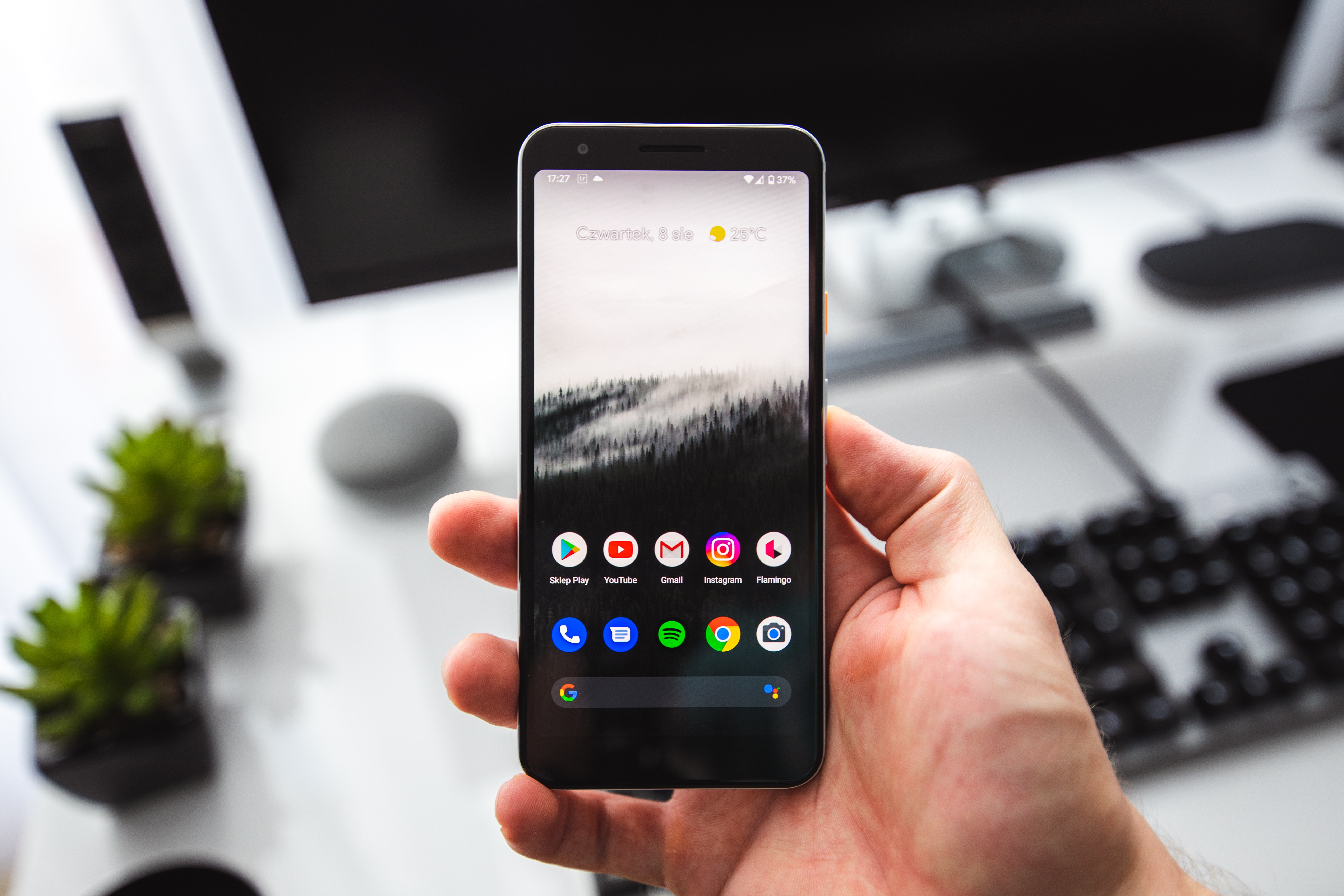
Google’s mobile operating system offers a different but equally direct route. When you need to change wallpaper on Android, pressing and holding an empty area on the home panel typically reveals a Wallpaper & style shortcut. For instance, to change the wall paper on my Google phone, I would long-press the home screen, tap Wallpaper & style, and choose from categories like My photos or the curated collections that ship with Pixel devices. This method puts a fresh scene just a couple of taps away, whether you prefer a personal snapshot or a system design.
Customizing your lock screen
When you want to change lock screen on Android, the options can feel scattered because every manufacturer builds its own controls. On a recent iPhone, press and hold the Lock Screen, tap Customize, then tap the time to pick a new font and color. Many people specifically want to change lock screen on iPhone to a gradient color in iOS 16, but Apple's current instructions may not document a gradient fill for the backdrop. If you own a Realme phone and the default time display feels too small, you can change clock style on lock screen on Realme by opening Settings, navigating to Home screen, Lock screen & style, and picking a Flux theme that supports a large clock style like Chase the Light. One common annoyance is carrier text sitting at the top of the display, and you may search for a way to get rid of Verizon wireless on lock screen, but official Verizon sources do not show a supported setting for removing that branding, so the path forward depends on your carrier and software version.
Applying themes and icons
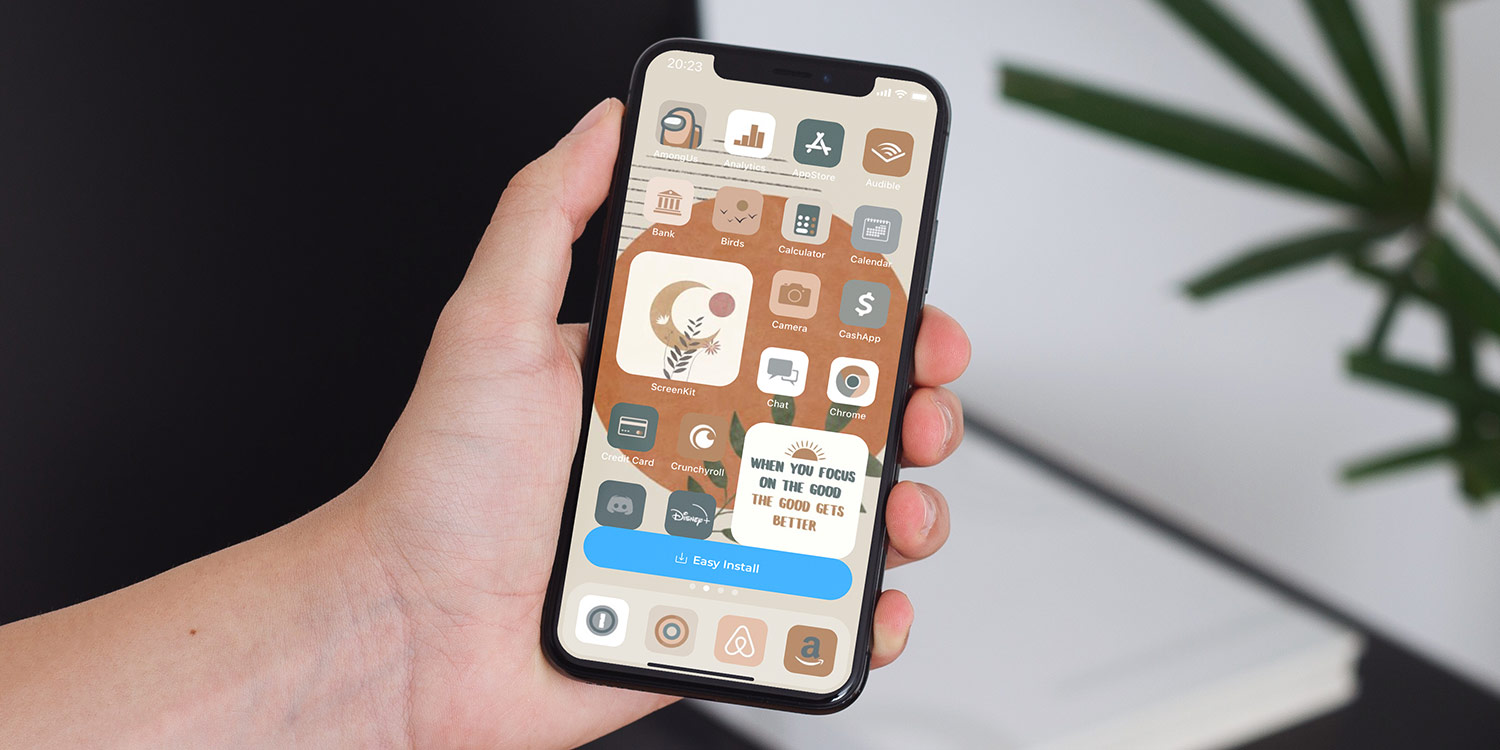
When a simple background image isn't enough, applying a full theme or swapping individual icons transforms the entire feel of your phone. On an iPhone, you can change the appearance of app icons directly from the Home Screen by touching and holding an empty area, tapping Edit, then Customize to choose options like Dark or Tinted. If you prefer a more drastic overhaul, the steps to change theme on iPhone 13 begin in Settings > Wallpaper > Add New Wallpaper, where you can customize the Home Screen. Samsung Galaxy owners have a dedicated Themes store that can alter the lock screen and home screen imagery in one tap. Once you know how to move icon on Android phone by dragging it to a new spot on the grid, you can reorganize your layout to match the fresh aesthetic. Getting a newly installed tool into view is straightforward when you put app on home screen Android by long-pressing it in the app drawer and dragging it onto a page, and the process is similar when you add apps to home screen on Samsung S20 by opening the Apps tray, touching and holding the desired shortcut, then lifting your finger on a Home page. You can change the swipe on iPhone home screen experience by dragging an app or widget to the right edge to move it to another page, which remains the primary method for rearranging your spaces.
Personalizing profiles and avatars
Your personal picture reaches beyond the lock screen, showing up in group chats and shared contact cards. On an iPhone, you can change my avatar on iPhone directly through the Contacts app by editing your own My Card and tapping the photo area, and you can toggle Name & Photo Sharing to control whether that image appears to others in Messages. For Samsung users, the approach is tied to the texting app itself; when you change profile picture on Samsung phone using the Samsung Messages app, tapping your profile icon reveals options to pick a gallery photo, a preloaded icon, or an AR Emoji before cropping and saving. The look of your conversations can shift, too, though the controls differ from a universal setting. If you want to change text message background on iPhone 13, Apple documents a per-conversation feature where tapping the contact icon inside a thread lets you apply a custom photo backdrop, changing only that specific chat.
Customizing accessories and other devices
Your phone’s look can spill beyond the display and into the physical world. It starts with a simple strap or bead threaded through a small eyelet on your case. When you add phone charm to a modern device that lacks a dedicated lanyard slot, you typically loop it through a case opening or a dust-plug anchor, checking that the attachment does not block any microphone holes. The same principle holds if you use cell phone charms on a clear case by sandwiching the loop between the phone and the interior of the case, which keeps the charm visible without interfering with buttons.
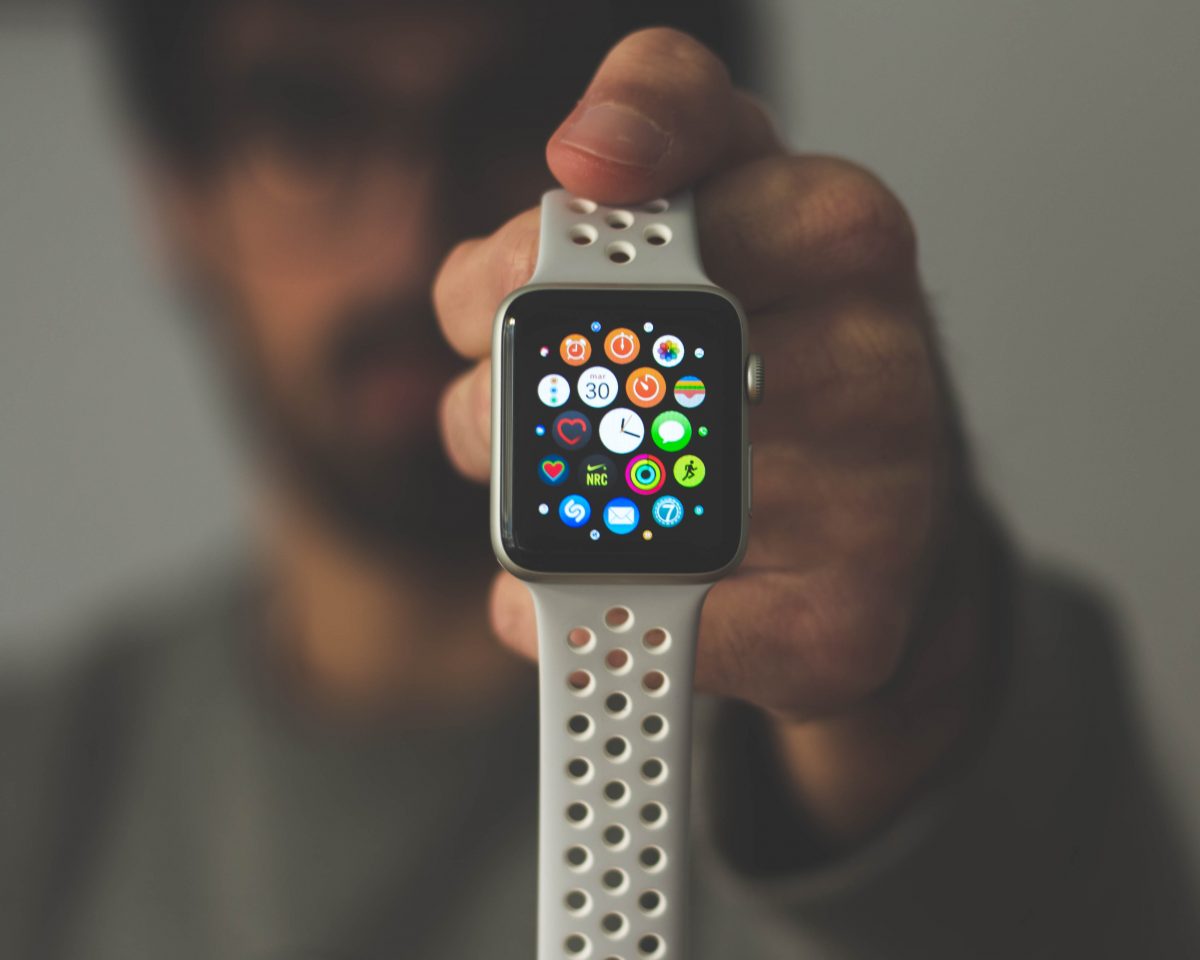
Moving to your wrist, you can change Apple Watch wallpaper by opening the Watch app on the paired iPhone, tapping Face Gallery to browse and add new faces, then customizing them with different colors, styles, and complications, a quick way to personalize your smartwatch without needing a computer. For gaming spaces, the customisation flows from your handset to the big screen. To put a picture on your Xbox one background from your phone, you first upload the image to OneDrive, then open the Xbox’s Media Player or set it as the backdrop through the console’s settings after syncing, giving you a custom dashboard that matches your phone’s vibe. Similarly, you can change your PS4 cover image on your phone by sending your chosen picture to a friend or alternate account through the PlayStation App, then opening that message on the console, taking a screenshot, and applying it from the Capture Gallery, ideal for keeping your profile fresh without turning on the TV. Even virtual spaces join in when you use customizable phone case kit in Animal Crossing at any workbench to apply a pattern you designed, letting your in-game character carry a matching aesthetic that mirrors your real-world style.
- put a picture on your Xbox one background from your phone
- use customizable phone case kit in Animal Crossing
- change your PS4 cover image on your phone
- change Apple Watch wallpaper
- use cell phone charms
- add phone charm
Managing sounds and extras
Once your icons and layout feel right, the final layer of personalization comes from the sounds you hear and the spaces where you work. Your phone’s alert tones don’t have to be limited to the preloaded list, and you can set a ringtone from files on iPhone using GarageBand to select a downloaded audio file, trim the clip, and export it as a ringtone that then appears under Settings > Sounds & Haptics > Ringtone. This same impulse to customize extends into your daily tools, where a stark white slide deck can feel jarring against a dark system theme. To soften that contrast, you simply open a presentation, tap the three-dot More menu, and choose to change background color on Google Slides mobile by picking a solid fill or gradient that matches your workflow. These adjustments are small, but they tie your entire device together, making it feel less like a generic tool and more like a space you built for yourself.
Frequently Asked Questions
What is the path to change screensaver on a Google Pixel?
Open Settings > Display > Screen saver on your Pixel phone. The exact screensaver options you see will depend on your current Android version and which apps you have installed that support the feature.
Can I change the clock font size on a Realme lock screen?
Yes, on the Lock screen edit page tap the large clock to set both the clock style and font size. This only works with Flux themes that support a large clock style, such as Chase the Light or The Contrarian.
How do I make app icons larger on my iPhone Home Screen?
Touch and hold an empty area on the Home Screen until the icons jiggle, then tap the Customize button. From there you can choose a larger icon appearance alongside options like Dark, Auto, or Tinted.