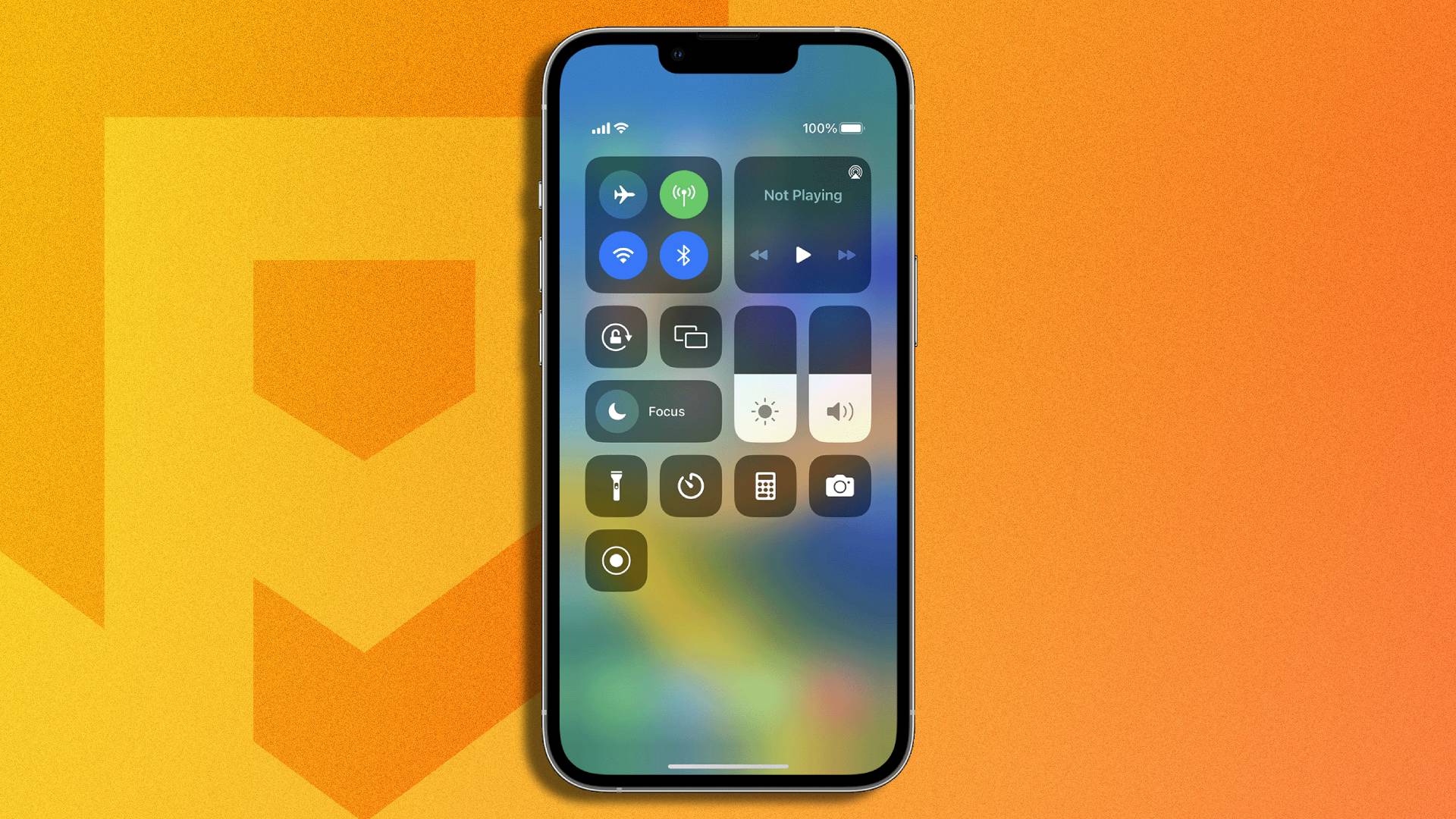
To screen record on iPhone 14 Plus, swipe down from the top-right corner to open Control Center, then tap the gray Screen Recording button. After a 3-second countdown, your screen is being recorded, and the video automatically saves to the Photos app.
How to screen record on iPhone 14 Plus: The complete step-by-step.
How to screen record on iPhone 14 Plus: The complete step-by-step process from opening Control Center to finding the saved recording, including enabling the feature if missing
- Swipe down from the top-right corner of the screen to open Control Center.
- If the Screen Recording button (a solid circle inside a larger circle) is visible, tap it. If it is not visible, follow the steps below to add it first.
- Wait for the 3-second countdown to finish.
- Swipe up or tap the screen to dismiss Control Center, then perform the actions you want to record.
- To stop, tap the red recording indicator at the top of the screen, then tap Stop. Alternatively, open Control Center and tap the red Screen Recording button.
- Open the Photos app and go to the Library tab to find your saved screen recording.
Add Screen Recording to Control Center if it is missing
If the Screen Recording button does not appear in Control Center, you need to add it through the Settings app. To add Screen Recording to Control Center, go to Settings > Control Center > Customize Controls, then tap the green plus icon next to Screen Recording under More Controls.
- Open Settings and tap Control Center.
- Tap Customize Controls.
- Under More Controls, find Screen Recording and tap the green plus icon next to it.
- Exit Settings. The Screen Recording button will now appear in Control Center.
Record your screen with audio
To capture audio while you screen record on iPhone 14 Plus, touch and hold the Screen Recording button in Control Center. Tap the Microphone icon to turn it on (it will turn red when active), then tap Start Recording. Your device’s microphone will now record sound along with the screen activity. You can enable 'Show Touches' in screen recording settings to make your taps visible in the recording. You can choose between High Efficiency and Maximum Compatibility video quality in screen recording options.
Stop the recording and find the video
You can stop a screen recording in two ways:
- Open Control Center and tap the red Screen Recording button.
Once stopped, the recording is automatically saved to the Photos app. Screen recordings are saved in the Photos app under Albums > Media Types > Screenshots & Screen Recordings, not just the Library tab. To delete screen recordings, tap Select in the Photos app, choose recordings, then tap the trash icon. You can transfer screen recordings to a computer by connecting your iPhone 14 Plus and using iTunes or Finder.
Frequently Asked Questions
Can I record a conversation on Android phone?
Yes, Android phones with the built-in Screen record control let you record your screen and audio. Swipe down twice to open Quick Settings, tap Screen record, choose your audio and touch settings, then tap Start. To stop, swipe down and tap the Screen recorder notification. If you need to know how to record a conversation on Android phone, the built-in tool works for capturing on-screen audio and microphone input, but always check local laws before recording conversations.
Does screen recording on iPhone 14 Plus have a time limit?
You can record for as long as your available storage allows. Longer recordings take up more storage space and require more processing power, so be mindful of device resources.
Can I edit my screen recording after saving it?
Yes. Open the screen recording in the Photos app, tap Edit, and use the built-in tools to trim the video, adjust brightness and contrast, add filters, or apply other changes.
Will screen recording capture audio from phone calls or FaceTime?
Screen recording with the microphone on will capture sound from your device’s microphone, but it may not capture the other person’s audio during calls or FaceTime due to privacy protections built into iOS.
Does screen recording work with streaming apps like Netflix or Disney+?
Many streaming apps block screen recording due to copyright restrictions. When you try to record, the video may appear black or the recording may stop automatically.