Learning how to screen record mobile games is simple because both Android and iPhone include built-in tools that require no extra downloads. You can capture your best plays directly from the Play Games app on Android or the Control Center on iPhone.
How to screen record mobile games on Android
Android offers two verified built-in methods for recording gameplay: the Google Play Games app with its floating video bubble, and the general Android Quick Settings screen recorder. Both are free and do not require third-party apps.

Record gameplay with the Google Play Games app
You need Google Play Games’ latest version plus an Android Lollipop OS to use this feature.
- Open the Play Games app on your Android device.
- Choose a game from your library or the home screen.
- Tap Record gameplay at the top of the game details page.
- Select the video quality you want, then tap Next. The video quality choices in Google Play Games are 420P (Standard) and 720P (HD).
- Tap Launch to start the game.
- After the floating video bubble appears on your screen, tap Start recording. Recording begins after a 3-second countdown.
- To stop recording, drag the floating bubble to the center of the screen and hold it over Close.
This method is ideal if you want a dedicated recording tool that stays out of your way while you play. The floating bubble can be moved anywhere on the screen, similar to how you might take a screenshot on my Android by pressing a button combination.
Use Android's built-in screen recorder from Quick Settings
- Swipe down twice from the top of your screen to open Quick Settings.
- Tap Screen record. If you do not see it, tap Edit and drag Screen record into your Quick Settings.
- Choose what to record and tap Start. The recording begins after a countdown.
- To stop, open Quick Settings again and tap the recording notification.
This method works for any app, not just games, and is useful when you need a quick recording without opening another app. AZ Screen Recorder has a front-facing camera for game streams or commentary, a built-in video editor, no watermarks, no time limits, and a pro version that costs $2.99.
How to screen record mobile games on iPhone
Apple includes a screen recording feature in Control Center that works with any game. The stop method differs by model, but the setup is the same. Replaykit is an inbuilt function on iPhone/iPad games that prompts you to edit or save after each level completes. You can find out if a game is Replaykit-enabled by looking for the record button on the game's main menu or corners. Replaykit asks if you want to record with screen and microphone, or mic only.
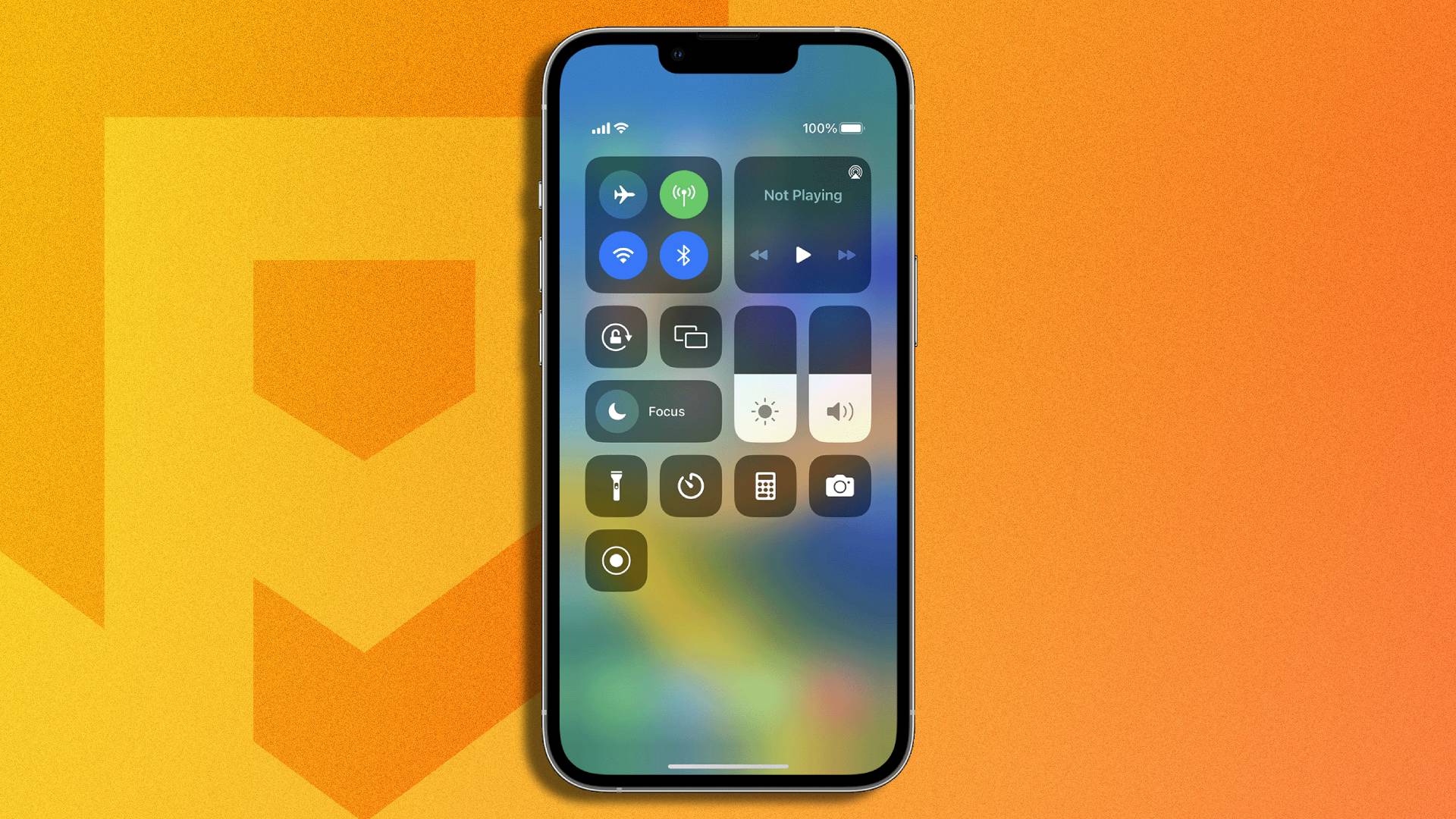
Add Screen Recording to Control Center
- Open Settings and tap Control Center.
- Tap the green plus sign next to Screen Recording to add it to your Control Center.
Start and stop a recording
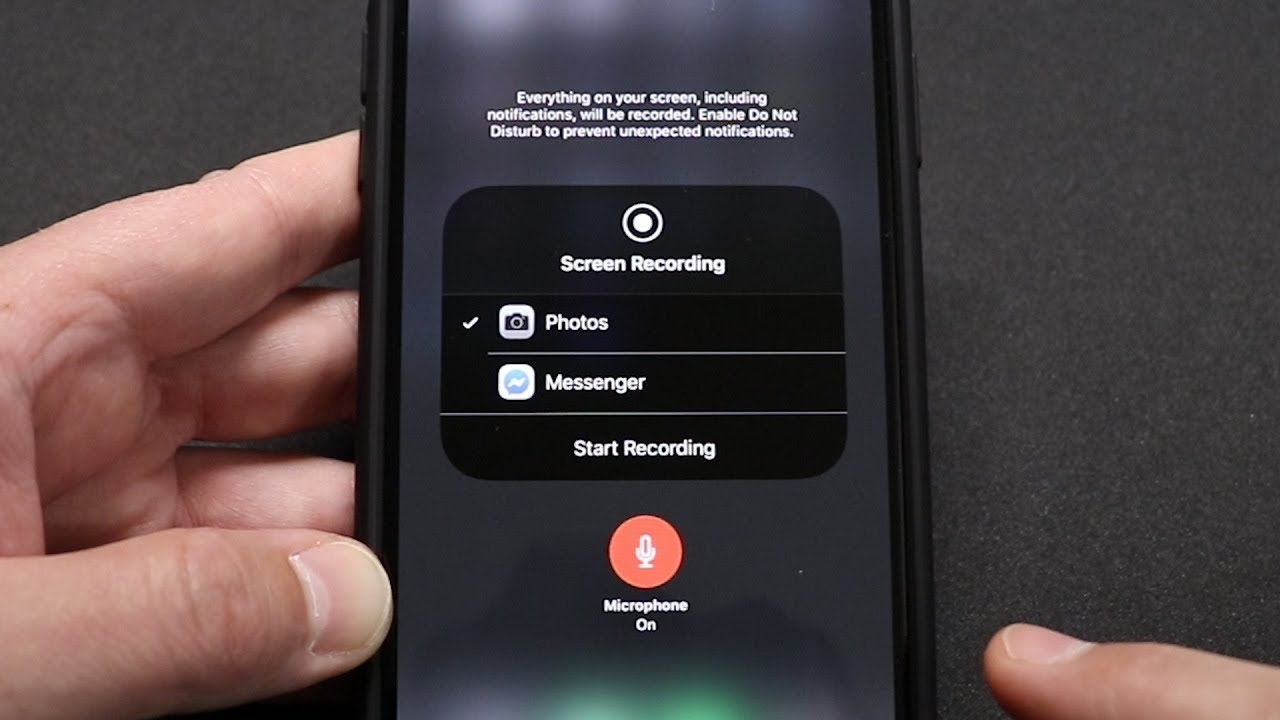
- Tap the Screen Recording button. A 3-second countdown appears before recording starts.
- Exit Control Center and play your game. The recording continues in the background.
- To stop recording on iPhone X and later, tap the red timer in the top-left corner of the screen. On other models, tap the red timer in the top-left corner and then tap Stop. Alternatively, open Control Center and tap the red recording button.
Turn on your microphone for commentary
Before starting a recording, long-press the Screen Recording button in Control Center. Tap the Microphone icon to turn it on, then tap Start Recording. Your voice will be captured along with the game audio. A similar audio option is available in Android's Quick Settings screen recorder, where you can choose to record audio from the device, microphone, or both.
Frequently Asked Questions
Can I record internal game audio without background noise?
On iPhone, the built-in screen recorder captures game audio automatically when microphone is off. On Android, the Quick Settings recorder lets you choose between device audio, microphone audio, or both.
Will recording affect my game performance?
Recording uses system resources, so you may notice slight lag on older devices. Both built-in tools are optimized to minimize impact, but closing other apps can help maintain smooth gameplay.
Where are my recordings saved?
On iPhone, recordings save to the Photos app.
Can I record while using a VPN or screen mirroring?
Yes, both built-in recorders work alongside VPNs and screen mirroring. However, some streaming apps may block recording due to copyright restrictions.
Do I need an internet connection to record?
No, both Android and iPhone screen recorders work offline. You only need an internet connection if you plan to stream or upload the recording immediately.
Related reading: 20 Best Mobile Games Like Skyrim for Android and iPhone and How To Screen Record With Audio On Discord Mobile App.