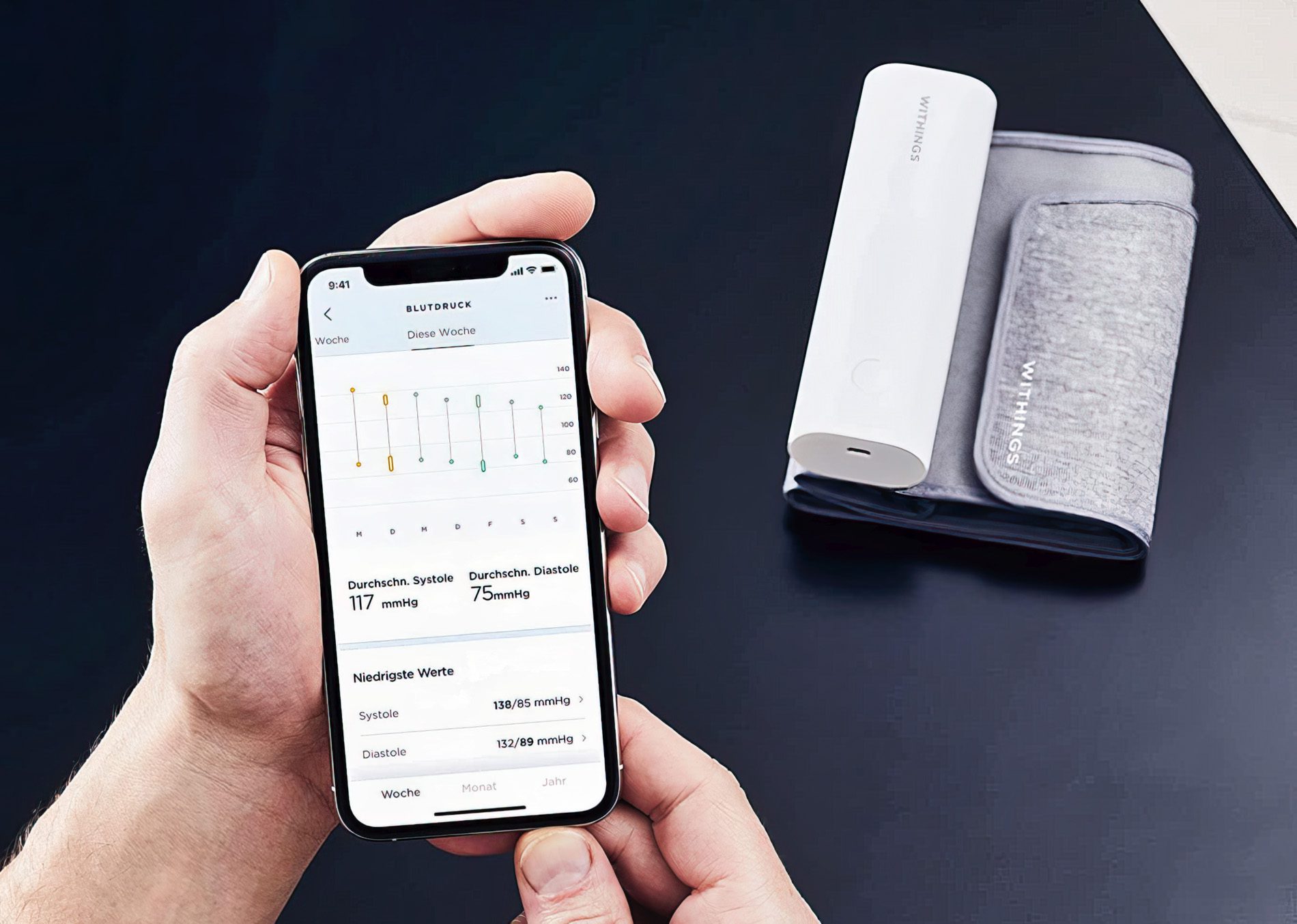
You cannot check blood pressure on an iPhone 14 using the phone alone, because it has no built-in blood pressure sensor. To check blood pressure on iPhone 14, you must either manually enter readings from any standard cuff into the Apple Health app or use a compatible Bluetooth monitor that syncs automatically.
Can the iPhone 14 check blood pressure on its own?
No. The iPhone 14 lacks any sensor that can measure blood pressure directly. The only ways to record blood pressure readings on the device are to enter them by hand in the Health app or to connect a third-party Bluetooth blood pressure monitor that transmits measurements to your phone.
How to manually add blood pressure readings in the Health app
If you have a standard blood pressure cuff, even one without Bluetooth, you can log your results in the Apple Health app. This is the most accessible method and requires no additional hardware beyond your phone. The Apple Health app icon is typically represented by a heart symbol inside a white square.
- Open the Health app on your iPhone 14.
- Tap the Browse tab at the bottom of the screen.
- Tap Heart, then tap Blood Pressure.
- Tap Add a Measurement.
- Enter the Date, Time, Systolic, and Diastolic values from your cuff. You may have the option to add additional notes or indicate if you have taken any medication when recording a blood pressure entry.
- Tap Add to save the reading.
You can repeat this process each time you take a reading. All entries will appear in your blood pressure log for later review.
Recommended blood pressure monitors compatible with iPhone 14
Bluetooth-enabled monitors eliminate manual entry by syncing readings directly to the Health app. Three well-regarded options work reliably with the iPhone 14:
- Omron Platinum Blood Pressure Monitor, Connects via Bluetooth, stores up to 200 readings, and integrates with the Apple Health app. The Omron Platinum Blood Pressure Monitor has a large display.
- Withings BPM Connect, Syncs over Wi-Fi or Bluetooth, offers multi-user support, and sends data to the Health app in real time.
- iHealth Feel Wireless Blood Pressure Monitor, A compact, portable device with Bluetooth connectivity and color-coded feedback for normal, elevated, or hypertension ranges. The iHealth Feel Wireless Blood Pressure Monitor features an easy-to-read LED screen.
How to connect a Bluetooth blood pressure monitor to your iPhone 14
Pairing a compatible monitor is straightforward. Follow these steps:
- Ensure your blood pressure monitor is compatible with the iPhone 14. Check the manufacturer's specifications.
- Make sure your iPhone 14 is running the latest version of iOS.
- Open the Apple Health app on your iPhone 14.
- Follow the manufacturer's instructions to prepare the monitor for pairing (insert batteries, turn it on, calibrate the cuff).
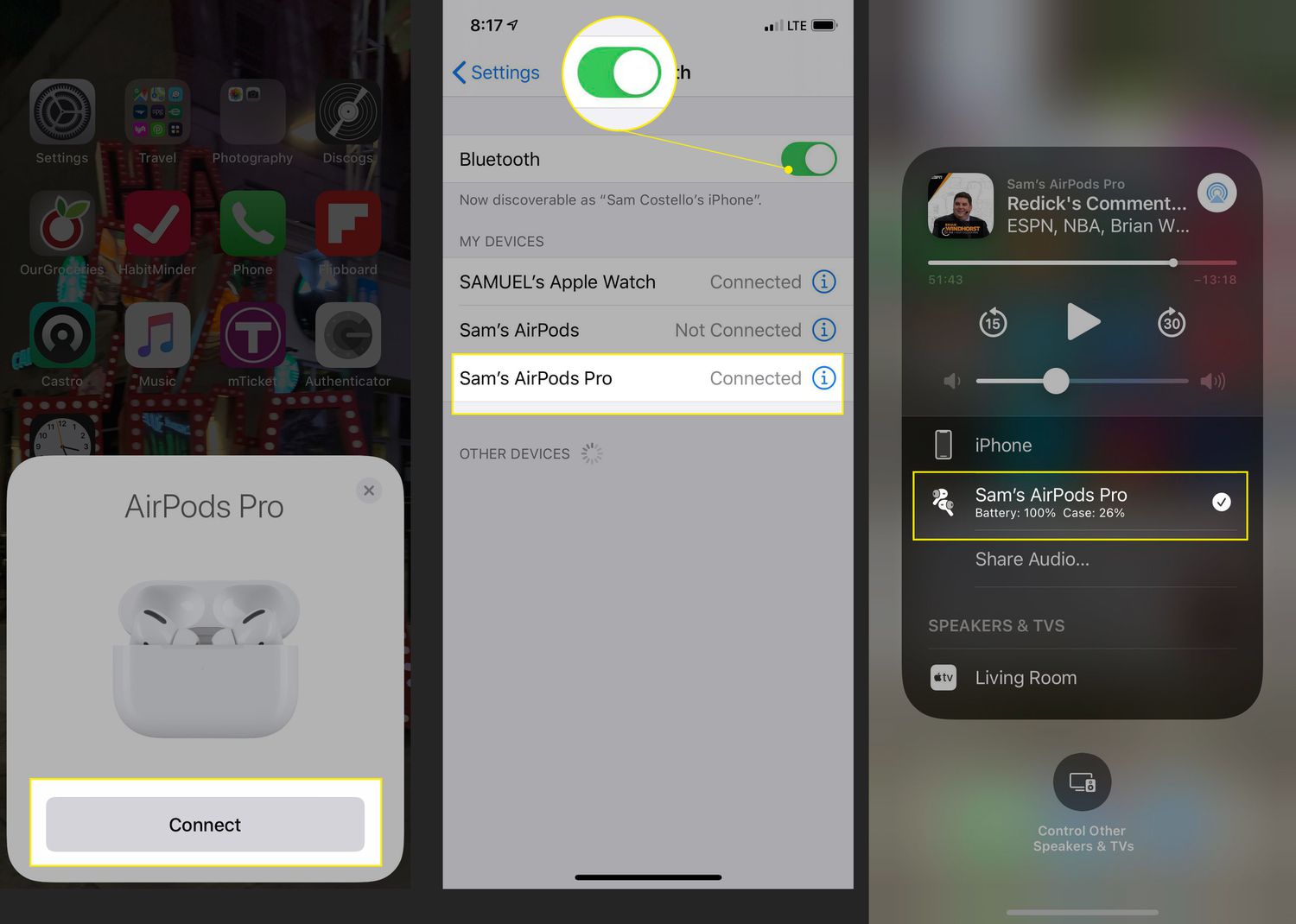
- On your iPhone 14, go to Settings, tap Bluetooth, and turn Bluetooth on.
- Place the blood pressure monitor within 5-10 feet of your iPhone 14.
- In the Health app, navigate to the Health Data tab, select Vitals or Heart, and look for the option to add a new device or pair a blood pressure monitor.
- Follow the on-screen prompts to complete pairing. This may involve entering a code or confirming the device name.
Once connected, readings from the monitor will sync automatically to the Apple Health app. If your monitor uses a companion app, you may need to pair through that app first and then allow it to share data with Health.
How to take an accurate blood pressure reading
Reliable readings depend on proper technique. Follow these tips every time you measure:
- Sit in a comfortable position with your feet flat on the floor and your back supported.
- Rest your arm on a table or armrest so the cuff is at the same level as your heart.
- Rest quietly for at least five minutes before measuring.
- Avoid caffeine, nicotine, and exercise for at least 30 minutes beforehand.
- Take multiple readings, waiting a few minutes between each, and record the average.
- Measure at the same time each day for consistency.
- Ensure the cuff fits properly on your arm and that you are in a quiet environment.
How to view and track your blood pressure data over time
The Health app organizes your blood pressure readings into a clear, searchable log. To access it, go to Browse > Heart > Blood Pressure. From there you can:
- View individual entries sorted by date and time.
- See trends on daily, weekly, monthly, or yearly charts.
- Set custom goals for systolic and diastolic pressures and track your progress.
- Generate reports to share with your healthcare provider.
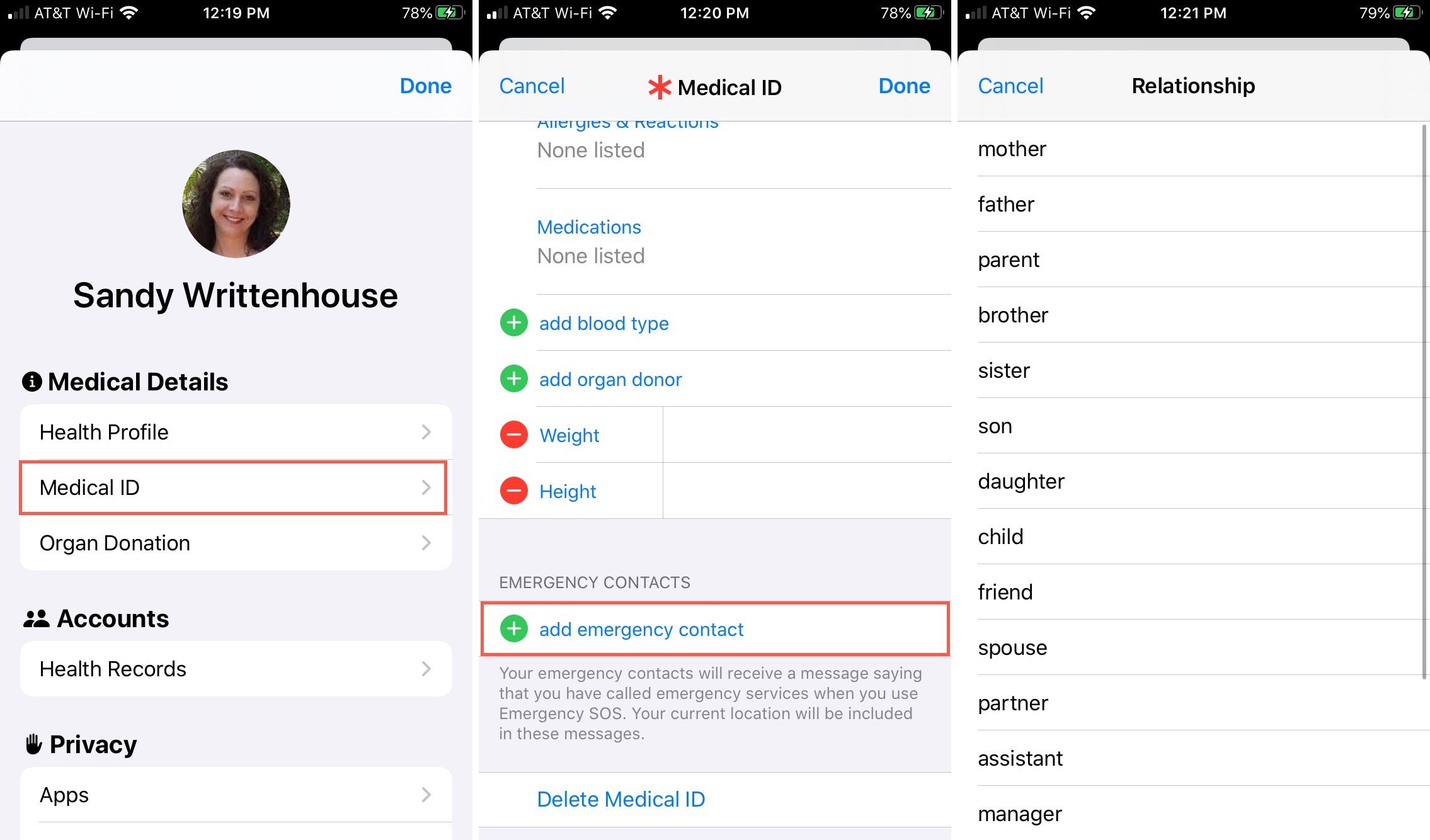
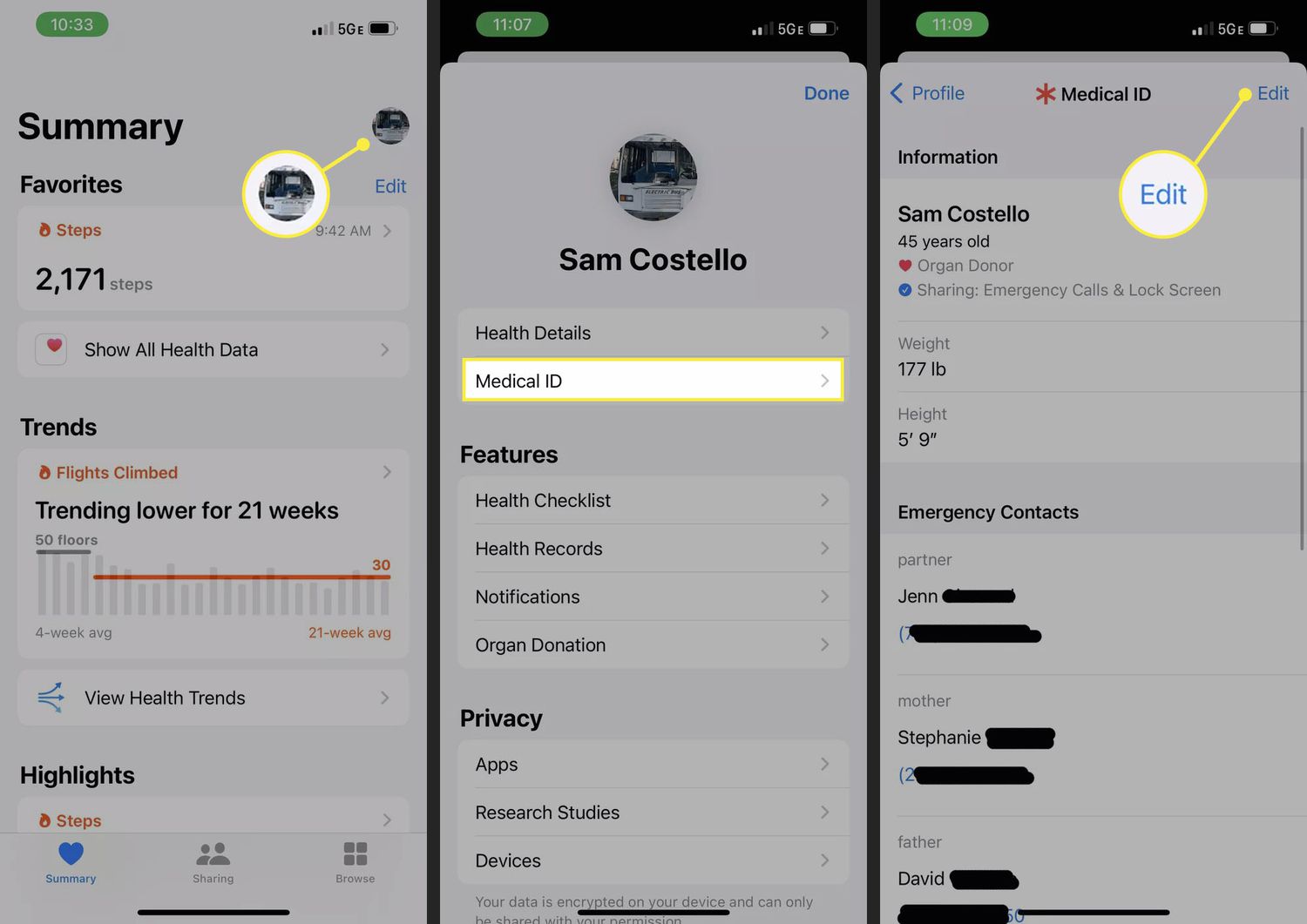
You can also integrate blood pressure data with other health metrics, such as heart rate and activity, to identify patterns. The app will send notifications and reminders to help you stay consistent with your monitoring routine. You can create a Medical ID within the app, allowing emergency responders to access important health information even when your phone is locked. For those who have access to supported healthcare institutions, you can view and manage your medical records directly within the app. For added security, consider using privacy screens and screen locking methods to protect your health data from unauthorized access.
What about the Apple Watch and blood pressure?
The Apple Watch Series 9 or later, and Ultra 2 or later, with watchOS 26 or later can provide hypertension notifications by analyzing heart data patterns. However, it does not display a numerical blood pressure reading in mmHg. If the watch detects patterns of hypertension, it will notify you to discuss the findings with your healthcare provider and prompt you to use a third-party blood pressure cuff for measurements over a seven-day period. A traditional cuff is still required for actual mmHg readings.
Frequently Asked Questions
Can I check blood pressure on iPhone 14 without any accessories?
No. The iPhone 14 has no built-in blood pressure sensor. You must either manually enter readings from a separate cuff or use a Bluetooth-enabled monitor that syncs with the Health app.
Are blood pressure monitoring apps accurate on iPhone 14?
Blood pressure monitoring apps are only as accurate as the data you enter or the monitor you connect. They cannot measure blood pressure using the phone's sensors alone. For reliable readings, always use a validated cuff and follow proper measurement technique.
How often should I monitor my blood pressure with my iPhone 14?
For individuals with hypertension or cardiovascular conditions, daily monitoring at the same time each morning and evening is common. Consult your healthcare provider for a schedule tailored to your needs.
Can I share my blood pressure data from the Health app with my doctor?
Yes. The Health app allows you to create reports and export your blood pressure log. You can share these directly with your healthcare provider during appointments or through secure messaging systems.
Do I need an internet connection to log blood pressure readings on iPhone 14?
No. Manual entries and Bluetooth syncing work offline. However, syncing with iCloud or sharing reports requires an internet connection.