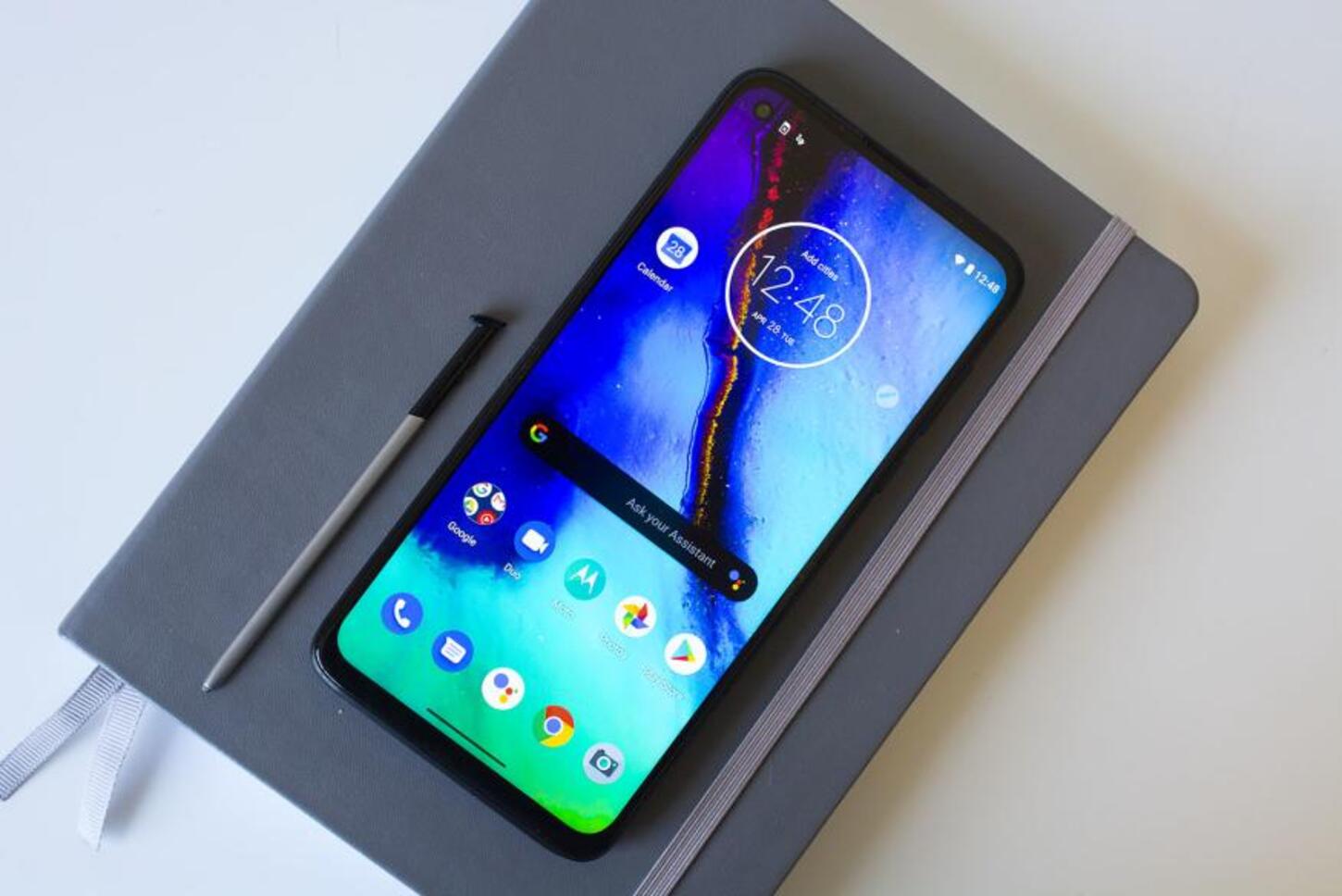
To exit safe mode on your Moto G Stylus, restart the phone by holding the Power button and tapping Restart, or force a restart by holding the Power button for about 30 seconds until the phone restarts. This is the immediate, documented way to exit safe mode moto g stylus and return to normal operation.
How to exit safe mode on your moto g stylus
Exiting Safe Mode on a Moto G Stylus is done by restarting the phone. Press and hold the Power button, then tap Restart when the menu appears. If the phone does not respond, hold the Power button for about 30 seconds until the device restarts on its own. This process refreshes the system and clears the temporary state that keeps the phone in Safe Mode. Inspect the power button for physical damage or debris that may be obstructing its normal operation, and press it multiple times to ensure it moves freely without sticking. Ensure that the power button is not being held down during the device's startup process, as this can trigger Safe Mode activation.
If safe mode keeps coming back, check your apps
If Safe Mode returns after restarting, the cause is likely a problematic third-party app. Motorola documents that when Safe Mode is active, third-party apps are disabled and the words "Safe mode" appear on the home screen. If the issue disappears in Safe Mode, a downloaded app is causing the problem. To resolve this, check recently downloaded apps and remove the one causing the issue. Motorola’s guides direct users to uninstall problematic apps under the Safe Mode troubleshooting flow after restarting. If you are unfamiliar with restarting and rebooting phones, this app removal step is the key follow-up to prevent Safe Mode from recurring.
Model-specific restart instructions
The documented Safe Mode exit steps vary slightly by Moto G Stylus version:
- Moto G Stylus 5G (2022): Press and hold Power, then tap Restart. If needed, hold Power for about 30 seconds or turn the phone off and on again.
- Moto G Stylus 5G (2024): Press and hold Power + Volume up simultaneously, then tap Restart. Alternatively, hold Power for about 30 seconds until the phone restarts.
- Moto G Stylus (2025): Motorola says to exit Safe Mode by turning the phone off and then on again.
These steps rely on the Power button, and on some models Power + Volume up, to initiate the restart that exits Safe Mode.
Still stuck? contact Motorola support
If Safe Mode persists after restarting the device and removing recently downloaded apps, Motorola’s guides direct users to contact Motorola support for further assistance. Visit the official Motorola support website, use live chat, call their support hotline, or reach out through their official social media accounts. If your device is under warranty, an authorized Motorola service center can diagnose and address hardware or software issues. If the power button feels loose or unresponsive, it may require professional attention.
Frequently Asked Questions
What is Safe Mode on Moto G Stylus?
Safe Mode is a diagnostic mode that runs only essential system apps and services. It helps identify issues caused by third-party apps, which are disabled while in Safe Mode.
How do I know if my Moto G Stylus is in Safe Mode?
When your Moto G Stylus is in Safe Mode, "Safe Mode" appears at the bottom of the screen. Third-party apps will not appear, and only pre-installed apps are accessible.
Will exiting Safe Mode delete any data on my Moto G Stylus?
No, exiting Safe Mode does not delete any data. It simply allows the device to boot normally with all installed apps and services.
Can I use all features of my Moto G Stylus in Safe Mode?
While in Safe Mode, you can make calls, send messages, and use pre-installed apps, but features and functionalities tied to third-party apps are limited.
What should I do if Safe Mode returns after removing apps?
If Safe Mode keeps returning after removing recently downloaded apps, contact Motorola support for further troubleshooting, as the issue may require professional diagnosis.