






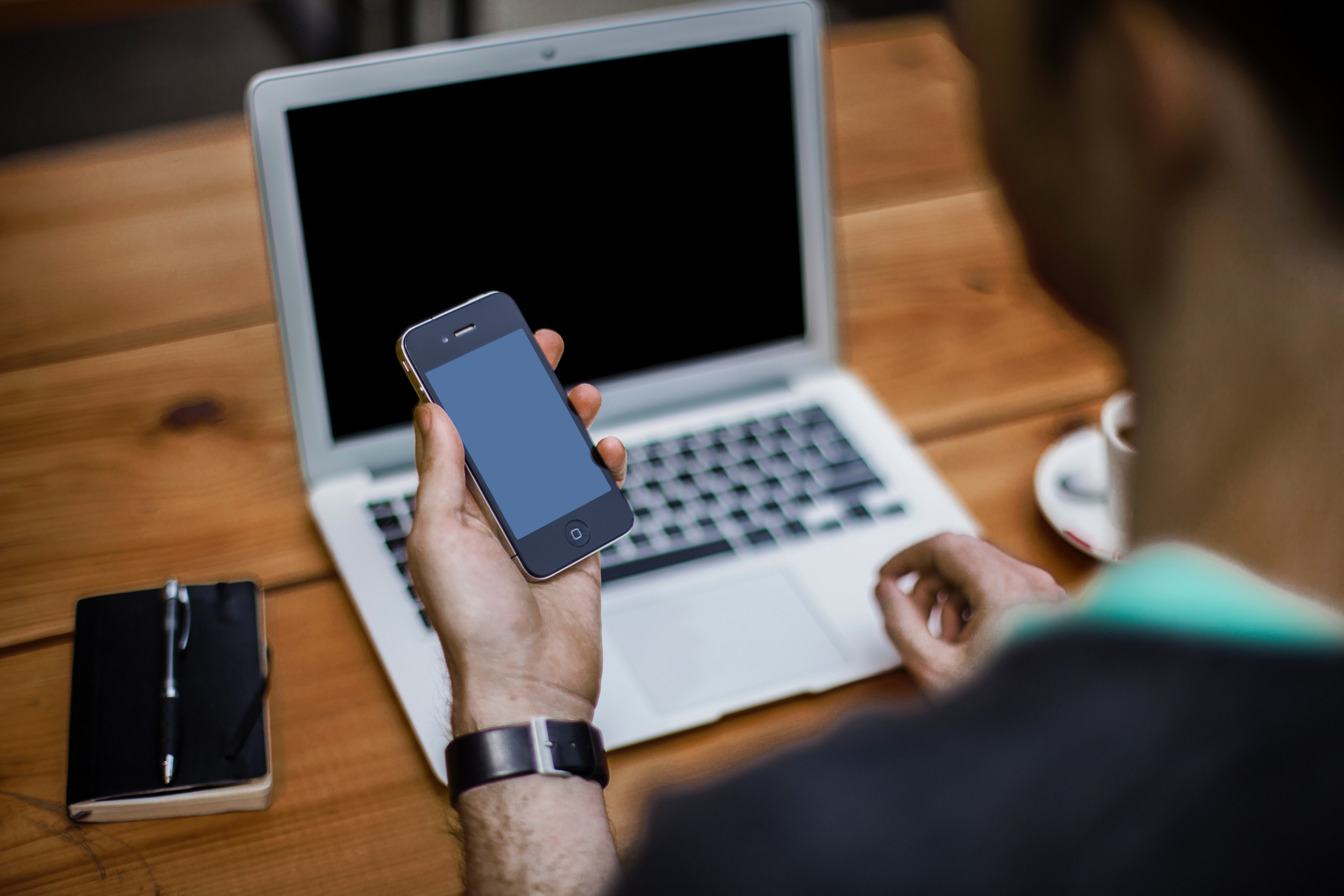
To change a screen protector at home, you need to remove the old one carefully, clean the display, and apply the new protector using steady pressure to avoid bubbles and misalignment.
Before you start: what you'll need to change your screen protector
Gather the essential materials before beginning: a new screen protector compatible with your device, a microfiber cloth, dust removal stickers, clear tape, a plastic card or squeegee, and guide stickers for alignment. Some kits include a phone cradle and a screen smoother, which are particularly helpful for precise application. Samsung's Galaxy S22 guide says the package includes a phone cradle, screen protector, screen smoother, and screen cloth, based on the steps shown in the guide. Having everything ready prevents interruptions and reduces the chance of dust landing on the screen during the process.
What manufacturers say about changing your screen protector
Official guidance on changing a screen protector varies by brand. Apple documents in-store application only for certain Belkin protectors at Apple Store locations, using the Screen Protection Applicator. Google documents in-store installation of certain ZAGG screen protectors for Pixel 8a and Pixel 9 phones at no charge when the protector is bought in store. Samsung documents a step-by-step DIY application guide for the Galaxy S22 series and a separate screen protector application service for Galaxy Z series devices at authorized repair facilities. If your device is not covered by these specific programs, you will need to follow a general DIY method.
How to remove your old screen protector
- Power off your device to prevent accidental touches.
- Locate a corner of the screen protector where you can start lifting it.
- Use a plastic card to gently slide under the corner and lift the protector.
- Apply steady, even pressure as you work the card across the screen to separate the protector from the display.
- Remove any adhesive residue left on the screen by dabbing it with a piece of tape.
- Clean the display thoroughly with a microfiber cloth to remove dust and fingerprints.
How to apply a new screen protector: the general method
- Clean the screen thoroughly using a microfiber cloth and, if needed, a dust removal sticker to pick up any remaining particles.
- Align the new screen protector over the display using guide stickers to hold it in place if your kit includes them.
- Peel the protective film from the adhesive side of the protector.
- Starting from one edge, lower the protector onto the screen and smooth it outward with a plastic card or squeegee to push out air bubbles.
- Remove any remaining bubbles by gently lifting the nearest edge with tape and reapplying that section.
How to apply a Samsung Galaxy screen protector using the official cradle method
Samsung's documented procedure for the Galaxy S22 series uses a phone cradle and screen smoother included in the package. Follow these steps:
- Remove the plastic strip from inside the phone cradle.
- Place the phone into the cradle and make sure it is securely fitted.
- Place the screen protector onto the phone so the exposed strip is face down onto the phone screen.
- Use the holes on the screen protector to line it up with the phone cradle for an accurate fit.
- Use the screen smoother to seal it, moving it across the strip from right to left and back, then left to right.
- When the protector lifts to the screen smoother, a second plastic sheet appears behind the protector; bend this back toward the top of the phone and slowly expose the sticky side below.
- Steadily run the smoother up the screen while the plastic sheet is peeled away and removed.
- Smooth out creases or trapped air by moving from the center of the screen out to the edges.
- Remove the phone from the cradle, then peel off the last layer of plastic on top of the screen.
- Clean the screen down with the screen cloth.
What to do after installing your new screen protector
Inspect the protector for bubbles or misalignment. If you see small bubbles, try pushing them to the edge with a squeegee or plastic card. If the protector is noticeably off-center, lift it carefully using tape and reposition it. Allow any recommended curing time specified by the manufacturer before using the phone normally. If the DIY result is not satisfactory, consider professional installation at an authorized service center or retail store that offers screen protector application and repair.
Frequently Asked Questions
How often should I change my screen protector?
Replace your screen protector when you notice visible scratches, cracks, or loss of adhesion. There is no fixed schedule, but inspecting it every few months helps you catch wear before it compromises protection.
Can I change my screen protector by myself?
Yes, most people can change a screen protector at home using the steps above. Some manufacturers provide official guides or cradles for specific models, which makes the process easier.
What tools do I need to change my screen protector?
You typically need a microfiber cloth, dust removal stickers, tape, a plastic card or squeegee, and guide stickers. Some kits include a cradle and screen smoother for more precise alignment.
How do I remove an old screen protector without damaging my screen?
Power off the device, lift a corner with a plastic card, and peel slowly while applying steady pressure. Use tape to remove any adhesive residue, then clean the display with a microfiber cloth.
Are there different types of screen protectors available?
Yes, common types include tempered glass protectors, plastic film protectors, privacy protectors, and anti-glare protectors. Each offers different levels of impact resistance, clarity, and privacy protection.

















