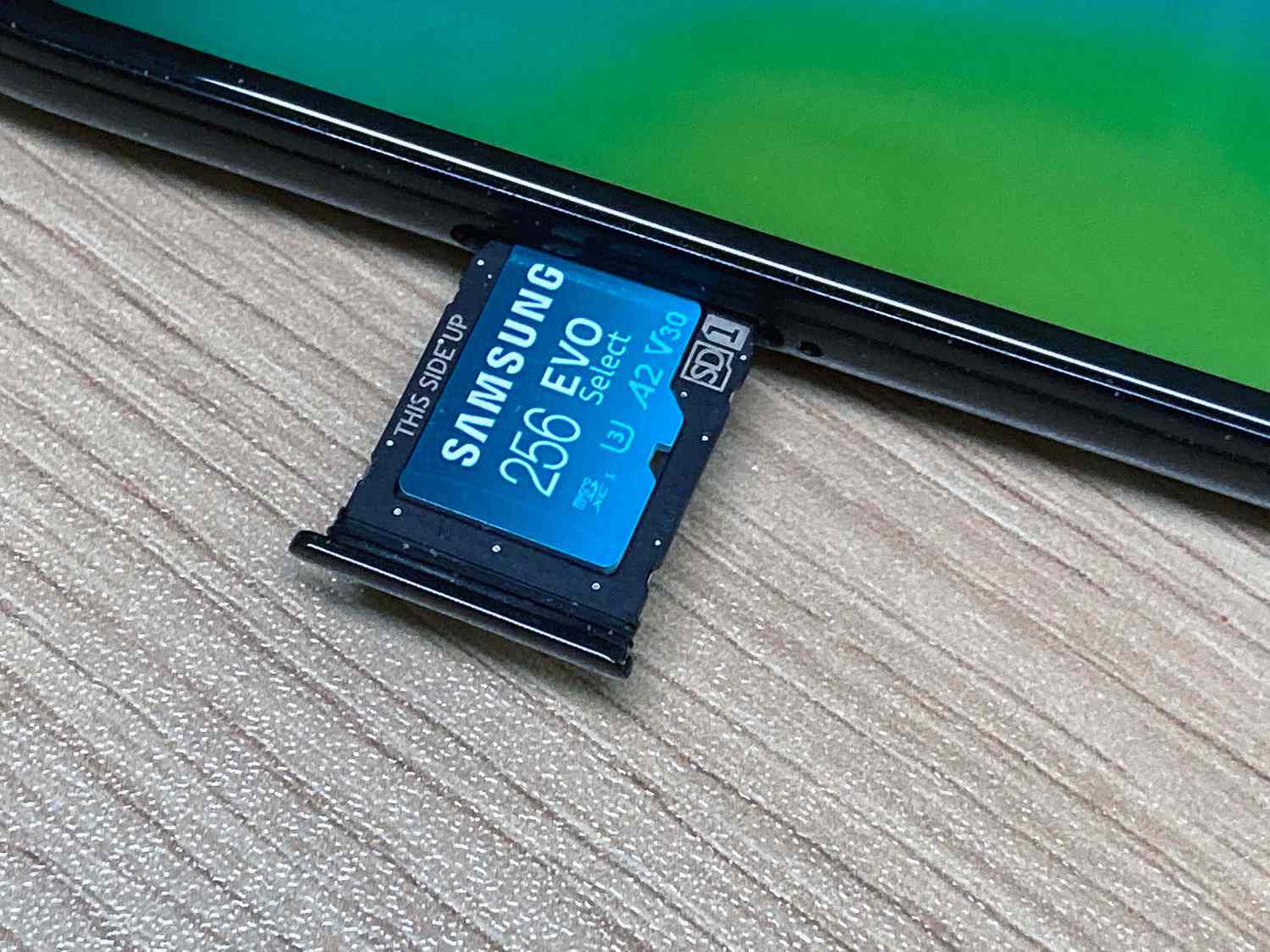
To check an SD card on an Android phone, open Settings, tap Storage, and then tap the SD card entry to view its total capacity and contents. iPhone users must connect an external SD card reader to the charging port, then open the Files app to access the card's files, as iPhones lack a built-in SD card slot.
Check SD card storage space
On Android, the most direct way to see how much space your SD card has is through Settings > Storage. Tap the SD card entry to view used and free space. For a more detailed breakdown, open Files by Google, tap the Menu icon, and select Clean. The top of the screen shows both device storage and, if the card is present, the SD card's storage space.
If the SD card does not appear in Files by Google, check Settings > Device maintenance > Storage to confirm the phone recognizes it. If it is still missing, remove and reinsert the card, then check again.
Fix SD card not detected or recognized
- Remove and reinsert the SD card. Power off the phone, take out the card, wait a few seconds, then reinsert it firmly and reboot.
- Check Settings > Device maintenance > Storage. If the card appears here but not in a file manager, it may be set up as internal (adoptable) storage rather than portable storage. If the SD card is recognized in Settings but not in Files by Google, Google says it may be formatted as internal storage rather than portable storage.
- Reformat as portable storage if the card was previously set up as adoptable storage. Go to Settings > Storage > SD card, tap the menu, and choose Format as portable. This erases all data on the card. Google's documented fix for that case is to reformat it as portable storage.
If the card is not recognized in Settings at all, try the card in another device to confirm whether the card itself is faulty.
Understand SD card compatibility and formats
Android offers two setup options for SD cards: Portable storage and Adoptable storage. When you insert a new card, swipe down the notification shade and tap SD card detected. Google documents the label shown in Android setup as 'SD card detected'. Choose Format for portable storage or Format another way for adoptable storage. For formatting choices, Google uses the labels 'Format', 'Format another way', 'Portable storage', and 'Adoptable storage'.
Portable storage works like a removable drive, you can move files to and from it freely, and it appears in file managers. Adoptable storage, introduced in Android 6.0, lets the SD card act as part of the internal storage. Google's storage docs say Android 6.0 introduced adoptable storage, which lets external storage act like internal storage. However, adoptable storage may hide the card from file managers and third-party apps, which is why checking memory and storage capacity can become confusing if the card is configured this way.
Move files to and from an SD card
In Files by Google, open the app and use Move to or Copy to, then tap SD card as the destination. Alternatively, tap Menu > Clean > Move to SD Card > Select files to transfer files in bulk.
On iPhone, Apple documents SD card access only through an external reader connected to the charging port. Open the Files app or a supported third-party app to browse and copy files from the reader. On iPhone, Apple documents using the Files app and supported apps to access files on an SD card reader. There is no documented phone-to-SD transfer workflow from Apple for iPhone.
Frequently Asked Questions
How do I know if my SD card is working properly?
Insert the card and go to Settings > Storage. If the card is detected, you will see its total capacity and available space. Try opening a file stored on the card to confirm it is readable and not corrupted.
Can I use my phone's SD card in another device?
Yes, in most cases. The other device must support the same SD card type and file system format (typically FAT32 or exFAT). Back up important data before moving the card, as the other device may reformat or overwrite the card's contents.
How often should I check my SD card on my phone?
Check every few weeks or whenever you notice performance issues. Also check before transferring large files or installing apps to the card to ensure enough free space is available.