Storage vs. ram: what you're actually checking
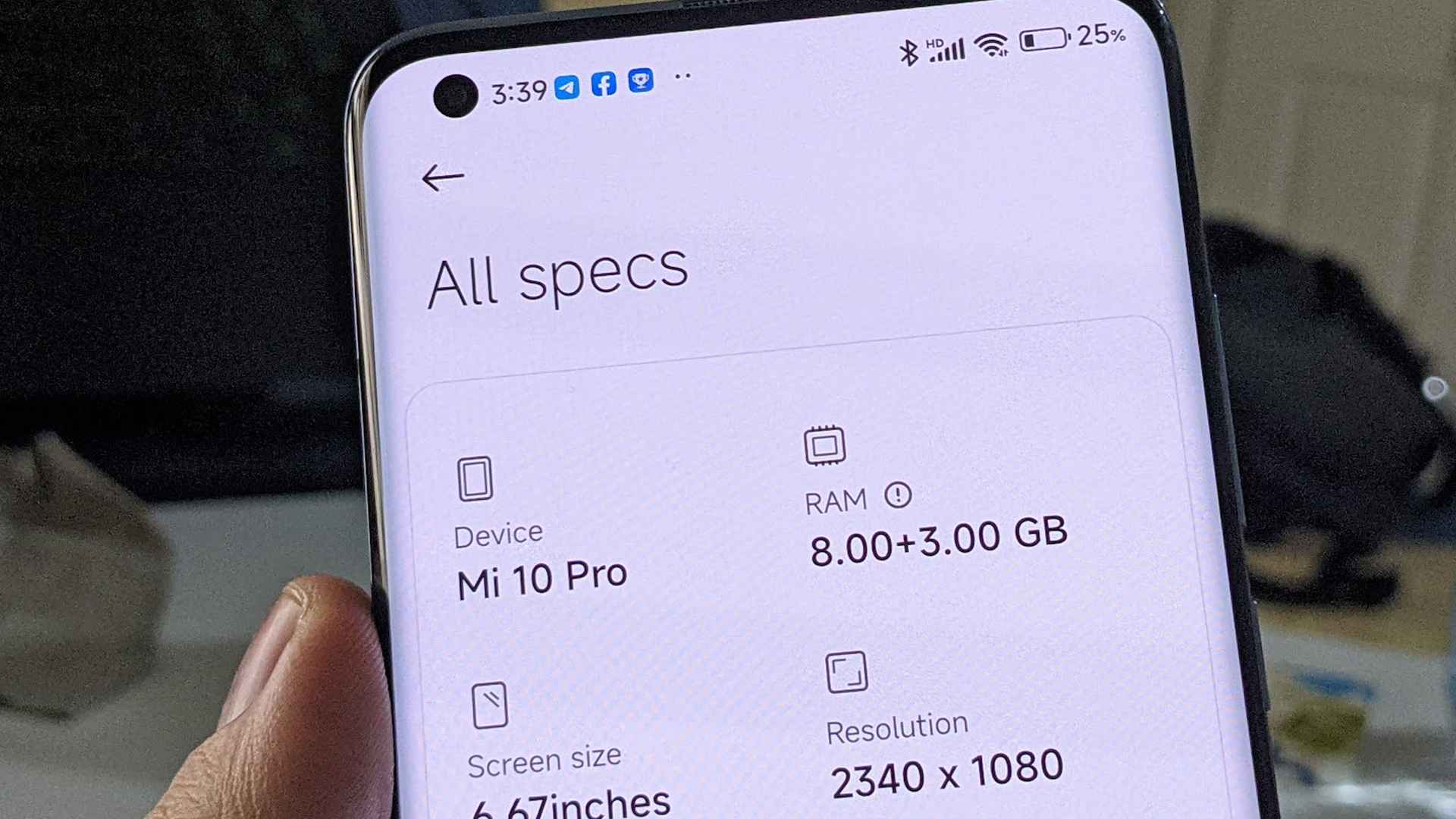
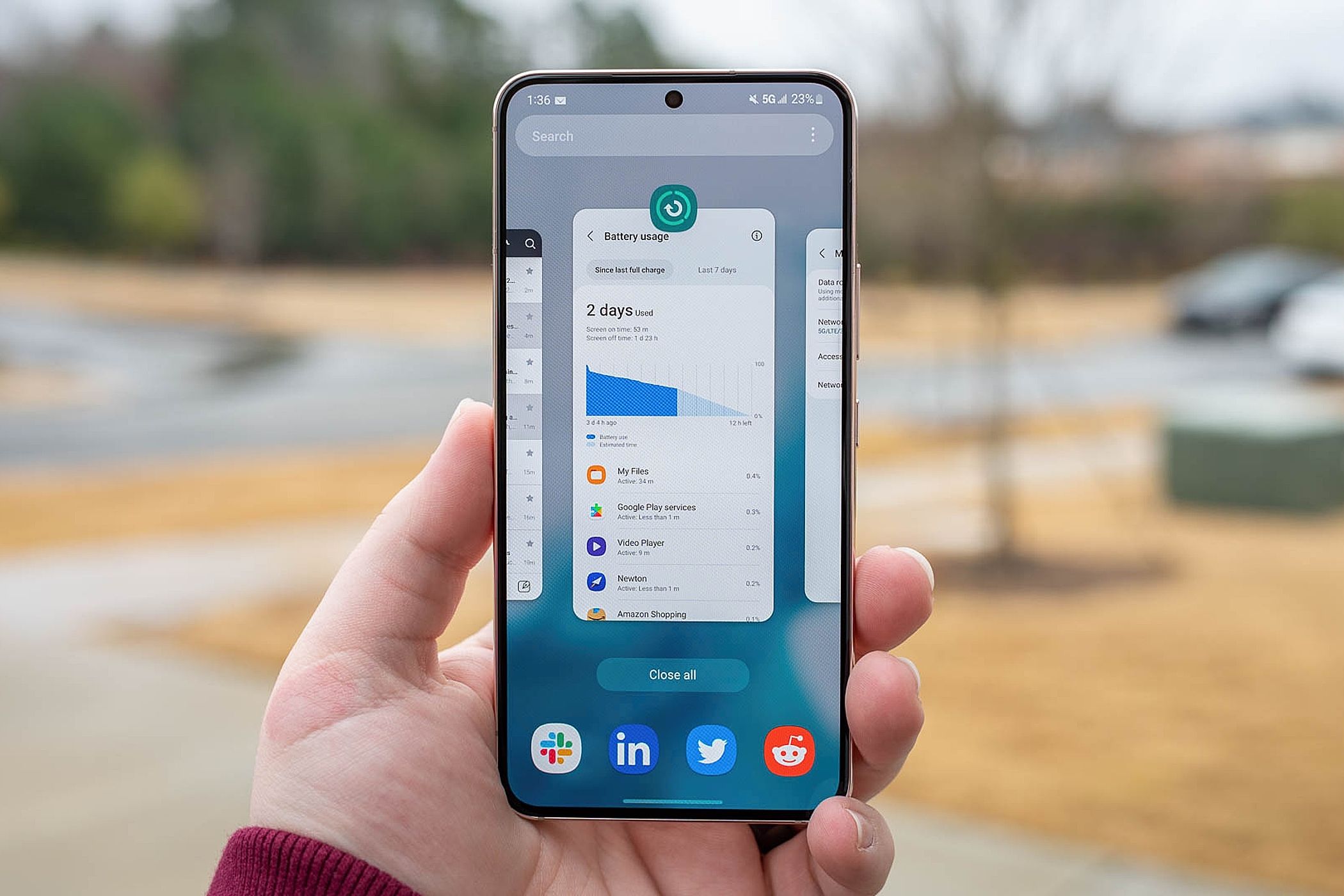
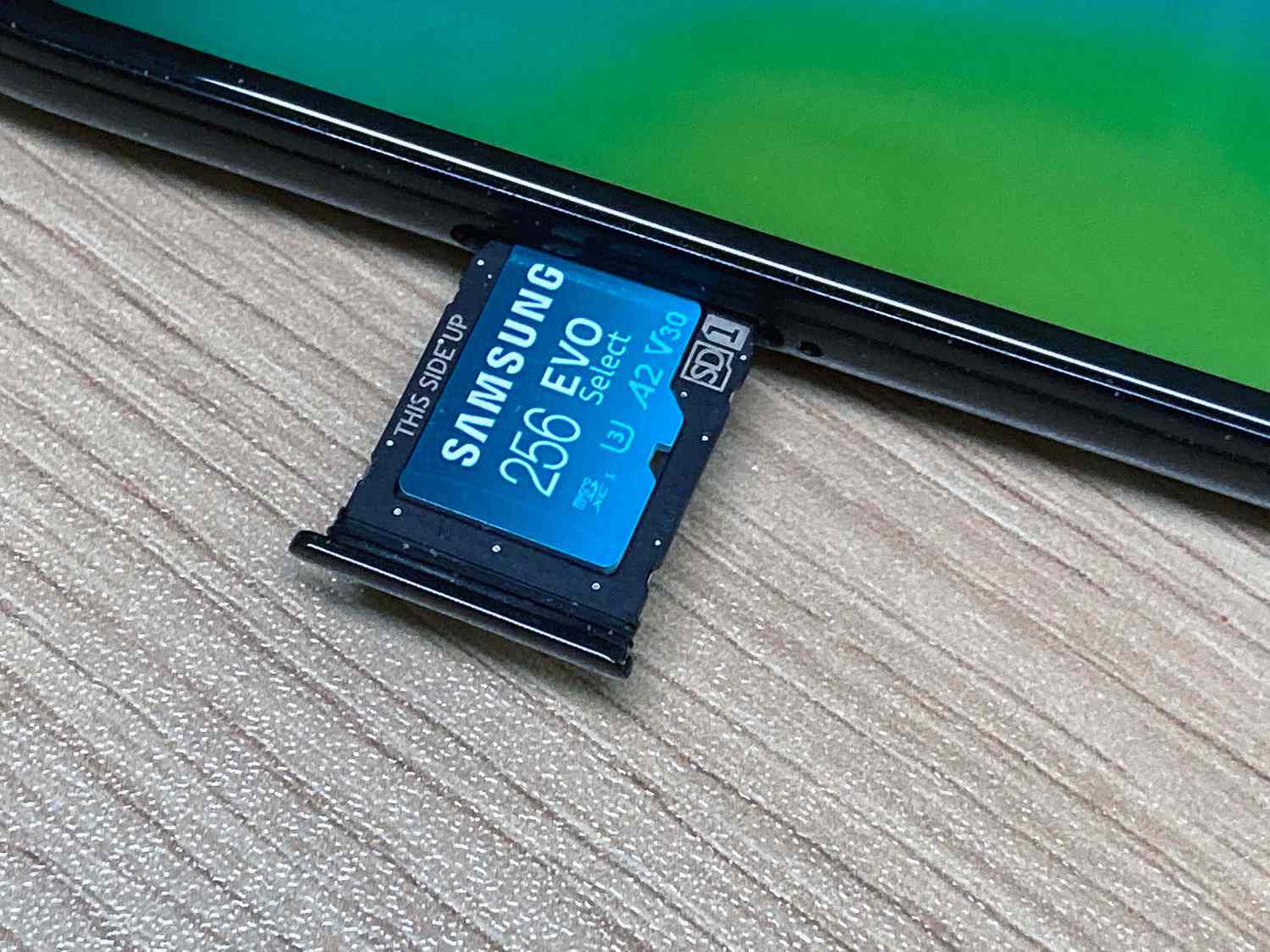
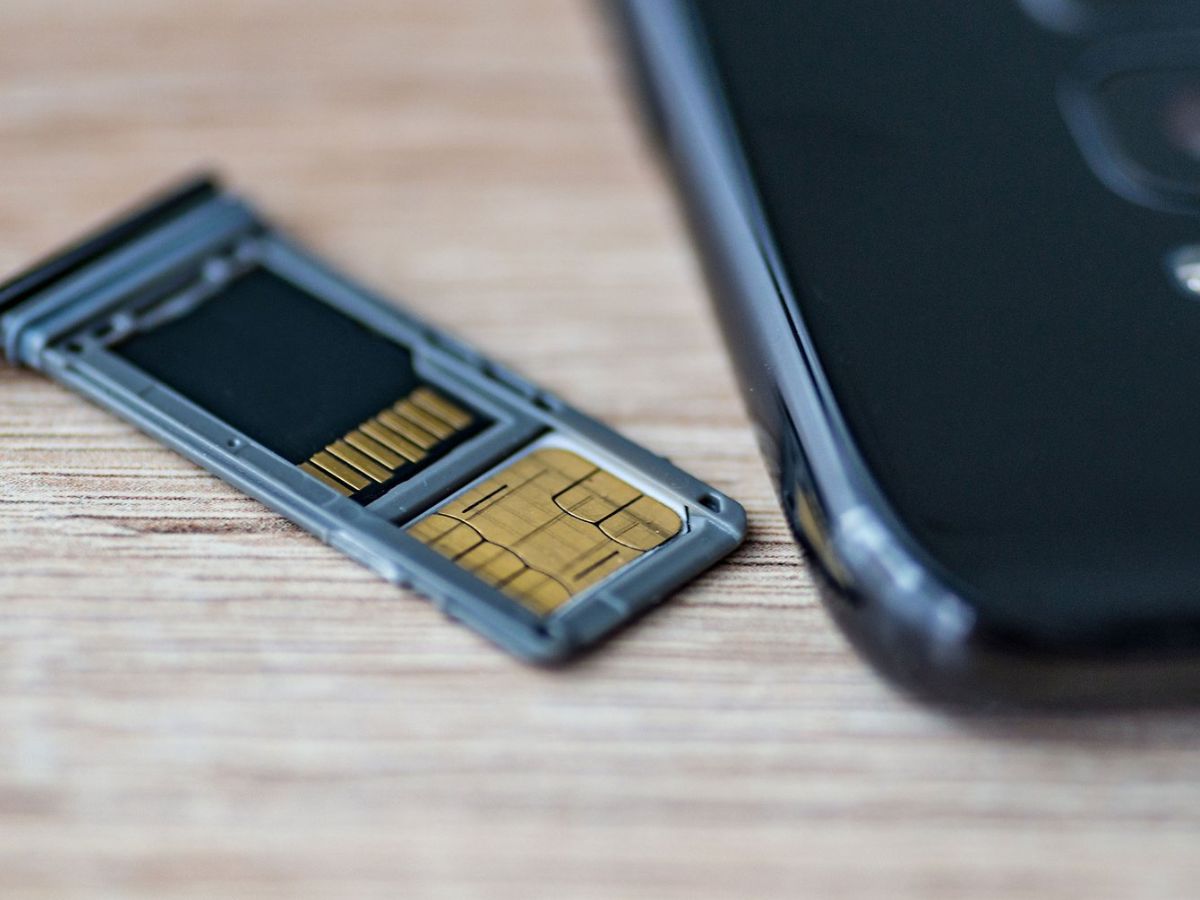
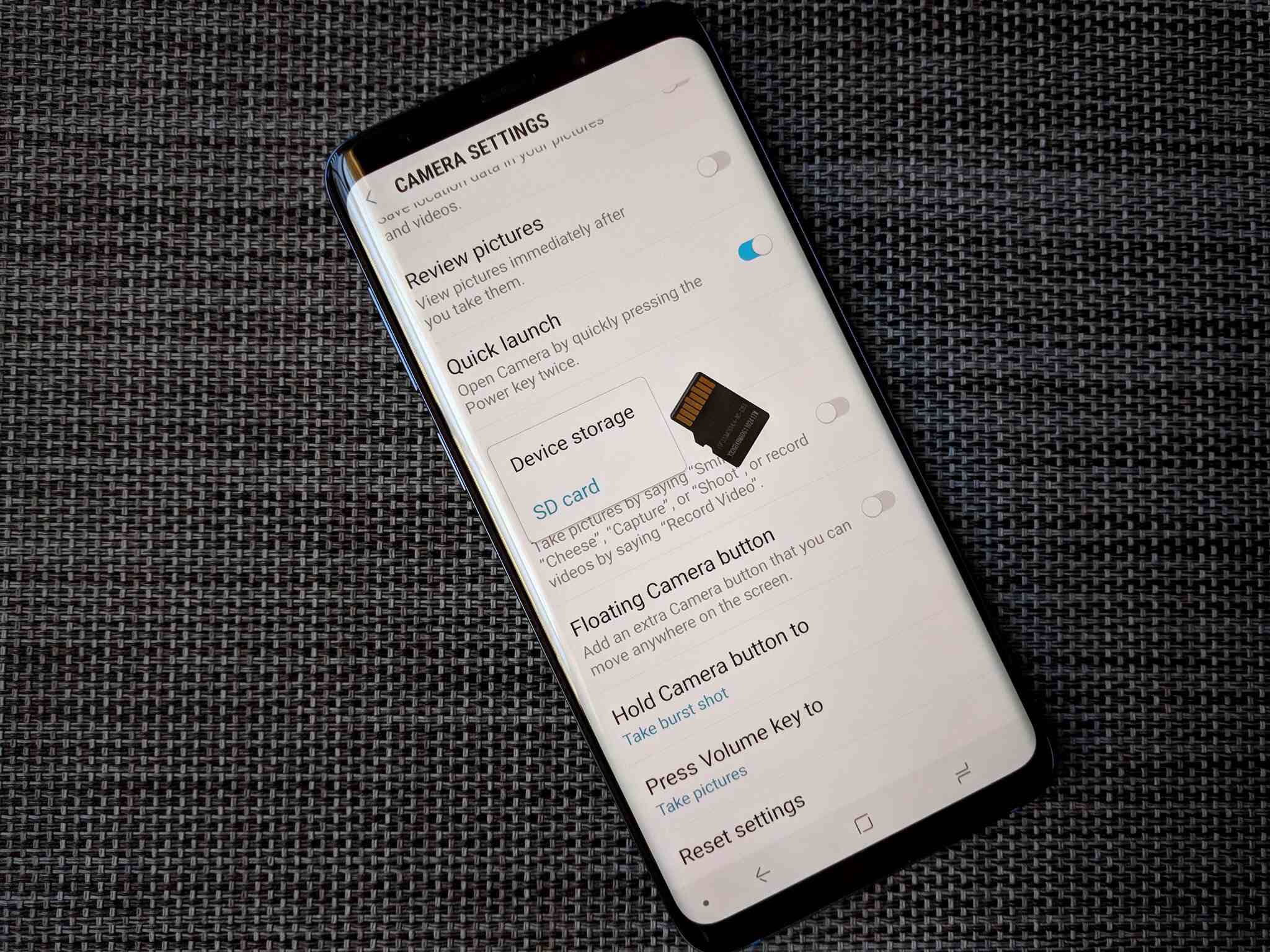
When you need to check phone storage, it helps to know that your device tracks two completely separate resources. Long-term capacity is the number of gigabytes available for installing apps, saving photos, and downloading videos, which is why you might want to read about how to check phone GB to understand exactly how much room remains for your files. On an iPhone, you can see this breakdown by going to Settings > General > iPhone Storage, where the available space appears at the top followed by an app-by-app list. If you need to check phone GB on a Pixel, the path is Settings > Storage, and tapping any category shows what is consuming your space. That figure is distinct from active workspace, so you will sometimes need to check phone RAM when the device feels sluggish during multitasking, which is why an article on how to check phone RAM can help you determine if memory is the bottleneck rather than storage. Some Android phones can supplement built-in capacity with a phone memory card, which Files by Google recognizes as an SD card and displays right alongside the internal storage totals. It is easy to mix up these readings with a gigabyte data usage in phone plans, but the gigabyte counts shown in your device configuration measure local storage only and have no connection to a carrier's monthly allowance, which is why you would want to review an article about gigabyte data usage in phone plans to avoid confusing your phone's storage capacity with your data cap.
Check your phone's total and available storage
If you want to know how much room you have left for photos and apps, the steps depend on which device is in your hand. When you need to check phone memory on iPhone, the number you are looking for sits at the top of the iPhone Storage screen inside the General section of the main system preferences, right above the app list and below any space-saving recommendations. The same path works on an iPad, and connecting the device to a computer lets you see a storage bar broken down by content type in the Finder, Apple Devices app, or iTunes.
On Android, the exact path varies by manufacturer, but for Samsung phones you can find phone storage on Android by opening the system preferences and looking for a section named Storage under Device care or Device maintenance. Because Samsung’s layout shifts between One UI versions, you may need to check phone memory in Samsung under whichever of those two headings your model shows, and the remaining internal space is displayed clearly in that location.
If you have inserted external storage, you can check SD card on phone from that same Samsung Storage screen, where the remaining card capacity appears at the bottom when a card is present. No special carrier app is required for any of these readings, and the built-in tools do not impose a minimum capacity limit you must meet before checking.
Check how much ram your phone has and is using
If you need to check phone RAM on an iPhone, you immediately run into a wall that Apple built on purpose. iOS does not provide a straightforward way to view total RAM capacity or current RAM usage, and the official support community confirms there is no built-in way to see it, so a reliable reading depends on a third-party utility.
To check RAM in iPhone 13, for instance, you can download Geekbench from the App Store and look under the Memory tab on the home screen to find the RAM size. Alternatively, AnTuTu displays both free RAM and total available RAM when you view device information in the app. Spec pages that list the iPhone 13 as having 4 GB of RAM pull that figure from teardowns and benchmarks rather than any Apple documentation, so treat that number as a reference point rather than an official spec.
Find files you've saved on your phone
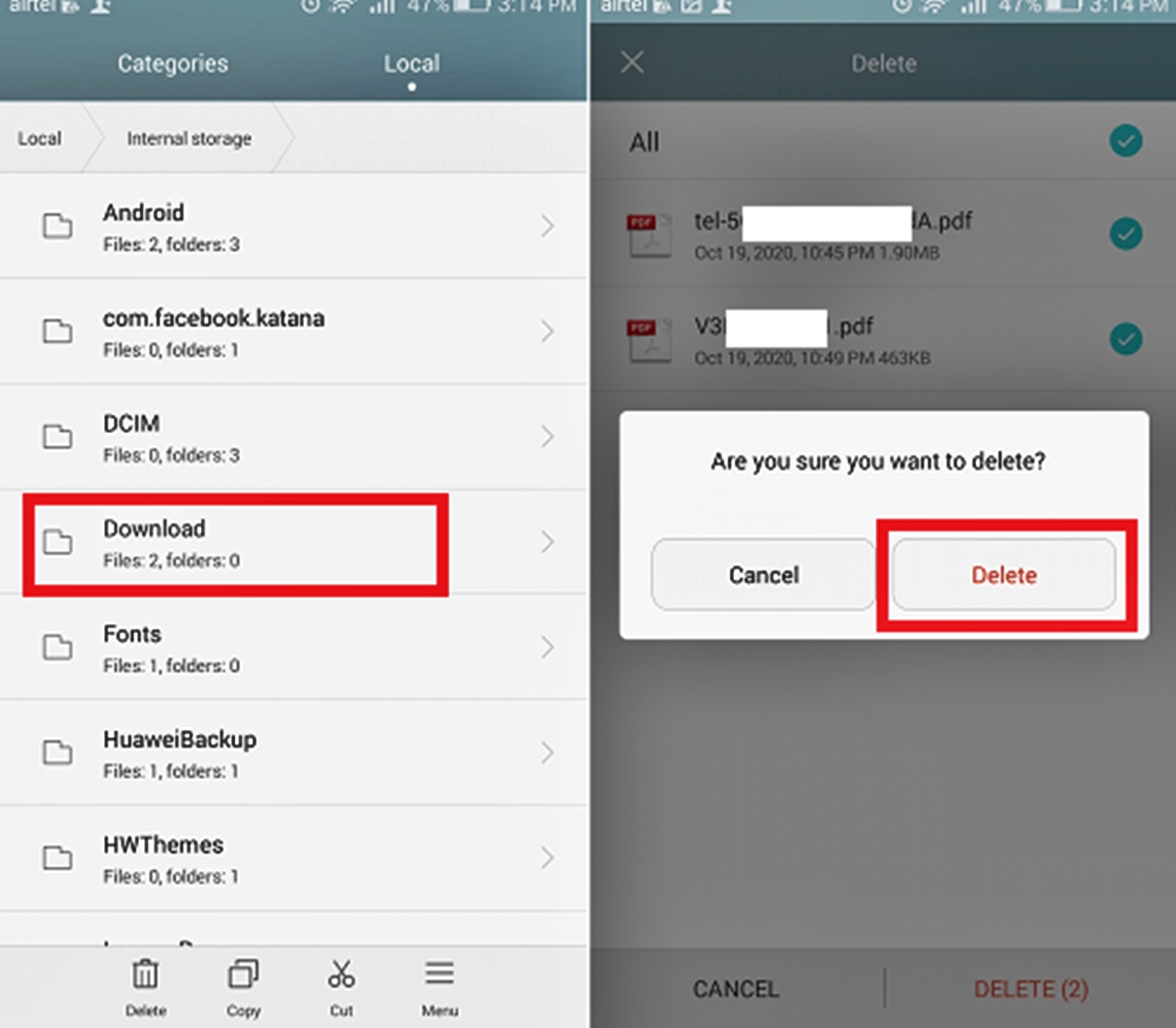
Once you know how much space you have left, the next step is actually putting your hands on the files taking up that room. On any recent iPhone, the quickest route is through the Files app. Whether you are holding an iPhone 11, iPhone 13, or iPhone 14, the iPhone 11 downloads folder location, iPhone 13 downloads folder location, and iPhone 14 downloads folder location all point to the same place: open the Files app, tap Browse, then tap Downloads. If Safari is your main browser, you can also tap the Downloads button next to the search field to see recent items directly.
On the Android side, the path is just as direct, with most phones putting everything in a single folder. The Galaxy S21 downloads folder location is inside the Files app under Internal Storage > Downloads, and you can find downloads on Motorola phone by opening the Files app and looking for the same Internal Storage > Downloads directory. If you are still holding onto an older device, the approach to find downloads on Windows phone is not available.
Find your saved links and bookmarks
When you need to retrieve a saved page from your browser, the route depends entirely on which app you use to browse. If you frequently ask yourself how to find my bookmarks on my phone, the answer starts with identifying the browser icon you tap every day, because Safari, Chrome, and Samsung Internet each tuck their bookmarks into a different corner of the screen.
In Safari on an iPhone, the open-book icon sits at the bottom of the screen; tap the Bookmarks tab to see your saved bookmarks. Chrome on the same device places the same function behind the three-dot menu at the top right, where your saved items are often sorted into folders like Mobile bookmarks and Bookmarks bar. On Android, Chrome moves the entry point to the top right under More, and if your address bar lives at the bottom of the screen, you need to swipe up on it first to reveal the menu. Samsung Internet owners tap the menu at the bottom right to reach their list. None of these locations depend on your carrier or any special account tier, as the feature is built directly into each browser and works the moment you save a page.
Back up your phone and find those backups
Before you clear anything, make sure there is a current copy of your phone’s contents somewhere safe. On an iPhone, you can see when your phone was last backed up by opening Settings, tapping your name, then iCloud, then iCloud Backup, and looking under This iPhone, which also shows the size of the next backup so you know how much iCloud space you are committing to. If you back up to a Mac instead, the files land in a local folder, and Apple points you to the MobileSync directory within ~/Library/Application Support when you need to locate them. Knowing where the copies live removes the dread of wiping something you cannot replace.
The process shifts depending on which device is in your hand. When you need to backup Motorola phone content, the built-in path begins under Settings > System, where you can turn on automatic backup. If you own a Sony device and need to track down a Sony Xperia backup file location, your best move is to check the cloud service or computer application you used to create the backup in the first place. Once everything is safely copied, you can return to freeing up storage and reconsider what is actually installed, since few people still need a list like most essential mobile apps you must download in 2022 cluttering their home screen.
Frequently Asked Questions
How do I check phone memory on iPhone 15?
Open Settings, tap General, then tap iPhone Storage. The available space appears at the top of the screen above the app list, and this path works the same way on iPhone 15 as on earlier models.
Why does my Samsung phone show Device care instead of Device maintenance?
Samsung changed the section name between One UI versions, so your phone displays whichever heading matches its software. Both Device care and Device maintenance lead to the same Storage screen where remaining space is shown.
Can I check RAM on a Pixel phone?
Google does not document a built-in menu path for checking RAM on Pixel devices. You can use a third-party app like Geekbench or AnTuTu from the Play Store to view total RAM and current usage.
Where are downloads on a Galaxy S23?
Open the Files app and navigate to Internal Storage, then Downloads. This is the same location used on the Galaxy S21, and Samsung keeps the directory structure consistent across recent Galaxy models.
How do I find bookmarks in Firefox on Android?
Open Firefox, tap the menu button at the bottom right or top right depending on your layout, then tap Bookmarks. The exact icon position shifts with your toolbar placement, but the Bookmarks option always appears inside the main menu.