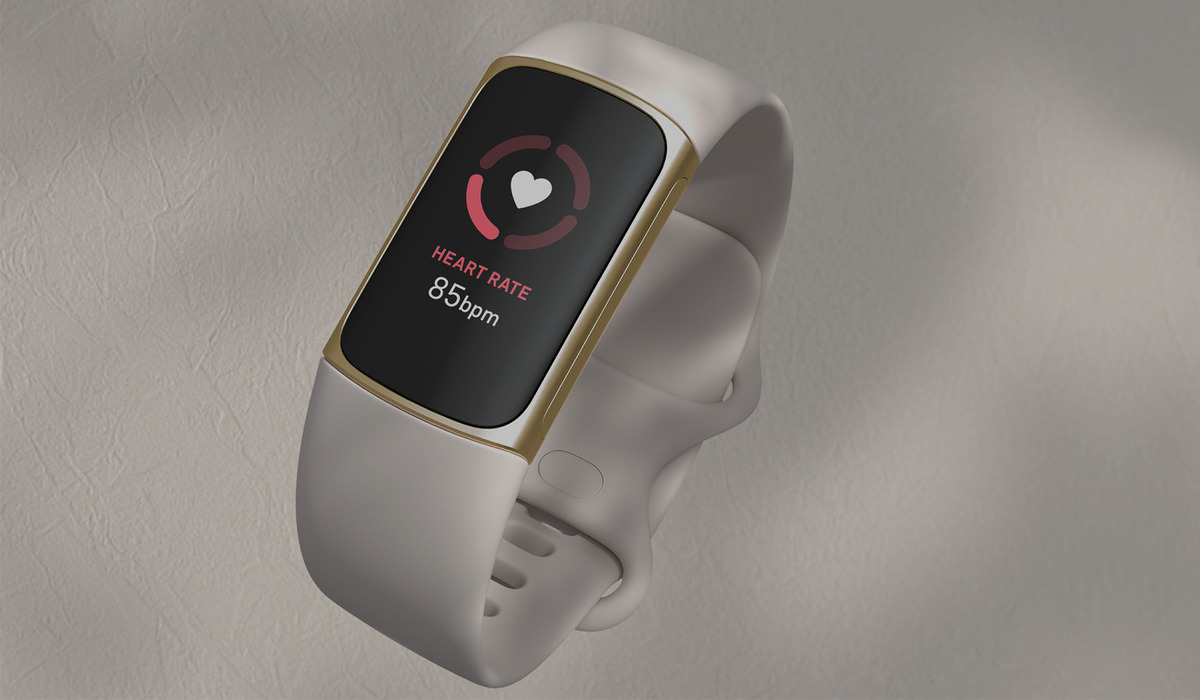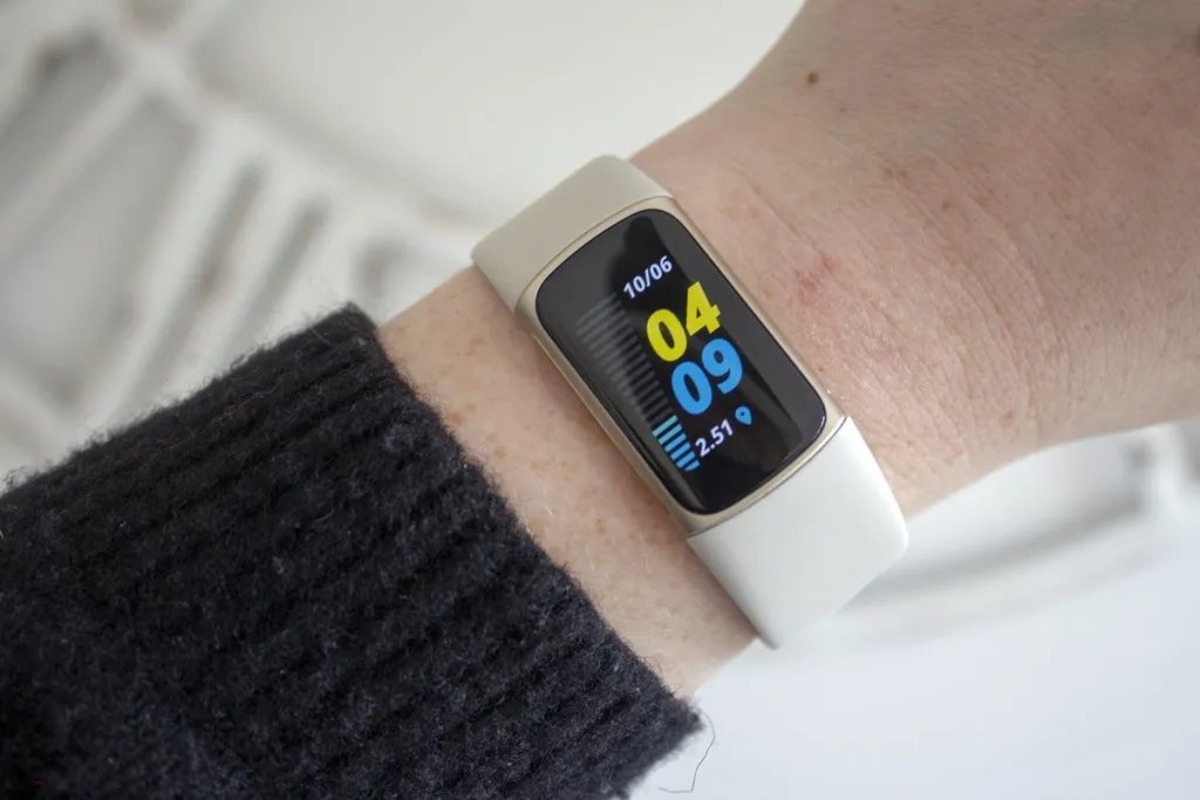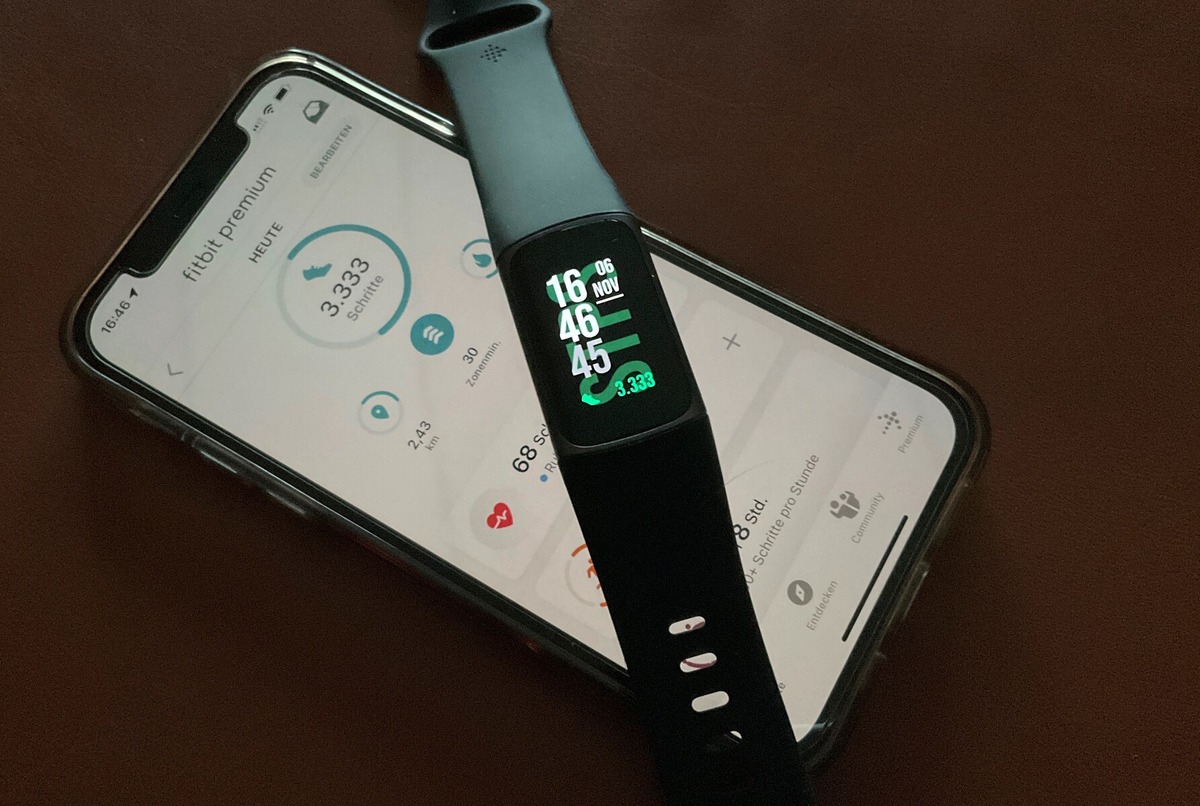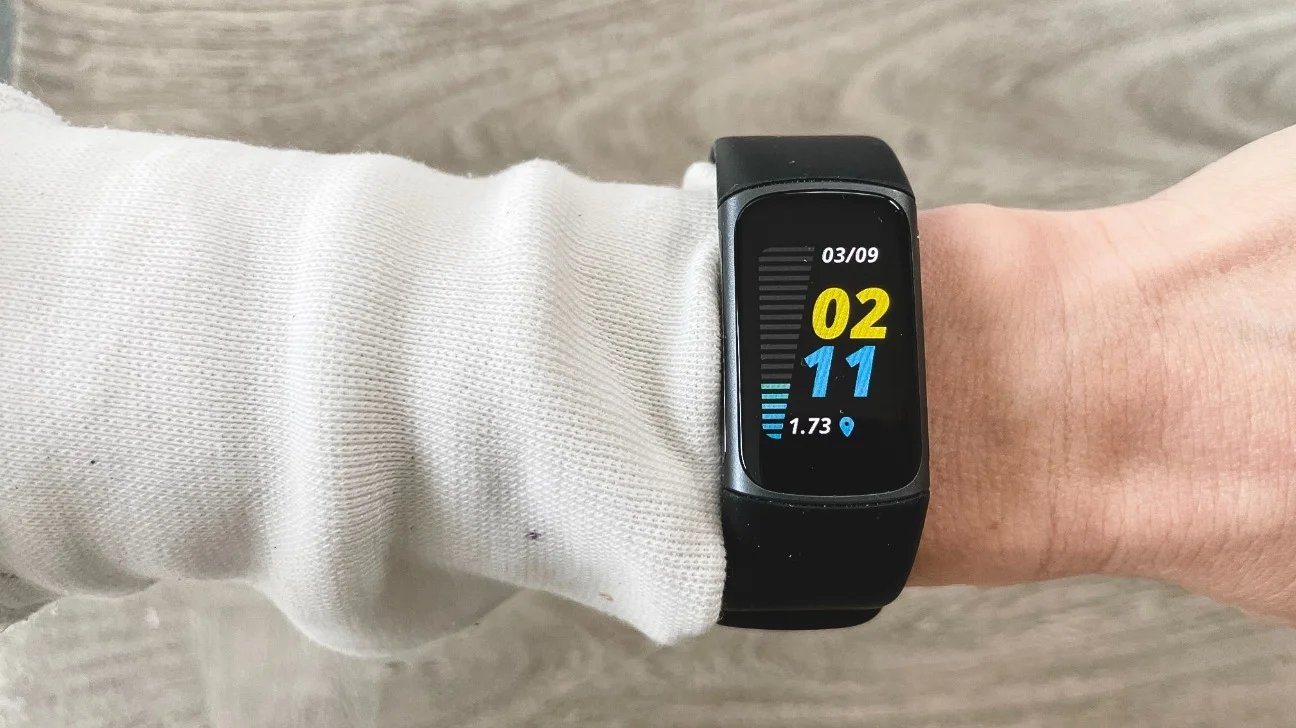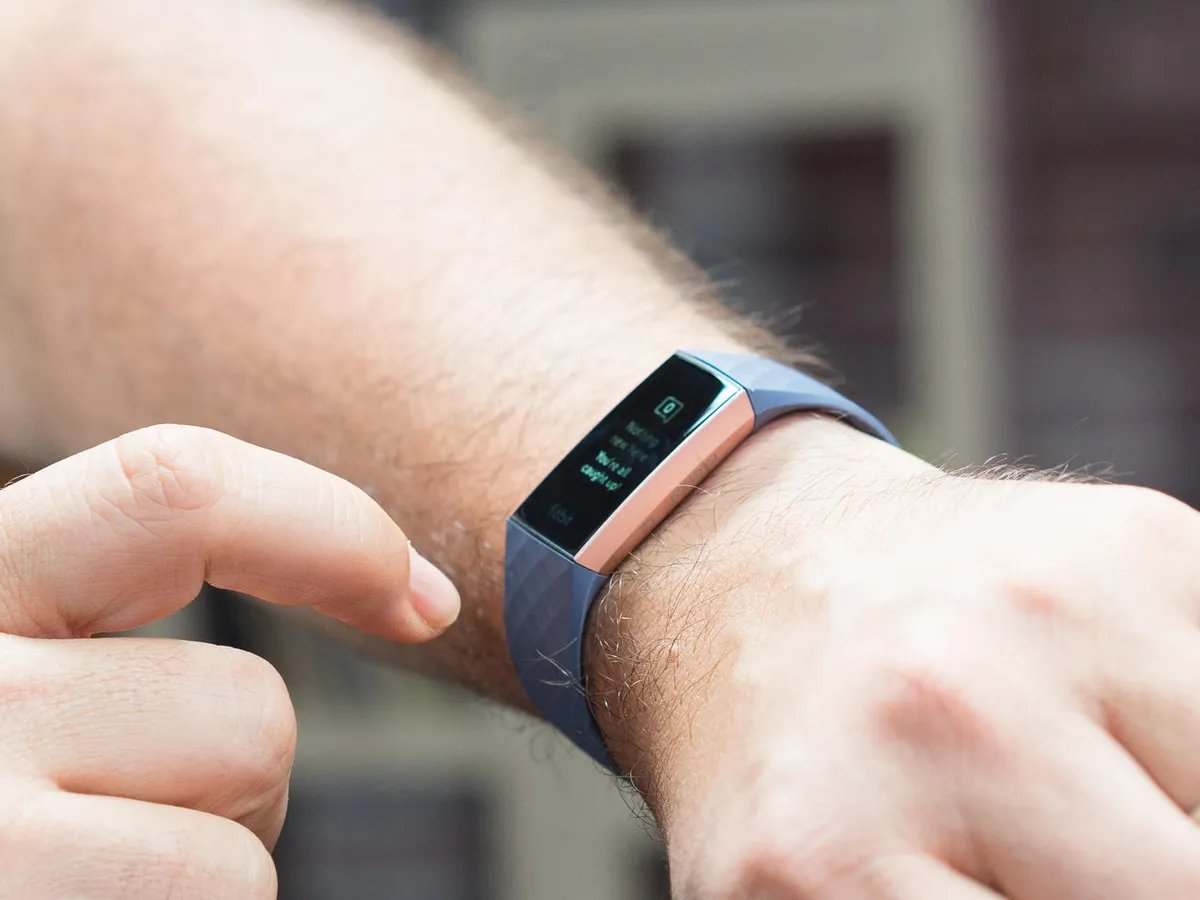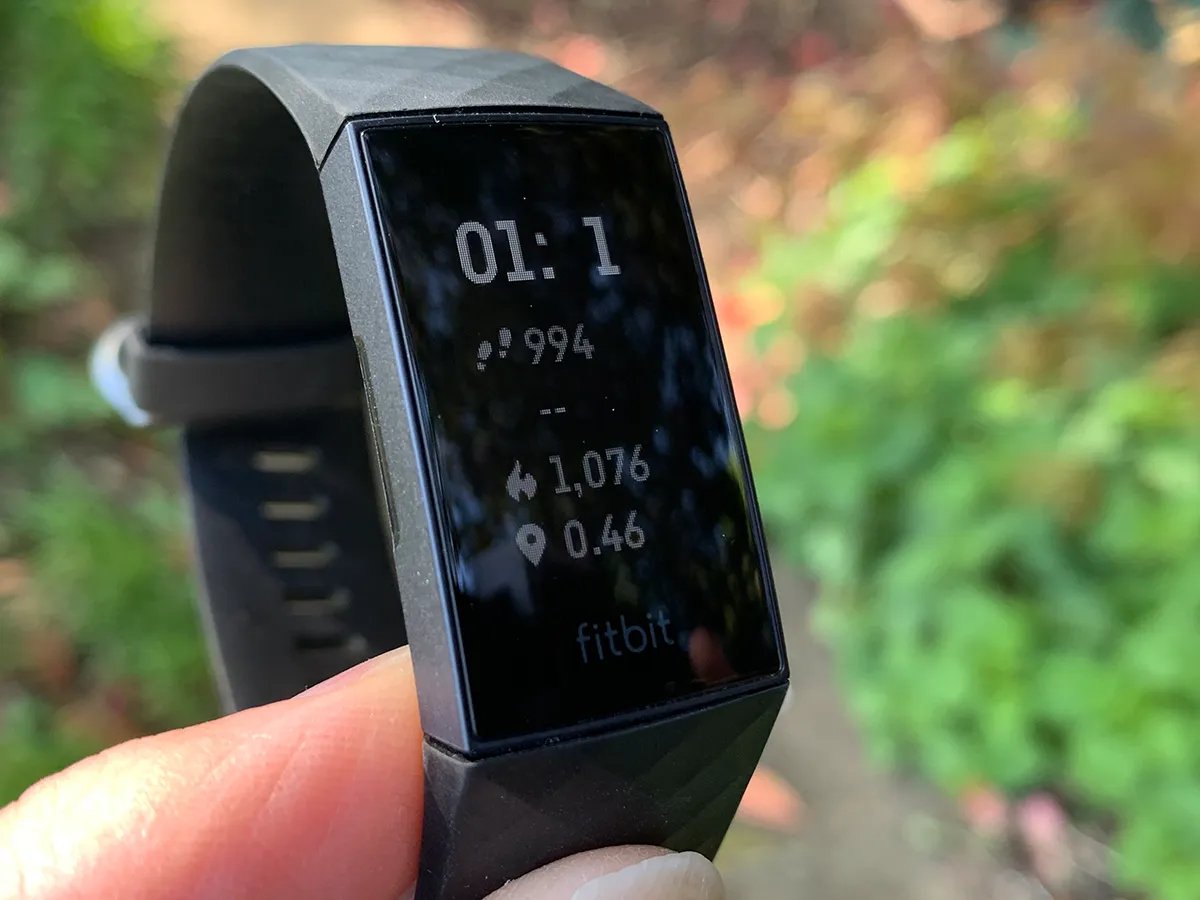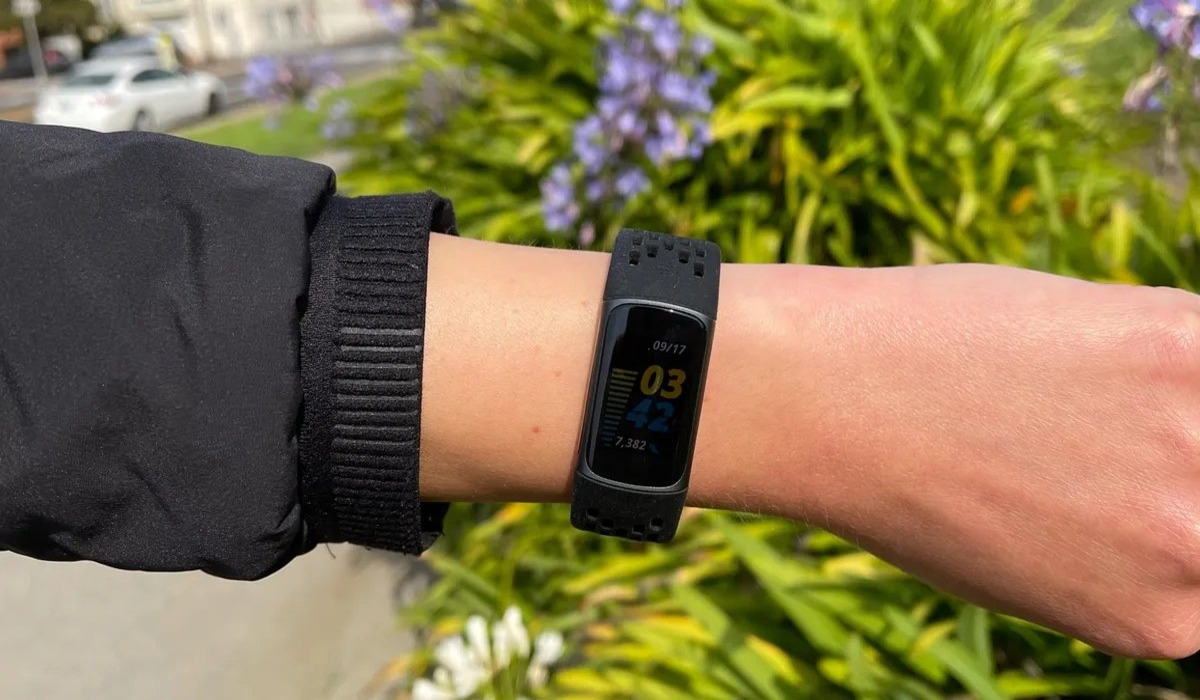
If your Fitbit Charge 5 is not showing time when turning wrist, the fix is to set Screen Wake to Auto. On your tracker, go to the clock screen, swipe down from the top to open quick settings, tap Screen Wake, and select Auto.
Fitbit Charge 5 not showing time when turning wrist: the fix
The only documented fix for the Fitbit Charge 5 not showing time when turning wrist is to ensure Screen Wake is set to Auto. You can change this setting directly on your tracker or through the Fitbit app. If Screen Wake is already set to Auto and the problem persists, no further Charge 5-specific troubleshooting steps are documented.
Where to find Screen Wake on your tracker
- From the clock screen, swipe down from the top of the display.
- Tap the quick settings icon (the gear or settings symbol).
- Scroll to and tap Screen Wake.
- Select Auto.
Once you set Screen Wake to Auto, the time should appear each time you turn your wrist toward you.
How to change Screen Wake in the Fitbit app
- Open the Fitbit app on your phone.
- Tap the Today tab at the bottom of the screen.
- Select Charge 5 from the list of devices.
- Tap Screen Wake.
- Select Auto.
This app path mirrors the on-tracker setting and accomplishes the same result.
What happens when Screen Wake is set to Manual
When Screen Wake is set to Manual, turning your wrist will not wake the screen. Instead, you must firmly double-tap the screen to see the time. This is a deliberate behavior, not a malfunction. If you prefer the screen to wake automatically with wrist motion, switch Screen Wake back to Auto.
Supported devices for this setting
The same wrist menu path, clock screen, swipe down, quick settings, Screen Wake, is documented for Fitbit Charge 5, Charge 6, and Luxe. If you own one of these devices and the screen does not wake on wrist turn, check the Screen Wake setting using the steps above.
What to do if Screen Wake is already on Auto
If Screen Wake is already set to Auto and your Fitbit Charge 5 still does not show the time when you turn your wrist, no additional Charge 5-specific fix is documented in Fitbit’s help resources. The help page does not describe a separate wrist-turn sensitivity control, firmware update step, or any other troubleshooting procedure for this symptom. Restart your Fitbit Charge 5 by pressing and holding the button on the side of the device until it powers off, then press the button again to turn it back on. Ensure that your Fitbit Charge 5 is properly strapped to your wrist. If the device is loose or not positioned correctly, it may have difficulty registering your wrist movement. Check the battery level of your Fitbit Charge 5. If the battery is low, the device may not have enough power to display the time when you turn your wrist. Make sure that the screen orientation setting is correctly configured on your Fitbit Charge 5. Open the Fitbit app on your smartphone and go to the device settings. Look for the screen orientation option and ensure that it is set to 'Automatic' or 'Wrist Rotation'. You may need to reset your Fitbit Charge 5 to its factory settings. Be aware that this will erase all data and restore the device to its original state. Fitbit offers telephone support for immediate assistance. Check the Fitbit website for the contact number assigned to your region. Fitbit's community forums are an excellent resource to seek help from other Fitbit users who may have experienced a similar issue. Fitbit maintains an active presence on social media platforms like Twitter and Facebook. You can send them a direct message or leave a comment on their posts. You can use the Fitbit app on your smartphone or tablet to contact support. Navigate to the Help or Support section within the app and submit your inquiry. In this case, contact Fitbit Support for further assistance.
Frequently Asked Questions
How do I make the time show when I turn my wrist?
Set Screen Wake to Auto on your tracker or in the Fitbit app. This is the only documented method to enable automatic screen wake on wrist turn for the Charge 5.
What if Screen Wake is set to Manual?
With Manual mode, the screen will not wake when you turn your wrist. You must firmly double-tap the screen to see the time. To restore automatic wrist-turn wake, change the setting to Auto.
Where is the Screen Wake setting on the tracker?
From the clock screen, swipe down from the top, tap quick settings, then tap Screen Wake. This path works for Charge 5, Charge 6, and Luxe.
Where is the Screen Wake setting in the Fitbit app?
Open the Today tab, tap the devices icon, select Charge 5, then tap Screen Wake. You can choose Auto or Manual from there.
Can I change the time on a Fitbit without the app?
Yes, you can change the time on a Fitbit without the app by adjusting the Screen Wake setting directly on the tracker. The on-device menu path, clock screen, swipe down, quick settings, Screen Wake, lets you switch between Auto and Manual without using the Fitbit app.
Related reading: How To Restart My Fitbit Charge 5 and How To Remove Band From Fitbit Charge 5.