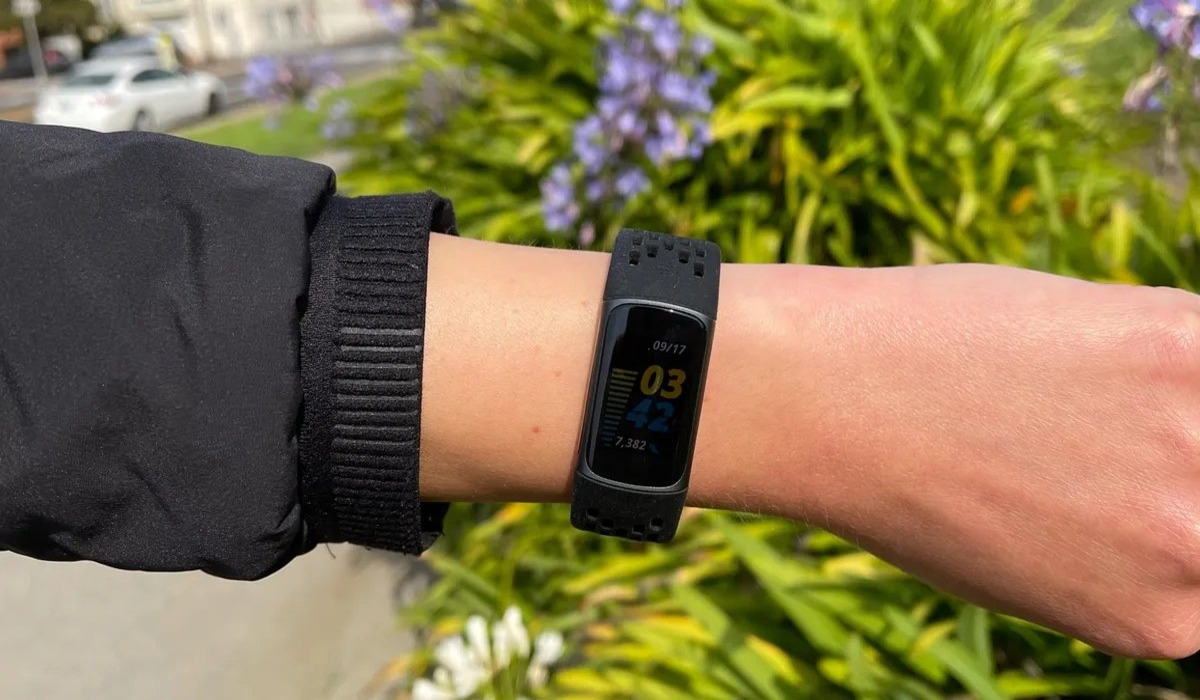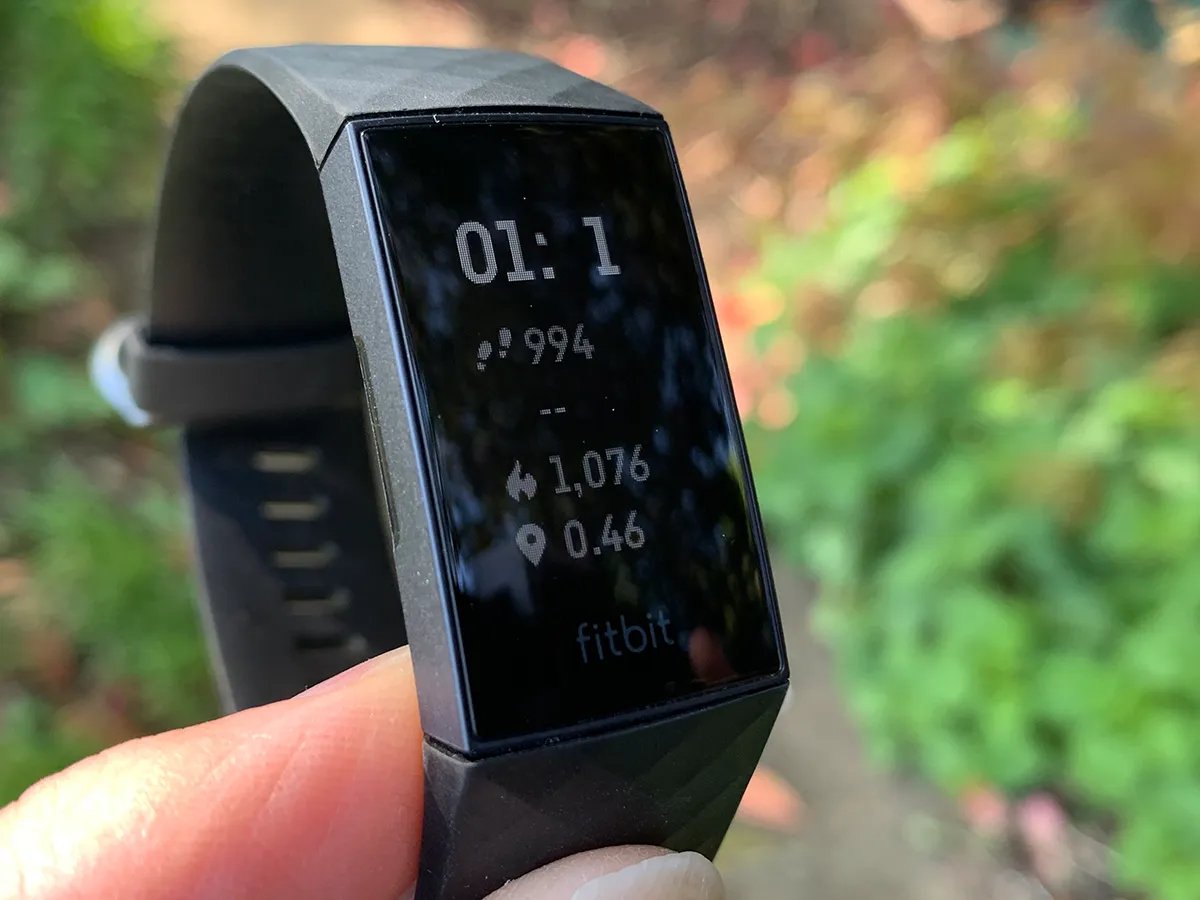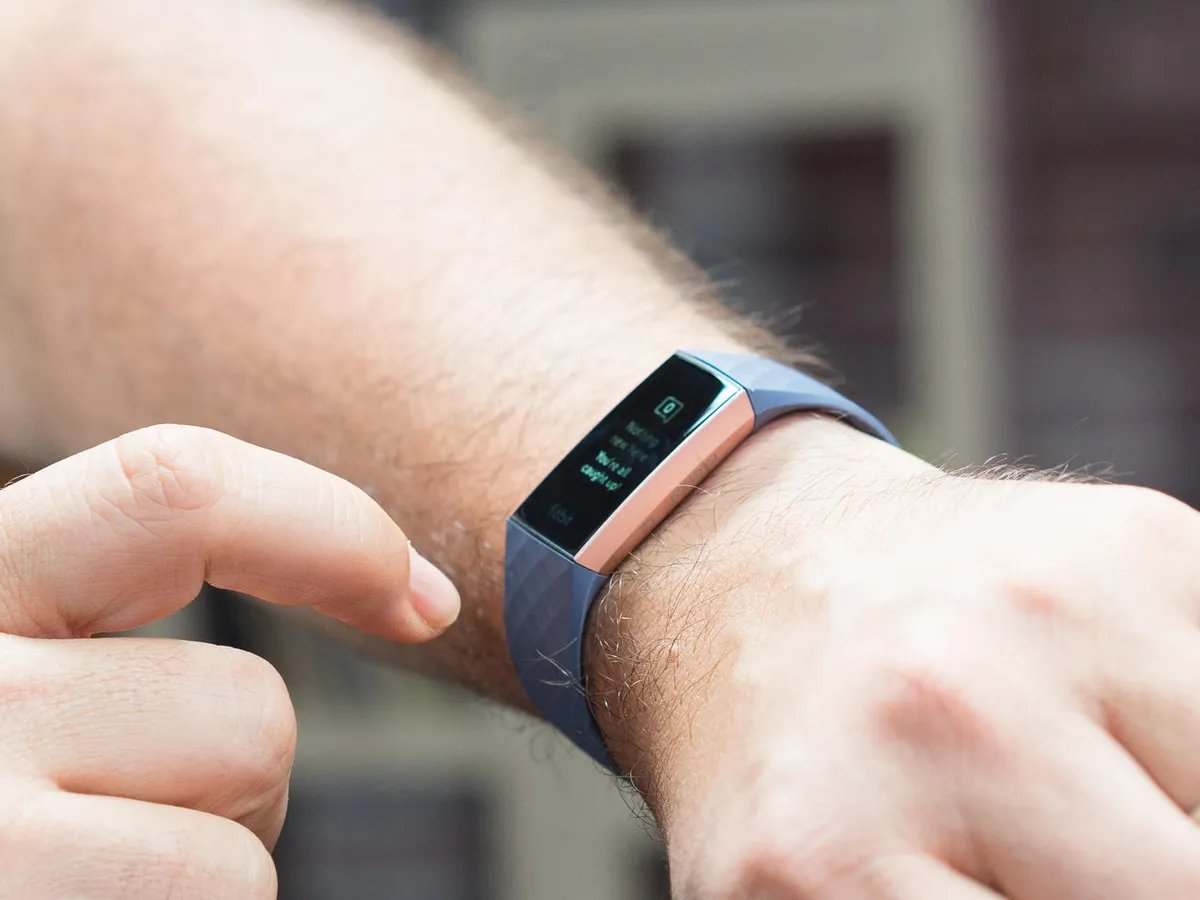
If your Fitbit Charge 4 is not displaying when turning wrist, the most common fix is checking the Screen Wake setting directly on the tracker. This setting controls whether the screen turns on automatically when you rotate your wrist, and it is the first thing Fitbit's official documentation tells you to verify.
Check the Screen Wake setting on your tracker
The Screen Wake setting on your Fitbit Charge 4 must be set to "Auto" for the screen to turn on when you turn your wrist. To check this on the tracker itself, press and hold the button, then swipe left to find Settings. Tap Screen Wake and ensure it is set to Auto, not Manual. If it is set to Manual, the screen will not wake on wrist turn; instead, you must firmly tap the screen twice to turn it on. Fitbit’s manual says to turn the screen off you can briefly cover the face, press the button, or turn your wrist away from your body. You can also access this setting from the clock screen by swiping down to quick settings and tapping Screen Wake. Screen wake is part of the device settings, not a phone-only control.
Make sure Sleep Mode is turned off
Fitbit's help pages confirm that Screen Wake will not work if Sleep Mode is on. Raising your wrist does not turn on the screen when Sleep Mode is enabled. To disable it, open the Sleep Mode setting on your tracker and turn it off. This is a documented condition that prevents the wrist-wake feature from functioning.
Ensure a snug and normal fit
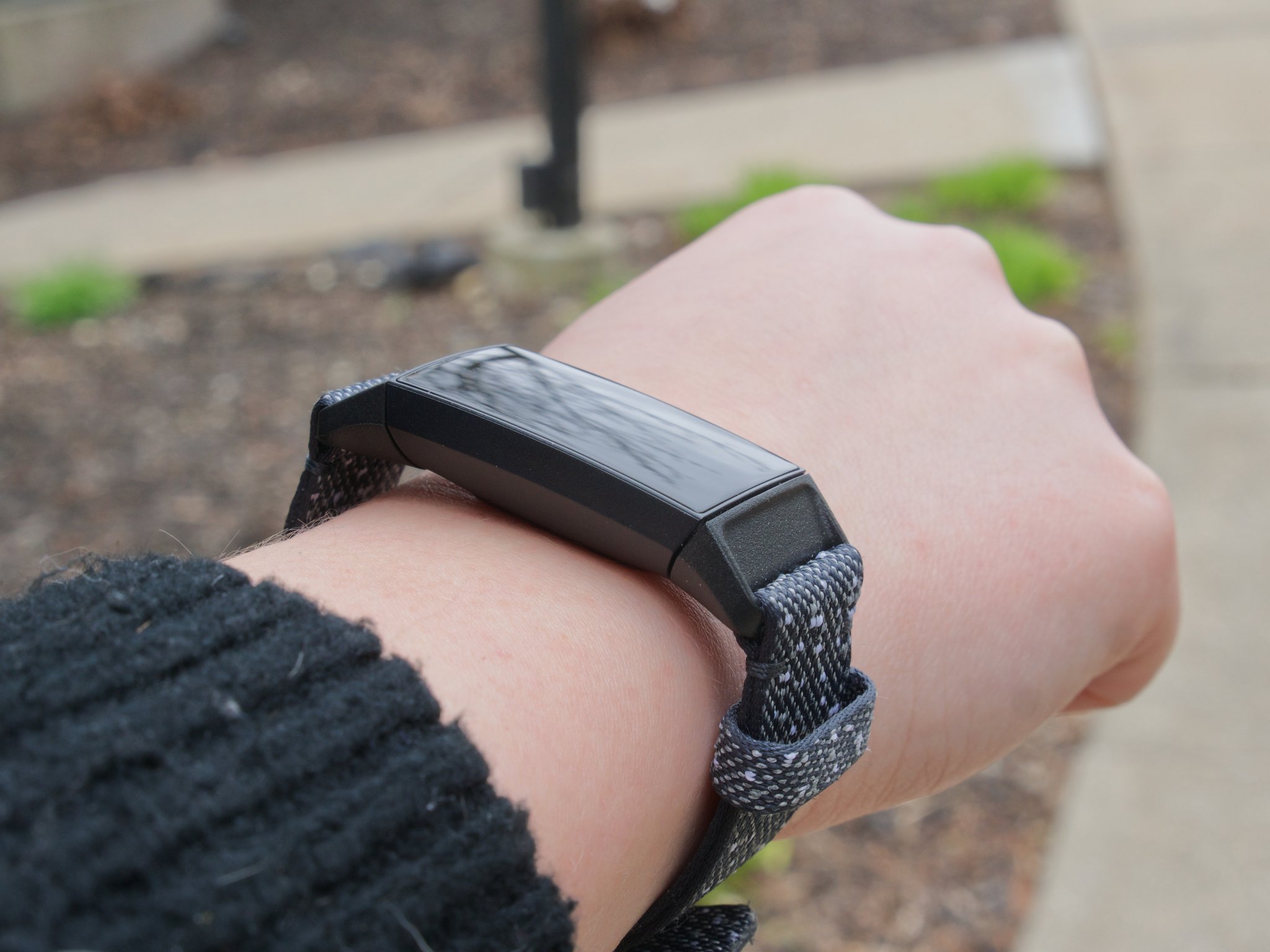
The screen wake behavior depends on the tracker being worn normally. If your Fitbit Charge 4 is worn too loosely, the accelerometer may not detect the wrist movement correctly. Fitbit's manual advises that the tracker should be worn snugly and used normally for the screen to wake as expected. This is not about internal sensors; it is about the physical fit of the device on your wrist.
Sync your tracker and update software
After changing any settings, sync your Charge 4 to send those changes to the device. Fitbit’s Charge 4 manual says setup is done with the Fitbit app for iPhones and iPads or Android phones. Charge devices sync with iPhone 5S and later, iPad 5th generation and later, and Android 7.0 and later. Fitbit's manual says to sync your Charge to ensure setting changes take effect. Additionally, check for firmware updates in the Fitbit app, as software issues are listed as a possible cause of wake problems. Updating the Fitbit app and device software can resolve these issues.
Restart your Fitbit Charge 4
If the screen still does not wake, restarting your tracker can clear temporary glitches. For detailed instructions on how to perform this step, refer to the mandatory "restart Fitbit" hub page. This is a simple troubleshooting step that Fitbit recommends for resolving many common issues, including screen wake problems.
Frequently Asked Questions
Can I adjust the sensitivity of the wrist turn feature?
No, there is no option to adjust the sensitivity of the wrist turn feature on the Fitbit Charge 4. The device is programmed to activate the display when it detects a natural wrist movement.
Does the Fitbit Charge 4 have an always-on display?
No, the Fitbit Charge 4 does not have an always-on display. The device is designed to conserve battery life by turning off the display when not in use.
What if my Fitbit Charge 4 still doesn't display after trying these steps?
If the issue persists, contact Fitbit customer support for further assistance. They can help diagnose any hardware problems or provide additional troubleshooting steps specific to your device.
Can I use my Fitbit Charge 4 without the wrist turn feature?
Yes, you can still use your Fitbit Charge 4 even if the wrist turn feature is not working. You can manually tap the screen to wake up the device and interact with its functions.
Related reading: Fitbit Charge 5 Not Showing Time When Turning Wrist and How To Turn Up Brightness On Fitbit Charge 4.