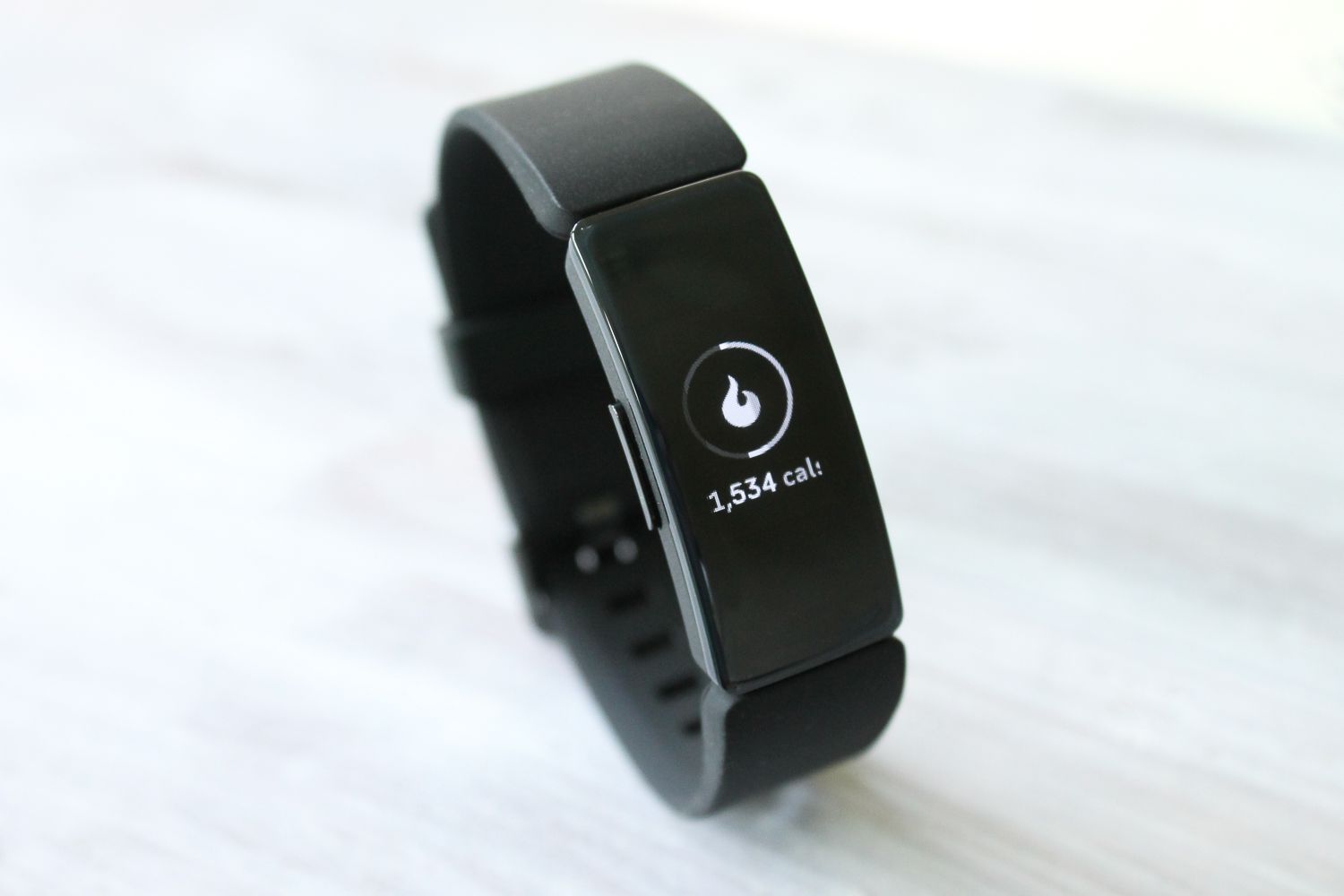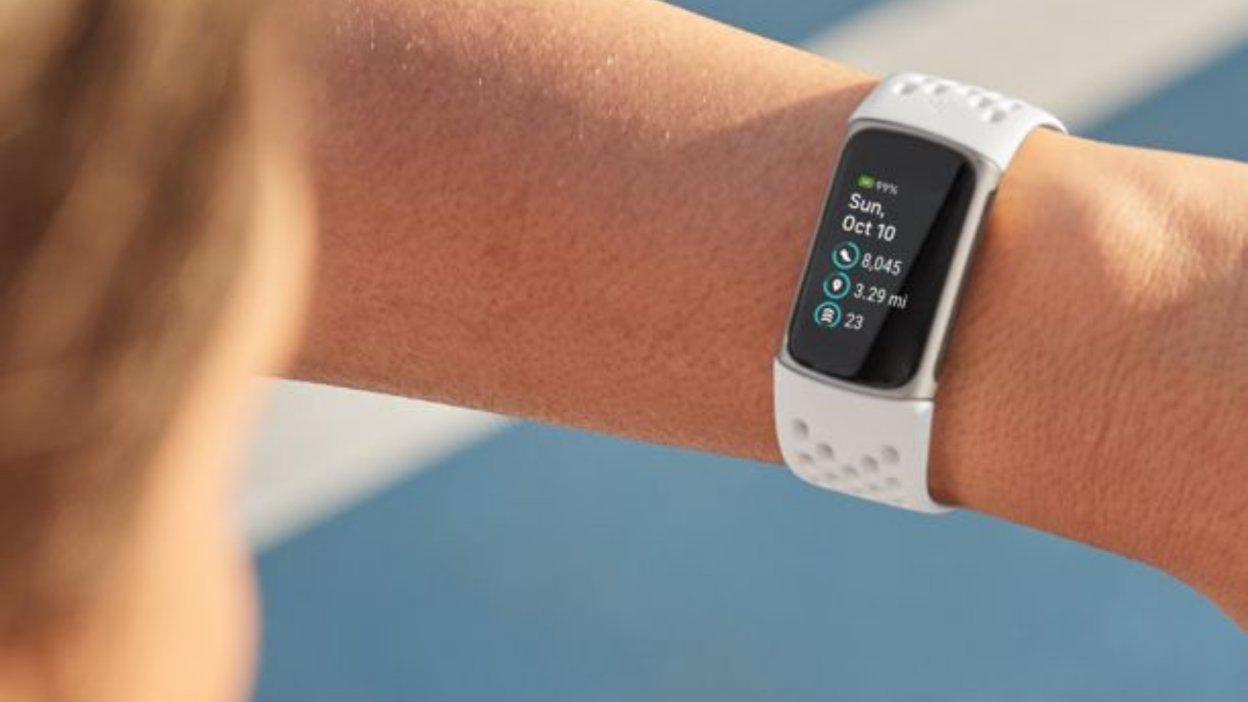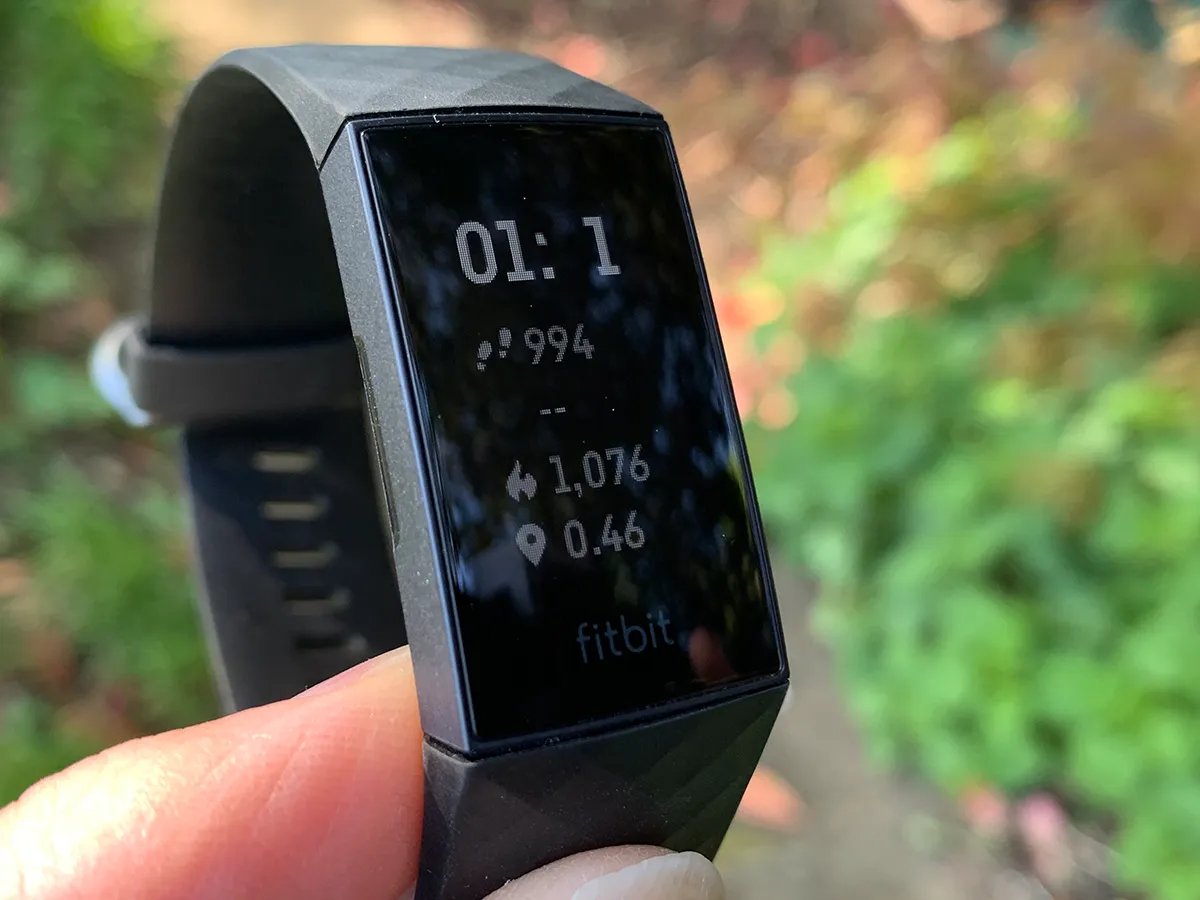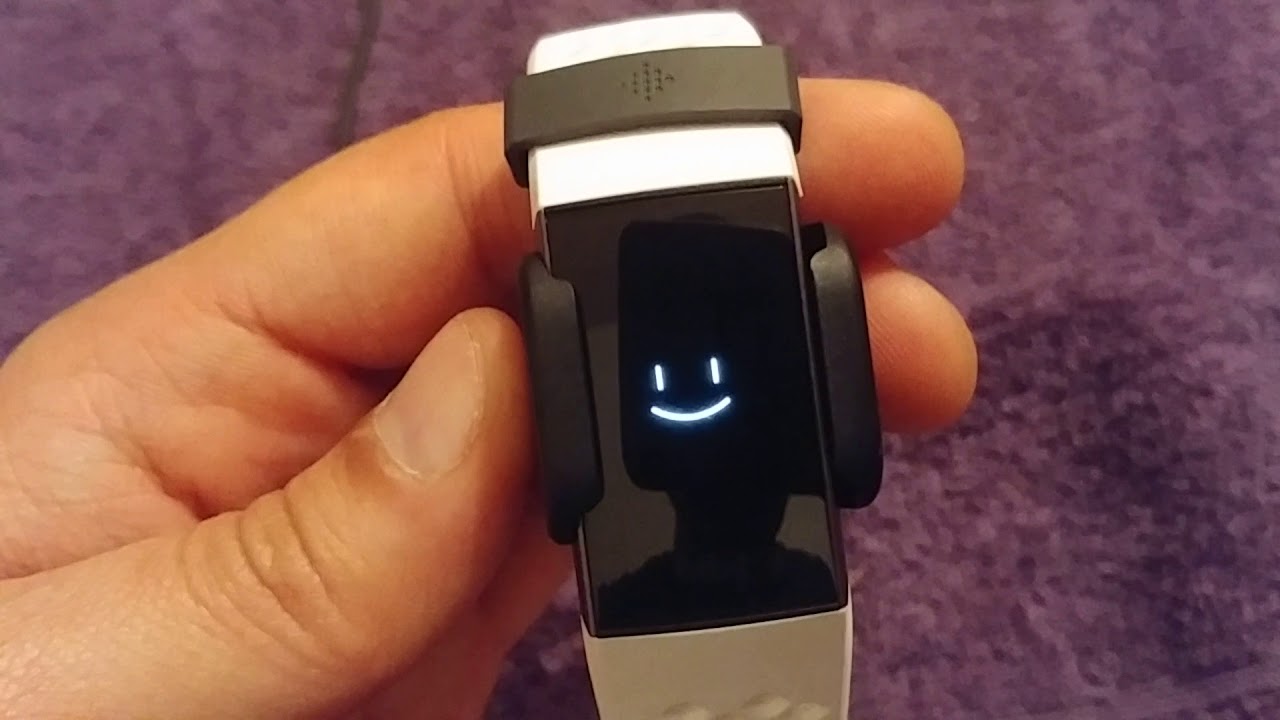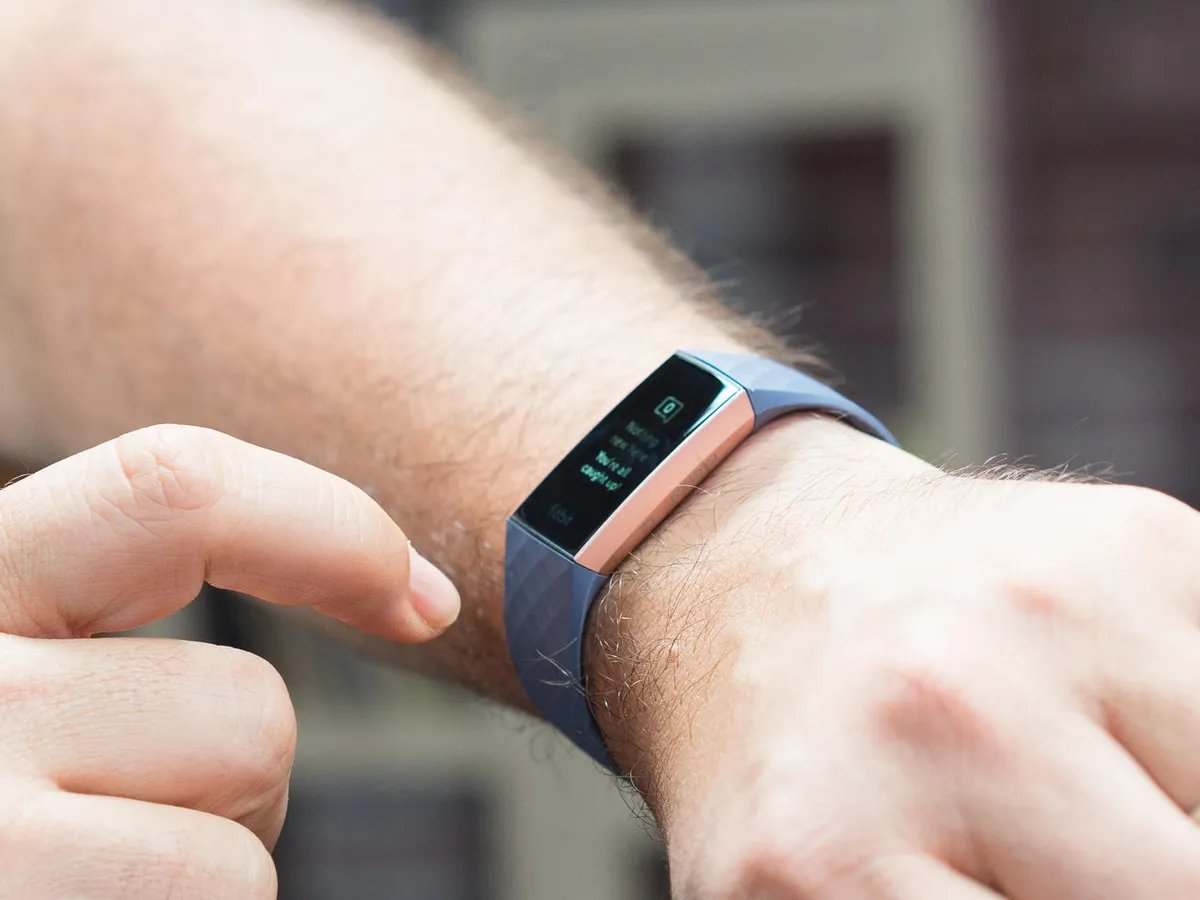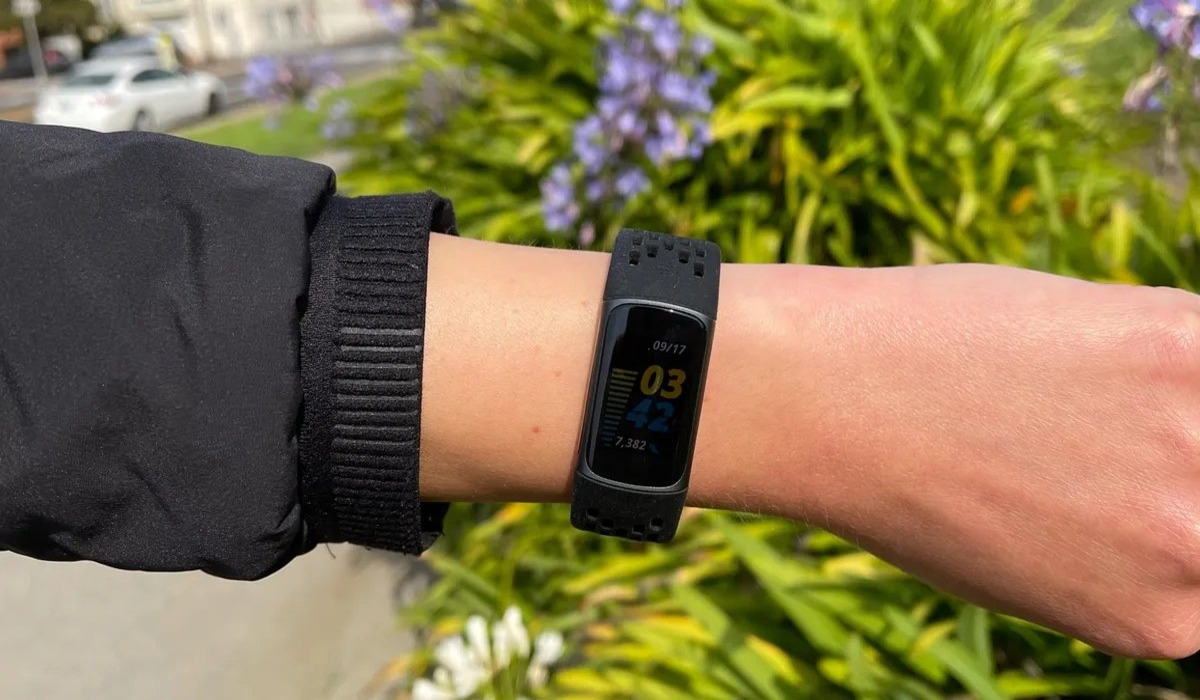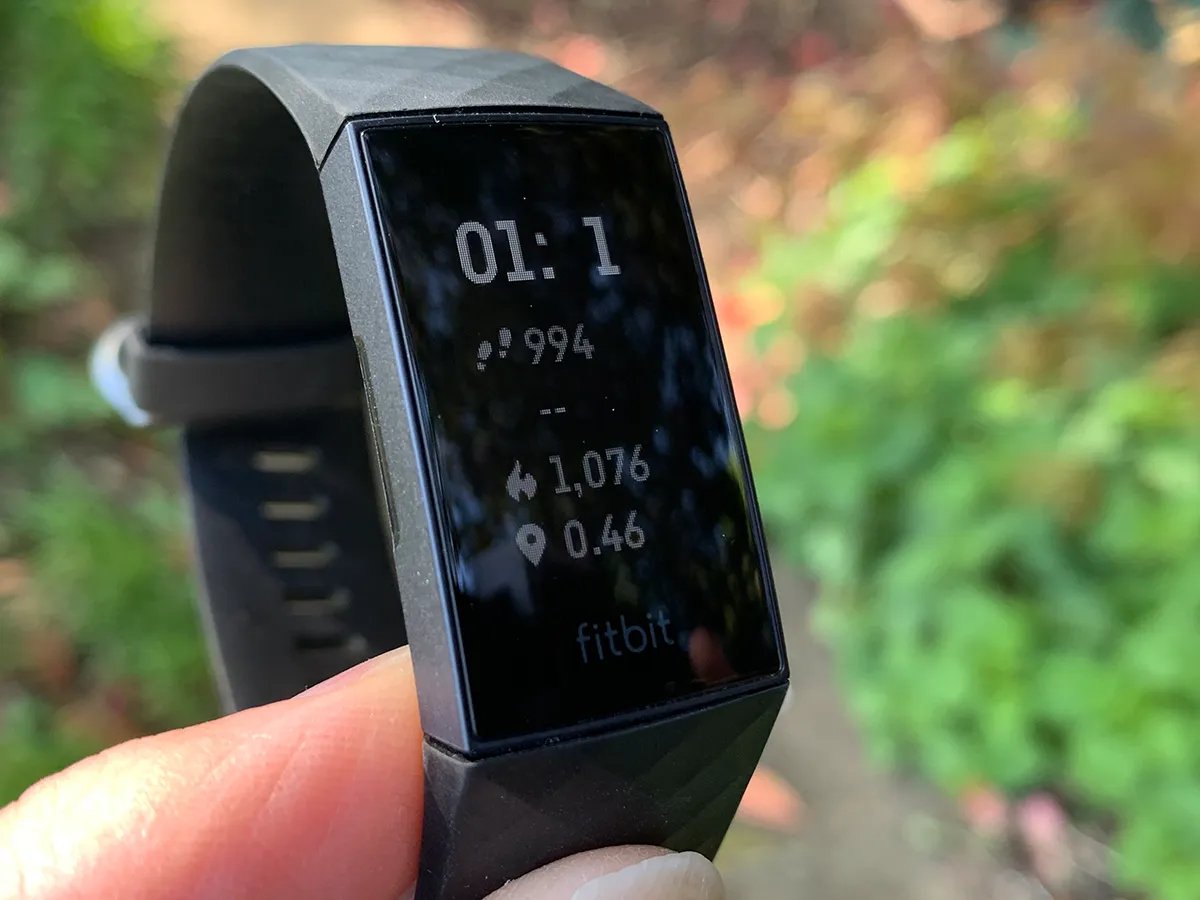
To turn up brightness on Fitbit Charge 4, wake the tracker and swipe horizontally from the clock face until you reach Settings. Tap Settings, then Brightness, and tap repeatedly to cycle through the options until you select Normal, the brightest documented manual setting.
How to turn up brightness on Fitbit Charge 4
The manual snippets retrieved are for Fitbit Charge 4 User Manual version 1.6.
- Wake the tracker by pressing the side button or raising your wrist.
- From the clock face, swipe horizontally until you reach Settings.
- Tap Settings.
- Tap Brightness.
- Tap repeatedly to cycle through Auto, Dim, and Normal.
- Stop at Normal for the brightest screen available on the device.
Understanding the brightness options: Auto, Dim, and Normal
The Fitbit Charge 4 offers three documented brightness settings. Dim is the lowest level, useful for preserving battery in low-light environments. Normal is the brighter manual setting, providing the clearest display for most conditions. Auto adjusts brightness automatically based on ambient light using the device’s built-in sensor. If you want maximum brightness manually, select Normal; there is no separate “Max” or “Bright” setting documented for this model. The manual also lists Display On Settings as a separate display option, but it does not tie that setting to brightness control.
Why is my Fitbit Charge 4 screen still dim?
The most common reason for a persistently dim screen is that the tracker is in Sleep mode. When Sleep mode is active, the brightness is forced to Dim regardless of your selected setting. To resolve this, turn off Sleep mode: swipe to Settings, tap Sleep mode, and toggle it off. Once disabled, your brightness choice (such as Normal) will take effect again.
Can I change the brightness from the Fitbit app?
No. Brightness adjustments for the Fitbit Charge 4 are made exclusively on the tracker itself through Settings > Brightness. The Fitbit app, available on iPhone from the Apple App Store and on Android from the Google Play Store, is used for setup, syncing, and viewing data, but does not include a brightness control for the Charge 4. You must use the device’s on-screen menu to change the setting.
Frequently Asked Questions
Does increasing brightness drain the battery faster?
Yes. Higher brightness levels, especially Normal, consume more power. For longer battery life, use Dim or Auto mode. You can also adjust other settings under Fitbit battery and power settings to optimize runtime.
How do I enable auto brightness on my Charge 4?
Go to Settings > Brightness on the tracker and tap until you select Auto. The device will then adjust brightness based on ambient light. There is no separate toggle or slider for auto brightness beyond this selection.
Is there a way to make the screen brighter than Normal?
No. The Charge 4’s documented brightness options are limited to Auto, Dim, and Normal. There is no “Max” setting, slider, or numeric level available. If the screen still seems dim, ensure Sleep mode is off and the display is clean.
Can I adjust brightness during a workout?
Yes. Wake the tracker at any time, swipe to Settings, and change the brightness. The setting applies immediately and persists until you change it again.
Why does my Charge 4 brightness change by itself?
If you have selected Auto, the brightness will change automatically based on surrounding light. If you selected Normal or Dim and brightness still changes, check that Sleep mode is not turning on at scheduled times or during inactivity.
Does the setting vary by carrier?
No carrier-specific brightness control is documented.
For the wider topic, see Fitbit battery and power settings.
Related reading: How To Increase Brightness On Fitbit Inspire 2 and Why Is The Light On My Fitbit Dim.